
Introduction
Android battery drain is hard to fix when the phone keeps losing power while it looks unused. Battery usage does not always point to one clear app or one clear reason.
The drop appears in different situations: while the screen is off, after an update, during standby, or while a service keeps running in the background. At first, it often looks like a bad battery or one random app.
Many users start by deleting apps, clearing cache, changing battery settings, or blaming the battery itself before checking when the drain actually happens.
Start by separating the drain by situation. Check whether the loss happens during screen-off time, after a system change, around a specific app or service, or through network and background activity.
Use this guide to narrow down the main causes before changing random settings.
Step-by-Step Guide: Check Android Battery Drain by Situation
Step 1: Check Whether the Drain Happens While the Screen Is Off
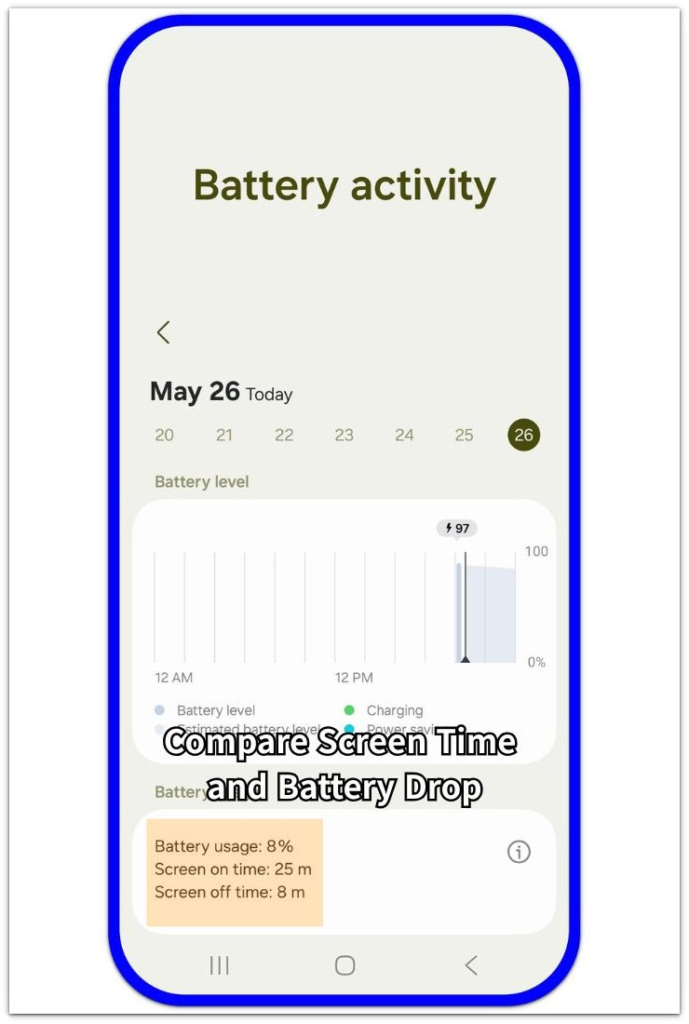
Start with the period when no one was using the phone. Open Settings, then go to Battery. Look for a time when the screen stayed off but the battery still dropped.
Before blaming one app, compare the battery drop with screen time. If the battery level fell while screen time stayed low, the drain is not coming from normal screen use.
Next, check whether the same drop appears during another quiet period. Leave the phone locked for 30–60 minutes, avoid opening apps, and check Battery again after the test.
This separates screen-off drain from normal daily use. One short break gives a weak reading by itself. Repeated screen-off drops make idle, sleep, and wakeup checks more useful.
Related checks for screen-off and idle drain
Doze Mode — Fix Drops While Idle
The phone should be resting. The battery still falls during a quiet idle period.
Deep Sleep — Why the Phone Does Not Fully Rest
Screen time stays low. The battery line keeps moving while the phone stays locked.
With Screen Off — Why Your Phone Keeps Waking Up
The drop begins after the screen turns off. The phone keeps waking in the background.
When Idle — Why Power Saving Does Not Stop It
Power Saving is already on. The phone still loses battery while it sits unused.
Always On Display — Why the Screen Keeps Using Power
The phone looks idle. Display or wake features still add small battery use.
Adaptive Charging — Why Power Drops While Plugged In
Battery loss appears during charging or overnight plug-in time. It does not follow normal screen use.
Kernel Wakelock — Why the Phone Will Not Stay Asleep
The screen stays off, but part of the phone stays awake during a period that should be idle.
Wakeup Alarms — Why Background Alarms Keep Waking the Phone
Background alarms can wake the phone during locked time, even when no app looks open.
Step 2: Check Whether the Drain Started After a System Change
Look at what happened before the battery started dropping faster. A software update, app update, reboot, factory reset, or new setup can leave Android working in the background even after the phone looks ready.
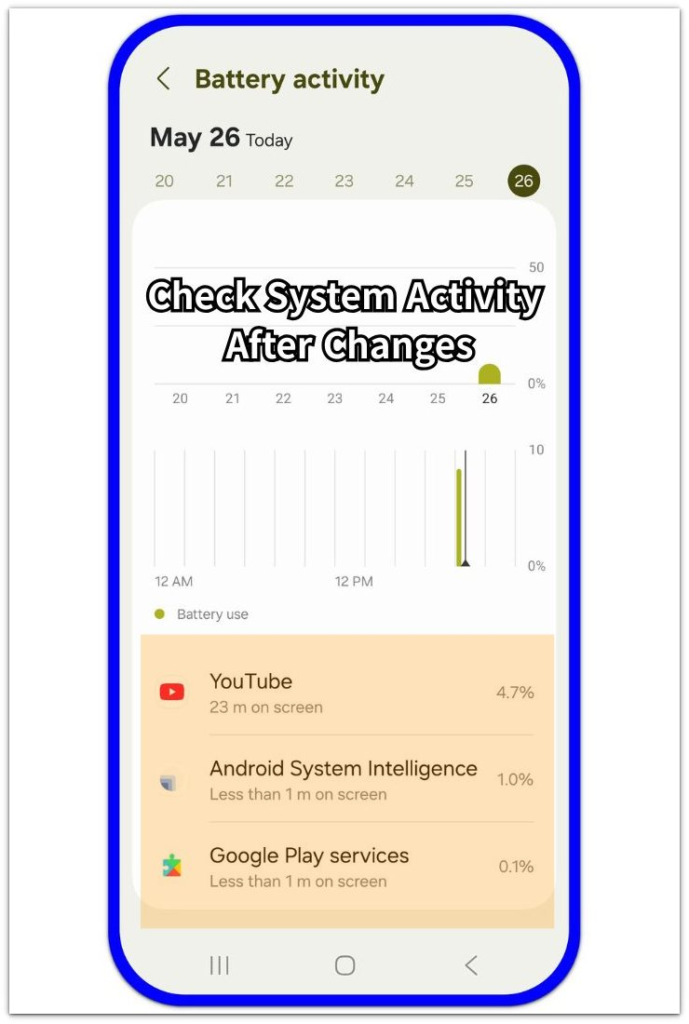
Open Settings, then go to Battery and check the period after that change. Look for Android System, Google Play services, System UI, or a recently updated app near the battery drop.
A short drop after a system change often fades once the phone settles. Check whether the same system-related entry returns after normal use and another quiet period.
Give the phone one normal charging cycle or one clean standby check before changing more settings. If the drain keeps showing after that, compare system activity with apps and services next.
Related checks after updates, restarts, and setup
After Software Update — Why the Phone Keeps Working After It Restarts
The phone has already reached the home screen, but background work still continues after restart.
Post-Update System Validation — Why It Happens After an Update
The phone looks ready, but background checks often continue during the first quiet period after installation.
After App Update — Why the Same App Starts Using More Power
A recently updated app starts using more power even though normal use did not change much.
Reboot Drain — Why Battery Loss Returns After Restart
The phone restarts normally, but the same battery loss returns after the system loads again.
After Factory Reset — Why It Still Drops After Setup
Restore, sync, app updates, and system services can keep running after the first setup screen.
System UI — Why It Shows in Battery Usage
System UI can appear during display, interface, or other system-level activity.
Google Play Services — Background Activity in Battery
Google Play services often returns during sync or account checks. It also appears during updates or app support activity.
Step 3: Check Apps, Services, and Hidden Activity
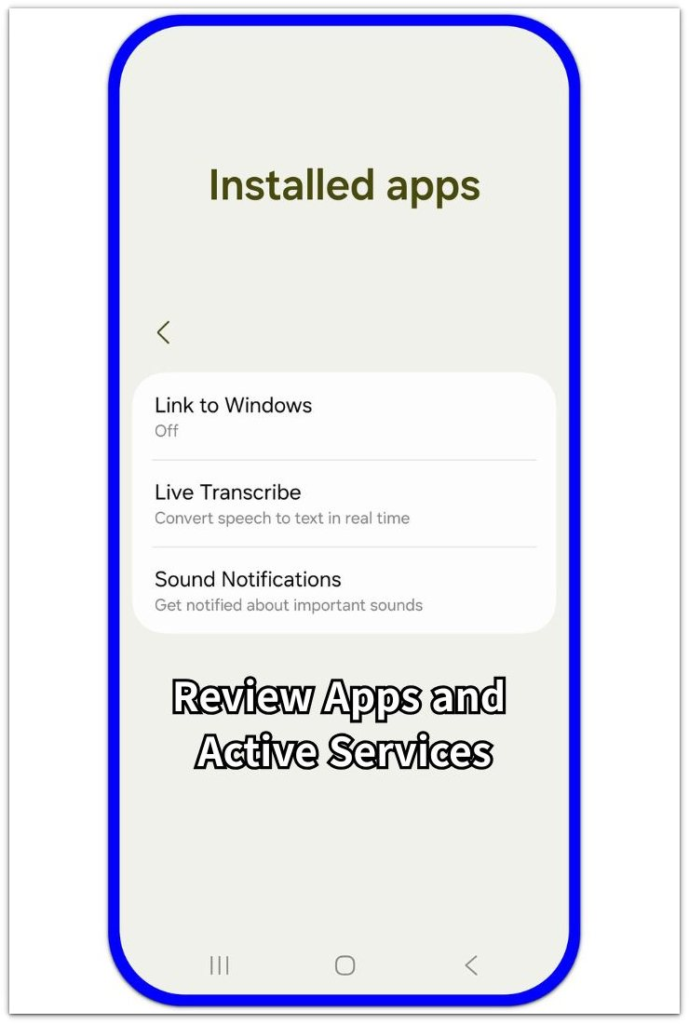
After you check screen-off drain and system changes, look at the apps and services that stay active in the background. Open Settings, then go to Battery and check which apps or system entries appear near the battery drop.
Start with entries that appear around the time of the drain. A recently used app is easier to understand, but some services keep working after the app is no longer open. Accessibility services, media scanning, captions, vibration, sensors, or high CPU activity can use power without looking like normal screen use.
Check one active feature or service at a time. Turning off several things together makes the next Battery check harder to read. Change one non-essential setting, use the phone normally, then compare the same kind of battery period again.
Heat helps narrow the check when screen time stays low. If the phone feels warm during the same battery drop, look again for an app, service, or system entry that kept working in the background.
Related checks for apps, services, and hidden activity
Accessibility Service — How to Stop Persistent Background Binding
An enabled service can stay connected in the background even when the related app is not open.
Media Server — Why Your Phone Keeps Scanning Files
File scanning continues after media, downloads, or stored files change. Check this when the battery drop follows file changes on the phone.
Live Captions — Check This Before Turning It Off
Caption features can appear around media, calls, or audio use. Check that timing before changing the setting.
Haptic Feedback — How to Fix Vibration Drain
Touch vibration and keyboard feedback add small power use. Repeated haptics can also continue throughout the day.
High CPU Usage — How to Stop Idle CPU Drain
The phone keeps working harder than expected. Screen time can still look low.
Overheating — Why a Hot Phone Loses Power Faster
Heat appears with faster battery loss. Heavy visible use may already have slowed down.
Sensor Issues — Check Before Blaming the Battery
Motion or proximity sensor activity can appear near the same battery drop. Check this before blaming the battery.
Step 4: Check Android Battery Drain From Network and Sync Activity
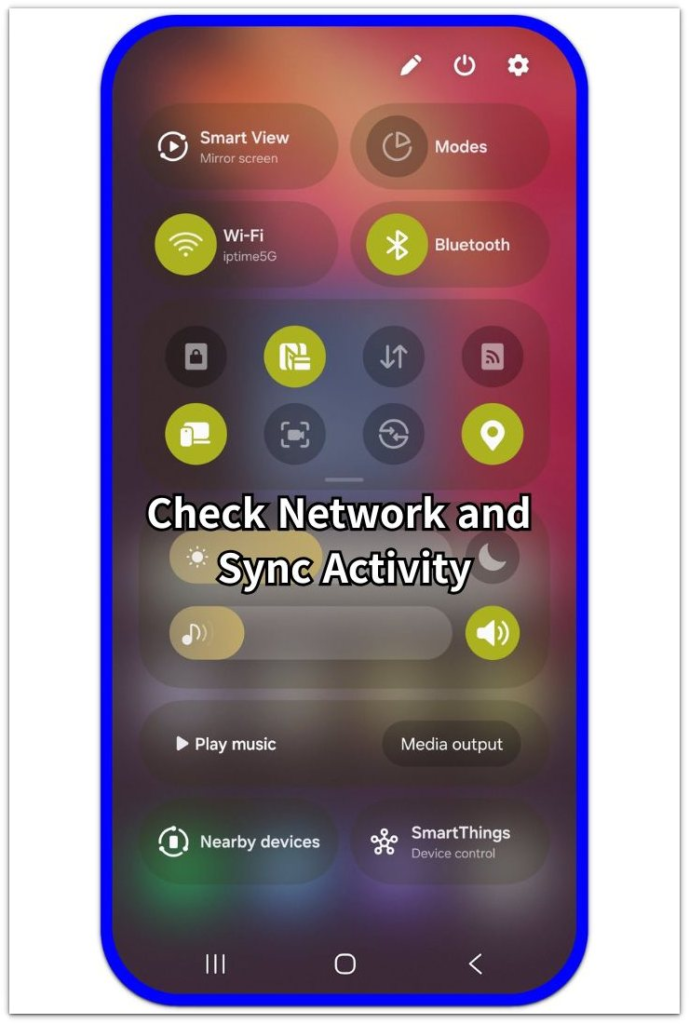
Next, look at the connections that stay active while the phone sits unused. Weak signal, mobile network reconnecting, location checks, Bluetooth scanning, NFC, VoLTE standby, and background sync can all use battery without looking like a normal app problem.
Open Settings, then go to Battery and compare the drop with the same period. Check whether the phone was in a weak signal area, switching between Wi-Fi and mobile data, using location access, scanning for nearby devices, or running background sync.
Use one clean test before changing several connection settings. Keep the phone locked for 30–60 minutes in the same place, then check whether the battery drop changes when the signal, Bluetooth, location, or sync condition is different.
If the drop follows connection activity more than screen time or one app, move to the closest related check first. Start with network standby, then check location, Bluetooth scanning, NFC, or background sync.
Related checks for network, connection, and sync activity
Poor Signal Strength — Why Weak Signal Drains Power Fast
A weak signal makes the phone work harder. The drain can continue even when the screen is off.
Mobile Network — Why Your Phone Keeps Reconnecting
The battery drops while the phone switches, searches, or reconnects to mobile service.
VoLTE Standby — Why Battery Drops With No Call Active
Voice service stays ready in the background. No active call needs to be happening.
Location Services — Why Location Still Runs When Idle
Location access keeps appearing around quiet periods. No navigation app has to be open.
Bluetooth Scanning — Why It Happens While the Phone Sits Locked
Bluetooth checks continue in the background. The phone sits locked with no active device.
NFC — Why NFC Stays Active When You Are Not Using It
NFC stays available for quick contactless actions. It does not always look active on screen.
Background Sync — Why the Phone Keeps Draining While Unused
Accounts, apps, or cloud services keep checking for updates. The phone still looks unused.
Official Source: Google Help on Android Battery Saver
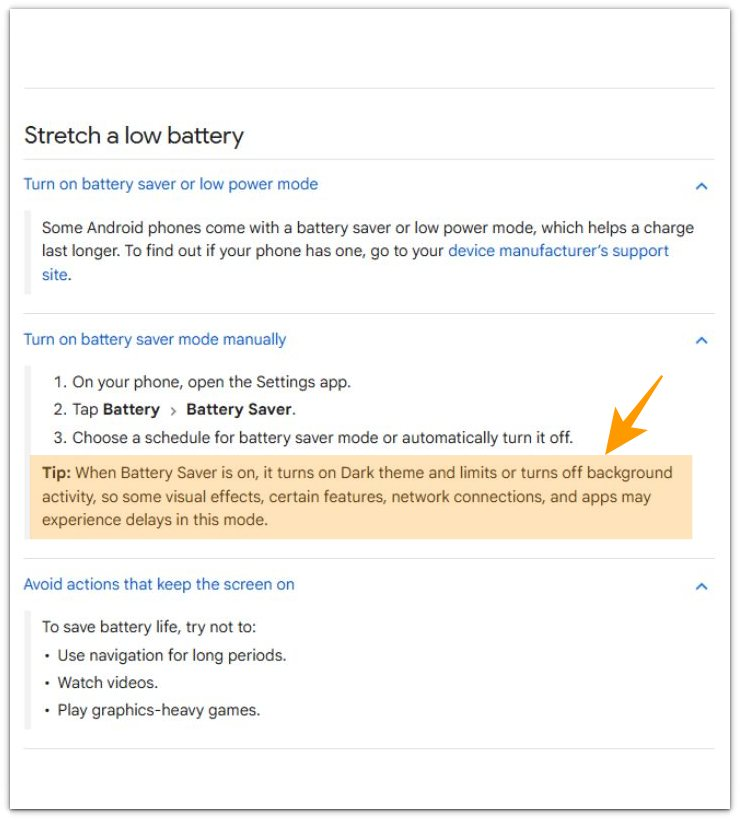
Google Help explains that Battery Saver limits or turns off some background activity. It also says network connections and apps can behave differently while that mode is on.
Use that official explanation as the starting point. Then compare the battery drop with screen time, Battery usage, and activity from the same period.
Additional Tips
Battery Saver reduces some background activity, but it does not show the exact cause of the drop. Use it as a clue, then check the same period in Battery usage.
Avoid testing battery drain while the phone is updating apps, restoring data, charging, downloading large files, or sitting in a weak signal area. Those situations make normal battery use look worse than it is.
A short drop right after a restart is too weak for a clean check. Let the phone settle, then compare one normal period in Battery usage.
Screen time still matters when the drain looks like a background issue. A long navigation, video, hotspot, camera, or gaming session explains the drop without pointing to a deeper standby problem.
When Battery Saver changes the result, check what changed during that same period. Start with apps, sync, network connections, and location access.
Final Notes
Android battery drain is easier to understand when you stop looking at the battery percentage alone. The important part is what was happening during the same period as the drop.
Start with screen time and Battery usage. If the drop matches long screen use, navigation, or streaming, the battery loss has a clear use pattern. Hotspot use, gaming, and downloads point the same way.
If the battery drops while screen time stays low, move to the background side. Check apps, sync, network connections, location access, Bluetooth scanning, and recent system activity before changing random settings.
Battery Saver helps reduce background activity, but it does not replace a real battery check. A phone still loses power when a service, connection, app, or system task stays active during the same battery window.
One repeated drop under similar conditions gives you a better direction than a single battery dip. From there, compare the closest cause instead of treating every battery drain problem the same way.
Checklist
- Check the battery drop against screen time.
- Compare the same period in Battery usage.
- Separate heavy screen use from background drain.
- Check apps, sync, network connections, location access, and Bluetooth scanning.
- Avoid testing during updates, restores, charging, large downloads, or weak signal.
- Use Battery Saver as a clue, not a full diagnosis.
- Run one normal check again before moving to a focused battery guide.
Fix Android Battery Problems One Setting Cannot Explain
Slow charging, heat, fast drain, and battery health issues do not always point to one setting. Start here when the battery problem needs a wider check.