
Introduction
Android battery drain high CPU usage becomes easier to notice when screen time stays low, the app is already closed, and Battery Usage does not point to one clear app, but the graph still drops while the device sits unused.
The device can also feel slightly warm after a short app session, which makes the drain look like normal battery use at first. A service, repeated sync, or stuck app task can keep CPU activity alive after the app is closed.
Before blaming battery aging, check whether the device actually calms down after normal use or keeps working when it should be resting.
Step-by-Step Guide
Step 1: Check Whether the Phone Is Still Running Background Work
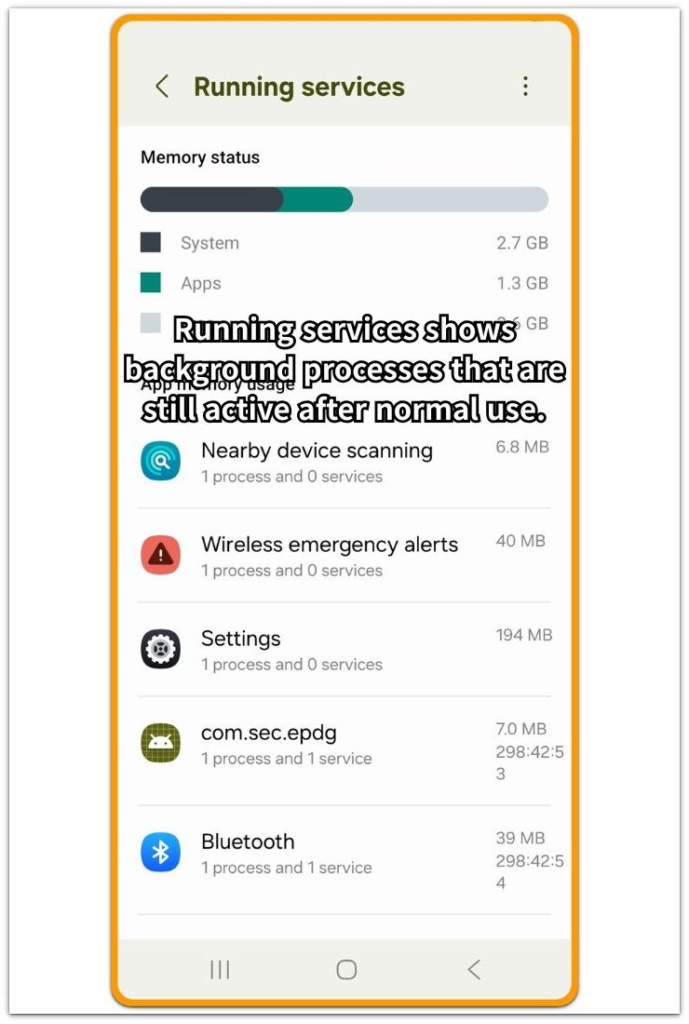
Open Running services, or use the screen on your phone that shows background apps and services.
This screen helps because battery drain does not always appear as one big app in Battery usage. After closing your apps and leaving the device alone, look for services or app tasks that keep showing in the list.
Small items are not the main concern. The important clue is whether several entries keep running when the device should be resting.
Step 1 is only about checking whether the device is still working after normal use ends.
Step 2: Limit One Busy App and Compare the Next Idle Drop
Start with the app or service that looked most active in Step 1. Limit activity for one app first instead of changing every app at the same time, then leave the device alone for the same kind of idle window.
Check whether the graph drops less than it did before. A smaller drop after that one change means the app or service was keeping the device busy. If the drop stays almost the same, that one app is not the main cause.
Change one thing, wait, and compare the next idle drop.
Step 3: Check Android Battery Drain High CPU Usage During Idle Time
After limiting one suspicious app, leave the device unused again. Keep the screen off and let it sit for a normal idle period, then check two things: the battery graph and the phone’s warmth.
A small drop with a cool phone means the phone settled into idle properly. A steady drop with light warmth means something is still keeping the phone active.
Android reduces background work when the device is unused, but it still has to reach that resting state first. Use this step to decide whether the device calms down after normal use or keeps working.
Troubleshooting
Troubleshooting 1: The Battery Drops Again After a Restart
A restart makes the phone feel normal for a short time. The graph looks calmer at first, and the device does not feel as warm right away.
Then the same drain returns after the device sits unused for a while. The restart paused the background work for a moment, but it did not prove the cause was gone.
Check whether the same service or app entry comes back in Running services after the next idle window. The return of the same entry matters more than the short calm period after restarting.
Troubleshooting 2: Battery Usage Does Not Show One Clear App
Battery Usage becomes harder to read when no single app sits clearly at the top. Screen time looks low, but the graph still keeps moving down, so the drain still matters even without one obvious app.
Several small entries can keep the device active without taking over the list. Go back to Running services and compare the active entries with the time when the battery dropped.
Check the repeated entries during the quiet period instead of looking for one huge app name.
Troubleshooting 3: Limiting One App Does Not Change the Drain
One app sits high enough on the list to look suspicious, but the next idle test still shows almost the same battery drop. That means the first app is not the only place to check.
After the first app limit fails, leave random battery settings alone and look for another service, sync task, Bluetooth entry, or system process that keeps showing activity while the device is unused.
When the drop stays steady after one app is limited, the next clue is the entry that returns during another idle period.
Extra Section 1: When the Phone Still Feels Warm After an Update
A Galaxy phone can finish a large update, look fully ready, and still fail the idle test. Battery Usage does not show one heavy app at the top, and the phone opens apps normally, charges normally, and shows no warning message.
The problem becomes clearer after the screen stays off for an hour. The battery drops again, and the back still feels slightly warm. That steady drop makes android battery drain high cpu usage easier to read from the phone’s behavior than from the app list.
Deleting random apps does not help much when no single app is driving the whole drop. Leave the phone unused again and watch whether the same steady drain returns while screen time stays low.
If it does, the issue is not just a bad app name in Battery Usage. The phone is still active long after the update should have settled.
Extra Section 2: When Limiting One App Does Not Stop the Drain
Another phone keeps draining even after the most suspicious app is limited. The first test looks reasonable because one social app, shopping app, or messenger keeps appearing near the top of the list.
You restrict that app, leave the phone alone, and expect the next idle window to look calmer. But the battery graph still drops almost the same way.
Running services now shows smaller entries instead of one obvious app. Bluetooth, account sync, cloud backup, carrier service, or device care keeps appearing while the screen stays off.
Battery Usage alone becomes less useful when the drain is spread across several small services. After the first change fails, stop restricting random apps and check which small entry comes back during the next quiet period.
When several small entries keep returning, the phone is not settling into idle even though no single app looks guilty.
Official Source: Google Android guidance on Doze and power management
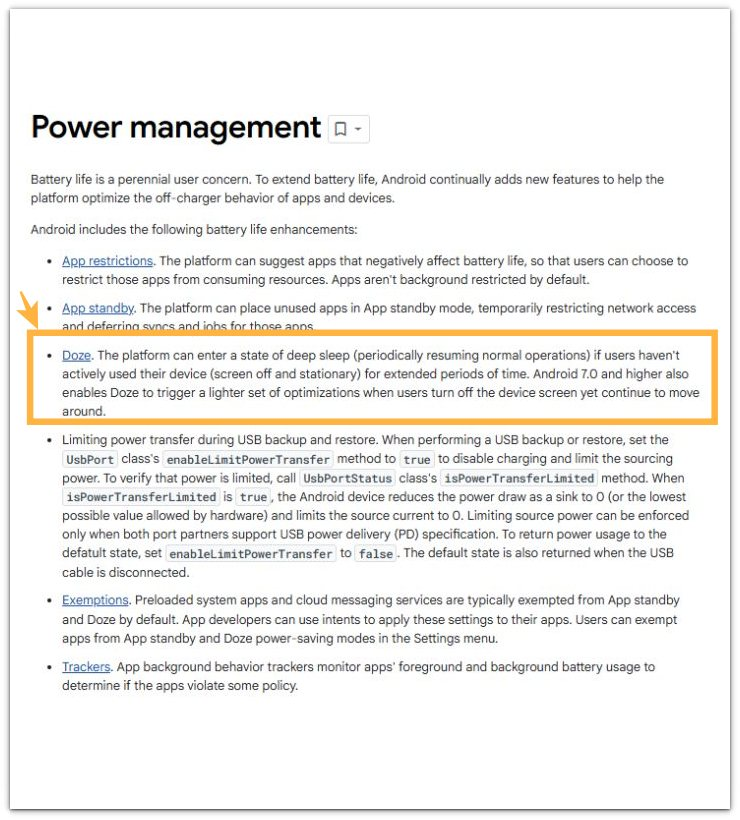
Google’s Android Doze documentation explains that Doze reduces background activity after the device has been left unused for a period of time.
This matters here because the real check is whether the phone actually reaches that resting state or keeps CPU activity alive.
Additional Tips
Removing apps one by one is not the best first move just because Battery usage does not show one clear culprit. A high CPU drain problem can come from background work that keeps returning after the app appears closed.
The idle test gives better evidence because the drain happens after normal app use ends. Watch the phone after a normal app session, not only while the app is open.
If the battery drops while the screen stays off and the phone stays slightly warm, the phone is still doing work. Change one background setting at a time, then compare the next quiet period.
This keeps the test simple and prevents random setting changes from hiding the real cause.
Final Notes
Battery Usage alone is too weak to explain android battery drain high cpu usage.
The real clue is the phone that keeps dropping battery after the screen is off, the app is closed, and normal use has already ended.
A restart, one app restriction, or one clean Battery Usage screen does not prove the phone has settled.
The phone needs to stay cool during idle time without a steady battery drop.
When the drain keeps returning during quiet periods, treat it as active background work, not normal battery aging.
Checklist
- Check whether the battery drops while screen time stays low.
- Check Running services after the phone sits unused.
- Limit one suspicious app instead of changing several settings at once.
- Compare the next idle battery drop after that one change.
- Watch whether the phone stays slightly warm with the screen off.
- Treat repeated idle drain as background work, not normal battery aging.
For broader battery drain problems, use the main guide to compare high CPU activity with other Android battery drain patterns.