
Introduction
Android NFC battery drain becomes noticeable when the phone loses battery even though you are not using NFC on purpose. The screen is off, no payment app is open, and you are not scanning any tag by hand, but the battery line still keeps falling during standby.
NFC can stay ready without showing an open payment app or an active connection, so the label alone does not prove the cause. The useful clue is whether the battery drops while the phone is idle and nothing else explains the loss.
Start by checking when the setting stays active, then compare that timing with standby battery drain before turning off random features or blaming the battery.
Step-by-Step Guide
Step 1: Check Whether NFC Is Turned On
Open Settings and go to Connections, Connected devices, or NFC and contactless payments. Check whether NFC is turned on.
When NFC is already off, start by looking for another cause, such as a background app, weak signal, Bluetooth scanning, location access, or a system process. With NFC on, keep the check open and first check whether you actually used it recently.
Think about whether you recently used tap-to-pay, scanned a tag, opened a transit card, or placed the phone near another card, tag, or reader. When none of those happened and the phone still loses battery while idle, move to an idle battery check before changing other settings.
Step 2: Check Battery Drop While the Phone Is Idle
Leave NFC turned on, then lock the phone and leave it unused with the screen off for 20 to 30 minutes. Do not open payment apps, scan tags, unlock the phone repeatedly, or change quick settings during this test.
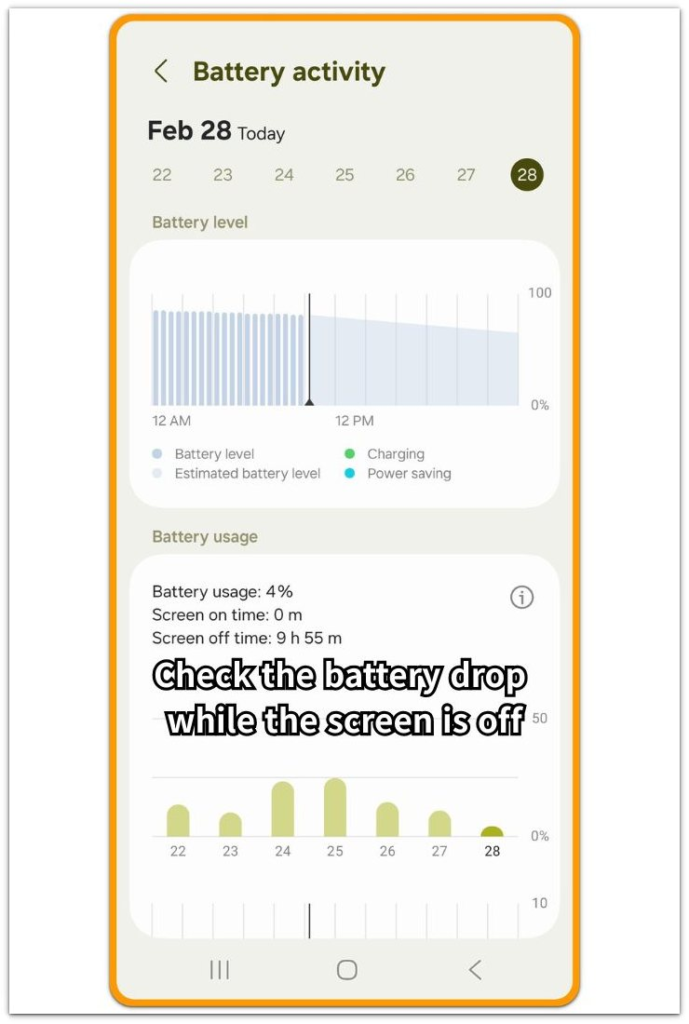
After the idle period, open Battery usage or Battery activity and look at the battery graph first. A battery line that drops during a quiet screen-off period is not coming from active phone use.
Then check whether screen time stayed low during the same period. NFC does not always appear clearly in the battery list, so the stronger clue is the timing: the setting stayed on, the phone was idle, and the battery still dropped.
A mostly steady battery line means NFC is probably not the main reason for that drain pattern.
Step 3: Turn Off NFC and Repeat the Same Idle Check
Go back to Settings and turn NFC off completely, instead of only closing a payment app.
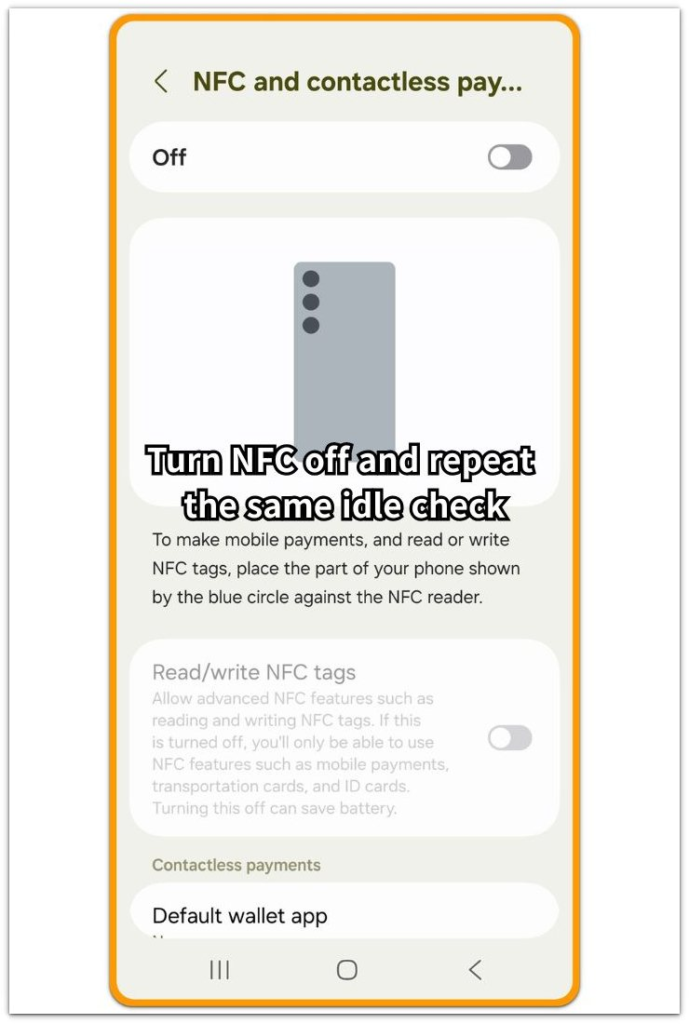
After turning the setting off, leave the phone in the same condition as before: keep the screen off, avoid payment apps, and let it sit unused for another 20 to 30 minutes. Then open Battery usage again and compare the new reading with the earlier one.
A much smaller battery drop after the setting is off means NFC was likely part of the standby drain. When the battery keeps dropping at nearly the same rate, look at other standby causes such as mobile signal, Bluetooth scanning, location access, sync, or a system process.
This check compares the same idle condition with NFC on and off.
Troubleshooting: Android NFC Battery Drain
Troubleshooting 1: NFC Drain Changes Near Cards or Payment Terminals
The drain sometimes looks worse when the phone stays near something it keeps trying to read. This often happens near a payment terminal, access card, transit card, tag, or another item that uses the same short-range connection.
The phone does not need to open a payment app for this to matter. The reader function is already on, and something nearby keeps triggering a small check.
Move the phone away from cards, terminals, and tags, then leave it locked for another quiet idle period and check the battery graph again. A steadier battery line after moving the phone away points to nearby short-range activity.
If the battery keeps dropping in the same way, keep checking other standby causes.
Troubleshooting 2: Samsung Wallet or Payment Apps Stay Ready in the Background
On some Android phones, a payment app stays ready even when it is not open on the screen. This often happens with wallet apps, transit cards, bank apps, or contactless payment services.
Open the payment app and check whether setup, verification, card update, or payment activation is still waiting. Then go to Settings and check the app’s battery setting.
Make sure the payment app is not allowed to run freely in the background when you do not need it ready all the time. Do not delete the app first. Change one setting, leave the phone idle again, and compare the battery graph.
If the drain improves after limiting the payment app, the issue was not the switch alone. The app was keeping related activity ready in the background.
Troubleshooting 3: NFC Turns Back On After a Wallet or Transit Action
The setting can look off during one check, then come back after a wallet, transit card, bank app, or quick settings tile is used. The battery pattern can look confusing because the phone does not always drain right away, and the drop appears later during standby.
After using any payment or transit feature, open Settings again and check whether the switch is still in the state you expected. Then lock the phone and repeat the idle check.
When the setting turns back on after a wallet or transit action, the first test is no longer enough. A better check is whether the drop returns after the setting turns back on.
The setting may stay off while the drain still continues. Move away from nearby cards or terminals, then check other standby causes such as mobile signal, Bluetooth scanning, location access, sync, or a system process.
Extra Section 1: When a Nearby Card Made NFC Look Suspicious
One spare Android phone sat on a desk overnight with NFC turned on.
Nobody used the phone during that time. No payment app was open, and the screen stayed off for most of the night. By morning, the battery line still looked a little steeper than expected.
The important detail was the setup around the phone, not the size of the battery drop. A transit card and an access card were sitting close to it on the same desk.
The next night, the cards were moved away, and the phone stayed locked again in the same kind of idle setup. This time, the battery line looked flatter. The difference was not huge, but it stayed noticeable across a long idle period.
That kind of pattern matters because NFC-related drain does not always look dramatic overnight. A small standby difference matters more when it repeats near a card, tag, or terminal.
Extra Section 2: When Turning Off NFC Did Not Change the Drain
Another Android phone looked like it had the same NFC problem at first. NFC was on, the phone stayed unused overnight, and the battery line dropped more than expected.
The next night, the user turned off NFC completely, but the battery line looked almost the same by morning.
That result changed the direction of the check. NFC was no longer the strongest clue because turning it off did not change the standby pattern.
The phone was also sitting in a weak signal spot near the edge of the room. After the user moved it closer to a stronger signal area, the overnight battery line looked steadier without changing NFC again.
NFC was only one part of the test. The weak signal spot explained the standby drop better than the switch.
Official Source: Android NFC Modes
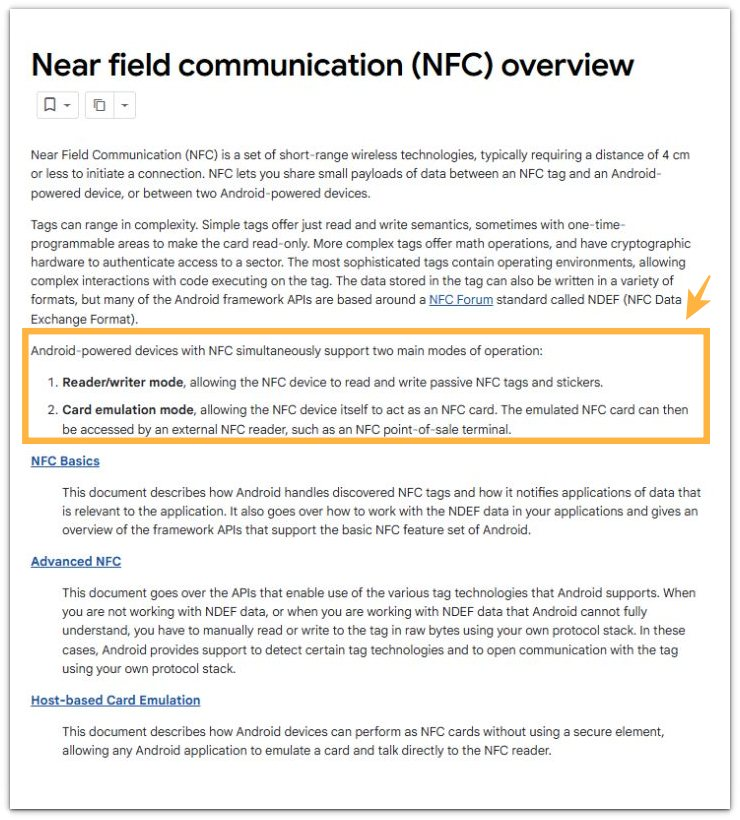
Google’s Android documentation explains that Android can read nearby tags and can also act like a card near a reader.
This supports the battery check because NFC is not limited to an open payment app. Nearby cards, tags, or readers can matter when it stays enabled.
The check should include nearby cards, tags, readers, and idle timing, not only the open app screen.
Additional Tips
Keep NFC from switching on and off throughout the day just to test the drain, because the pattern becomes harder to read when the phone keeps changing state.
For rare tap-to-pay, transit card, or tag use, keep the setting off during long idle periods and check whether the battery line becomes steadier. Daily contactless payment use needs a different check, so avoid turning it off permanently right away.
Run one overnight check with NFC off, then compare it with a normal night when it stays on. That comparison gives you a cleaner answer than checking the setting only once.
Final Notes
Android NFC battery drain becomes clearer through the idle test, not just from whether the switch is on.
A steadier line after the setting is off means NFC or a related payment app was part of the standby drain. When the same drop continues, NFC is not the cause.
The cause is likely somewhere else, such as weak signal, Bluetooth scanning, location access, sync, or a system process.
The right fix is to compare the same idle condition with the setting on and off, then follow the result instead of guessing from the switch.
Checklist
- Check whether NFC was on during the battery drop
- Compare the battery line with a screen-off idle period
- Move the phone away from cards, tags, and payment terminals
- Turn NFC off once and repeat the same idle check
- Check whether a payment or transit app stayed ready in the background
- Stop blaming NFC if the battery drops the same way after it is off
When NFC does not explain the standby drop, use the main Android battery drain guide to compare it with other idle battery patterns.