
Introduction
Android deep sleep battery drain becomes suspicious when the phone spends hours with the screen off, but the Battery activity graph keeps sliding instead of flattening. The battery number is lower later, but that number alone is not the useful clue.
The confusing part is the long quiet stretch where screen time stays almost empty. Battery usage does not always point to one large app, and the phone can look fully idle from the outside.
This gap makes deep sleep drain harder to read than normal app use. Before changing more settings, start with the idle slope and how it behaves during that quiet window.
Step-by-Step Guide for Android Deep Sleep Battery Drain
Step 1: Check the Screen-Off Battery Slope
Open Settings → Battery → View details. Focus on the long stretch where the screen stayed off.
The screen-on time should stay close to zero during this window. If the drain appears during that screen-off stretch, normal foreground use is not the main clue.
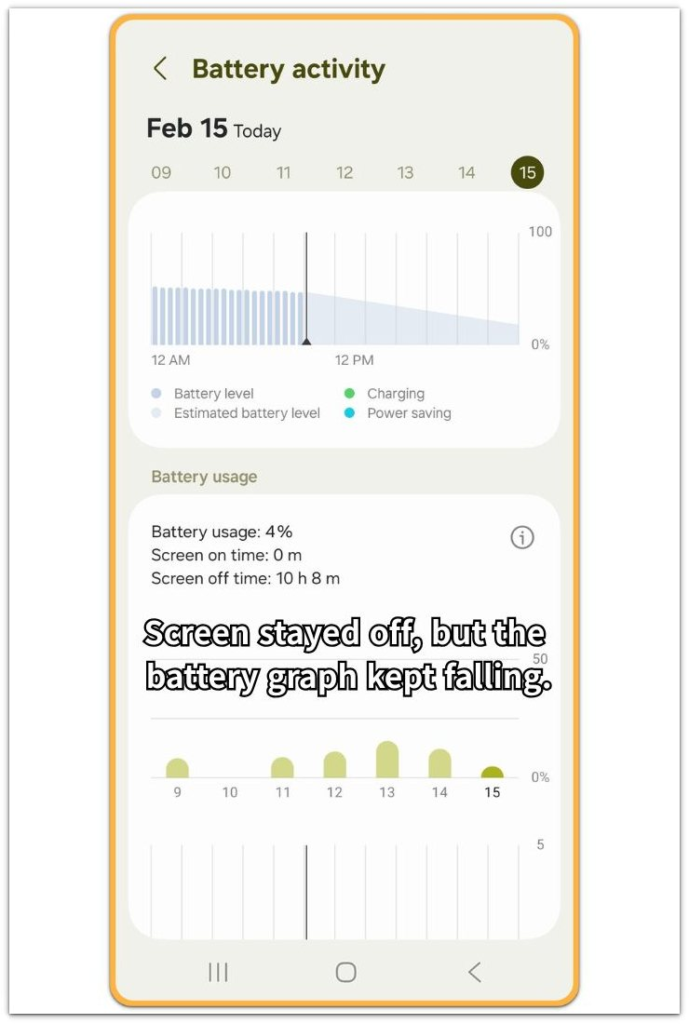
Use Battery activity to see whether the line keeps sliding instead of flattening.
A short drop after notifications is different from a steady idle decline. A steady idle slope points closer to a phone that never fully settled into deep sleep.
Step 2: Check Whether App Sleep Limits Are Already On
Open Settings → Battery → Background usage limits. Check whether the phone is already putting unused apps to sleep.
Then look at Sleeping apps and Deep sleeping apps. If the phone already restricts several apps, do not keep adding random apps one by one.
That screen helps you see whether the phone is still draining even after those controls are already in place.
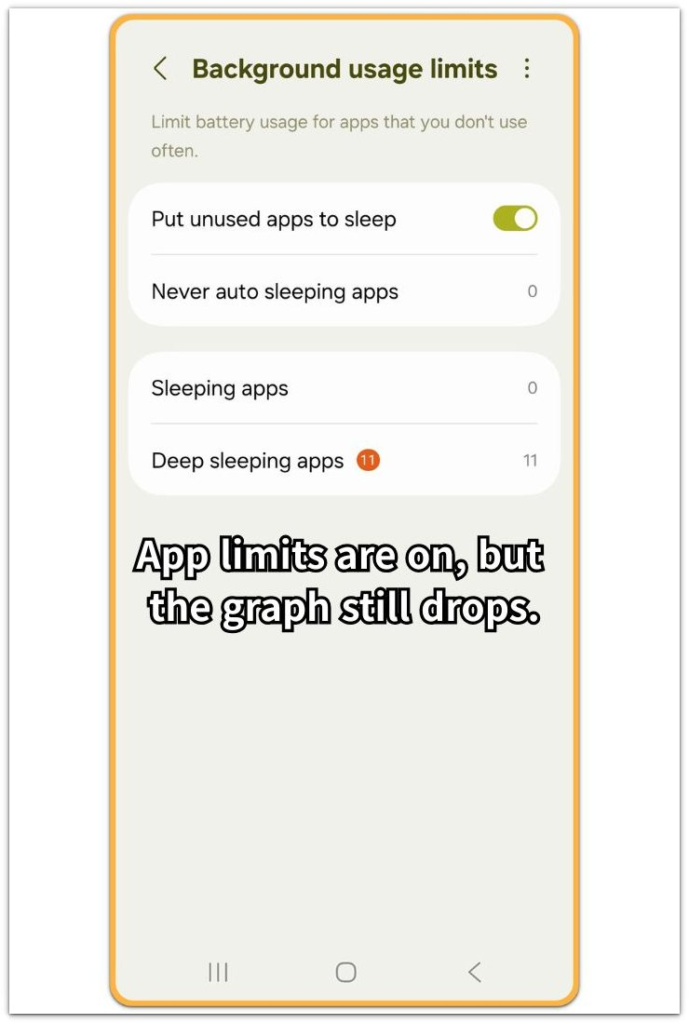
If the battery line still keeps sliding with these limits already active, the problem is less likely to come from one normal background app.
Step 3: Test Display and Motion Wake Sources
Temporarily turn off Always On Display. Then turn off lift-to-wake, double-tap-to-wake, and motion detection features for one test window.
These features can keep checking for movement or screen wake signals while the screen looks off. Do not change network, app limits, and display settings all at the same time.
Run one clean screen-off test with only display and motion wake features changed. If the battery line looks flatter during that test, wake behavior around the display is more likely than normal app use.
Troubleshooting
Troubleshooting 1: The Battery Still Drops After App Limits Are On
The phone can still lose battery with Background usage limits already turned on. That does not always point to one bad app.
The better clue is whether the battery line keeps sliding while screen time stays close to zero. Do not keep adding random apps to Sleeping apps after every bad result.
Check whether the same screen-off slope returns after the app limits are already in place. If the graph still drops during a clean idle stretch, normal app use does not explain the problem alone.
Troubleshooting 2: The Screen Looks Off, but Wake Features Keep Reacting
Always On Display, lift-to-wake, double-tap-to-wake, and motion detection can make the phone look idle while it still checks for wake signals. This is easy to miss because the screen does not need to stay fully on.
Turn off only those display and motion features for one test window. Do not change network settings or app limits during the same test.
A flatter battery line after that change means display or motion wake behavior is likely causing the drain. If the line keeps sliding, stop blaming screen features and compare the next clean idle window.
Troubleshooting 3: The Phone Still Does Not Rest After Basic Changes
A deeper issue becomes more likely when the same screen-off slope stays after you have checked app limits and wake features. Do not keep changing every battery setting at once after those checks.
Use one clean idle window and compare it with the last result. The important part is whether the battery line finally flattens or keeps falling.
If the line keeps falling with screen time still close to zero, the problem needs a wider battery check. This is no longer just a normal quiet-period drop.
Extra Section 1: Battery Still Moving After App Limits
One phone already had Background usage limits turned on, so the app list looked under control. The phone had already put unused apps to sleep, and several apps already appeared under Deep sleeping apps.
The app list made the phone look quiet after the screen turned off. But the Battery activity graph kept sliding during a long screen-off window.
Screen time stayed close to zero, and no single app clearly explained the drop. Android deep sleep battery drain became easier to separate once the graph kept moving with those app limits already in place.
The useful clue was not the number of restricted apps. It was the fact that the battery line still moved after those controls were already in place.
Extra Section 2: Wake Features Affecting Screen-Off Idle Time
Another phone looked idle every time the screen turned off. The battery line still kept moving during long idle stretches.
After checking app limits, the next test stayed away from the app list. The tester turned off Always On Display, lift-to-wake, and double-tap-to-wake for one clean test window.
Network settings and app sleep settings stayed unchanged during that test. The next battery line looked flatter than before.
That flatter result made wake features stand out more than normal app drain. The phone was not staying active because of visible use.
Screen and motion settings were still affecting the phone while it looked asleep.
Official Source: Extend Android Battery Life
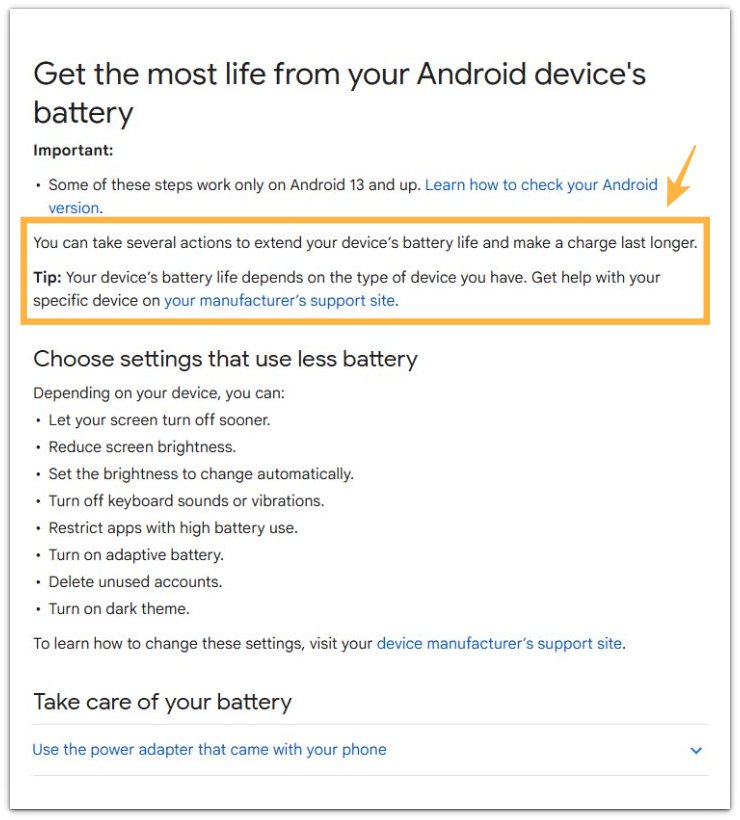
Official Android guidance lists several ways to extend battery life, including screen timing, brightness, Adaptive Battery, and restricting apps with high battery use.
Next, start with the case where app limits already look correct, but the battery line still keeps moving.
Additional Tips
Use a longer idle window when a short drop looks unclear. A cleaner check is a long idle window where screen time stays close to zero.
Change only one group of settings at a time. Do not change app limits, wake features, and display settings together during the same test.
If the result looks different after one change, it is easier to trust.
Final Notes
Android deep sleep battery drain becomes clear when the battery line keeps falling while the screen stays off and screen time stays close to zero.
Once you have turned on app limits and checked wake features, do not keep guessing from normal app use. The phone can look idle from the outside, but the battery line shows whether it actually rested.
When the battery keeps dropping through a clean screen-off window, this is a real idle problem, not just a normal quiet-period drop.
Checklist
- Check the Battery activity graph during a long screen-off window.
- Confirm screen time stays close to zero during the drop.
- Check whether app sleep limits are already on.
- Test display and motion wake features without changing other settings.
- Compare whether the battery line flattens after one clean change.
- Treat a steady screen-off drop as a real idle problem, not a normal quiet-period drop.
For a broader battery troubleshooting path, see the main guide.