
Introduction
Android always on display battery drain becomes easier to notice when the phone stays locked but the battery keeps dropping. No one is using the phone, and no app looks active on the screen, but the display still keeps a small part of the screen running so the time, icons, or notifications remain visible.
That small screen makes the drain feel confusing because the phone looks idle, but the display has not fully turned off. Start by checking whether the drop happens during locked time before blaming apps or the battery itself.
Step-by-Step Guide
Step 1: Check the Battery Drop While the Phone Is Locked
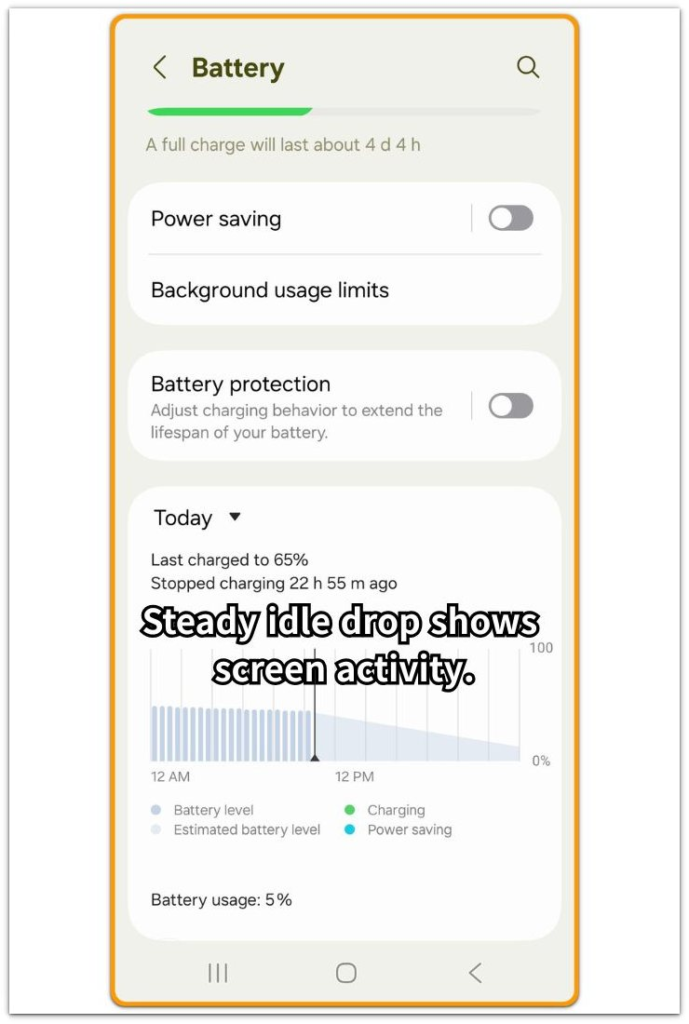
Open Settings and go to Battery. Start with a time when the phone was locked and not being used, then look at the battery graph to see whether the battery kept dropping during that locked period.
Do not start by blaming apps first. The first check is whether the drop happened while the screen was off except for Always On Display.
If the graph shows a steady drop during that idle period, write down the time range before changing any settings.
Step 2: Check Whether Always On Display Was Turned On
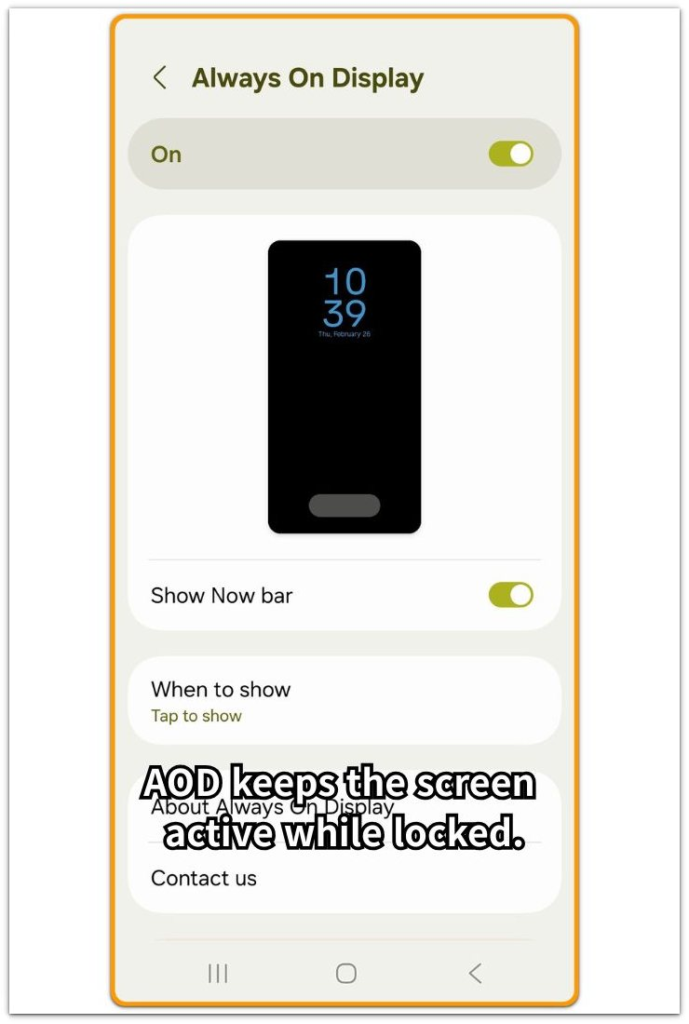
Open Settings and go to the Lock screen or AOD section. Check whether Always On Display is turned on, then see whether it stays on all the time, appears only for new notifications, or follows a schedule.
Do not change several display settings at once. Turn the feature off for one test period, then lock the phone again and compare the next battery result.
If the battery drops less during the same kind of locked period, the feature is part of the drain pattern.
Step 3: Lower the Always On Display Brightness or Simplify the Style
Stay inside the same settings screen and check whether the style uses a brighter clock, extra icons, notification previews, or a more visible layout. Use the simplest setup first and keep only the information you actually need on the locked screen.
If the phone allows brightness control for this feature, lower it before testing again. Then lock the phone for another quiet period and compare the battery drop with the previous result.
The goal is not to turn off every display feature right away. First, see whether a simpler Always On Display setup reduces the locked-screen battery loss.
Troubleshooting: Android Always On Display Battery Drain
Troubleshooting 1: Battery Drop Does Not Change After Always On Display Is Off
Turn the feature off and lock the phone for another quiet test period. Use a similar time length as the first test so the result is easier to compare.
Open Battery again and check whether the battery drop looks lower than before. If the drop looks the same after the feature is off, do not keep changing display settings.
Check whether another pattern was active during the same locked period, such as weak signal, background sync, heat, or a recently updated app. This check separates display-related drain from another battery pattern that continues after the feature is off.
Troubleshooting 2: Battery Drops Even When Always On Display Looks Very Dim
A dim lock screen does not mean the display is fully off. The clock, icons, and notification area still stay visible, so open the same settings screen and check the display style again.
Remove extra lock screen information first, such as notification previews, bright clock styles, or unnecessary icons. Then lock the phone for another quiet period and compare the battery result.
If the drop becomes smaller, keep the simpler style. If the drop stays the same, the brightness level alone was not the main issue.
Troubleshooting 3: Minimal Visual Brightness Yet Noticeable Drain
A short test does not always show the difference clearly. AOD uses power slowly, so a ten-minute check often looks almost the same.
Use a longer locked period before judging the result. Keep the comparison simple: same phone, same location, same signal condition, and no heavy app use right before the test.
Compare the battery drop when AOD is on and when it is off. If the difference appears only after a longer locked period, the feature is still part of the battery pattern.
Extra Section 1: When the Phone Looks Idle but Always On Display Is Still Working
A common mistake is judging the phone by how quiet it looks. The phone sits locked on a desk for a long time with no app open and no video playing.
No one is touching the screen, but the feature still keeps the clock, small icons, or notification area visible while the rest of the screen looks dark. Android always on display battery drain feels confusing at first because the phone looks idle, but the display has not fully turned off.
A better check is to compare two similar locked periods. Leave it turned on for one quiet test, then turn it off and repeat the same kind of locked test later.
If the battery drops more with Always On Display turned on, the locked screen itself is part of the drain pattern.
Extra Section 2: When You Want to Keep Always On Display but Reduce the Drop
Some users do not want to turn the feature off completely. They still want to glance at the clock, basic icons, or missed notifications without fully waking the phone.
Long locked periods make the battery drop easier to notice because the phone sits unused, but the lock screen still keeps small information visible.
Do not change every lock screen option at once. Test a simpler Always On Display setup first. Keep only the clock or the most useful basic information, and remove anything that makes the locked screen look brighter or busier than necessary.
Then leave the phone locked during a normal quiet period and check the battery again. If the drop becomes smaller, the setup was making the screen work harder than it needed to.
This gives you a practical middle step before turning the feature off completely.
Official Source: Samsung Shows Where to Turn Always On Display On or Off
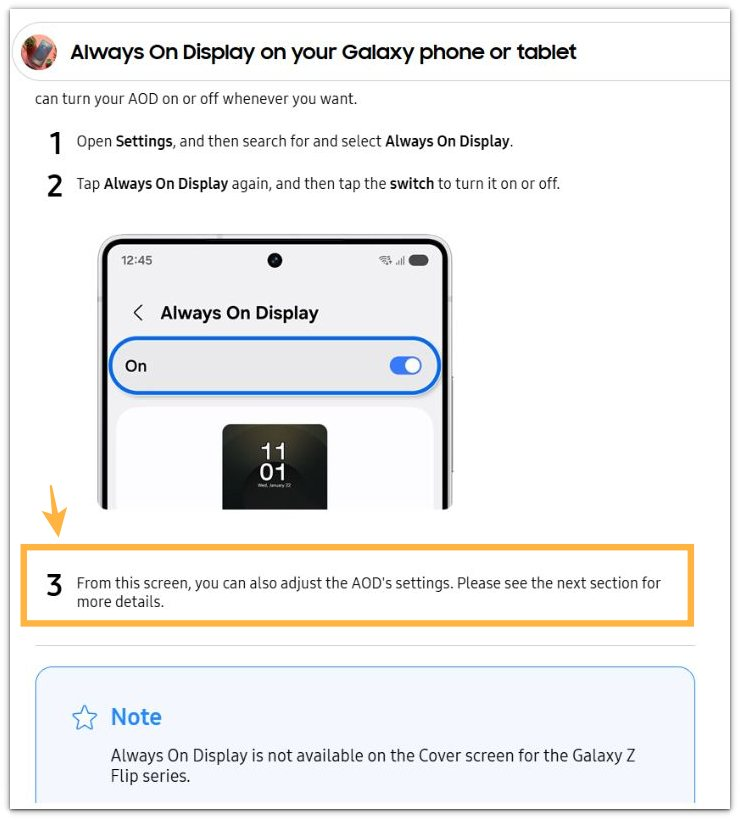
For the official method to turn the feature on or off, Samsung says to open Settings, search for Always On Display, and use the switch. Samsung also notes that AOD settings are adjusted from that screen.
Use this source only to confirm where the switch and settings are located. The battery check still needs to come from your own locked-screen test.
Additional Tips
Test the feature on a quiet notification day, and check edge lighting, lock screen animations, and notification previews separately.
One short locked period is too weak to show the result clearly. Wait until the phone cools down before testing, because heat makes the battery drop look worse.
Final Notes
Android always on display battery drain is clearer when you compare locked-screen tests, not just how idle the phone looks.
If the battery drops more when the feature is on and drops less when it is off or simplified, the lock screen feature is part of the drain.
When the drop follows that test, apps are not the first place to blame. The clearest fix is to turn AOD off, use a simpler style, or limit when it appears.
If the battery keeps dropping at the same rate after the feature is off, the problem is not mainly the AOD setting. Move on to signal strength, background sync, heat, or another battery pattern instead.
Checklist
- Check the battery drop while the phone is locked
- Confirm whether Always On Display is turned on
- Test the phone once with the feature turned off
- Use a simpler AOD style if you want to keep the feature
- Compare the next locked-screen battery result before blaming apps
For broader battery drain patterns, use the main guide to compare Always On Display drain with other battery drop scenarios.