
Introduction
Android battery drain with screen off becomes confusing when the phone is locked, but the battery graph still keeps falling. The screen is not being used during that quiet stretch, and there is no long app session, video playback, or obvious activity on the display.
That mismatch is the starting point. A phone can look idle from the outside, but something may still be active in the background.
The important clue is not only how much battery dropped. It is whether the drop happened while screen-on time stayed very low. Before changing battery settings, compare the screen-off period with the battery graph first.
Step-by-Step Guide
Step 1: Compare Screen-Off Time With the Battery Drop
Open Settings and tap Battery. Look at the battery graph first, then check the screen-off time shown below the graph.
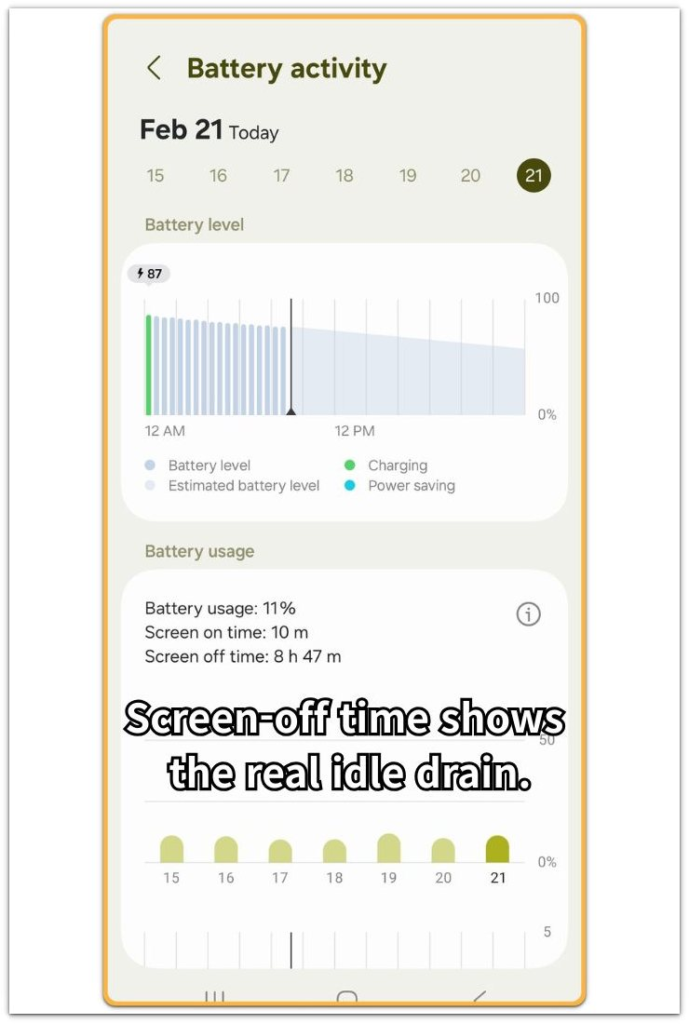
Start with the exact time period where the drop happened. Check whether screen-on time stayed low during that same stretch, then compare it with the battery graph.
If the battery dropped while screen-on time stayed very low, the drain likely did not come from normal visible use. Next, check the app list below the graph and look for one app that clearly explains the drop.
If no single app explains it, treat the problem as a screen-off drain issue instead of normal app use.
Step 2: Check Which Apps Are Allowed to Stay Awake
Open Settings and tap Battery, then go to Background usage limits. Check whether Put unused apps to sleep is turned on, then open Sleeping apps and Deep sleeping apps.
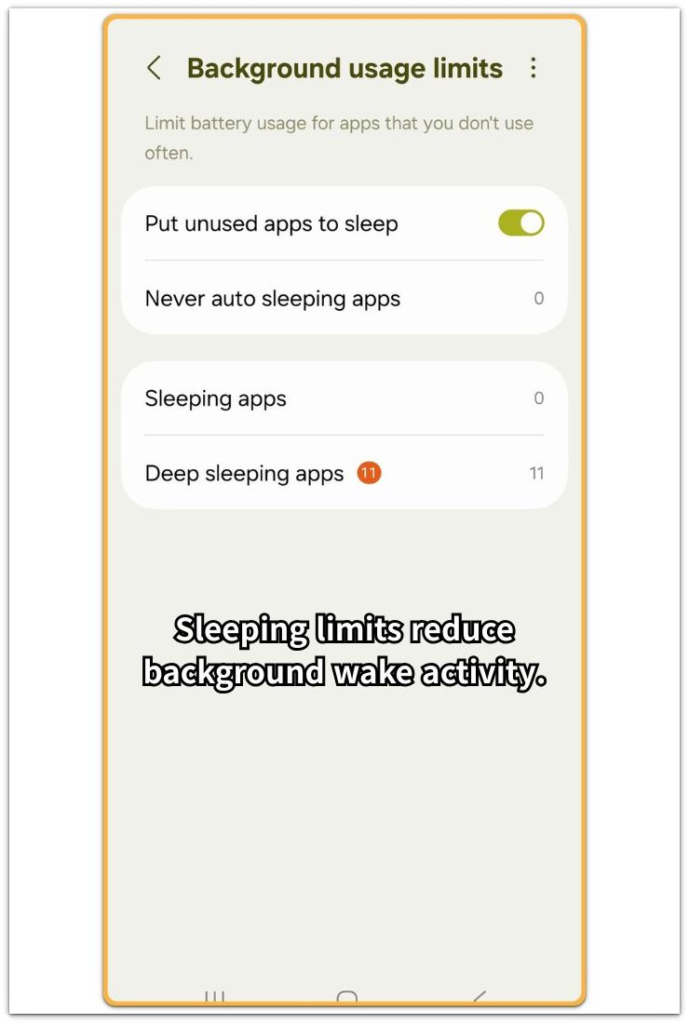
Unrestricted apps can still refresh, sync, or check for updates while the screen is off. Start with apps you do not need right away, and move those apps into Sleeping apps or Deep sleeping apps when they keep showing background activity.
Do not restrict messaging, alarm, banking, or security apps unless you know you do not need their alerts. After changing one app group, leave the phone locked again, then compare the next screen-off period with the battery graph.
Step 3: Test Whether Network Signals Keep Waking the Phone
Turn on Airplane Mode for at least 30 minutes and keep the phone locked during the test. Do not open apps, play media, or check notifications during that time.
After the test, check the battery graph again and compare that result with the screen-off drop from Step 1. If the battery drops much less in Airplane Mode, the drain may be related to network activity.
Weak cellular signal, Wi-Fi scanning, Bluetooth reconnecting, or background data requests can keep the phone active while the screen is off. This test does not name the exact app yet. It only separates network-related drain from normal app use.
Step 4: Check Location and System Services
Open Settings and tap Location. Check which apps are allowed to use location in the background, starting with Allowed all the time. Then look at the apps that recently accessed your location.
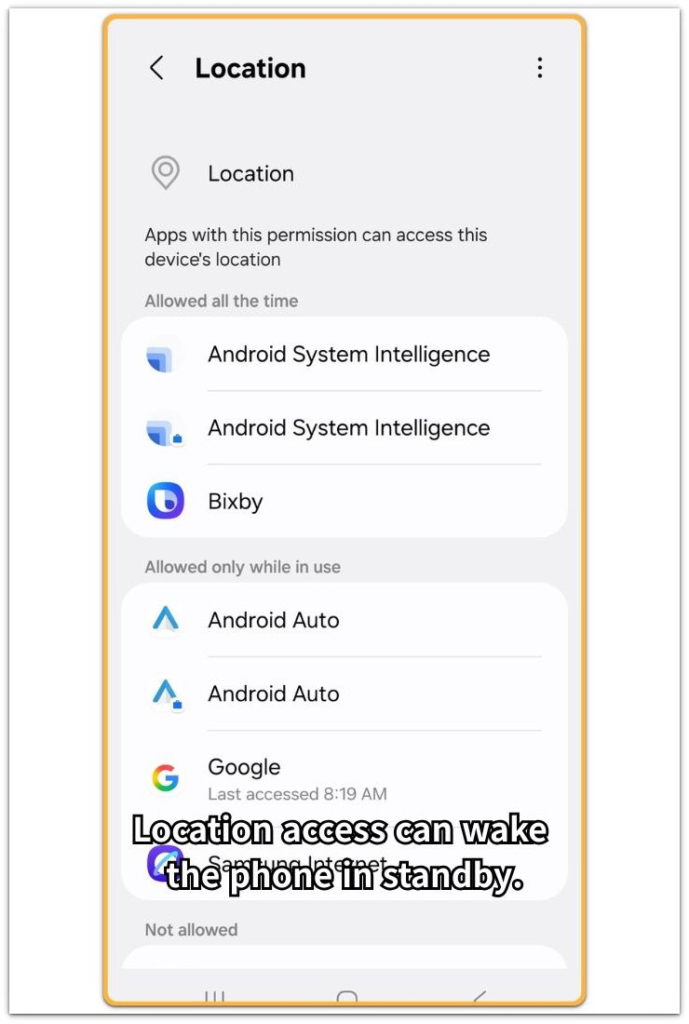
Weather apps, maps, smart home apps, car apps, and device-finding tools can all request location in the background. Change only the apps that do not need constant location access, and switch them to While using the app or Ask every time.
Then leave the phone locked again and compare the next screen-off drop. A smaller drop after that points to background location activity.
Troubleshooting: Android Battery Drain With Screen Off
Troubleshooting 1: The Battery Drops Only in One Room
When the battery drops only in one room, check the signal before changing system settings. A weak cellular signal can keep the phone searching for a better connection while the screen is off.
Move the phone to a place with stronger signal for one locked test. Leave it there for 30 minutes without opening apps, then compare the battery graph with the earlier screen-off period.
If the drop is smaller in the stronger signal area, the problem is likely tied to signal searching, not normal screen use. You can also test Wi-Fi calling, a stronger Wi-Fi connection, or Airplane Mode with Wi-Fi turned back on.
The goal is to see whether the phone settles down when the connection becomes stable.
Troubleshooting 2: One Background App Keeps Returning
The same app keeps appearing after each locked test. Open that app’s battery settings. Look for Background usage, Unrestricted, Optimized, Restricted, Sleeping apps, or Deep sleeping apps. The exact labels depend on the Android version and phone brand.
Start with apps that do not need instant alerts. Do not restrict alarm, security, banking, messaging, or work apps unless you are sure you do not need their notifications.
After changing one app, leave the phone locked again, then check whether the next screen-off drop is smaller. This keeps the test focused on one possible cause instead of changing several settings at once.
Troubleshooting 3: Location Access Runs During Android Battery Drain With Screen Off
The battery still drops with low screen-on time. Go back to Location settings. Check recently accessed apps again, and look for weather, map, smart home, car, fitness, or device-finding apps that used location while the phone was locked.
Change only the apps that do not need constant location access. Set them to While using the app or Ask every time, then leave the phone locked for another 30-minute test.
A flatter battery graph means background location access was likely part of the screen-off drain. When the graph keeps falling, continue with the next section instead of resetting the whole phone right away.
Extra Section 1: When Airplane Mode Reveals a Signal Problem
A Galaxy phone lost 6% overnight even though the screen-on time stayed under ten minutes. The owner first suspected the battery itself, but the app list did not show one clear app using most of the power.
The same phone held its charge much better during a second locked test with Airplane Mode turned on. That difference changed the next check. The problem did not look like a game, video app, or normal screen use, and it also did not point straight to battery failure.
The phone had weak cellular signal in the bedroom, so it kept trying to stay connected while it sat unused. Moving the phone to a stronger signal area reduced the overnight drop. Nothing had to be deleted, and the phone did not need a reset.
The 6% drop was not the real clue. The real clue was the difference between the two locked tests.
Extra Section 2: When Screen-Off Drain Does Not Mean Battery Failure
Another phone looked like it had a bad battery because it lost power during long locked periods. The owner expected battery health to be the main problem, but the phone did not shut down suddenly during normal use. It also did not lose power quickly while the screen was on.
The drop mostly appeared when the phone sat unused for a long time. That detail changed the check. A weak battery usually shows problems in more than one situation, but this phone only looked worse during screen-off periods.
After limiting a few background apps and changing unnecessary location access, the overnight drop became smaller. The phone still needed normal battery checks, but the first clue did not point straight to hardware failure.
The useful lesson was simple. Do not judge the battery by the overnight percentage drop alone. Compare the screen-off drop with normal screen use before deciding that the battery itself is failing.
Official Source: Google’s Battery Saving Guidance
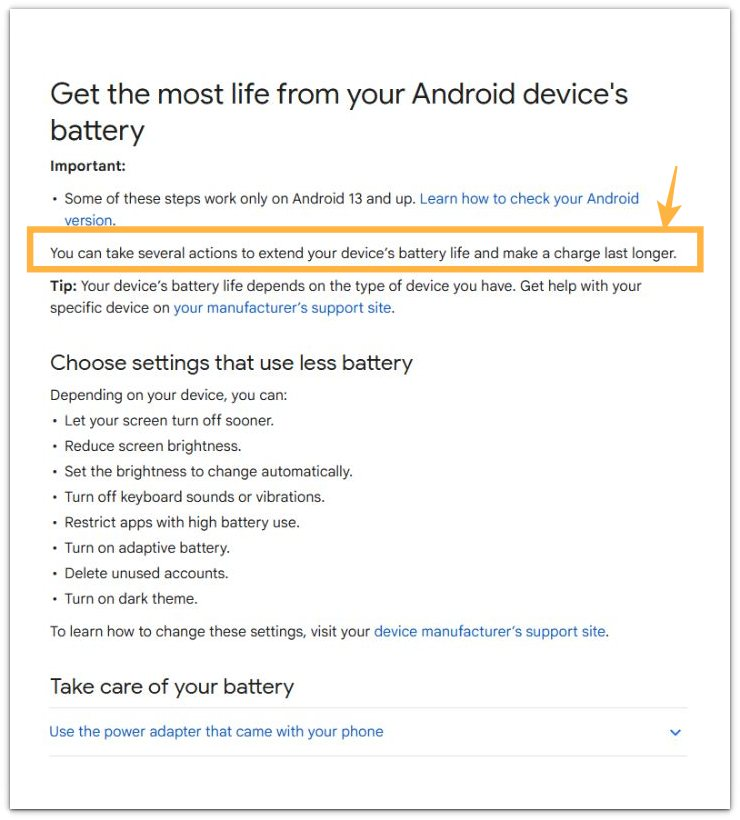
Google’s official battery guidance explains that changing settings and restricting apps with high battery use can help make a charge last longer. This supports checking background activity when the battery drops despite low screen use.
If the screen-off drop becomes smaller after limiting background or location access, keep reading with that pattern in mind. The next section shows how this kind of drain can look in real use.
Additional Tips
Small screen-off drops are not always a problem. A phone can lose a little battery during quiet periods, even when the screen stays off. The warning sign is a repeated drop during the same locked window.
Check the same idle period more than once before changing several settings. Change one area at a time, starting with network, background app use, or location access.
Then leave the phone locked again and compare the next battery graph. This makes it easier to see which change actually reduced the screen-off drain.
Final Notes
The percentage drop alone is not enough to judge Android battery drain with screen off. The stronger clue is the mismatch between low screen-on time and a falling battery graph.
A smaller drop after limiting network activity, background apps, or location access means the problem is still within normal settings control. If the battery keeps dropping during locked periods after those checks, the phone is not settling properly while the screen is off.
Compare the pattern with normal screen use, charging behavior, and battery health before blaming the battery.
Checklist
- Confirm that the battery keeps dropping while the phone stays locked.
- Check the screen-off numbers inside Battery usage.
- Compare the battery drop with your actual screen-on time.
- Leave the device locked for a clear 30-minute test.
- Change only one background setting at a time.
- Compare the pattern with normal screen use before blaming the battery itself.
Use the main guide for wider Android battery drain checks after checking your screen-off pattern.