
Introduction
Android battery drain after software update becomes confusing when the phone restarts, looks ready, and still loses power during the first quiet stretch afterward. The Home screen looks normal, apps open normally, and there is no clear sign that the update failed.
But the phone still feels like it is working in the background after the visible update is already over. A normal-looking screen does not explain why the battery keeps dropping after the restart.
The confusing part is the drop that appears after the restart, while the phone looks like it should be settling down. Before changing random battery settings, follow the battery behavior after the restart first.
Step-by-Step Guide for Android Battery Drain After Software Update
Step 1: Check Whether the Drain Started Right After the Update
Open Settings → Battery → Usage details. Start with the first idle period after the software update finished and the phone restarted. Leave the full-day result aside for now.
Look at the time window where the screen stayed off, but the battery still dropped. If android battery drain after software update started within the first day or two, check for background work after the visible update is already over.
Check whether Battery usage points to one heavy app, or whether the drain looks spread out while screen time stays low. If Google Play services, Android System, or another system entry appears during that period, keep the focus on post-update background work before blaming a normal app.
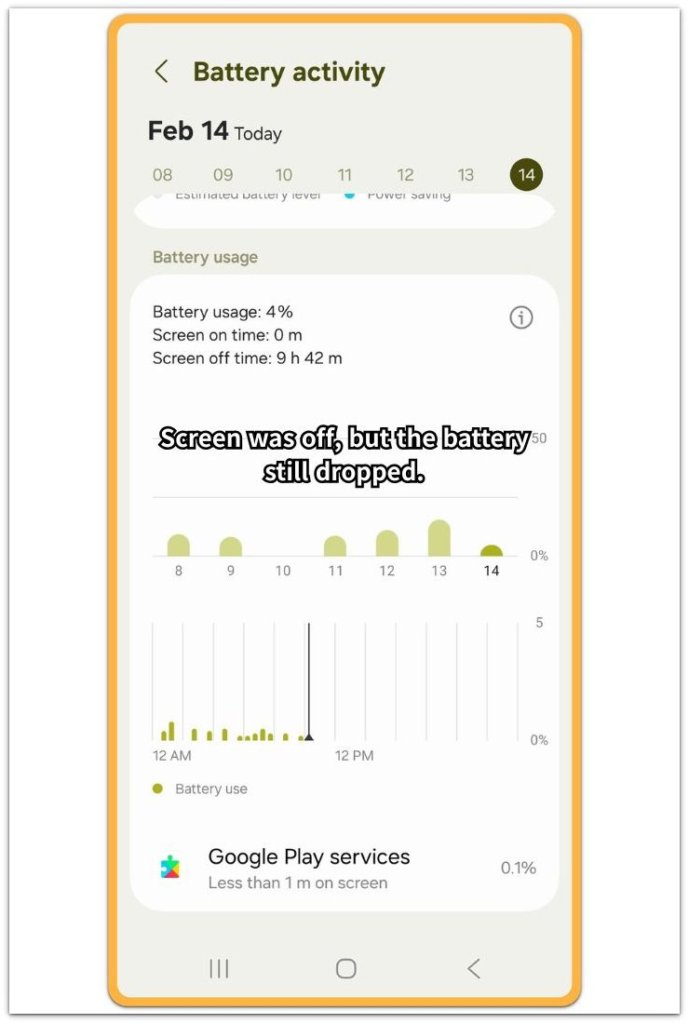
This is not the same as one app draining the battery during active use.
Step 2: Give the Phone a Short Quiet Window After the Update
Keep the phone connected to Wi-Fi for a while after the software update finishes, and avoid opening several apps right away. Leave the phone alone for 30–60 minutes with the screen off so Android has time to finish small background work after the visible update screen is gone.
Then check whether the battery drop starts slowing down afterward. If the battery loss keeps showing up during that window, check for post-update background tasks before changing battery settings, because changing settings too early makes the result harder to read.
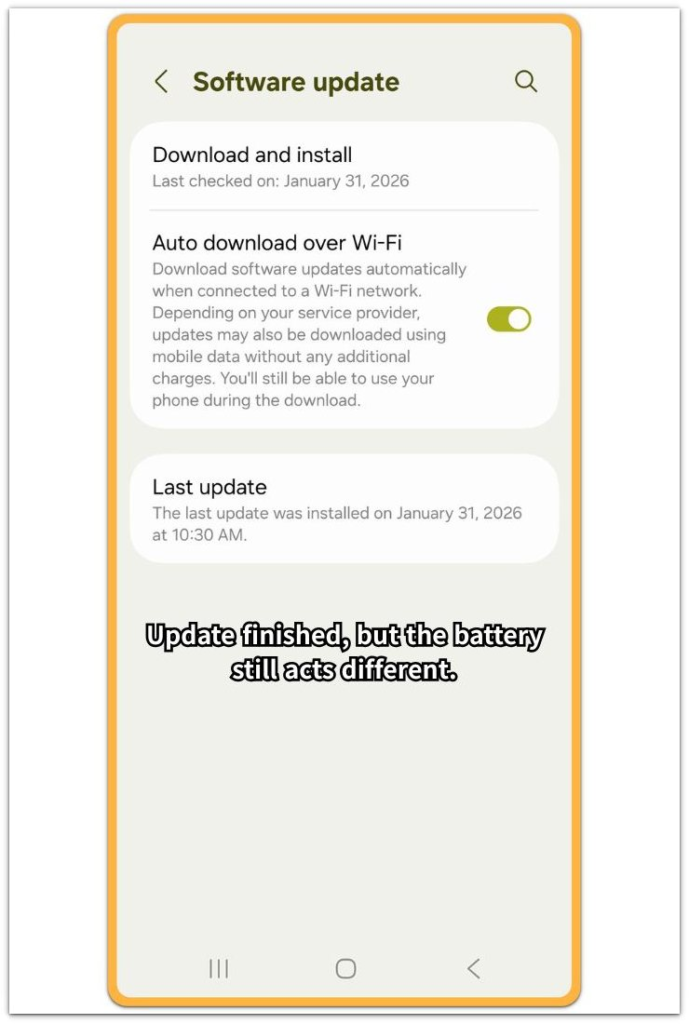
The update screen is gone, but the next quiet stretch still needs to be checked.
Step 3: Check Whether the Same Drain Returns After the Phone Settles
Open Settings → Battery → Usage details again after the short waiting period. Look at the same kind of screen-off period, not a busy stretch of normal use.
Check whether Android System, Google Play services, or another system entry still appears while screen time stays low. A small drop right after the update is not enough by itself.
The warning sign is screen-off battery loss showing up again after the phone has already had a clean quiet window. When the battery loss keeps coming back without one heavy app explaining it, compare one more idle period before treating it as normal daily battery use.
Troubleshooting
Troubleshooting 1: One Heavy App Does Not Explain the Drain
Battery usage looks confusing after the update when no single app sits clearly at the top. The screen stayed off, but the battery still dropped during that period.
A messenger, browser, or social app appears in the list, but its screen time does not match the battery loss. One familiar name near the top is not enough reason to delete the app.
Look for Android System, Google Play services, or several small entries showing activity after the restart. With android battery drain after software update, background work returning after the visible update already finished matters more than one app name near the top.
Troubleshooting 2: The Phone Stays Slightly Warm While Sitting Unused
A short warm period right after an update is not the main problem by itself. The warning starts when the phone stays slightly warm while the screen is off and no app is open.
This warmth does not match gaming, video, maps, or charging heat. It feels more like the phone is still finishing something after the restart.
Check this only during an idle period, not while the phone is downloading apps or restoring data. When the warmth fades and the next idle stretch looks calmer, the phone was still finishing post-update background work.
Troubleshooting 3: The Drain Returns After the Phone Looked Settled
The phone looks normal for a short time after the update. Apps open, the Home screen looks stable, and the battery number stops falling for a while.
The battery loss returns during another idle stretch, which makes the result harder to read. Avoid changing battery settings after every small drop.
Check the next idle period for Android System, Google Play services, or small system entries before treating the battery loss as normal daily use.
Extra Section 1: Why the First Calm Hour Can Mislead
This problem can be hard to judge when the update looks finished before the battery result is ready to read. The update screen disappears, the phone restarts, and the Home screen responds normally. For a while, the battery number even stops moving.
That short calm period is easy to trust because the phone looks usable again, but the first normal-looking hour can be misleading after a software update. The phone has only shown that it can restart and open apps. It has not yet shown how it behaves during a cleaner idle stretch.
The first calm hour should not carry too much weight. The safer reading comes from a later screen-off check, not from the Home screen looking normal right after restart.
Extra Section 2: Why the First Idle Reading Can Look Messy
A messy first idle result often starts before the screen turns off. Someone checks messages, opens a browser, looks at photos, refreshes a social feed, and lets the Play Store scan app updates. A few minutes later, the phone is placed on the table and looks idle.
But that period is already mixed with app reloads and update activity. Battery usage then looks harder to read because the phone was never given a clean start.
A phone that sat untouched gives a cleaner screen-off reading than one that was active minutes earlier. The timing creates the confusion: the battery loss appears during a quiet period, but the work began before that period started.
That first result should be treated as a messy reading, not the final answer.
Optimize for Doze and App Standby
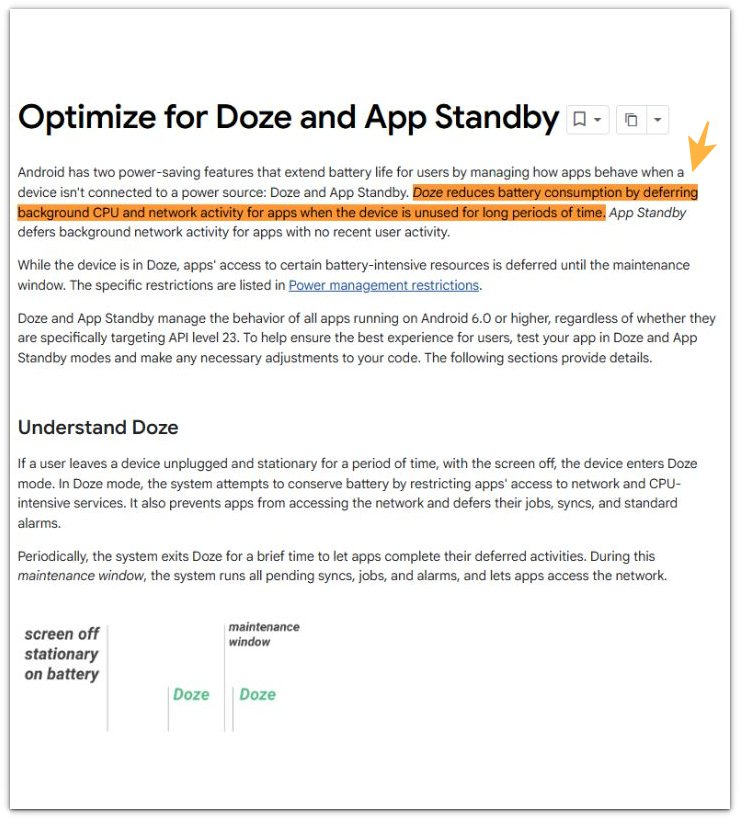
Android is designed to slow down app activity when the phone sits unused. After a software update, the Home screen can look normal before the phone has fully settled. The better clue is whether the battery loss returns after the phone has had time to calm down.
A short calm period after the restart should not end the check. The cleaner result comes from the next idle stretch, not from the phone simply looking ready.
Additional Tips
Avoid restarting the phone repeatedly right after the update. One clean restart is enough for this check. Opening many apps right after the update also makes the result harder to read.
Keep the phone on Wi-Fi, leave the screen off for a short stretch, and let that window finish before judging the battery loss. Avoid watching the battery number every few minutes because that can make a normal post-update drop feel more serious than it is.
The cleaner clue comes later, when battery loss returns after the phone has already had time to calm down.
Final Notes
Android battery drain after software update should not be judged from the first few minutes after the restart. The phone often looks ready before all background work has finished, and a small drop during the first idle stretch is not enough to treat the update as a long-term battery problem.
The stronger warning sign is battery loss showing up again after Wi-Fi, a short waiting window, and normal background work have already calmed down. Stop changing random battery settings when the same quiet-period drain keeps coming back.
A quiet-period drop that keeps returning is a real post-update battery problem, not just normal background settling.
Checklist
- Confirm the drain started after the software update finished.
- Check the first quiet stretch after the phone restarted.
- Leave the screen off for 30 to 60 minutes before judging the drop.
- Compare screen-off drain with Android System or Google Play services activity.
- Avoid opening several apps right after the update.
- Check whether screen-off drain shows up again after the phone has had a clean quiet window.
For wider battery checks, use the main Android battery drain guide next.