
Introduction
Android battery drain during post-update system validation becomes confusing after the update screen has already disappeared. The phone restarts, loads the home screen, and looks ready, but the battery still drops during the first quiet period after installation.
That moment is easy to misunderstand because the visible update is over, while Android is still working through changes in the background. Updated apps, refreshed files, and background activity do not always settle the second the restart finishes.
The important clue is not the update screen itself, but the battery drop that appears after the phone looks ready.
Step-by-Step Guide
Step 1: Confirm That the Drain Happens During Idle Time
Place the phone on a table after the update finishes. Turn the screen off and leave it alone for 30–60 minutes without opening apps, checking notifications, unlocking the screen, or watching the battery number during the test.
Then open Battery usage and compare the battery drop with screen time. If the battery percentage fell while screen time stayed low, the drain is not coming from normal use.
Look for Android System, Google Play services, System UI, or another system-level entry near the top of the battery list. If system activity stays visible while the phone was not being used, treat it as post-update background work first, not normal app use.
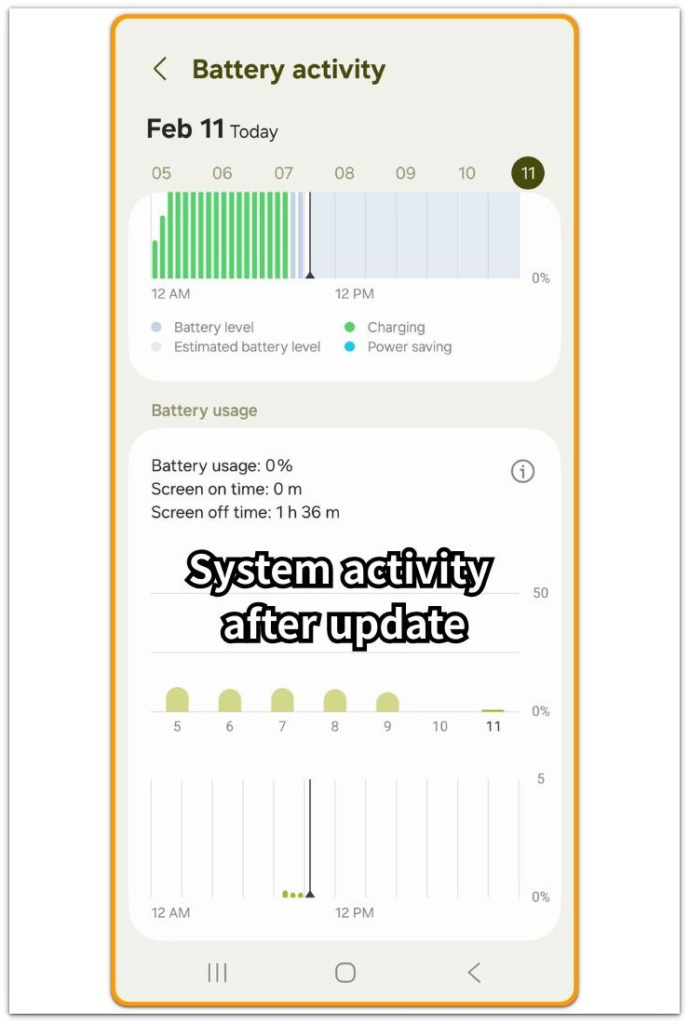
Step 2: Check What the Phone Is Still Doing After the Update
Check what the phone does after the first idle test. A system update does not always finish its work when the home screen appears again, and Android can still refresh apps or finish background work after the restart.
This background work can leave the phone slightly warm or make Android System, Google Play services, or System UI appear in Battery usage while the screen stays off. If the battery drops during idle time and the Battery screen keeps pointing to Android system activity, the phone is likely still finishing update-related work.
The key is whether the drain starts right after the update and appears during the first quiet period, not during games, maps, video, or long screen use.
Step 3: Check Whether the Drain Starts to Slow Down
Watch whether the battery drop slows down after the phone has been used and left alone for a normal period. The drain usually appears soon after the update and becomes lighter after the phone has been used normally for a while.
One percentage drop right after the restart is too weak as a clue. Check the next idle window and compare whether the same drop keeps coming back.
Troubleshooting
Troubleshooting 1: The Phone Still Feels Busy After the Restart
The update screen is gone, but the phone still does not feel fully settled. The back of the phone can feel slightly warm during the first quiet period after the restart, but one warm idle window does not prove one app is draining the battery.
Android still checks changed files, refreshed app data, and background services after some updates. The important clue is that the warmth and battery drop appear right after the update, not after heavy use.
Troubleshooting 2: Battery Usage Shows System Activity Instead of One App
Battery Usage can look confusing when no single app explains the drop. Android System, Google Play services, System UI, or another system-level entry can appear near the top instead of one game, map, video app, or social app clearly dominating the list.
A battery drop during this window is not a good reason to clear random apps. Check whether system entries stay visible while screen time remains low.
If the list points to system activity after the update, give the phone more time before blaming one app.
Troubleshooting 3: Android Battery Drain During Post-Update System Validation Keeps Returning
A short drop after an update is less concerning when it starts slowing down, but the problem changes when the same idle drain keeps returning again and again.
After two or three normal checks, repeated quiet-time battery loss should no longer be treated as normal settling. Look again at Battery Usage and check whether one third-party app starts taking over the list.
Also check whether heat, charging behavior, or standby loss keeps getting worse instead of improving. When the drain does not slow down after the early update window, treat it as a real battery drain problem.
Extra Section 1: When Charging Looks Slow During Post-Update Validation
A different phone looked strange while it was plugged in, not while it was only sitting idle. The same wall charger and cable were used, the screen was off, and no video, game, map, or hotspot session was running.
During the post-update validation window, the battery percentage can climb slowly even when the charger looks normal. The charger was not the first thing to blame because the same setup had worked normally before.
The useful clue was whether the phone still stayed warm or charged unusually slowly while it was supposed to be resting on power. Some of the charger’s power was being used while Android finished background work after the update, so the battery number rose slowly during that early settling window.
Check the next normal charge after the phone has cooled down and stayed idle for a while. If the percentage climbs normally again, the slow gain was likely tied to update-settling work.
If charging stays slow or the phone keeps heating with a trusted charger, separate it from the update and check the charging setup.
Extra Section 2: When Battery Drops During Locked Standby After an Update
Another phone looked normal right after the update, but the battery kept dropping while it sat locked on a desk. The owner had already closed recent apps and stopped using the phone for a while, but the drop still showed up after a quiet locked period.
This was different from the slow-charging case because the phone was charging normally. The problem was that battery activity continued while the phone looked idle, and Battery usage showed small background activity instead of one obvious heavy app.
The useful check was to leave the phone locked again after limiting sync, location access, and unnecessary background refresh. When the next idle window dropped less, the issue pointed to background activity after the update.
A repeated drop during another locked period was no longer just a short settling window. The next check was which background service or app kept waking the phone.
Official Guidance: Use Timing Before Resetting
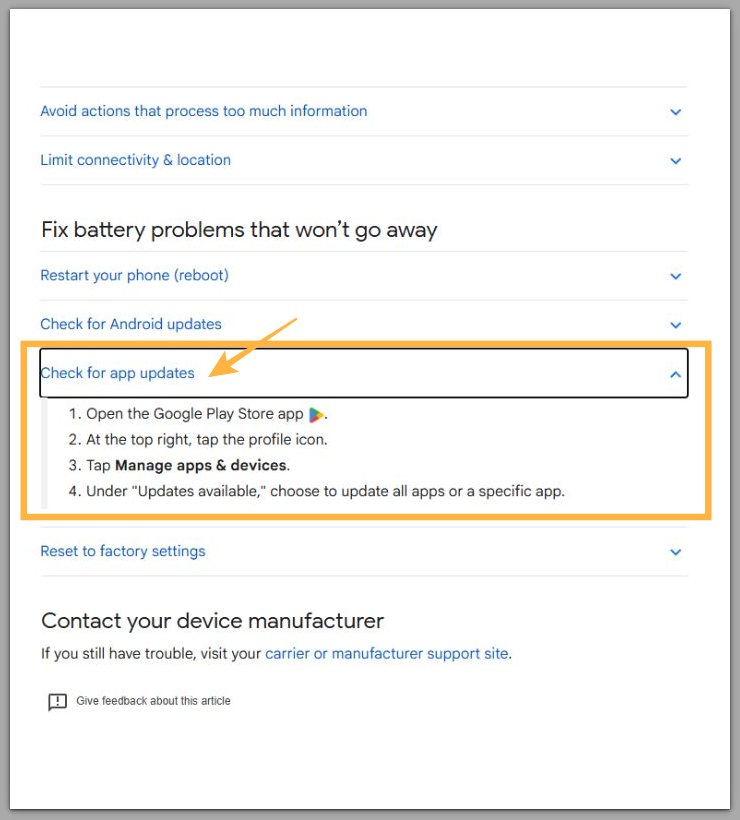
Google’s Android battery help also points to app updates before reset steps, so the first move is not a reset. Check whether the drain slows down after the early update period first.
If the drain keeps getting worse, lasts for several days, or one third-party app starts dominating Battery usage, the problem is no longer just normal post-update validation.
Additional Tips
Right after a major update, one small drop during the first quiet period is not unusual. The phone may still be sorting out updated apps, refreshed files, and background services.
Keep the test simple. Avoid clearing every cache, turning off every setting, or force stopping system apps just because the phone feels busy for a short time. Those changes make it harder to tell whether the phone calmed down by itself or whether the drain is still happening.
Also watch heat carefully. Slight warmth right after the update is different from heat that keeps coming back during standby.
Final Notes
Android battery drain during post-update system validation follows a different pattern from normal app drain. The important clue is timing.
The update screen is already gone, and the phone looks ready, but the battery still drops during the first quiet period after restart. That drop should not keep getting worse.
If the drain slows down after normal use and a few idle checks, the phone was likely finishing post-update work. When the same drain keeps returning for several days, it is a real battery drain problem, not normal post-update validation.
Checklist
- Leave the phone idle for 30–60 minutes after the update finishes.
- Check Battery usage after the idle window, not while repeatedly waking the screen.
- Compare the battery drop with screen time before blaming a normal app.
- Look for Android System, Google Play services, or System UI near the top of Battery usage.
- Check whether the same idle drain slows down after normal use and another quiet period.
- Treat several days of worsening drain as a real battery drain problem, not normal post-update validation.
If the drain still does not slow down after the checklist, use the main guide to separate a short settling window from a real battery drain problem.