
Introduction
Android battery drain mobile network becomes suspicious when the signal does not stay settled. The phone shows service, drops to a weaker signal, and reconnects a few minutes later.
The phone also moves between 5G, LTE, weak signal, or emergency-only service while the battery keeps dropping.
That kind of battery drain is not easy to judge from app usage because the work is happening inside the cellular connection. The phone keeps trying to stay connected to the carrier network instead of settling into a quiet state.
Before changing app battery settings, the important clue is whether the battery drop follows repeated signal changes, failed reconnection, or unstable mobile data behavior.
Step-by-Step Guide
Step 1: Check Whether the Battery Drop Happens During a Quiet Signal Change
Open Settings → Battery and check the battery graph from a time when the phone was barely used. The percentage alone is not enough.
Look at whether the signal was unstable around the same time. When the phone keeps switching between 5G, LTE, a weak signal, or emergency-only service, the drop points to reconnection activity.
The key clue is low screen use with repeated signal changes. Use the battery graph as the first check before changing app battery settings.
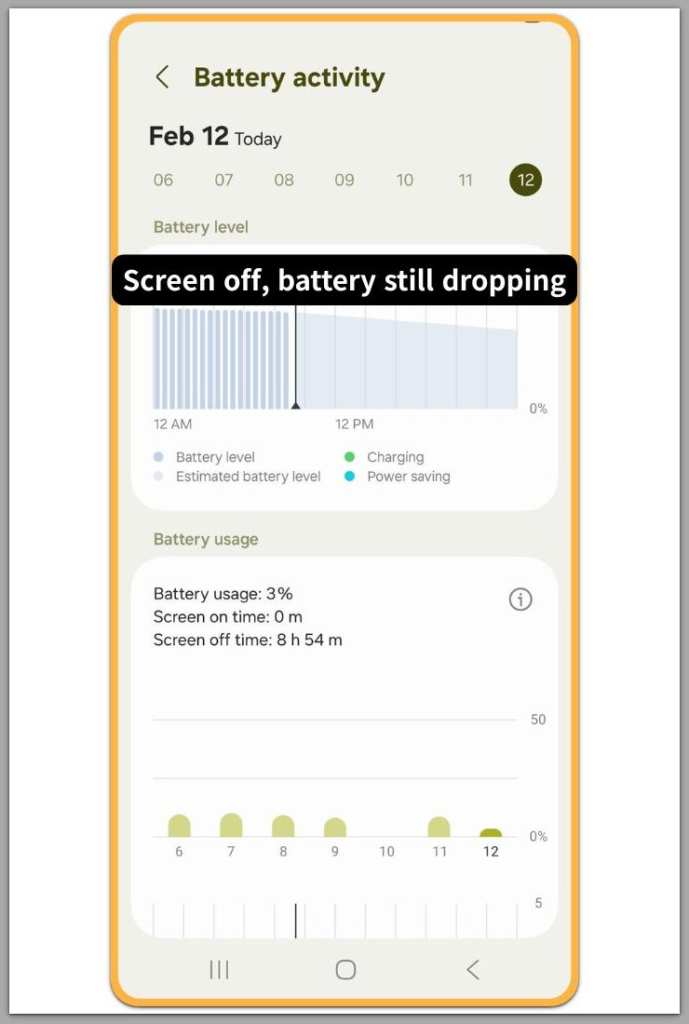
This image shows a battery activity screen where the battery drops while screen use stays low.
Step 2: Watch Whether the Signal Keeps Dropping and Reconnecting
Leave the phone in the same place for a few minutes. Watch the signal bars, mobile data icon, and connection type at the top of the screen.
Keep apps closed during this check. A phone that keeps moving between 5G, LTE, weak signal, or emergency-only service is not holding a stable connection.
That repeated change matters more than one short signal drop. If the same reconnecting behavior continues, move to the SIM check before resetting network settings.
Step 3: Check the SIM and Reset Mobile Network Settings
Power off the phone before touching the SIM card. Remove the SIM, check whether it sits cleanly in the tray, then insert it again.
Restart the phone and watch whether the signal holds steady. When the same reconnecting behavior continues, open Settings → General management → Reset → Reset network settings.
This does not delete photos, apps, or personal files, but it removes saved network settings. Use this step only after the signal keeps changing, not as the first fix.
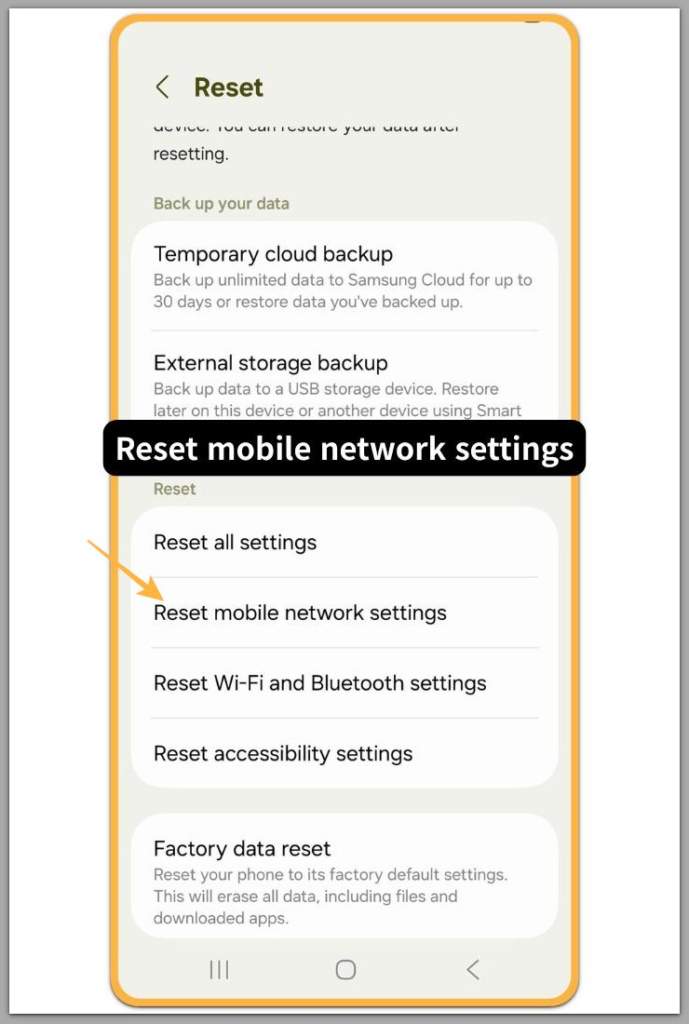
Troubleshooting
Troubleshooting 1: Android Battery Drain Mobile Network Slows in Airplane Mode
Turn on Airplane mode and leave the phone idle for the same kind of quiet period you checked earlier. Do not open apps during this test.
The point is to see what happens when the phone stops using the mobile network. A much slower battery drop in Airplane mode points to mobile network drain, especially when signal searching or repeated reconnection returns afterward.
That does not prove the battery is healthy or bad by itself. It only shows that the drain changes after mobile network activity stops.
Troubleshooting 2: The Same Phone Behaves Differently With Another SIM
Try another SIM card only if one is available. Restart the phone after inserting it, then watch whether the signal holds steady.
A better result with another SIM points toward the original SIM, account setup, or carrier connection. The phone is still the same, but the network path has changed.
The same reconnecting behavior with both SIMs makes one bad SIM card less likely. Watch whether the same signal behavior returns before changing more settings.
Troubleshooting 3: The Problem Started After a System or Carrier Update
Check when the signal problem first appeared. Battery drain that starts right after a system update or carrier settings change makes the timing important.
Look for repeated changes between 5G, LTE, weak signal, or no service after the update. Do not treat one short signal drop as the whole problem.
The issue matters when the same reconnecting behavior keeps coming back during quiet use. A problem that continues after a restart, SIM check, and reset is beyond normal app battery control.
Extra Section 1: Weak Signal Areas Keep the Phone Reconnecting
The same phone can drain very differently after you move it to a weaker signal area. A basement, parking garage, back room, or edge-of-town location can make the signal keep slipping instead of staying settled.
The phone shows 5G for a moment, drops to LTE, loses mobile data, then reconnects again a few minutes later. That kind of change matters when the phone stays in the same place for a long quiet period.
The battery drop often looks strange because nothing obvious is happening on the screen. Move the phone to a stronger signal area and watch the next quiet period.
If the battery drop becomes calmer in the new location, the old spot was forcing the phone to keep working for service. That is a signal-location problem, not normal app battery use.
Extra Section 2: Quiet App Usage Does Not Always Mean the Network Is Idle
Battery Usage looks quiet even while the phone keeps losing power during the same idle window. The app list shows no clear battery-heavy app, and screen time stays low.
This does not look like a normal background app problem. Instead of stopping at the app list, check whether signal changes or mobile data reconnection appear around the same time.
The missing clue is not always an app name. The phone is trying to keep service while the screen stays unused.
A quiet app list with repeated signal changes points to a network stability problem before it points to background apps.
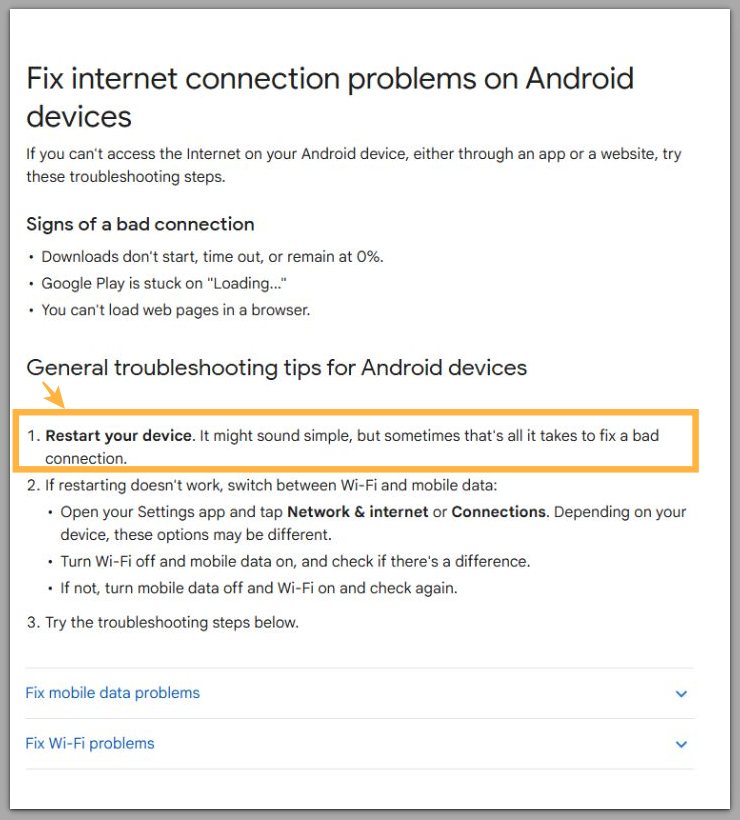
Official Source: Android Connection Checks
Google’s Android support steps treat mobile data, signal indicators, and basic connection refreshes as part of the first checks for a bad Android connection.
That does not prove the battery is bad or normal. It only gives you a clean starting point before you decide whether the drain follows repeated reconnection.
Additional Tips
Do not keep switching between 5G, LTE, and other network modes while checking the drain. Changing the network mode too often makes it harder to know whether the phone was already unstable.
For a dual SIM phone, turn off the second SIM for one quiet test. Two active lines can make signal behavior harder to read when one carrier is weaker than the other.
Restart the phone after changing SIM settings, then watch whether the same signal changes return. The useful clue is not one weak signal moment, but the same reconnecting behavior coming back again.
Final Notes
Android battery drain mobile network does not behave like normal app battery use. The important clue is the battery drop that follows repeated signal changes, mobile data reconnection, or unstable service.
If the drain slows down in Airplane mode, changes with another SIM, or starts right after a carrier or system update, the problem is not just screen time or one app running too long.
App limits will not solve the drain when the signal itself keeps moving between connected, weak, and disconnected states.
When the battery keeps falling while the phone keeps trying to hold mobile service, this is a network stability problem, not normal background battery drain.
Checklist
- Check whether the battery drops while screen use stays low.
- Watch whether the signal keeps changing between 5G, LTE, weak signal, or no service.
- Restart the phone after checking the SIM card.
- Reset mobile network settings only after the signal keeps reconnecting.
- Compare the same quiet period with Airplane Mode turned on.
- Try another SIM only if the same signal problem keeps returning.
- Treat repeated battery drop with unstable signal as a connection problem, not normal app battery drain.
For broader battery drain checks, use the main guide after this page confirms that repeated signal trouble is part of the pattern.