
Introduction
Kernel wakelock battery drain Android becomes noticeable when the phone keeps losing power while the screen is off.
The battery screen does not always show one heavy app. Screen time looks low, but the battery graph still keeps dropping during the same locked period.
A kernel wakelock keeps part of the phone awake when the phone should be resting. That makes the drain harder to trace back to normal app use.
Start with the idle period. The important clue is whether the battery keeps falling while screen time stays low.
Step-by-Step Guide
Step 1: Check the Battery Drop While the Screen Is Off
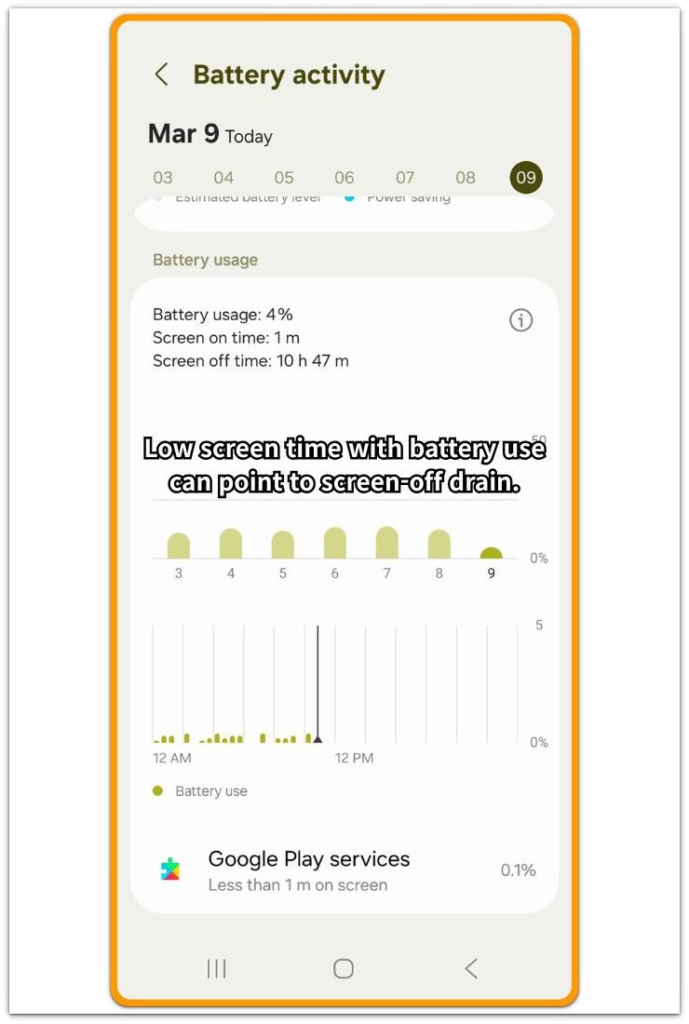
Open Settings, then go to Battery. Do not start with the full-day battery number. Find a locked period when the screen stayed off and no one was using the phone.
Compare the battery drop with screen time during that same period. Kernel wakelock battery drain Android becomes easier to suspect when the battery keeps falling even though screen time stays low.
Step 2: Check the Battery Usage List for the Same Time Period
Stay inside the Battery screen and open the usage list for the same period. Look for Android System, Google Play services, Phone idle, Mobile network, or another system-level entry near the battery drop.
One app name alone is too weak to explain this issue. Compare the listed entry with the locked period you checked in Step 1. If screen time stayed low but a system-level entry kept appearing during that same drop, screen use alone does not explain the battery loss.
Skip battery restriction settings for now. A kernel wakelock problem often sits below the visible usage list, so changing random limits too early can hide the timing clue.
Step 3: Leave the Phone Locked for One Clean Idle Test
Charge the phone enough for a fair test, then leave it locked for 30 to 60 minutes. Do not charge it, stream media, update apps, use navigation, or move between weak signal areas during this test.
After the idle period, open Battery again and compare the new drop with screen time. If the battery line still falls while screen time stays very low, the phone is not resting normally.
Check whether the same kind of entry appears again during the clean locked period. Then review background wake activity before changing normal app settings.
Troubleshooting: Kernel Wakelock Battery Drain Android
Troubleshooting 1: No Clear App Appears During Screen-Off Drain
A screen-off drain can look empty in Battery because the usage list does not always name the exact wake source. The top entry may be Android System, Google Play services, Phone idle, Mobile network, or another broad system item.
Use that broad entry as a clue, not as the final answer. A system-level entry means the phone stayed active somewhere below normal screen use, so the next step is to look at what changed around that time.
Start with the simple triggers first. Recent updates, weak signal, Bluetooth devices, location access, account sync, and restore activity can all keep the phone busier than it looks from the outside.
Restart once, then leave the phone alone again. A normal one-time wake should settle after that. A repeated system-level entry during another quiet stretch gives the issue more weight.
Troubleshooting 2: App Limits Do Not Change the Result
App limits help when one visible app keeps working in the background. A kernel wakelock problem is different because the wake request may come through system services, network checks, drivers, or connected hardware.
After limiting the obvious apps, stop adding more restrictions. More limits can blur the timing and make the next Battery check harder to read.
Change one condition at a time instead. Test the phone away from weak signal, disconnect Bluetooth devices, pause large sync or restore work, and avoid updates during the next idle stretch.
A similar loss after those app limits means the visible app layer is probably not the main cause. The better next check is the condition around the phone, not another random app setting.
Troubleshooting 3: The Drain Only Shows During Long Idle Time
Short tests can miss this problem. A phone may look fine during normal use, then lose more power than expected while sitting untouched for several hours.
Use one longer idle stretch to read that behavior. Overnight, a desk period, or a quiet afternoon gives a better picture than several quick checks.
Keep the test boring. Stay in one signal area, leave downloads and updates alone, and avoid connecting or disconnecting devices during the same stretch.
A repeated loss during quiet idle time no longer looks like normal active use. Compare that time with signal strength, connected devices, location access, recent updates, and system services before changing more app settings.
Extra Section 1: When the Phone Looked Idle but the Battery Line Kept Falling
The phone sat on a desk for most of the afternoon. The screen stayed off, no video played, and no heavy app was open.
Later, the battery number looked too low for that kind of use. Nothing obvious explained it. There was no game session, no navigation, and no long streaming period.
The useful clue came from the mismatch. The phone looked quiet from the outside, but the battery line kept moving down while the usage list pointed toward broad system activity.
Instead of chasing the last app that had been opened, the user checked what had been active around the phone. A recent update had finished earlier, Bluetooth had stayed connected, and signal strength had moved between weak and normal during the same afternoon.
The drain no longer looked like simple app use. The phone seemed to stay awake during a period that should have been quiet.
Extra Section 2: When App Limits Did Not Stop the Locked-Screen Drop
The first guess was an app problem. A few obvious apps were limited, background use was reduced, and the phone was left alone again.
The same kind of loss still showed up later. That made the app theory weaker because the easiest visible causes had already been reduced.
The next check moved away from app controls. The user looked at network conditions, connected devices, recent updates, and sync activity instead of adding more restrictions.
The cause became easier to separate. The phone had not been busy because one open app was running on the screen. Something around the system kept it active during quiet time.
App limits still had value because they ruled out the easiest cause first. Once the drain stayed after that step, the next check had to move beyond the apps the user had opened.
Official Source: Google Explains Wake Locks and Battery Drain
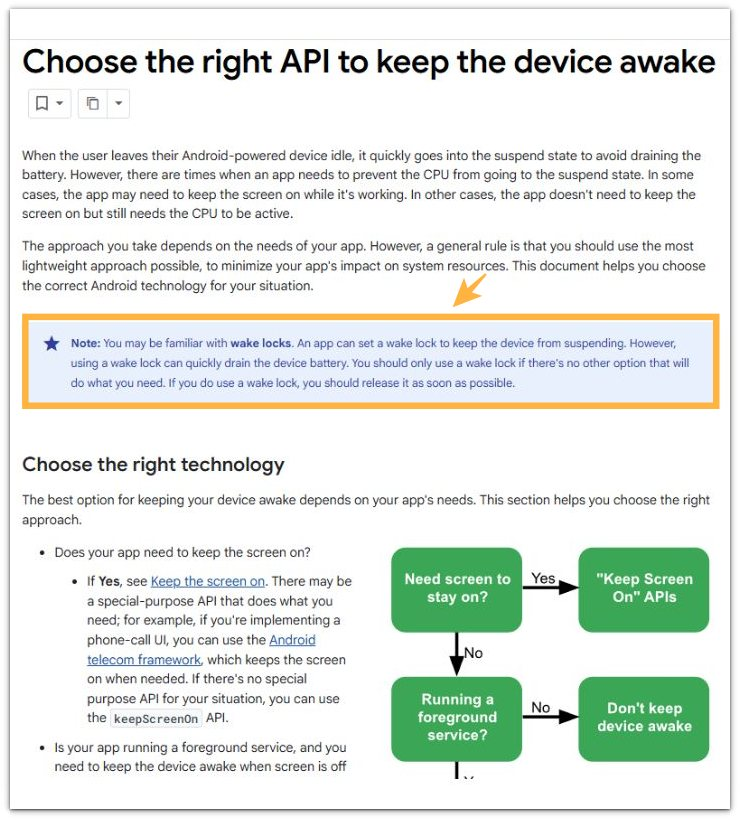
Google’s Android developer documentation explains that a wake lock can quickly drain the battery if it stays active too long.
This matters here because an Android phone can still lose power while locked when something keeps it from resting properly, even when no heavy app appears on the screen.
Additional Tips
Right after a restart, system update, app update, or full restore, the Battery screen may not give a fair picture yet. Give the phone a short settling period before reading the drain as a real clue.
Charging, weak signal areas, downloads, updates, and app restore activity can all add extra battery use. Run the locked-screen test only when those conditions are out of the way.
One short battery dip is too weak to prove the problem. Use a clean locked period, then compare the drop with screen time and the entries shown in Battery.
Final Notes
One app name or one short dip is too weak to confirm kernel wakelock battery drain Android. The stronger clue is a repeated loss while the phone looks idle.
Broad entries such as Android System, Google Play services, Phone idle, or Mobile network matter most when they return during the same kind of quiet period. Repeated broad entries make normal screen use less likely.
The cleanest path is to rule out visible apps first, then check the conditions around the phone. Weak signal, Bluetooth, location access, sync, restore work, and recent updates can all keep the device awake.
A repeated idle drain carries more weight than ordinary standby loss. Compare the timing with the activity shown in Battery and the conditions around the phone before changing more settings.
Checklist
- Check the battery drop while the screen is off.
- Compare the drop with screen time in Battery.
- Look for Android System, Google Play services, Phone idle, or Mobile network.
- Run one clean locked-screen test.
- Avoid testing while charging, updating, restoring, or moving through weak signal areas.
- Stop deleting random apps if the same locked-screen drop keeps returning.
When this locked-screen drop does not match the clues above, use the main Android battery drain guide to compare other causes.