
Introduction
Android doze mode battery drain becomes noticeable when the phone keeps losing battery while it is locked and unused. The screen stays off, and nothing looks heavily used, but the battery still drops during a quiet idle period.
The first clue comes from the idle period, not from normal screen use. Start by checking a clean locked window, then compare the drop with Battery usage, signal activity, and motion-related settings before changing anything.
Step-by-Step Guide
Step 1: Check the Battery Drop During a Locked Idle Window
Open Settings and go to Battery. Check the battery graph before changing any setting, then look for a time when the phone was locked, the screen stayed off, and you were not using apps.
Compare the battery percentage before and after that quiet period, then check whether any app shows heavy use during the same time. If the battery drops while screen use stays low and no clear app explains it, keep the check focused on idle drain instead of deleting apps right away.
Step 2: Test the Phone While It Stays Still
Place it on a table or another stable surface, then lock the screen and leave it untouched for about 30 minutes. Do not keep it in a pocket, bag, moving car, or bed during this check because movement can keep it from staying fully idle.
After the test, check the battery percentage again. If the battery drops less when it stays still, repeated movement was likely affecting the idle period.
Step 3: Check Background Usage Limits
Open Settings and return to Battery. Find Background usage limits or the sleeping apps section.
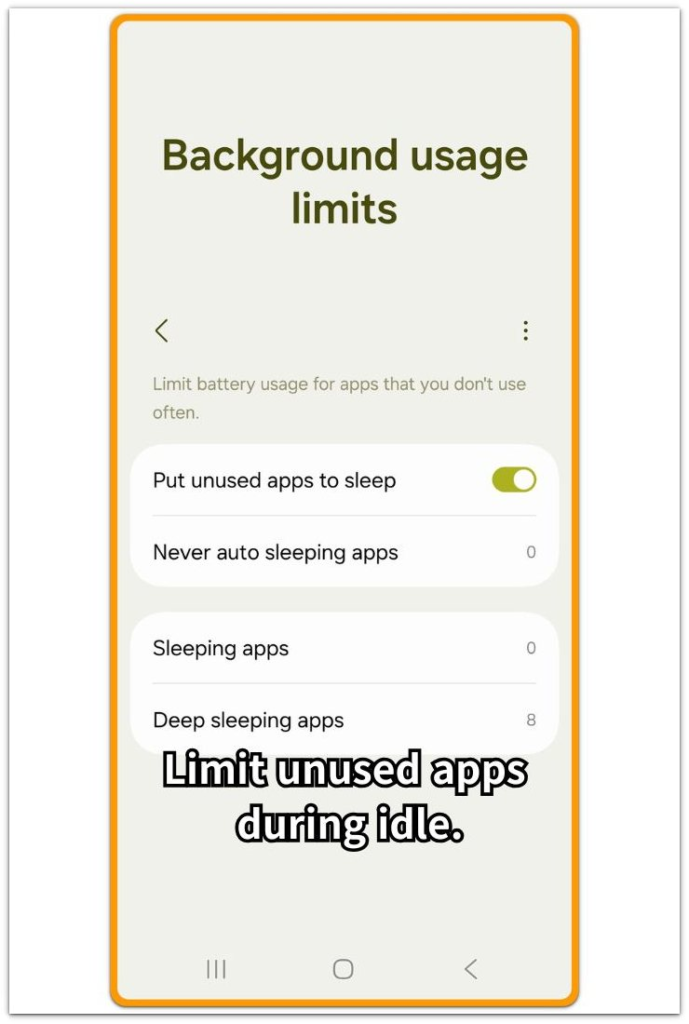
Check whether apps you rarely use are still allowed to run in the background. Instead of restricting every app at once, start with apps that do not need instant updates, such as shopping apps, games, or apps you rarely open.
After changing one or two apps, lock the phone again and watch the next idle window. If the battery drops less during the next locked period, keep those limits and do not add more apps unless the drain comes back.
Troubleshooting: Android Doze Mode Battery Drain
Troubleshooting 1: Battery Drops Overnight Even After the Idle Test Looks Normal
A short idle test does not always show the full problem. The phone can look fine during a 30-minute check but still lose more battery overnight.
Check the overnight graph the next morning. Look for a long screen-off period with low app use, then compare that stretch with the shorter test you already ran. If the short test looks stable but the overnight graph keeps falling, the problem is tied to longer idle time, not normal screen use.
Troubleshooting 2: Battery Drops More in Certain Places
The phone drains more when it is left in a pocket, bag, bed, or moving car, but that does not always mean one app is using too much power. Doze works best when the phone stays still for a longer quiet period.
Test this by placing it on a flat table and leaving it locked for about 30 minutes, then compare that result with a time when it was carried around. If the battery holds better on the table, movement or placement is part of the drain pattern.
Troubleshooting 3: Background Limits Help at First but the Drain Returns
Background usage limits may reduce idle drain, but the result needs to stay consistent. After limiting one or two apps, watch the next few locked idle periods.
Instead of adding more apps to sleeping lists without checking the battery graph again, check which app or service becomes active during the later idle window if the battery improves once and then starts dropping again. The important clue is whether the same background activity returns while the phone is locked and unused.
Extra Section 1: When the Phone Drops Battery During a Short Idle Break
A user leaves the phone on a desk during a short break. The screen stays off, no app is being used, and after 30 to 60 minutes, the battery percentage is lower than expected.
The user opens Battery usage and looks for one app causing the drop, but no app stands out. The same thing happens again during another short break: the phone is still on the desk, the screen stays locked, and the battery drops again.
The app list alone does not explain the second drop. The stronger clue is the repeated battery loss while the phone is sitting unused. Android doze mode battery drain fits this pattern better than normal screen use or one heavy app.
Extra Section 2: When the Same Idle Test Changes in a Different Place
A user checks the phone during one quiet idle period and sees a small battery drop. Later, the same kind of check looks worse, but this time the phone was not sitting still on a desk. It was left in a place where it could move, warm up, or stay covered.
The screen stayed off, so the drain still looks like an idle problem at first, but the place where it was left changes the test. A phone on a flat table gives a cleaner idle result than a phone left under fabric or moved around.
If the battery holds better on the table, the first result was not a clean doze test. The stronger clue is the difference between a still surface and a moving or covered place. Use the clean still test first before judging the drain.
Official Source: Android Doze Delays Background Work
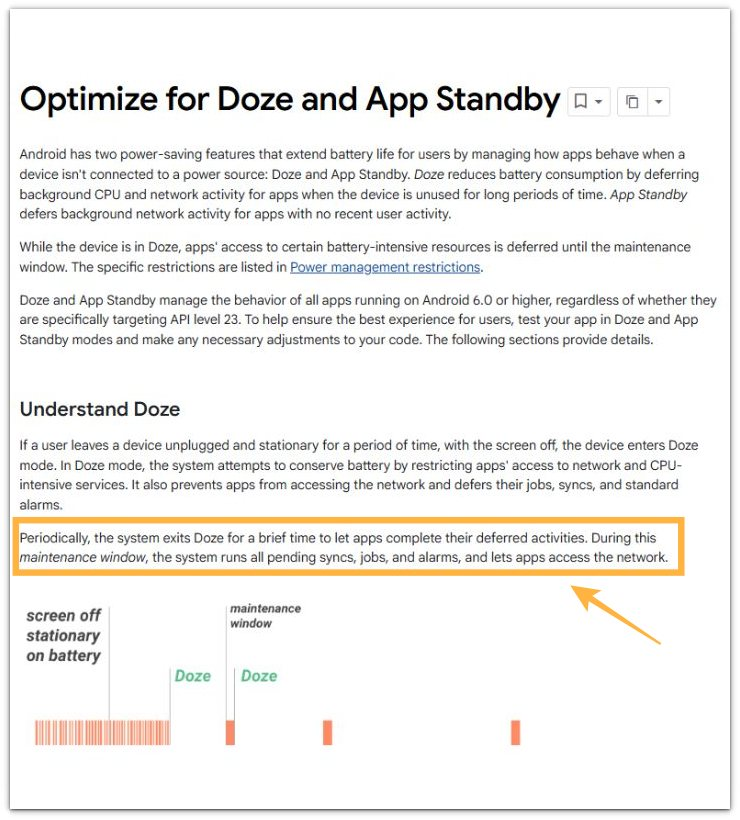
The Android Developers documentation explains that when a device enters Doze, Android delays network access and background work until short maintenance windows.
This matters because a small battery drop during idle can still happen when Android briefly wakes to run delayed tasks.
Additional Tips
A doze test gives a cleaner result when the phone is left in one simple condition. Charging, heat, recent restarts, and system updates can all make the battery graph harder to read.
The best time to check is after the phone has settled and is no longer doing obvious background work. A pocket, bag, bed, or hot surface can also confuse the result because the phone may stay warmer or keep moving.
Use a locked, unplugged, still device as the clean comparison point before judging the drain.
Final Notes
Android doze mode battery drain is different from normal battery use. The key sign is battery loss while the screen stays off and no clear app explains the drop.
When the phone keeps losing power while locked and unused, regular screen use is not the main cause. Check whether the battery keeps dropping during a clean still test.
Check the quiet locked period first, then compare Battery usage, movement, signal, and background app behavior. Do not delete apps or reset the phone before confirming the same pattern more than once.
If the same screen-off drop repeats during clean idle windows, treat it as a doze-related drain problem, not normal daily battery use.
Checklist
- Confirm whether battery drops while the screen stays off
- Check the overnight battery graph for steady power loss
- Look for app activity during the same screen-off period
- Test it while locked, unplugged, and sitting still
- Compare the result before blaming one app or resetting the phone
When this doze check does not match your battery pattern, use the main guide to compare it with other Android battery drain problems.