
Introduction
Your Android phone can sit unused with no app open and still lose battery while the screen stays off. Nothing on the screen explains why motion, location, brightness, or other sensor checks keep running in the background.
Android battery drain sensor issues happen when those background checks keep parts of the system awake during standby, even when Battery usage does not point to one obvious app.
Step-by-Step Guide
Step 1: Separate Android battery drain sensor issues from app activity
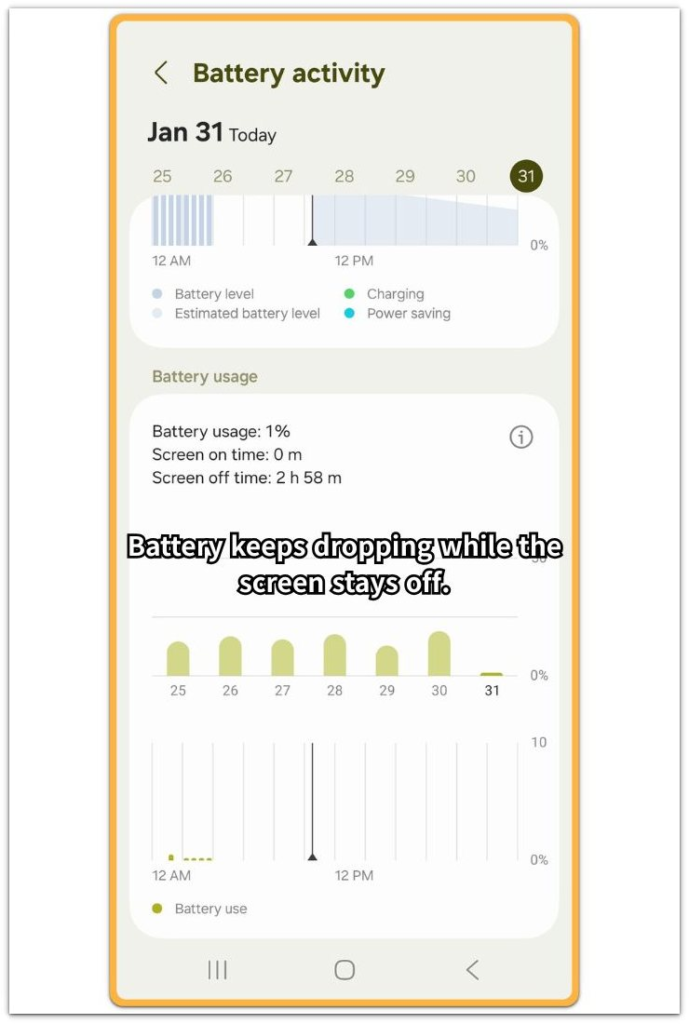
Start by checking whether the battery drop matches visible app use. Open the Battery usage screen and look at screen-on time first.
If the phone stayed untouched, the screen stayed off, and app usage looks low, the drain is harder to blame on normal foreground use. That list can show several small entries instead of one obvious cause.
Use it to check screen-on time, app activity, and screen-off drain before blaming one app or the battery itself.
Step 2: Understand why sensors remain active during idle states
Next, check what the phone still tracks while the screen is off. Motion, proximity, location, brightness, and other sensor-related activity do not always stop just because the display is dark.
The phone still tracks movement, position, screen behavior, and system state in the background. A problem starts when those checks continue too often during idle time. The phone appears inactive, but the system still wakes briefly to read sensor input.
Step 3: Identify the point where sensor control ends
Now separate the settings you can control from the background behavior Android manages on its own. Turning off location, motion features, adaptive brightness, or related app permissions helps when one setting is tied to the drain, but those changes do not control every background process inside Android.
Some checks stay tied to system stability, safety, display behavior, or background services. If the same standby drain continues after those settings are checked, stop changing random battery options.
After checking those settings, leave the phone still for the same idle period and compare the next battery drop before changing anything else.
Troubleshooting
Troubleshooting 1: Battery drain continues after sensor-related settings are turned off
The drain becomes harder to read after the obvious sensor settings already look correct. Motion features are off, location access is restricted, and adaptive brightness is disabled, but the screen still stays off while the battery continues to drop during standby.
This does not automatically mean every setting failed. It shows that the visible settings did not stop all the background checks the phone still needs to manage.
Some checks stay tied to movement, display behavior, safety, or system state. A restart can make the drain look better for a short time, but the stronger warning sign is the same screen-off drop returning with no new app use and no visible setting change.
Troubleshooting 2: Battery usage does not show a clear app causing the drain
Another confusing sign is a Battery usage screen that looks too clean for the battery drop. Screen-on time stays low, and no foreground app stands out.
System services or several small entries appear instead of one clear battery-draining app. Do not treat that clean-looking list as proof that nothing happened.
Use this screen to confirm that the drop is not coming from one foreground app before moving back to the idle test.
Troubleshooting 3: The drain returns after the phone looks normal for a while
This type of drain is harder to judge when the phone looks normal right after a restart. The battery holds better for a while, the Battery usage list looks cleaner, and the settings still look correct.
Then the standby drop returns later while the phone is unused. A restart clears the current state, but some background processes can start again during normal idle time.
The key check is whether the drain returns under the same idle conditions: the screen stays off, the phone is not being moved much, and no new app session explains the drop. If the pattern comes back, run one more standby check before changing unrelated settings.
Extra Section 1: When an Idle Phone Was Still Being Moved
One phone looked unused for most of the afternoon, but the battery drop did not match that inactive-looking state. The screen-on time was low, and no large app stood out on the Battery usage list.
The owner thought the phone was idle, but it had not stayed still long enough for a clean standby test. The important detail was not the app list. It was how the phone had been handled during the day.
It was picked up several times, moved between a desk and a bag, and left at different angles. None of that looked like active phone use, but the phone was not in one resting position for long.
Android battery drain sensor issues are easier to spot in this kind of situation. The next check was how the phone had been left before blaming one app. A phone can look unused from the outside while movement and position changes still leave small background activity behind.
Extra Section 2: When One Resting Spot Drained More Battery
A different case was a phone that stayed steady in one place but dropped faster in another. During normal desk use, the battery looked steady, and the Battery usage list did not show one heavy app.
The strange drop happened later, when the phone was left near a bright window for a long stretch. The owner first thought the battery itself was getting weaker, but that guess looked reasonable only until the battery stayed stable in a different spot.
Nothing major changed in the settings. The phone was spending part of the day in a brighter spot, where light changes could keep display-related checks active during standby.
Another random setting change would not explain the pattern. The real test was the idle period, the location, and how the phone was left during that time.
When the phone drains more in one resting spot than another, that spot becomes part of the battery check.
Official Source: Why Sensor Drain Does Not Always Look Like App Drain
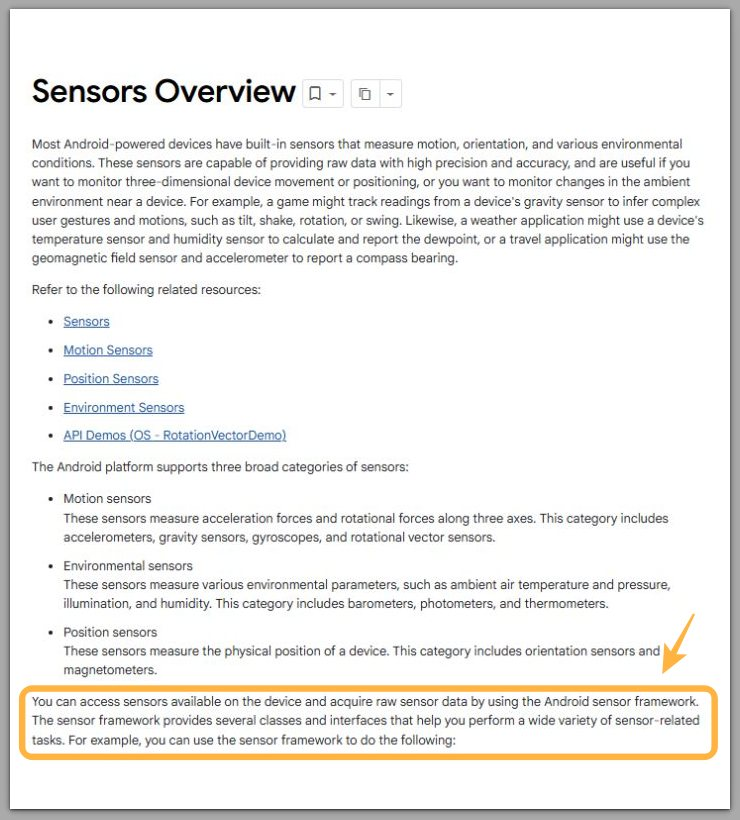
Android’s sensor documentation says device sensors work through the Android sensor framework. That helps explain why this kind of battery drain does not always appear as one normal app on the Battery usage screen.
This does not mean sensors are always the problem. It means the repeated screen-off pattern matters more than one unclear Battery usage entry.
Additional Tips
Do the second idle test under the same conditions as the first one. Check the phone after a system update, a settings reset, or a restart, but avoid judging the problem from one short battery drop.
A short change right after setup work is different from a drain pattern that returns later. Use a similar charging level, the same idle period, and the same Battery usage screen each time.
Final Notes
Hold off on blaming the battery until the same screen-off drop returns after the sensor-related checks.
The real warning sign is repeated screen-off drain after location, motion features, adaptive brightness, and related app permissions have already been checked.
When that pattern returns, treat the issue as repeated standby drain instead of a one-time reading.
Checklist
- Check whether the battery drops while the phone stays unused.
- Compare screen-on time with the battery drop on the Battery usage screen.
- Rule out a clear heavy app before blaming sensor behavior.
- Check location, motion features, adaptive brightness, and related app permissions.
- Watch whether standby drain returns after a restart.
- Run one more standby check before changing unrelated battery settings.
Use the main guide to compare this sensor issue with other Android battery drain causes.