
Introduction
VoLTE standby drain becomes confusing when the phone loses battery while it is still waiting on the mobile voice network. No call is active, but the phone still has to stay reachable for incoming voice service.
This background network state is easy to miss because it does not look like normal app use. The battery screen often fails to show one clear app when the loss is tied to mobile network standby.
The phone can still look normal because calls connect, messages arrive, and the signal bars do not look weak. Android VoLTE standby battery drain needs a closer check when the battery drop follows mobile network standby more than screen time.
Check the loss pattern first before blaming random apps, clearing cache, or replacing the battery.
Step-by-Step Guide
Step 1: Check why VoLTE standby is not fully idle
Start with the network state, not the app list. The voice connection does not only matter when a call is already in progress. The phone also has to stay ready for incoming voice service while it remains registered on the mobile network.
That standby state keeps small network checks active even when the phone looks quiet. The first check is whether the battery drops while the screen stays off.
If Android VoLTE standby battery drain shows up while usage time stays low, check network standby before app cleanup.
Step 2: Compare standby drain with signal behavior
Weak signal bars alone are not enough here. A poor signal drains battery, but VoLTE standby drain is harder to read when the signal looks normal.
Calls still connect normally. Mobile data still works.
The useful clue is whether the battery keeps dropping while screen time stays low and the phone remains on the mobile network. Use the connection pattern as the next clue, not one obvious app.
Mobile network checks can last longer than expected, and that extra activity adds to standby battery loss.
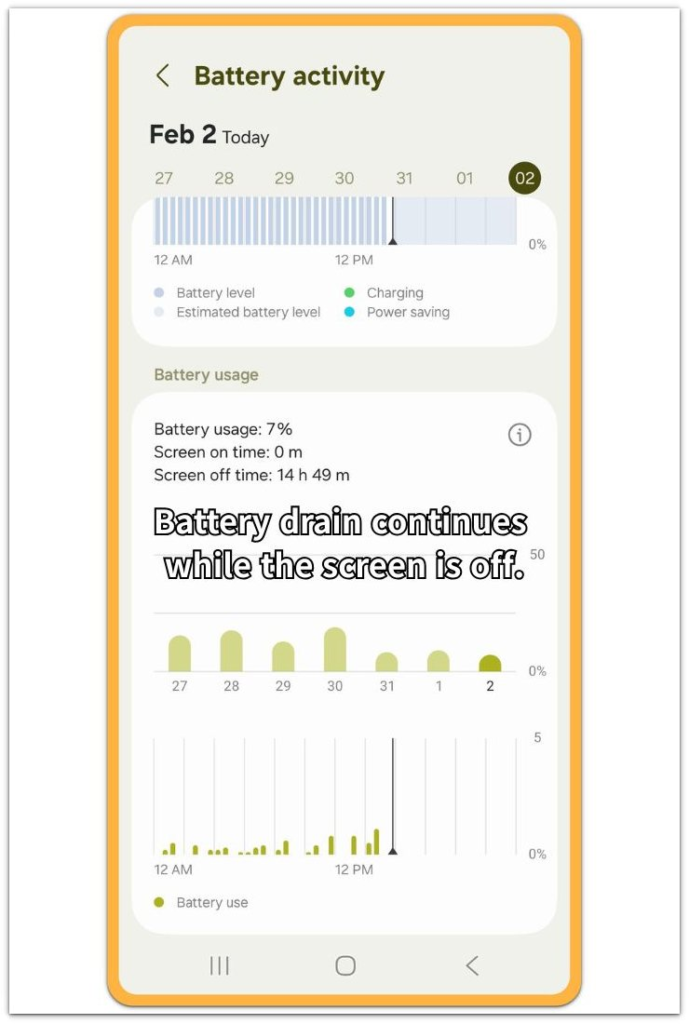
The battery activity screen helps show whether the phone is losing power while screen use stays low.
Step 3: Check where user control stops
Next, separate normal user settings from network standby behavior. Battery saver, background app limits, and closing recent apps belong to normal app-drain checks. They do not always explain battery loss tied to mobile network standby.
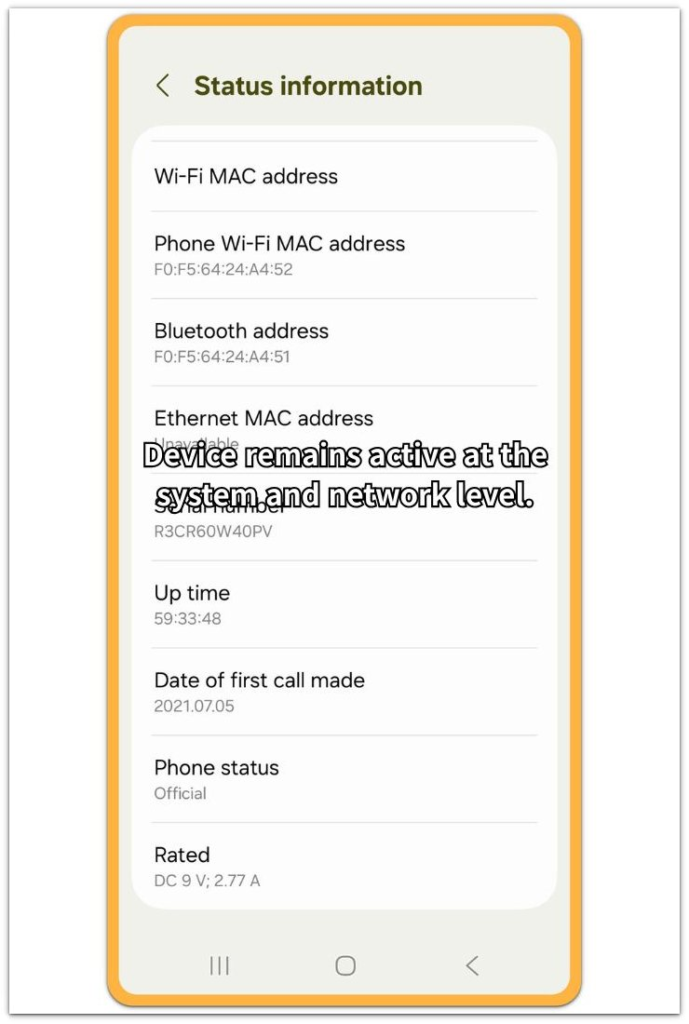
When the drain continues after app activity looks low, the phone is no longer giving you a simple app-based answer. The next check is the phone’s network and status information, not another round of random cleanup.
This is where the issue starts to look different from normal background app drain. The status information screen helps connect battery loss with the phone’s network state.
Troubleshooting
Troubleshooting 1: Network reset works for a while, then the drain returns
A network reset makes the phone look fixed for a short time. The mobile connection drops, reconnects, and the phone starts fresh.
Voice registration starts again once the phone returns to the carrier network. If the battery begins dropping again after the reconnect, the reset probably did not remove the real cause.
Check whether the drain comes back during standby, not only while you are using mobile data. When the same drop returns after each reconnect, the issue is no longer just a bad temporary setting.
Troubleshooting 2: Signal bars look stable, but standby drain continues
Stable signal bars make the phone look normal. Calls still connect, messages arrive, and mobile data does not feel broken. That does not prove the mobile network is quiet in the background.
The phone stays registered while it keeps checking network readiness for voice service. Android VoLTE standby battery drain becomes easier to spot when battery loss continues even though signal strength looks steady.
Compare the battery drop with screen time and mobile network standby before blaming one visible app.
Troubleshooting 3: Software updates do not stop the same standby drain
A software update fixes some normal bugs, but carrier-side standby behavior often stays the same. The phone runs a newer Android version and still shows the same standby drain afterward.
That feels frustrating because the update looks like the biggest change the user can control. If the battery drop stays similar across versions, the update was probably not the missing fix.
Check whether the same drain appears in the same location, on the same SIM, and under the same mobile network conditions. When those conditions stay the same, stop treating the problem like another app cleanup issue.
Extra Section 1: When Standby Time Explains the Battery Drop
A phone looks unused and still stays ready for voice service. I checked one Android phone that barely had any screen time during a long standby period.
There were no missed calls, no long calls, and no obvious app activity to explain the drop. The mobile signal looked normal, so the drain did not feel like a weak reception problem.
The clue came from comparing battery loss with standby time instead of app use. The phone was not doing something visible, but it was still staying connected enough for incoming voice service.
Battery loss looked different here because the phone was mostly waiting for voice service. The battery graph mattered more than the app list because the drop followed idle time, not active use.
Extra Section 2: When SIM or Carrier Changes Reveal the Cause
The clearer clue came after the network changed, not after another app cleanup. The same phone kept losing battery in one location during long standby time.
Apps were not changing, and the battery was not suddenly weaker. The battery behavior changed only after the phone used a different SIM and stayed on a different carrier network.
The old app-cleanup theory became less convincing. The phone itself still mattered, but the standby drain no longer looked like a simple device problem.
A network-side difference explained the change better than another cache clear, app restriction, or software update. This kind of comparison is useful because the same phone behaves differently when the carrier, SIM, or mobile coverage changes.
Official Source: Android Radio Activity Can Affect Battery Drain
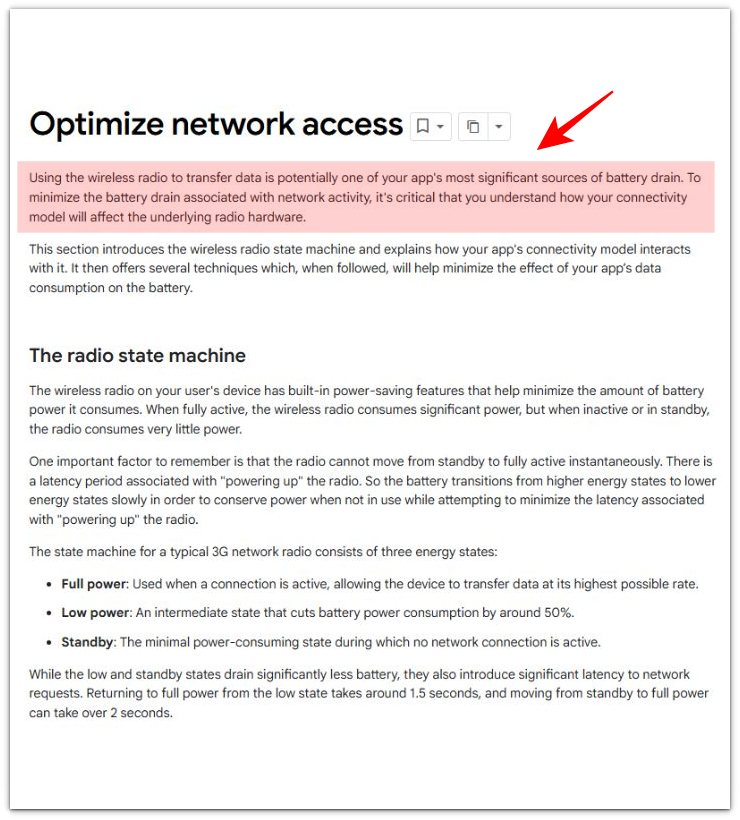
Android’s official documentation explains that wireless radio data transfer is one of the phone’s major battery drain sources.
Before moving on, compare the battery graph with mobile network standby so you do not mistake this for normal idle drain.
Additional Tips
Battery graphs help more than one percentage drop when you are checking standby drain. Look for a steady decline during long idle periods, not one sudden drop after heavy use.
Test the phone overnight with the same SIM, same location, same Wi-Fi setting, and similar battery level. Switching SIMs for a short test separates a phone problem from a network problem.
Be careful with the VoLTE toggle because some carriers control how that option behaves. Airplane mode is useful only as a comparison test.
Final Notes
Android VoLTE standby battery drain should not be treated like a normal app cleanup problem. The phone looks quiet, shows stable signal bars, and still loses battery while it stays ready for mobile voice service.
Another cache clear or random app restriction will not explain battery loss tied to the mobile voice connection. A battery drop that keeps returning under the same carrier conditions has moved past normal user control.
This is a network standby problem, not just poor battery habits or a messy phone.
Checklist
- Check whether battery drain appears during long idle periods.
- Compare the drop with screen time before blaming one app.
- Test airplane mode once to see whether mobile radio activity changes the result.
- Recheck after a network reset instead of judging the first reconnect only.
- Treat repeated VoLTE standby drain as a network clue when the same loss keeps returning.
Still not solved? Use the main guide to check the wider battery drain pattern.