
Introduction
Android battery drain after app update becomes suspicious when one updated app keeps using power even after its battery settings are already limited.
The app update finished, but your phone settings stayed the same. You already limited background use, checked permissions, and turned off unnecessary notifications.
The drain still comes back after that app opens, syncs, or reconnects in the background.
A short battery entry after normal use is not enough. The problem starts when that app keeps showing battery activity after the usual app controls are already checked.
Step-by-Step Guide
Step 1: Confirm the App Update Timing
Open Settings → Battery → View details. Look at the battery timeline first, then find the point where the battery started dropping faster.
Compare that time with the app update time in the Play Store. For android battery drain after app update, the timing has to match the app update closely.
If the battery drain started before the app updated, that app update is probably not the main reason. When the drop starts right after the update, keep checking that app before changing more phone settings.
Step 2: Check Whether the Updated App Is Actually Using Battery
Stay on the Battery usage screen. Look for the app that was updated, then check whether it appears near the top of the battery list after the update.
One short use is too weak to blame the app. A short entry can appear after opening the app normally.
The stronger warning is when the battery entry shows up later, after normal use has already ended.
Step 3: Separate Screen Use From Background Use
Open the updated app’s battery details and check whether the battery use came from screen time or background activity.
If the app used battery while you were actively using it, the drain still matches visible use. When screen time is low but the app keeps using battery in the background, the update needs a closer check.
This is where app control starts to matter. The issue is stronger when background use continues even after the app is not open on the screen.
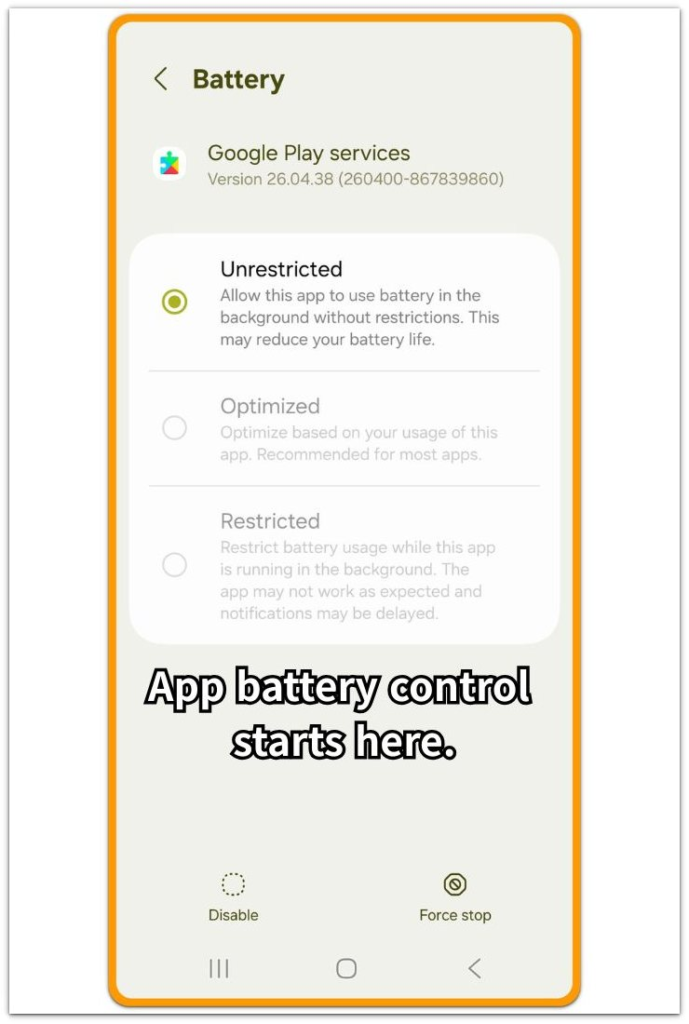
Step 4: Clear the App Cache Before Reinstalling
Once the same updated app keeps using battery after normal use ends, deal with that app before changing wider phone settings. Start with the safer option first.
Open Settings → Apps, choose the updated app, then clear the app cache if your phone allows it. Then reopen the app and use the phone normally for a few hours.
A repeated battery pattern is your cue to check the Play Store for another app update. With no new update available, uninstalling and reinstalling that app is a cleaner test than changing many battery settings at once.
Troubleshooting
Troubleshooting 1: When the Drain Does Not Change After Restrictions
Start with the app you already checked in Battery usage. You already limited background use, checked permissions, and turned off unnecessary notifications.
The app still comes back on the Battery usage screen after it opens, syncs, or reconnects. Leave wider phone settings alone for now, then check the same app again during the next normal use period.
If it returns again after those controls are already in place, the update likely changed how the app behaves on the phone.
Troubleshooting 2: When Battery Usage Looks Low but the Percentage Still Drops
The updated app does not always stay near the top of the battery list. The percentage can still drop while the app looks small on the Battery usage screen.
This happens when the app keeps checking, syncing, or reconnecting in short moments instead of running for a long time at once. Screen time often stays low in this pattern, and the app may not look like the biggest battery user.
Check whether it appears again after the phone was not used much. One small entry alone is too weak, but a battery drop with the same app showing up again after light use carries more weight.
Troubleshooting 3: When the App Looks Normal but the Pattern Keeps Returning
Some updated apps still open normally after the battery problem starts. They do not crash, show an error, or break notifications, login, and syncing.
That normal behavior can hide the battery change. The app can look fine on the screen while its battery activity keeps returning after the update.
Check the same app again after a few normal use periods. If that app keeps showing battery activity after the usual controls are already checked, one normal app opening is no longer the main explanation.
Extra Section 1: When Removing the Updated App Does Not Help Right Away
One phone started losing battery faster right after a messaging app update. The app kept showing in Battery usage after normal use had already ended, so it was removed.
The battery did not settle right away. The percentage still dropped during the same day, and the graph did not turn flat as soon as the app was gone.
That did not prove the removal failed. The next normal use period gave a clearer result: the app no longer appeared in the battery list, and the drain slowed after the phone went through a full stretch without that updated app.
Removing an updated app does not always prove anything in the first hour. The real answer came from the next check: the same app-related activity did not return.
Extra Section 2: When the Updated App Looks Normal but Keeps Returning
One phone had a social media app that still opened normally after its latest update. The app did not crash, log out, show any error message, or break notifications, so it did not look broken from the outside.
The battery problem only showed up later, after the phone had been used normally and left alone for a while. The same app kept appearing again in Battery usage even when screen time was low.
The app looked normal during use, but its battery activity kept returning after normal use had already ended. Opening correctly did not explain the later battery entry.
The clearer clue came after the phone was left alone. The app kept returning during that quiet period, not while the owner was actively using it.
Official Source: Android Background Activity
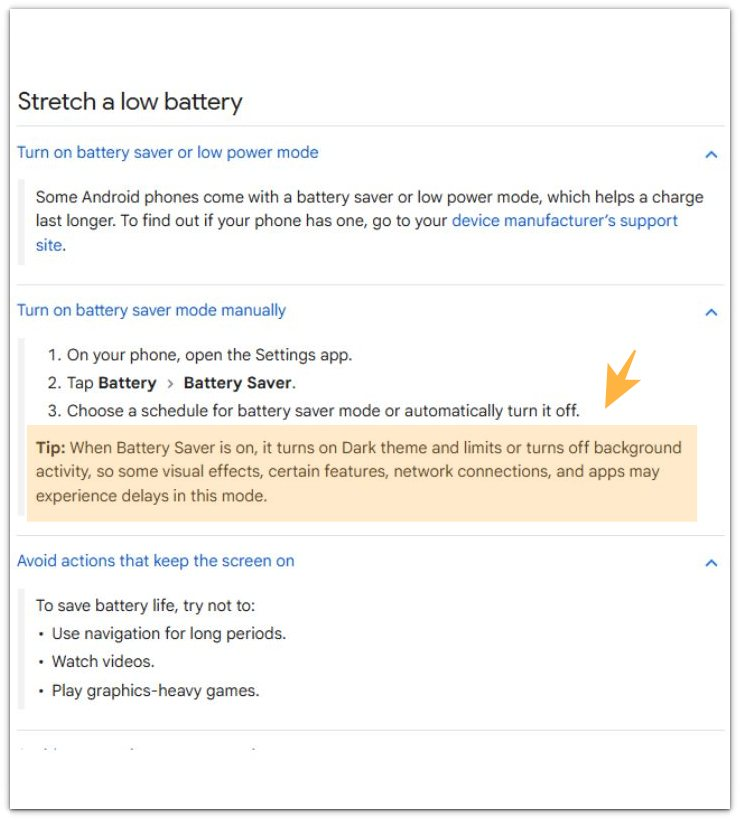
Google Android Help says: “When Battery Saver is on, it turns on Dark theme and limits or turns off background activity, so some visual effects, certain features, network connections, and apps may experience delays in this mode.”
This does not mean every battery drain is normal. It gives you a reason to check whether the updated app keeps using background activity, syncing, or reconnecting after normal use ends.
Additional Tips
Restart the phone once when evaluating android battery drain after app update. A restart can clear a temporary reading, but it does not prove the app is fixed.
After restarting the phone, use it normally for a few hours. Then open Battery usage again and see whether that app returns.
A settled battery after the restart points to a temporary issue after the update. If the app shows up again, treat the restart as a test result, not a solution.
Final Notes
One battery entry is too weak to judge android battery drain after app update. An updated app can appear in Battery usage after normal screen use, and that alone does not prove a problem.
The stronger warning is repeat behavior. An app that still appears after background use is limited, permissions are checked, and unnecessary notifications are turned off points back to the update, not normal app use.
Leave random phone settings alone and watch the same app across the next normal use period. A pattern that returns again is no longer just normal app use.
Checklist
- Confirm the battery drain started right after the specific app update
- Check whether normal screen use explains the battery activity
- Limit background use for the updated app and watch what changes
- Restart the phone once, then check whether the same app returns
- Decide whether the restrictions changed the pattern or did nothing
Use the main guide if app restrictions do not change the drain and the problem no longer looks like normal app use.