
Introduction
Android Media Server battery drain usually starts after media files change on the phone, such as photos, videos, music, or downloads.
The phone looks idle, but the battery keeps dropping because Android is still checking media files in storage.
This is not the same as a heavy app running on the screen. The first clue is whether the battery drop began after you added, moved, deleted, or restored media files.
Start with that timing first. Check Battery for Media Server, Android System, Gallery, Files, or another media-related entry during the same period.
Step-by-Step Guide
Step 1: Check Battery Usage During Idle Time
Open Settings, then go to Battery.
Look at the battery graph and check whether the battery kept dropping while you were not using the phone much. Do not judge it from one short drop. Check a period when screen time stayed low, but the battery line still went down.
Next, look at the battery usage list for that same period. Check whether Media Server, Android System, Gallery, Files, or another media-related entry appears near the drop.
Save the timing of the file change before changing app settings or deleting random files.
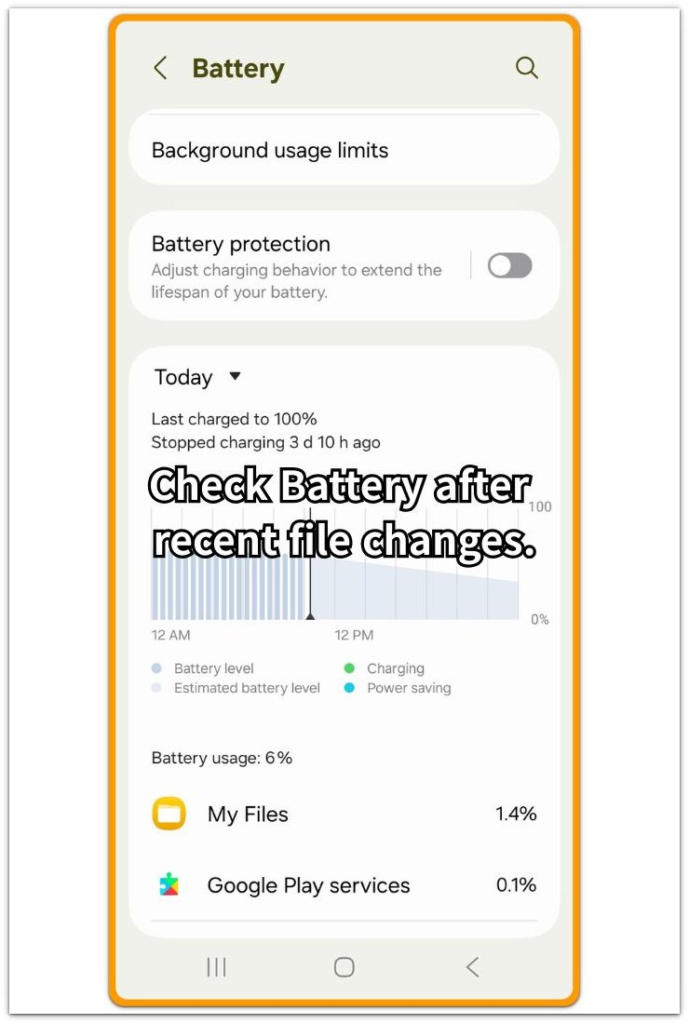
Step 2: Check What Media Files Changed Before the Drain Started
Think about what changed before the battery started dropping faster. Focus on media files you recently added, moved, deleted, or restored.
Open Gallery, Files, or your download folder and check whether new or changed files appeared around the same time. A recent file change matters more than the total number of files.
Do not remove anything yet. First, match the timing. A battery drop after recent file changes makes the media scanner the next thing to check.
Step 3: Review Recently Changed Folders
Open Files or your file manager, then check the folders that hold photos, videos, music, and downloads.
Look for folders that changed recently or contain many media files. A folder does not need to look broken to keep Android busy. The phone still has to read file names, previews, and media details before apps can show them correctly.
Leave the phone locked for a while after the file change finishes. Then open Battery again and compare the same kind of idle period.
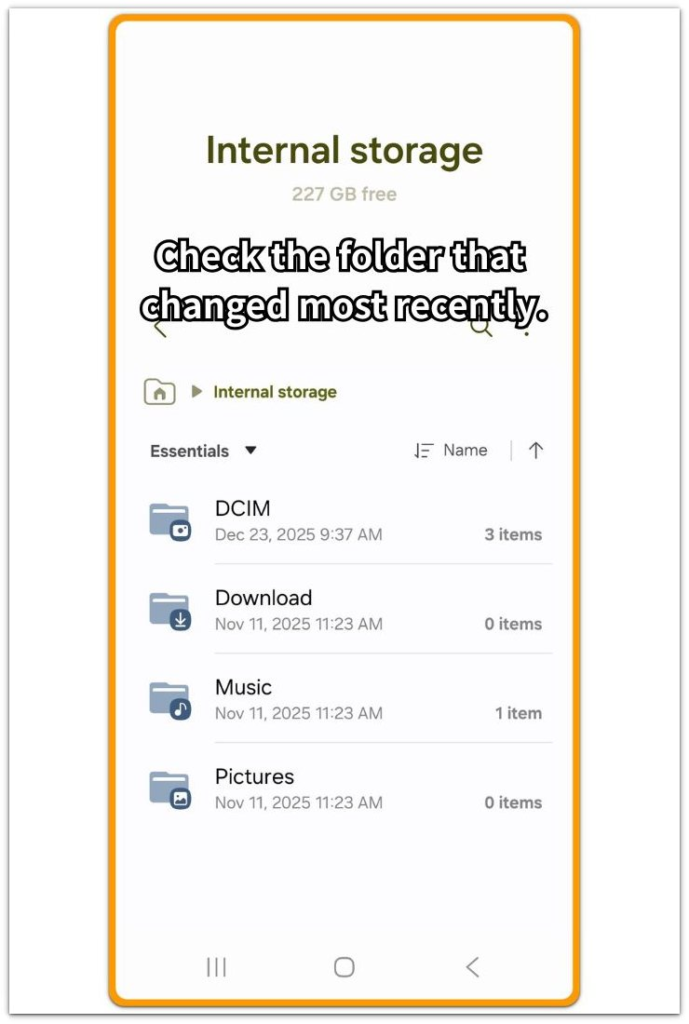
Troubleshooting: Android Media Server Battery Drain
Troubleshooting 1: Battery Still Drops After the New Files Finish Copying
After new photos, videos, or music files finish copying, open Battery again before you delete anything. Use the next idle check to see whether the drop continues.
Look at the same kind of idle period you checked in Step 1. When screen time stays low but the battery line keeps falling, compare that time with the media-related entries in Battery.
Next, open Files or Gallery and check whether the new files appear normally. Thumbnails that keep loading, videos that do not open, or a folder that keeps refreshing mean Android is still working through those files.
Leave the phone locked for another short period, then check Battery again. Check whether the media-related entry keeps rising. Then review the files that changed most recently.
Troubleshooting 2: The Same Folder Keeps Showing Activity
When the same media folder keeps showing new activity after each check, start with that folder instead of changing every battery setting.
Open the folder in Files or Gallery and look for files that do not open, stay blank, show no preview, or look half-downloaded. One bad media file is enough to make Android check the same folder again.
Move the newest suspicious file out of that folder first. Then leave the phone idle and check Battery again during the next quiet period.
If the battery drop slows down after you move that file, keep the folder simple before adding the file back. When nothing changes, return the file and check the next recent media change.
Troubleshooting 3: The Battery Drop Returns After Sync or File Moves
After cloud sync, file transfers, or folder cleanup, check whether the same files keep changing again when the battery drain returns.
Open Files, Gallery, or the sync app you used. Look for files that keep downloading again, duplicate media files, or folders that update each time the app opens.
Do not keep clearing cache first. Cache cleanup can hide the timing clue and make the same scan start again later.
Stop the repeated file change first. Pause the sync app, finish the transfer, or leave the folder alone for one idle test. Then compare Battery again with the same low-screen-use period.
Extra Section 1: When a Gallery Restore Kept the Media Scanner Busy
The phone looked quiet after the gallery restore finished. Photos and videos were back in the Gallery app, and no heavy app stayed open on the screen.
Battery still dropped during the next idle period. The usage list did not show one app running for a long time, so deleting random apps would have missed the restore timing.
The check stayed with the restored files. The drain started after many media files returned to the phone, and some Gallery albums still showed loading previews.
The phone stayed locked for a short period, and the user opened Battery again during another low-screen-use window.
When the previews finished loading, the media-related entry stopped rising and the idle battery drop slowed down. The restore session explained the drain better than normal app use.
Extra Section 2: When a Download Folder Kept Changing After Cleanup
The cleanup looked finished. The old videos and downloaded files were gone, and the file manager showed more free space.
Battery drain returned later, even though the user had not used the phone heavily. The old files no longer explained the new battery drop because the user had already removed them.
The download folder kept changing after cleanup. A browser, chat app, or download app added files back into the same folder, so Android scanned that folder again.
Instead of checking total folder size, the user opened Files and sorted the folder by recent activity. New files kept appearing there, and some items looked unfinished or duplicated.
The user stopped the repeated download first, then left the folder unchanged during one idle period. Battery showed less media-related activity, and the battery drop slowed down.
Official Source: Why Android Checks Media Files in Storage
Android documentation explains that Android scans storage so media files such as images, videos, audio files, and downloaded files can appear in media collections.
This does not mean every battery drop comes from Media Server. Use it only as the reason to check recent file changes before blaming normal app use.
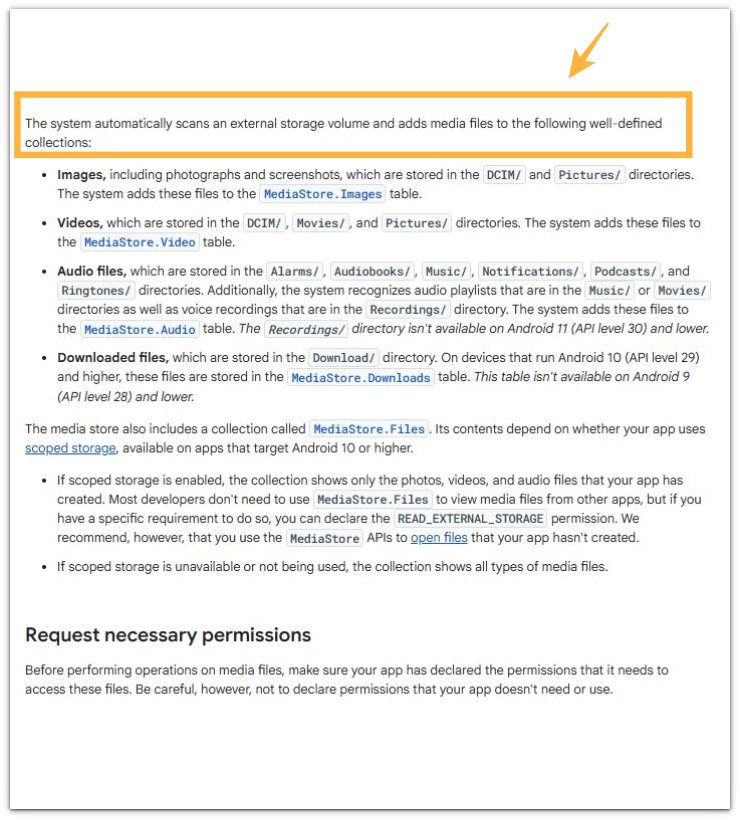
Additional Tips
Android often checks media files after a restart, system update, file transfer, or restore.
Avoid judging the battery drop right away after those changes. Android can still be checking recent media files in the background.
Give the phone one normal idle period, then check Battery again. A steady entry with a slower idle drop usually means the scan finished on its own.
The same drop becomes more suspicious when it returns after the same folder changes again.
Final Notes
Android media server battery drain points away from normal app use when the stronger clue is a recent media change.
Start with timing. After a file change, sync, or restore, check Battery during low screen use before changing random settings.
A short scan after a file change is normal. The real problem starts when the same folder keeps changing, previews keep loading, or media-related activity keeps rising during quiet periods.
Once that activity stops and the idle battery drop slows down, treat the scan as settled. If the battery keeps dropping during low screen use without new media changes, check another battery cause before changing random settings.
Checklist
- Check whether the battery drop started after recent media changes, sync, or restore activity.
- Check Battery during a low-screen-use period.
- Look for Media Server, Android System, Gallery, Files, or another media-related entry.
- Review the folder that changed most recently.
- Leave the phone locked for one normal idle period, then check Battery again.
- Stop focusing on Media Server if the drain continues without new media changes.
When Media Server does not fully explain the battery drop, the main Android battery drain guide can help you compare it with other battery problems.