
Introduction
Android battery drain from accessibility service becomes confusing when the phone keeps losing power during standby after an accessibility service has already been enabled.
The screen is off, no app is being used, and Battery usage does not point to one clear foreground app. The drain still appears during the same idle stretch where the enabled accessibility service remains connected in the background.
Start with the standby period first. Check whether the battery drops while screen time stays low, then compare that same period with the enabled service and related system activity in Battery usage.
Step-by-Step Guide
Step 1: Check Which Accessibility Services Are Enabled
Open Settings, then go to Accessibility. Review the services that are currently turned on, especially under installed apps or downloaded apps.
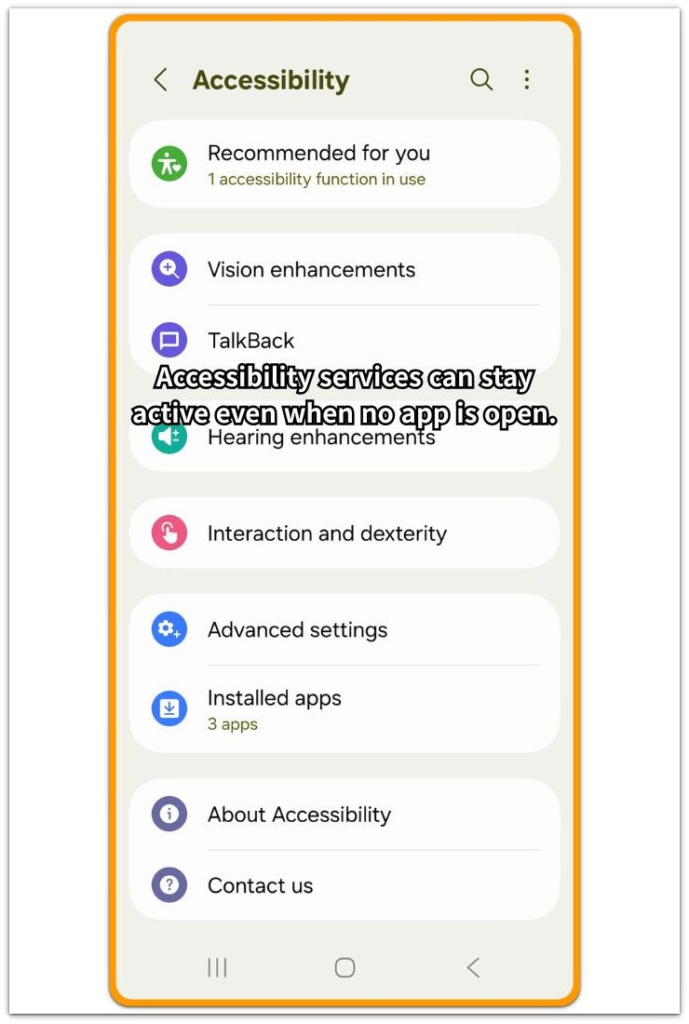
Start with the enabled services, not the full app list. An accessibility service matters here only when it has already been allowed to run through Accessibility settings.
Check whether any service belongs to an app that reads the screen, adds shortcuts, controls gestures, connects with another device, or changes how the interface responds. The goal is not to remove every accessibility feature. The first step is to find which service was allowed before the standby battery drop started.
If several services are enabled, write down the ones that are not needed for normal daily use. Leave important assistive features alone unless they clearly match the battery drop you are checking.
Step 2: Compare the Standby Drop With Battery Usage
After checking the enabled services, leave the phone locked for a clean standby period. Keep the phone off the charger, avoid opening apps, stay in one normal signal area, and leave other battery settings unchanged during this test.
Wait 30–60 minutes, then open Settings → Battery. Compare the battery drop with screen time during that same period.
With android battery drain from accessibility service, the key check is whether the battery keeps falling while screen time stays low. Then look at the Battery usage list and check whether the accessibility-related app, Android System, or another system entry appears near the same drop.
One short dip is too weak to prove the cause. Use that quiet stretch to see whether the battery loss follows a low-screen-use period where the enabled service could still be active in the background.
Step 3: Temporarily Turn Off Non-Essential Accessibility Services
Go back to Settings → Accessibility and choose one non-essential service that does not need to stay on all day. Turn off only that service first.
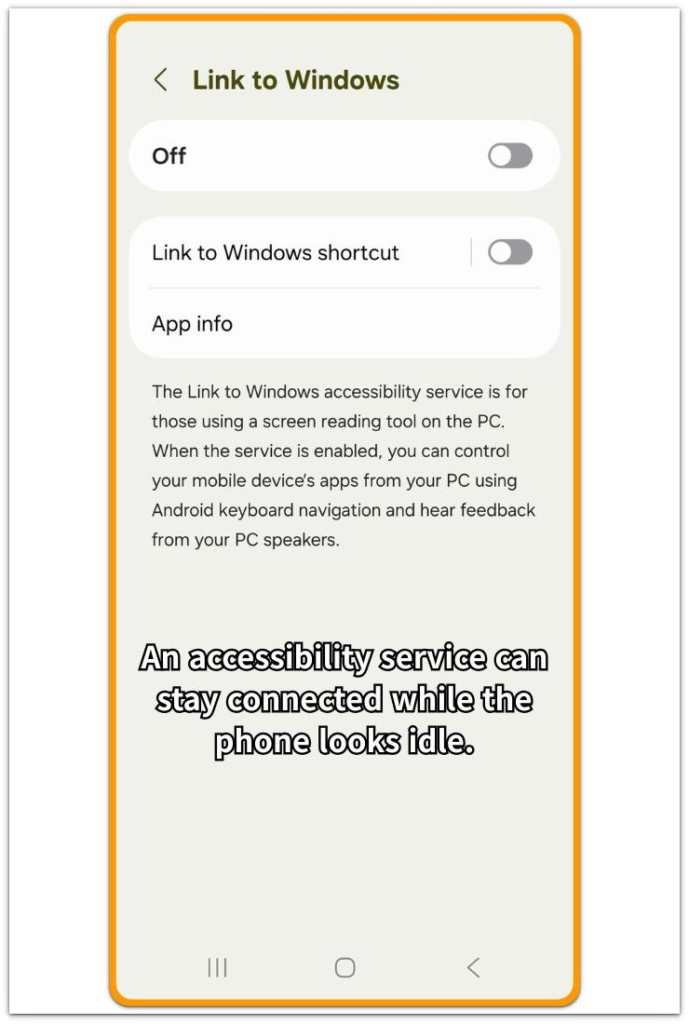
Keep the change limited to one accessibility service. Turning off several services together makes the next Battery check harder to read.
After turning off one non-essential service, leave the phone locked again for another clean standby period. Use the same kind of test as before: similar time length, low screen use, no charging, and no heavy app activity.
Then check Battery again and compare the new standby drop with the earlier one. A slower drop gives that service more weight in the check. If the drop looks the same, turn the service back on if needed and continue with other standby battery causes.
Troubleshooting: Android Battery Drain From Accessibility Service
Troubleshooting 1: The Same App Still Appears After Standby
After the first standby test, open Settings → Battery and look at the same time period. Focus on the low-screen-use stretch, not the full-day battery number.
An accessibility-related app deserves another look when it keeps appearing near the battery drop even though the phone stayed locked. This is stronger than seeing the app once after normal use.
Check whether that app also has an enabled service in Settings → Accessibility. The useful clue is the overlap between three things: the service is enabled, screen time stays low, and the same app or system entry appears during the standby drop.
Avoid removing the app right away. First, turn off only that accessibility service if it is not needed, then run one more clean standby test. Compare the new drop with the earlier one before changing anything else.
Troubleshooting 2: Several Accessibility Services Are Enabled
The check becomes harder when several accessibility services are turned on together. Start by separating daily assistive features from optional shortcut, gesture, automation, or device-link services.
Begin with services that are not required for daily use. Keep important assistive features unchanged unless they clearly match the battery drop you are checking.
Test the optional services one at a time, starting with the one that stays active most often or connects with another app or device. Keep the test conditions steady so the next Battery result is easier to compare.
After the test, review the Battery result. A slower drop gives that service more weight. If the drop looks the same, turn it back on if needed and test the next non-essential option separately.
Troubleshooting 3: The Drain Continues After Accessibility Services Are Turned Off
After the non-essential accessibility services are turned off, run one more standby test before blaming Accessibility settings. The phone needs the same kind of quiet period used in the earlier checks.
Open Battery and compare the new drop with screen time. Then look for other entries that appear during the same low-use stretch, such as Android System, Google Play services, Mobile network, Phone idle, or another app that does not belong to the accessibility service you just tested.
The accessibility service is no longer the only check once the same standby drop continues after the service is turned off. Sync, network standby, location access, wake activity, or another background process could be responsible for the remaining battery loss.
Keep the result simple. A similar drop moves the focus away from Accessibility and toward other standby battery causes.
Extra Section 1: When an Old Accessibility Permission Stayed Enabled
For several days, the related app had not been opened. Screen time stayed low, and the app did not look active in the normal app list, so the phone seemed quiet at first.
Standby made the problem harder to read. The battery kept dropping while the screen was off, but Battery usage did not show one heavy foreground app.
Inside Settings → Accessibility, an old service was still enabled for an app that was rarely used. The app itself was not being opened, but its accessibility service still had permission to stay connected in the background.
Instead of deleting the app first, the user turned off only that old accessibility service. Then they left the phone locked for another 30–60 minutes and checked Battery again under the same low-screen-use condition.
The old permission became easier to separate from normal standby drain once the app was no longer part of daily use. The useful clue was not recent app use. It was the permission that stayed enabled in the background.
Extra Section 2: When Several Accessibility Services Made the Battery Check Unclear
Several accessibility services were turned on at the same time. They all appeared in the same Accessibility area, but they did not have the same role.
The confusing part was that one service helped with daily use, while another only added a shortcut that the user rarely touched. Treating both services the same would have made the battery check harder to read.
Instead of changing the whole Accessibility screen, the user left the daily assistive feature alone and focused on the optional shortcut service first. That choice made the result easier to read because it tested the weakest optional service without breaking the feature the user actually needed.
The result did not point to every Accessibility setting equally. The optional shortcut stood out more clearly, while the important assistive feature stayed out of the test unless the battery pattern later matched it.
Official Source: Android Accessibility Settings
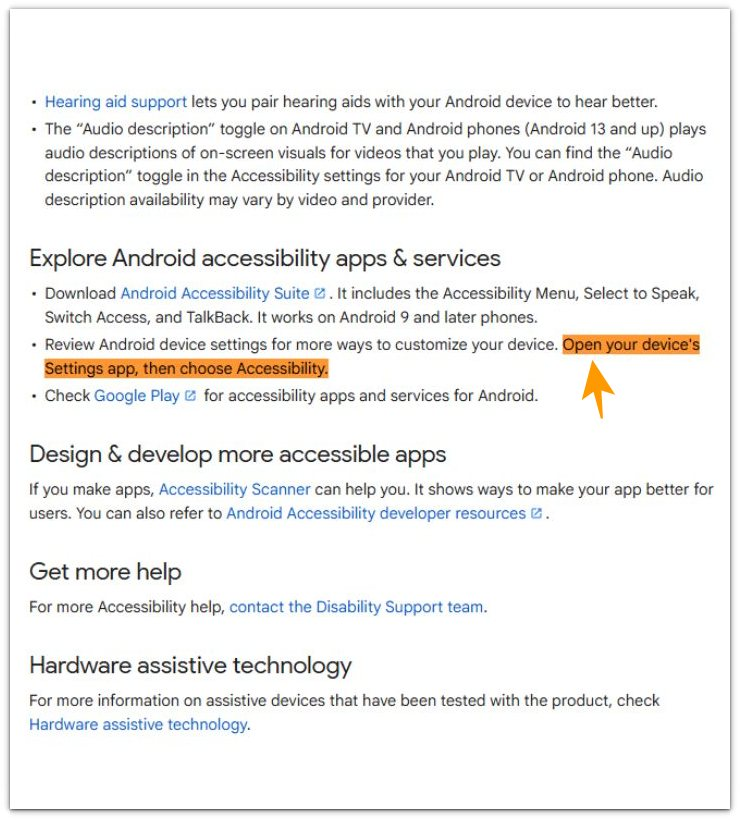
Google’s Android Accessibility Help explains that users can open Settings and choose Accessibility to review accessibility apps and services. This supports the checking path in this guide because the battery test starts with services already enabled in Accessibility.
Before changing unrelated battery options, compare the enabled Accessibility setting with the standby drop shown in Battery.
Additional Tips
Keep essential assistive features on. Test optional shortcut, gesture, automation, or device-link services first.
Avoid testing during app restore, system updates, weak signal, or device reconnection. Those can create the same standby battery drop.
Focus on services that stay enabled all day, even when the related app has not been opened.
Change one service at a time. A clean comparison is more useful than turning off everything at once.
Final Notes
Android battery drain from accessibility service becomes easier to confirm when three things appear together: low screen time, standby battery loss, and the same accessibility-related app or system entry in Battery.
It does not need to be visible on the screen. Once enabled in Accessibility, that background permission can still affect the phone while the screen is off.
A slower standby drop after the change keeps Accessibility on the list. A similar drop points the problem toward network standby, sync, location, or other background activity.
Checklist
- Check which accessibility services are enabled.
- Compare the standby battery drop with screen time.
- Look for the same accessibility-related app or system entry in Battery.
- Turn off one non-essential accessibility service.
- Run another clean 30–60 minute standby test.
- Keep essential assistive features on.
- Move to network standby, sync, location, or other background activity if the drop stays the same.
For wider standby battery checks beyond Accessibility, use the main Android battery drain guide.