
Introduction
Android adaptive charging battery drain becomes suspicious when the phone stays plugged in, but the battery still drops during the charging window. Adaptive Charging is supposed to manage the charge around your usual sleep and wake-up routine, so a short hold before the final charge does not automatically mean something is wrong.
The confusing part starts when the battery loses power while it is still connected, or drops too quickly after that scheduled window ends. This is not the same as slow charging, and it is not the same as charging heat.
The important clue is the window itself, because the battery movement has to be checked while Adaptive Charging is actually active.
Step-by-Step Guide
Step 1: Confirm That Adaptive Charging Was Active
Open Settings → Battery → Charging settings. Check whether Adaptive Charging is turned on before judging the overnight charge, because this problem needs a real Adaptive Charging window, not a normal overnight session with the feature off.
Look at the charge behavior from that night. A planned hold before the final charge shows Adaptive Charging was part of that cycle, while a straight charge to full early in the night points away from Adaptive Charging and toward a different battery drain check.
Step 2: Check Whether the Battery Dropped With Very Low Screen Time
Open Settings → Battery → Battery activity. Look at the first 60–120 minutes after the window ended.
The percentage alone does not explain much here. Compare the drop with screen time and app activity in the same period.
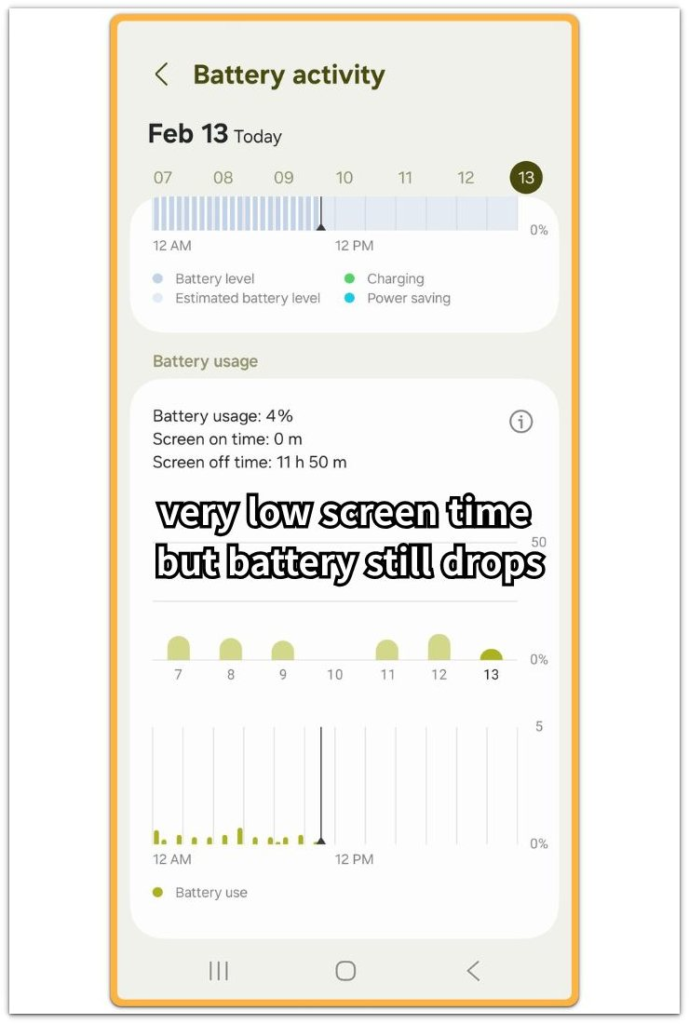
Very low screen time with no single app explaining the drop means the charging window is still the main clue.
One app, mobile network, Bluetooth, or location activity dominating the chart moves the drain away from Adaptive Charging.
Step 3: Compare One Night With Adaptive Charging Off
Turn off Adaptive Charging for one night. Use the same charger, same outlet, and a similar bedtime window. Check the battery level and Battery activity again the next morning.
The goal is to see whether the battery behaves differently when Android is no longer adjusting the charge around your sleep routine. A disappearing drop with Adaptive Charging off ties android adaptive charging battery drain to that schedule.
The same drop with Adaptive Charging off moves the problem outside Adaptive Charging and into a wider battery drain check.
Troubleshooting
Troubleshooting 1: The Phone Reaches the Hold Point but Drops Before Morning
The phone looks fine when it reaches the held charging level during the night. Adaptive Charging appears to be doing its job because the battery does not rush straight to full.
The problem starts when the number is lower the next time you check it, even though the phone stayed on the charger. That is not a slow charge issue, because the question is not how fast the battery filled.
Check the battery level before sleep, the held level during the night, and the level near your wake-up time. A drop inside that window points to the Adaptive Charging window, not normal charging speed.
Troubleshooting 2: The Battery Looks Full but Falls Too Fast After the Scheduled Finish
The phone can look normal at the end of the overnight charge. The battery shows a high number, and Adaptive Charging appears to have finished close to the expected time.
Then the first quiet hour after unplugging shows a sharper drop than normal. This is easy to miss because the charge looked successful.
Open Battery activity and compare that first hour with screen time and app activity. Low screen time with no single app explaining the drop points to a problem that starts right after the Adaptive Charging window ends, not regular app drain.
Troubleshooting 3: The Same Charger Works Normally When Adaptive Charging Is Off
A useful comparison is one night with Adaptive Charging on and one similar night with it off. Do not change the charger, outlet, bedtime window, or phone use during this check.
The point is to keep the setup the same while only changing the Adaptive Charging setting. Better battery hold with Adaptive Charging off takes the charger out of the main clue.
The difference is the schedule Android used overnight. When the drain follows Adaptive Charging on nights but disappears on a plain charge night, the problem is tied to that charging control window.
Extra Section 1: When Android Adaptive Charging Battery Drain Starts After the Charging Window
Watch what happens right after the scheduled window ends. The battery number can look normal when the phone comes off the charger, then it drops faster than expected during a short quiet period.
The phone was not used long enough to explain the drop, and Battery activity does not show one heavy app. This situation fits when the drop starts after the scheduled window, not during heavy use.
This is not the same as slow charging or charging heat. Compare the finished Adaptive Charging window with the battery level that fails to stay steady afterward.
A repeated drop after the next similar window still points back to Adaptive Charging before random apps.
Extra Section 2: When the Drop Continues With Adaptive Charging Off
A second test matters when Adaptive Charging is already turned off. Use a similar window and keep the rest of the setup unchanged.
The drop no longer points to the managed window when the battery still falls without the feature. Open Battery activity for that quiet period and look for mobile network, account sync, Bluetooth, location, or system activity near the top.
Those signs move the check away from Adaptive Charging. Do not keep changing the same charging setting after that result.
Move to the wider battery drain check, because the phone is losing power even without the managed window.
Official Source: Google Pixel Battery Behavior and Battery Optimization
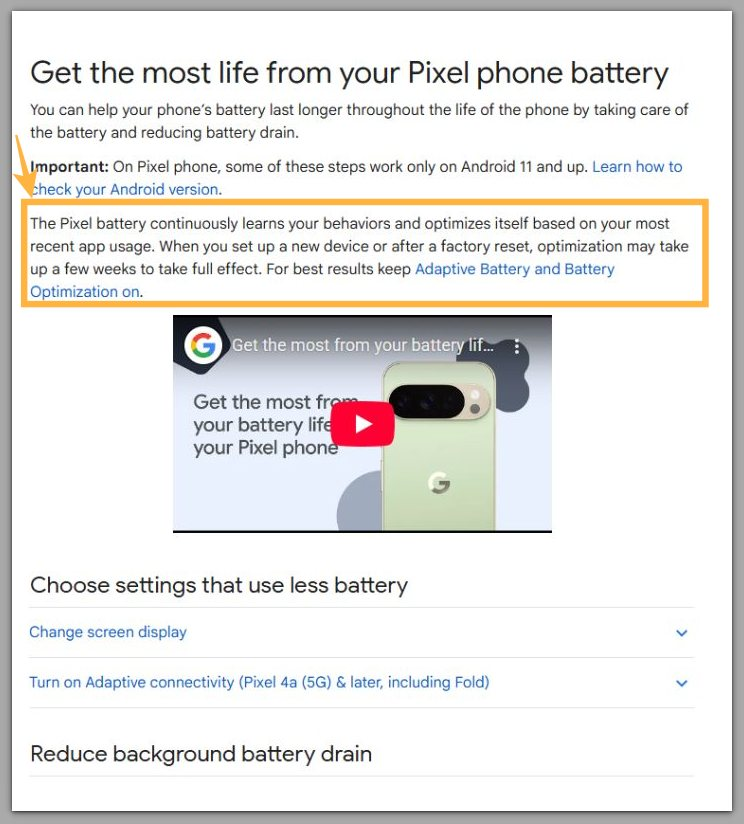
Google says, “The Pixel battery continuously learns your behaviors and optimizes itself based on your most recent app usage.”
That official note does not prove Adaptive Charging caused the drain. It only explains why the comparison night matters when separating a normal hold from real drain.
Additional Tips
Keep the comparison window simple and consistent. Use the same bedtime routine, same alarm time, and same window for the comparison.
Adaptive Charging depends on a routine, so a one-night test with a very different sleep schedule can give a messy result. Do not judge the feature from one unusual night when you stayed up late, unplugged early, or changed the morning alarm.
Check the result across at least two similar nights before treating the drop as a real charging-window problem. Also check the exact Battery settings path on your phone, because Android brands do not always use the same label for Adaptive Charging.
The name can look different, but the key setting is the one that delays or manages charging around your usual sleep and wake-up time.
Final Notes
Android adaptive charging battery drain should be judged from the window, not from a random battery drop later in the day. The important sign is simple: the phone stayed plugged in, Adaptive Charging was active, and the battery still dropped.
A normal hold before the final charge is not the problem. The problem is a drop during that held charging period, or a sharp drop right after the scheduled charge was supposed to finish.
Normal battery behavior with Adaptive Charging off points back to the overnight schedule. The same drop with Adaptive Charging off moves the problem away from Adaptive Charging and into the wider battery drain path.
When the battery keeps falling during a controlled plugged-in window, the issue is real charging-window drain, not a normal Adaptive Charging hold.
Checklist
- Confirm Adaptive Charging is turned on.
- Check whether the battery dropped while plugged in.
- Compare the first quiet hour with screen time and app activity.
- Test one similar night with Adaptive Charging off.
- Treat it as this issue only when the drop follows that window.
- Move to a wider battery drain check when the same drop continues with Adaptive Charging off.
Use the main battery drain guide if the same drop continues with Adaptive Charging off.