
Introduction
Android Live Captions battery drain becomes noticeable when the battery keeps dropping after you use Live Captions. The caption box is no longer on the screen, and no video or audio appears to be playing, but the phone keeps losing power after you recently used captions.
Live Captions looks like a simple accessibility setting, so many people turn it off before checking what triggered it. Start by checking when Live Captions turns on, what caused it to appear, and whether the battery drop changes after that audio use stops.
Step-by-Step Guide
Step 1: Check Whether Live Captions Is Turned On
Open Settings, then go to Accessibility. Look for Hearing enhancements, Live Caption, or a similar caption menu. The exact path can change by Android version and phone brand.
Check whether Use Live Caption is turned on. Do not turn it off yet. This screen only tells you whether the feature is available to run when the phone detects supported audio.
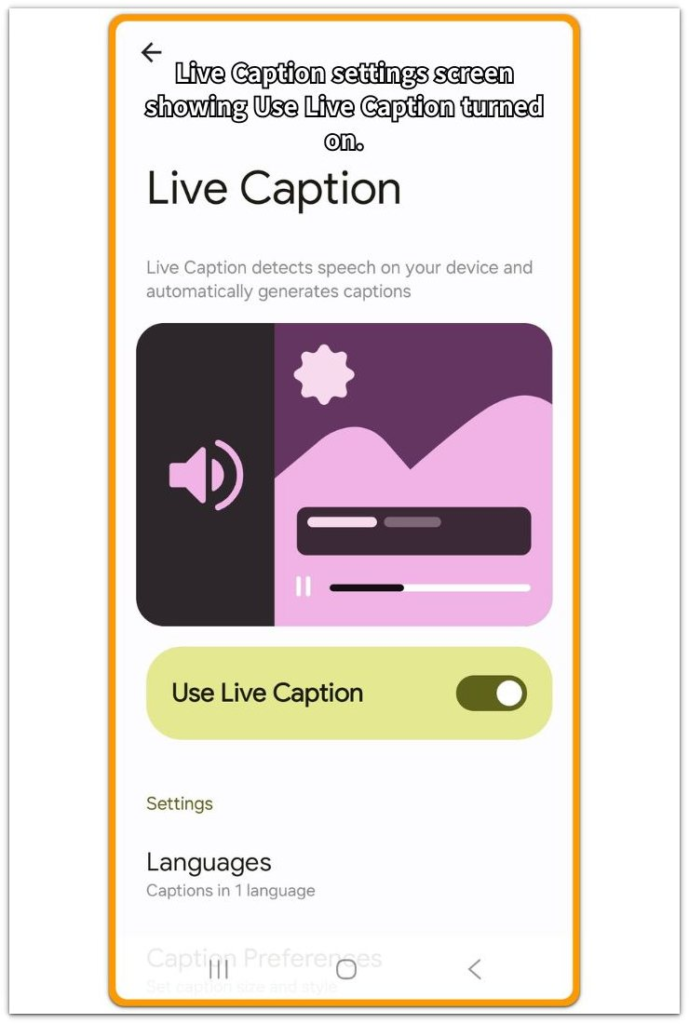
If it is already off, do not change anything on this screen. First, think about whether you used the feature recently or turned it on through the volume shortcut.
Leave it on for now when it is enabled, then check what turns it on.
Step 2: Check What Triggered Live Captions
Think about what happened before the battery started dropping. Check whether you recently watched a video, played audio, used a call app, opened a short video app, or pressed the volume button and turned captions on from the volume panel.
After using one of those audio sources, close the app and return to the home screen. Wait a few minutes, then check whether the phone still loses battery faster than usual while nothing appears to be playing.
If the drain only appears after media, calls, or the volume shortcut, keep that timing in mind for the screen-off test. When the phone loses power without recent audio use, write that down before checking Battery.
Step 3: Compare Battery Use While the Phone Is Idle
Lock the phone and leave it unused for 20 to 30 minutes after using captions with audio. Keep the screen off and do not open video, music, calls, or quick settings during the test.
After the idle period, open Battery or Battery activity. Check whether the battery line dropped while screen time stayed low.
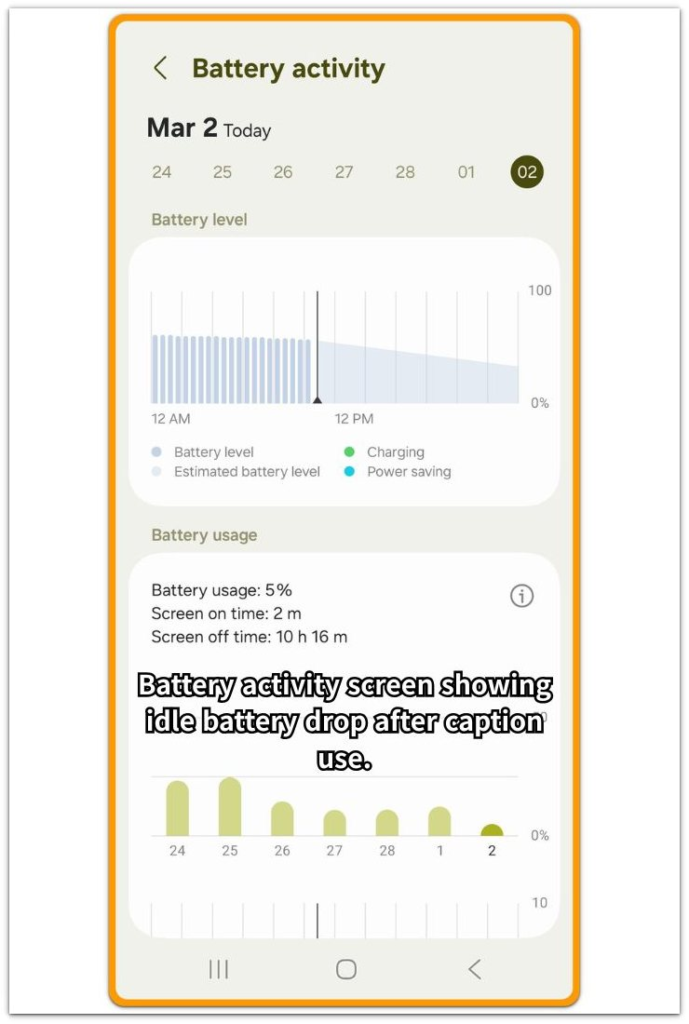
A small drop during idle is normal. For this step, compare the battery line with the recent caption use and the screen time shown in Battery.
If Battery shows a media app, call app, or another active app during the same time, note that entry before changing the setting. The next section can help separate a caption trigger from another app using power.
Troubleshooting: Android Live Captions Battery Drain
Troubleshooting 1: The Caption Box Is Gone, but the Battery Still Drops
After Step 3, the caption box is no longer on the screen. No video or music appears to be playing, and the phone looks idle.
The screen alone is not enough to judge the drain. Open Battery or Battery activity and check the same time period. Look at whether screen time stayed low while the battery line still moved down.
Then check whether a media app, call app, or short video app appears near that same time. If one of those apps appears, start with that app before changing more accessibility settings.
When no active app explains the drop, keep Live Captions in the test list and move to the next check.
Troubleshooting 2: The Drain Only Appears After Certain Audio
Some battery drops only show up after a specific trigger. A short video app, voice call, podcast, browser video, or volume shortcut can turn captions on without making the setting look unusual later.
Use the phone normally, but pay attention to what happened right before the battery started falling. When the drop appears after one type of audio, repeat the test with that same trigger once.
Then close the app, lock the phone, and check Battery again after 20 to 30 minutes. This helps separate normal app drain from caption use that still affects screen-off battery use.
Do not turn off every audio or accessibility option at once. Change one trigger at a time so the result stays clear.
Troubleshooting 3: Turning It Off Does Not Change the Battery Drop
If turning off Live Captions does not change the idle battery drop, do not keep chasing the setting.
Check Battery again and look for the app or system entry that stayed active during the same period. A media app, weak signal, Bluetooth scanning, location access, or background sync can create a similar battery pattern.
The comparison gives you the answer. If the battery line looks the same with Live Captions on and off, the setting is not the main place to focus.
Use that result to move away from captions and check the other entry that appears during the same idle period.
Extra Section 1: When a Short Video Left Captions Active After Use
I first noticed the drain after watching a short YouTube clip with Live Captions turned on. The video was not long, and the phone did not feel warm afterward.
After closing YouTube, I locked the phone and left it on the desk for about an hour. The caption box disappeared, and the screen showed nothing active.
When I checked Battery later, screen time was still low, but the battery line had moved down more than it usually did during the same kind of idle period.
The timing made the clue clearer. The drop did not start during heavy use. It showed up after a short caption session, when the phone looked idle again.
The next time, I watched a similar clip without captions and left the phone locked for the same kind of quiet period. The battery line looked steadier.
That comparison mattered because YouTube alone did not explain the issue, and the video was not long enough to explain the drop by itself. The battery changed after I used Live Captions and returned the phone to idle.
Extra Section 2: When the Volume Shortcut Made Captions Easy to Miss
The second phone did not look connected to Live Captions at first. No one remembered opening the full Accessibility menu, so the battery drop seemed to come from somewhere else.
The drain showed up after several volume changes during the day. Videos, voice messages, and short calls all seemed normal, but the caption box was not always visible afterward.
The missed clue was the volume panel. Someone had turned on captions from the shortcut there, not from the full settings menu. Once the media stopped, the screen looked normal, which made the shortcut easy to forget.
Opening the volume panel again made the setting easier to spot. The shortcut sat close enough to normal volume controls that it did not feel like a separate setting change.
The next test focused on the shortcut instead of every audio app. After the same kind of volume use, the phone stayed idle for a while, then I checked Battery again.
That made this case different from a long video session. The stronger clue was the small shortcut action before the idle battery drop, not one media app using power for a long time.
Official Source: Google Live Caption Support
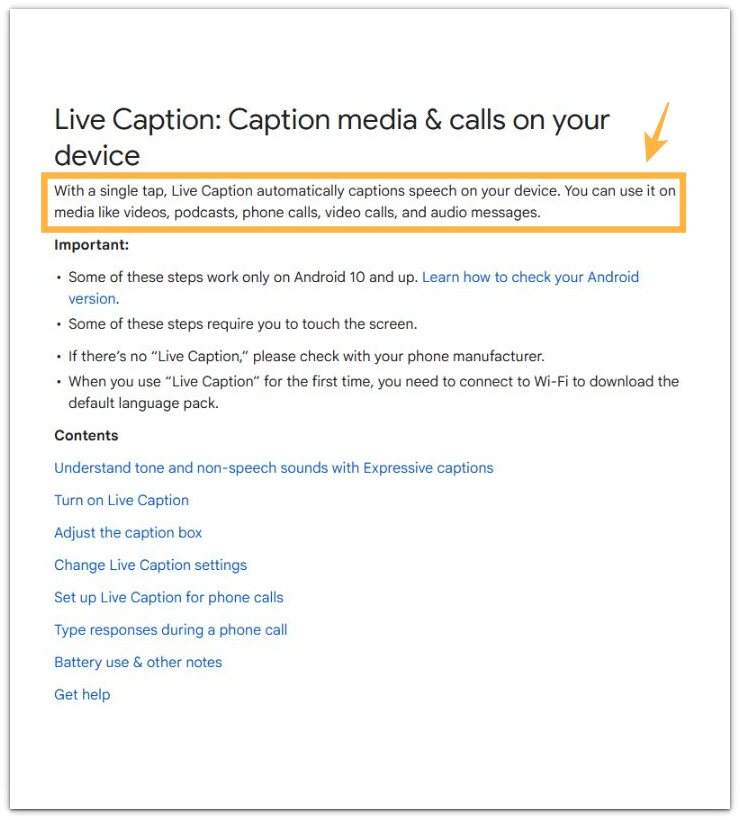
Google explains that Live Caption automatically captions speech on your device and works with media, podcasts, phone calls, video calls, and audio messages.
After confirming that Live Caption works with media and calls, compare your Battery screen with the last time you used media, calls, or captions.
Additional Tips
Check the volume shortcut when Live Captions seems to turn on without opening the full Accessibility menu.
Avoid testing right after a long video or call. Normal media use can hide the battery clue.
Change only one setting during the test. Do not test Bluetooth, location, background sync, and Live Captions together.
For rare caption use, keep Live Captions off and turn it on only when a video, call, or audio message needs captions.
Final Notes
Android Live Captions battery drain should not be blamed on the setting just because it is on. The stronger clue is timing.
Start with the last time captions appeared. After a video, call, audio message, or volume shortcut action, close the audio source and check the next idle period instead of judging only from the setting screen.
Keep Live Captions off until you need it again if the battery line becomes steadier after you stop using captions.
Stop chasing captions when the same battery drop continues with Live Captions off. Check the app, signal, Bluetooth, location, or background activity shown in Battery instead.
Checklist
- Check whether Accessibility shows Live Captions on
- Compare idle battery use before changing any settings
- Turn off Live Captions only for one clear test
- Check the next idle period after turning Live Captions off
- Compare the next screen-off period after captions stop
For a broader check, the main guide can help compare this with other battery drain causes.