
Introduction
Android battery drain after reboot becomes noticeable when the battery keeps dropping after the phone has already restarted. The phone is barely being used, screen time stays low, and the loss starts before any app stands out.
A small drop right after startup is expected. The problem is the drop that continues after the early startup window ends.
Start by checking the battery change right after restart, then compare it with a quiet locked period before changing app settings or deleting data.
Step-by-Step Guide
Step 1: Check the Battery Drop Right After Restart
Restart the phone once. After the phone turns back on, leave it alone for a short period instead of opening several apps right away. Watch the battery percentage during that first window.
Then open Settings and go to Battery. Check the battery graph from the time the phone restarted, and look for whether it started dropping before you used the phone much.
One app is not the first target yet. The first check is whether the drop begins right after reboot while screen time is still low.
Step 2: Give the Phone Time to Settle
Lock the phone and leave it unused for about 20 to 30 minutes. Keep it off the charger during this check, and avoid games, video apps, navigation, and social apps during the test window.
Then go back to the Battery screen and check whether the battery line becomes steadier after the phone has been locked for a while.
A small drop right after restart is not enough to prove a problem. The problem is a drop that continues after the phone has had time to settle.
Step 3: Check Whether One App Can Be Limited
Open the Battery usage list and look at the apps or services that appear near the top after the locked test.
When the same normal app keeps appearing, open its battery settings and limit its background use first. A list with no clear app needs a different check: see whether the drain started before any app had real screen time.
This helps separate a controllable app issue from battery loss that keeps happening after reboot.
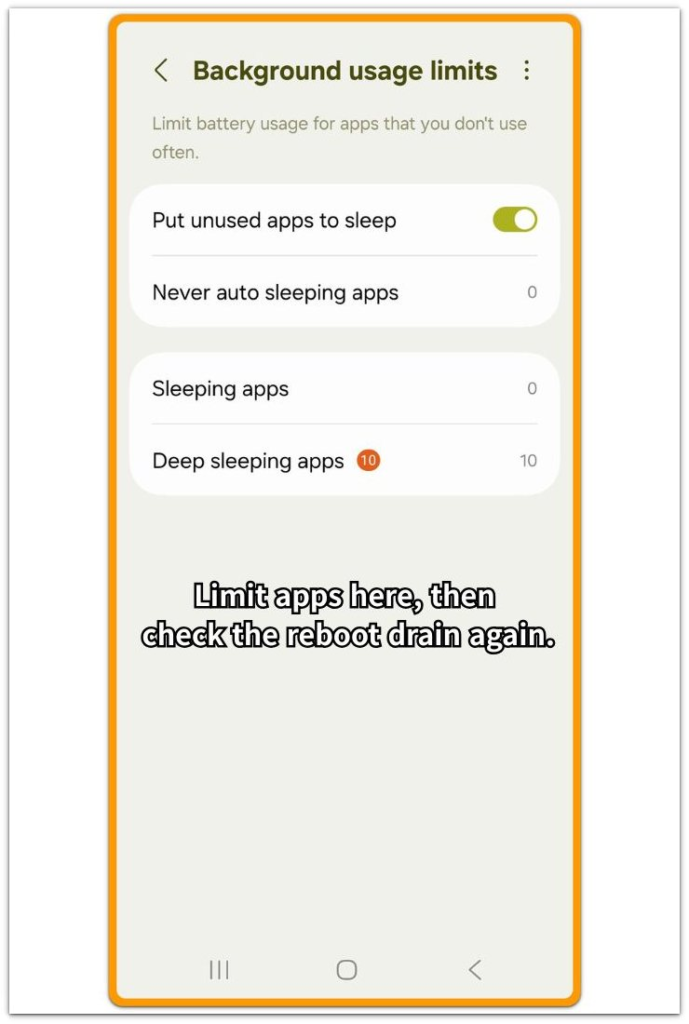
Use this screen to see whether a visible app can be limited. When the battery keeps falling and no clear app stands out, move to troubleshooting instead of deleting random apps or clearing data.
Troubleshooting: Android Battery Drain After Reboot
Troubleshooting 1: The Battery Drops Again After the First Quiet Test
A short dip can still be normal during startup. During the first few minutes, the phone is still finishing basic startup work.
Check the battery graph again after the quiet locked test. A steadier line means the restart period settled on its own. A line that keeps dropping after the phone sat unused is the warning sign.
Repeated restarts are not useful for this check because they create new startup periods and make the pattern harder to read.
Troubleshooting 2: No App Explains the Drop
The Battery usage list does not always show one clear app causing the loss. The phone shows low screen time, no heavy use, and no obvious app at the top of the list.
Random app deletion is the wrong first move. First, check whether the drop started before any app had real screen time. Then check whether the same drop continues during another locked period.
If the battery keeps falling while the app list stays unclear, the issue is not a simple foreground app problem. Treat it as a battery pattern after reboot and compare the locked test again.
Troubleshooting 3: Signal Looks Normal but the Battery Still Falls
After a restart, the phone reconnects to mobile network, Wi-Fi, Bluetooth, and location services, and that short reconnect period uses some power.
The problem starts when the signal looks stable but the battery line keeps moving down. Check whether the phone has normal signal bars and stays connected to Wi-Fi or mobile data, then leave it locked for another short test.
If the battery still drops while signal looks steady and screen time stays low, the reconnect period is not the main clue. Compare the battery line after the connection has already settled.
Extra Section 1: When Restarting Looks Like It Fixed the Drain
A restart can make the phone look normal for a short time. Right after the phone turns back on, the battery graph may look calmer than before, and the Battery screen can even make the drain look solved for a moment.
Apps have not fully returned to their usual background activity yet, so the phone can seem quieter than it really is. That first calm window is not enough to judge Android battery drain after reboot.
The better check comes after the phone returns to normal use. Open the apps you usually use during the day, let account sync and notifications start again, and then lock the phone for another short quiet period.
When the battery drop returns after normal use resumes, the restart only paused the pattern for a short time.
Extra Section 2: When the Drain Starts Before Any App Is Used
Sometimes the battery starts falling before the person has really done anything on the phone. The restart finishes, the home screen appears, and the phone looks ready.
They may only unlock it once, check the Battery screen, or leave the phone on the desk for a few minutes. Even with that light use, the percentage has already moved down.
This does not match a normal heavy app problem. There is no long screen time, no game session, and no clear use that explains the drop.
Check whether the battery loss began before normal app use started. Then leave it locked again and compare the next quiet period.
When the drop keeps moving during that second quiet window, the first loss was not just a normal app session starting up. The timing after reboot mattered more than the app list in that check.
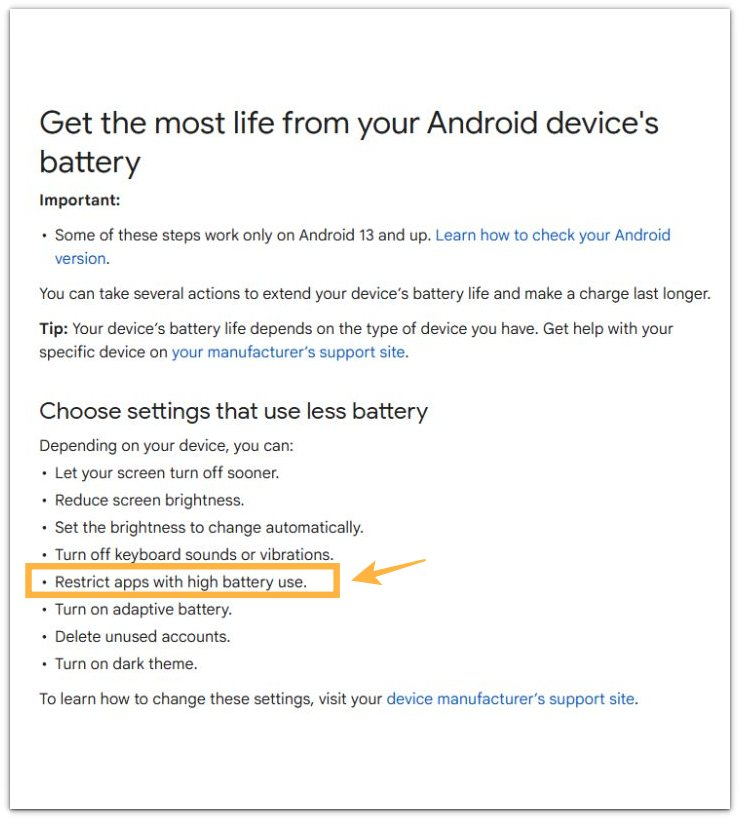
Official Source: Google Recommends Restricting Apps with High Battery Use
For general Android battery management, Google recommends restricting apps with high battery use.
This supports the app-control step, but it does not mean every battery drop after reboot comes from one visible app.
Additional Tips
Setup activity is the wrong time to test the phone. App restore, Play Store updates, sign-in, or several setting changes can make the first drop look bigger than it really is.
Repeated restarts also make the check harder. Each restart creates a new startup window, so one normal restart is enough for this check.
One percentage drop is too weak by itself. A line that steadies after a locked period is different from a graph that keeps falling.
Final Notes
Android battery drain after reboot is too early to read from the first few minutes after restart. A small early drop is normal while it starts services, reconnects, and settles down.
The real warning sign comes later. When the battery keeps falling after the phone has already been locked and left alone, the reboot is not the fix.
Restarting again only resets the test and makes the pattern harder to read. Use the idle test and Battery usage screen together.
If the graph settles, the drop was temporary startup activity. A graph that keeps falling should be treated as a real drain pattern after reboot, not a normal restart effect.
Checklist
- Check whether the battery drop starts right after restart
- Leave the phone locked long enough to see whether the graph settles
- Check Wi-Fi, mobile signal, and Bluetooth after the phone has reconnected
- Compare whether the line becomes steady or keeps falling
- Do not keep restarting the phone to test the same problem again
When the reboot test still does not explain the drop, use the main guide to compare it with other Android battery drain patterns.