
Introduction
Android haptic feedback battery drain becomes noticeable when the battery loses power after repeated taps, typing, gestures, or navigation actions. Screen time looks normal, and no heavy app seems to be open, but the battery line still keeps falling while the phone vibrates again and again during normal use.
This usually shows up during touch-heavy use, such as typing, scrolling, tapping through menus, or using back gestures often. Start by reviewing the haptic feedback settings, then reduce one repeated response and compare the battery pattern again.
Step-by-Step Guide
Step 1: Check Whether Haptic Feedback Is On
Open Settings, then go to Sound and vibration. Look for system vibration, touch feedback, keyboard vibration, navigation gesture feedback, or a similar menu name, then see whether touch feedback or keyboard vibration is on.
An active haptic setting only gives you a clear place to start. When haptic feedback is already off, leave those settings alone and look for another cause before changing more options. When haptic feedback is on, leave it on for now and move to the next step.
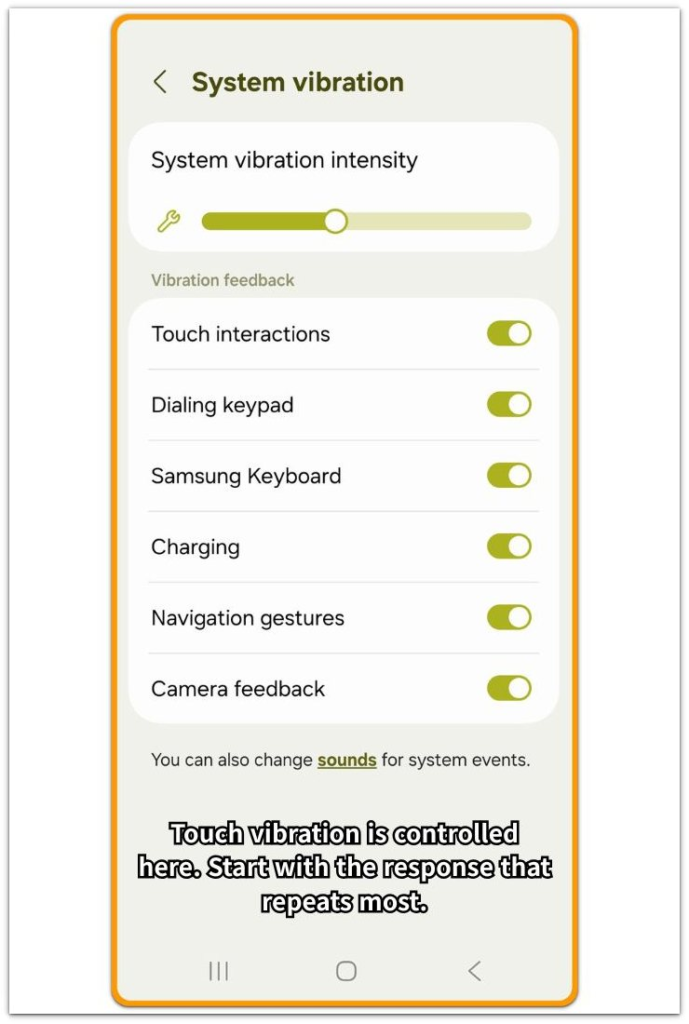
Step 2: Compare Battery Drop After Heavy Touch Use
Use the phone normally for a few minutes, but pay attention to actions that make the phone vibrate, such as typing, repeated taps, back gestures, navigation gestures, and keyboard use.
Open Battery usage after the test and see whether the battery line fell more than expected. Compare it with screen time during that period.
Low screen time with many small vibration responses makes haptic feedback worth testing next.
Keep the settings unchanged for now. One clean comparison is more useful than turning off several features at once.
Step 3: Reduce One Vibration Setting and Test Again
Go back to the haptic feedback or system vibration settings. Turn off one setting first, such as keyboard vibration or touch interaction feedback, then use the phone in a similar way again for about the same amount of time.
Open Battery usage and compare the result. A steadier battery line after that change means the reduced setting is worth keeping off. No clear change means this test did not separate haptic feedback from the battery loss, so move on to other battery checks instead of turning off random features.
Troubleshooting: Android Haptic Feedback Battery Drain
Troubleshooting 1: Battery Still Drops After Reducing Haptic Feedback
Reducing one haptic setting does not always remove every vibration response. The phone still vibrates during keyboard use, touch feedback, navigation gestures, charging, calls, and notifications.
Open the same settings menu again and see which response is still active. Focus on the part that repeats during normal use, not every vibration option on the phone.
Use the phone in a similar way again while typing, tapping, scrolling, or using gestures. Then open Battery usage and compare the result with a similar amount of screen time.
A smaller drop after reducing another repeated response means the first change did not cover the main touch feedback source.
When the battery line does not change after reducing the remaining repeated response, stop changing haptic settings and move to the next test.
Troubleshooting 2: Battery Only Drops During Heavy Typing or Gestures
Some phones do not show a clear battery change during light use. The loss becomes easier to notice after long typing, repeated back gestures, fast scrolling, or heavy keyboard use.
See whether the drain appears only after those touch-heavy periods. A short idle period with little typing should not show that kind of loss.
Reduce keyboard vibration first, then repeat that typing pattern. This keeps the test focused instead of turning off every response at once.
When the battery line looks steadier after keyboard vibration is off, keep that setting off and leave the rest alone.
A matching loss during that typing test points to another cause outside keyboard vibration.
Troubleshooting 3: Battery Drops the Same Way With Vibration Off
Turning off haptic feedback should change the battery pattern if repeated vibration was the main cause.
Keep haptic feedback off for one normal use period, then open Battery usage again. Compare the drain with similar screen time, typing, scrolling, and gesture use.
If the battery line still falls at the same rate, stop removing vibration features and review the next likely causes, such as weak mobile signal, Bluetooth scanning, location access, background sync, or an app that stays active after the screen turns off.
Extra Section 1: When Light Vibration Still Added Up During Normal Use
The phone did not look like it had a major battery problem at first. Screen time was normal, no single app stood out in Battery usage, and the loss was not sudden.
The difference showed up on days with more touch input. Typing short messages, tapping through menus, using back gestures, and scrolling through apps all created small vibration responses throughout the day.
One or two taps did not matter. The drain became easier to notice when those small responses repeated for hours during normal use.
I reduced touch feedback first instead of turning off every vibration setting. I used the phone in a similar way again and reviewed Battery usage later in the day.
The change was not dramatic, but the battery line looked steadier during that type of use. That made haptic feedback worth keeping lower, especially on days with frequent typing and gestures.
This type of Android haptic feedback battery drain usually does not look like a sudden drop. It is more like a small extra drain that builds up when touch feedback repeats throughout normal use.
Extra Section 2: When Strong Keyboard Vibration Made Typing Sessions Worse
The second phone did not show the problem during light use. Short taps, quick scrolling, and normal app switching did not make the battery line look unusual.
The drop became easier to see during longer typing sessions. Writing messages, searching often, and replying to comments kept the keyboard active for longer stretches, and each key press added another small vibration response.
Turning off every vibration option would have made the test too broad. I reduced keyboard vibration first because it repeated the most during those sessions.
I repeated that typing test after reducing keyboard vibration. The screen time was similar, but the battery line looked steadier than before.
That result made keyboard vibration the main setting to keep lower because the drain appeared mostly during heavy typing.
Official Source: Android Touch Vibration Settings
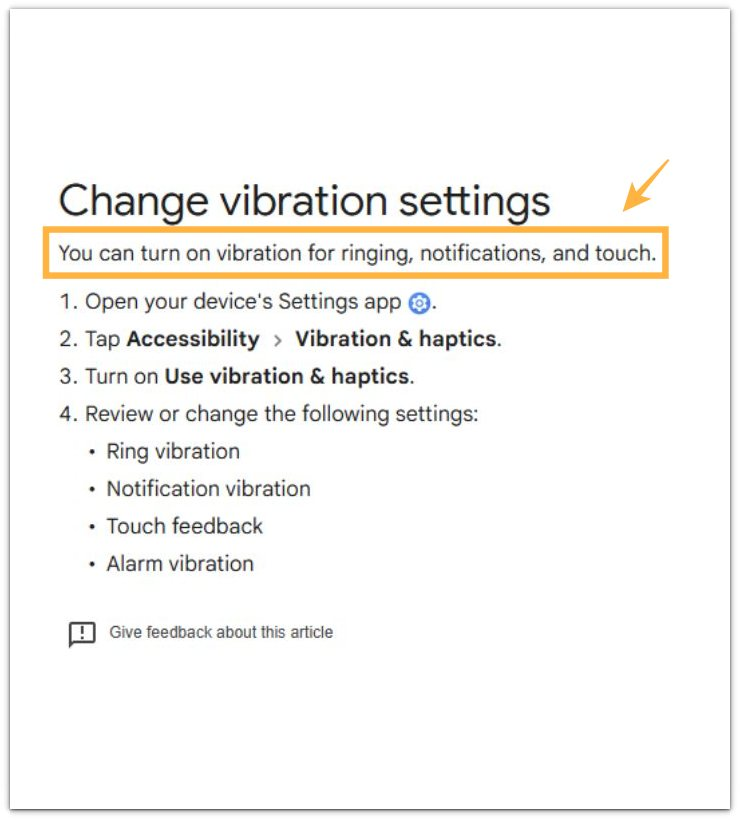
Google’s Android Help page explains that vibration settings include ringing, notifications, and touch feedback.
Use this setting as a focused starting point before changing unrelated battery options, but compare the battery pattern before blaming haptic feedback alone.
Additional Tips
A few taps are too weak to judge haptic feedback. Test it during normal typing, scrolling, and gesture use.
Check keyboard vibration first because it repeats often while you type. Change one setting, then compare the use pattern again instead of turning off every haptic setting at once.
Leave call and notification vibration alone unless the phone is vibrating often from alerts. This test is mainly about repeated touch feedback.
Final Notes
Android haptic feedback battery drain is easiest to judge after repeated typing, tapping, scrolling, or gesture use. A steadier battery line after reducing one haptic response is enough reason to keep that setting lower.
If the drain stays the same after reducing haptic feedback, use the result as a sign to move beyond vibration settings. Haptic feedback is usually a small extra drain during repeated touch use, not a major battery failure by itself.
Checklist
- Check whether haptic feedback is on
- Compare the battery drop during repeated typing, tapping, or gesture use
- Reduce one haptic setting first
- Test the same kind of use again
- Keep the setting lower if the battery line looks steadier
- Move on to another battery cause if the drop stays the same
When haptic feedback does not explain the full battery drop, use the main battery drain guide to compare other possible causes.