
Introduction
Location services become suspicious when recent location access appears after your Android phone has been locked for a while. The screen stays off, no map or navigation app is open, and nothing on the display looks like it is using your location, but the battery still drops during that quiet time.
Location-related Android battery drain becomes confusing when the phone looks idle, but location access still shows background activity. Normal location use looks different because directions, weather, delivery, or camera apps are open on the screen.
The important clue is whether recent location access appears while the phone looks unused, not during an active location session.
Step-by-Step Guide for Android Battery Drain Location Services
Step 1: Set a Clean Idle Window Before Checking Recent Location Access
Leave the phone locked for a clear idle period. Avoid opening maps, navigation, delivery tracking, weather, or camera apps before the check. Keep the screen off and note the battery percentage before and after that quiet stretch.
This step gives you a clean window before you check whether recent location access appeared while the phone was unused. It is not about normal location use during the day.
With android battery drain location services, the first clue is not the Location switch itself. It is whether location access appears after a locked period when no active location screen was open.
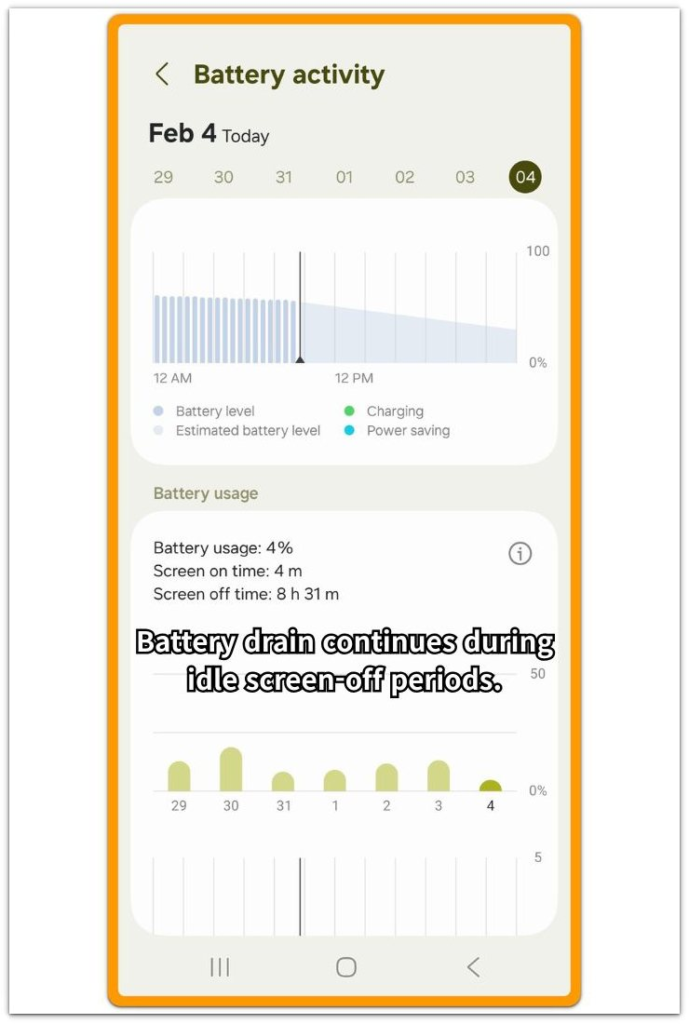
Battery activity only helps confirm that the drop happened during that same quiet window.
Step 2: Check Location Services and Recent Location Access
Open Settings → Location. Look for recent location access after the phone has been sitting locked.
Instead of only checking whether Location is turned on or off, check which apps or system services recently asked for location. A location entry after a quiet screen-off period matters more than the switch itself.
Recent access after no map or navigation app was open points toward background location activity, not normal location use.
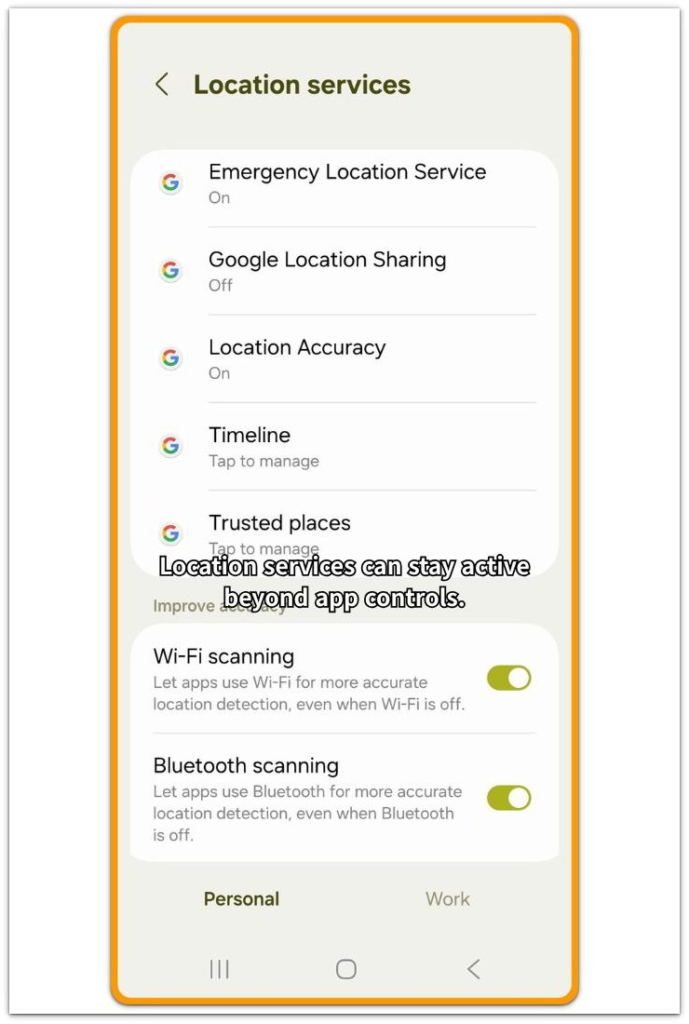
Use this screen to separate normal location use from background location access.
Step 3: Check Whether the Same Location Request Comes Back
After another quiet period, open the Location screen before opening maps, weather, delivery, camera, or navigation apps. Look at recent location access again.
One entry right after app use is not enough. The important part is whether the same app or system service returns when no active location screen was open.
Repeated access after idle time points away from normal location use during the day. With android battery drain location services, that repeated record matters more than the Location switch being on.
Troubleshooting
Troubleshooting 1: App Permissions Look Correct, but Location Access Keeps Returning
The problem gets harder to read when app permissions already look strict. Maps, ride, delivery, and weather apps already look limited on the permission screen, and some apps only show “While in use.”
But the battery still drops after the phone has been locked for a while. If recent location access keeps appearing after idle time, the permission list is not enough by itself.
Check whether the same access returns when no active location app was open. When the same access returns after idle time, the location-related battery drain becomes easier to separate from normal phone use.
Troubleshooting 2: Turning Location Off Helps Only for a Short Time
Turning Location off and back on can make the drain slow down for a short time. The next idle period may look better, but that short improvement does not mean the issue is fixed.
Check the next locked period before changing more settings. If location access returns after the phone sits unused, the toggle only interrupted the activity for a short time.
The next check is what keeps asking for location in the background, not just whether the Location switch is on.
Troubleshooting 3: Recent Location Access Appears Before You Open Any Location App
This gets confusing when the battery page does not point to one obvious app. Google Play Services, Android System, or several smaller entries often appear instead.
If the Location screen already showed recent access before you opened maps, weather, delivery, camera, or navigation apps, that timing matters more than the missing app name.
Look at the same idle window and check whether the access appeared before normal location use began. If the phone looked unused but location access was already listed, the problem is not just a vague battery entry.
The stronger clue is recent location access showing up before any location app had a visible reason to run.
Extra Section 1: Checking the Location Screen Too Late
The easy mistake is checking the Location screen too late. You unlock the phone, open weather, check a delivery update, or take a quick photo, and recent location access appears after that. At that point, the record is already mixed with normal app use, so the result becomes less reliable.
A cleaner check starts before those apps are opened. Unlock the phone after a quiet period and go straight to the Location screen.
If recent location access is already listed there, the phone looked unused, but the location record already showed activity. That makes the issue easier to separate from normal phone use.
Extra Section 2: When Battery Usage Does Not Point to One App
A harder case shows up when Battery usage looks too mixed to blame one app. Battery usage shows Google Play Services, Android System, and a few small apps, but no single entry explains the full drop.
The Location screen gives a clearer direction here. Check whether recent location access returned during the same locked period when the battery fell.
Before following every small battery entry, compare the idle window, screen time, and recent location record together. The app name matters less when the phone stayed locked, screen time stayed low, and location access still returned.
The real clue is the match between idle battery loss and background location activity.
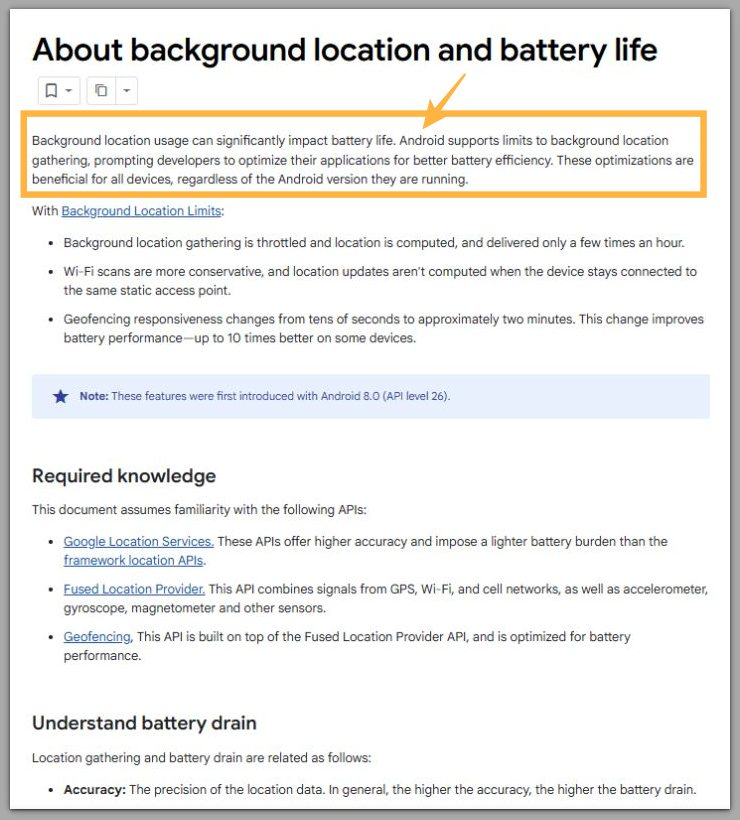
Official Source: Android background location can affect battery life
Android documentation also points out that background location usage can affect battery life.
Not every recent location entry is a fault, but the same access returning after quiet periods should not be ignored.
Additional Tips
Check recent location access before opening maps, weather, delivery, camera, or navigation apps. Opening one of those apps first can make the Location screen harder to read.
Check the recent access list first, then use the phone normally. Change only one location setting at a time. If you limit one app or service, leave the phone locked again before judging the result.
Avoid changing location, battery, sync, and app permissions all at once. Several changes at the same time make the cause harder to separate.
The cleaner check is whether recent location access disappears after one change, not whether the phone simply looks quiet for one short period.
Final Notes
Android battery drain location services is not about whether Location is simply turned on. The stronger clue is what happens after the phone has been locked and unused.
Battery drops during that quiet period, combined with repeated recent location access, points to something different from normal location use during the day.
A single recent access entry is too weak by itself. But repeated idle drain with repeated location access carries more weight than ordinary background noise.
When the phone looks unused but location activity keeps returning, it is a real battery problem, not just normal phone behavior.
Checklist
- Confirm the battery drop happens with the screen off
- Check recent location access after the phone has been locked
- Make sure no map, navigation, ride, or delivery app was open
- Compare the next idle period before changing several settings
- Treat repeated idle drain with repeated location access as a real battery problem, not normal background use
If the battery drain started after an update, check the main guide before blaming location access alone.