
Introduction
Android System UI battery drain becomes confusing when Battery usage keeps showing the interface layer instead of one normal app. The phone is not running a heavy app, but the battery list still points back to the Android interface.
This needs a different check because System UI handles the lock screen, notifications, quick settings, and navigation gestures. Start by checking when the entry appears, then compare it with screen use and a quiet locked period before changing app settings.
Step-by-Step Guide for Android System UI Battery Drain
Step 1: Check Battery Usage for System UI Activity
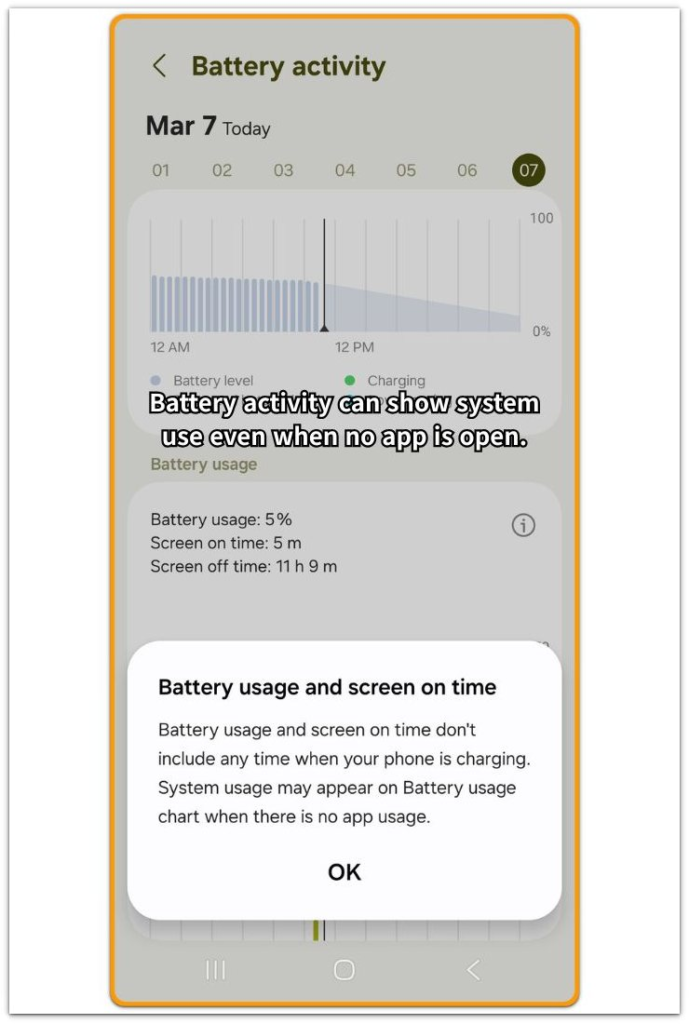
Open Settings and go to Battery usage. On some Android phones, this path appears under Battery and device care, then Battery. Look at the battery chart and the usage list below it, then check whether System UI, Android System, or another system-level entry appears near the battery drop.
The percentage alone is not enough. A small entry after checking notifications, opening quick settings, or using gesture navigation is normal. The useful clue is timing, so move to an idle comparison when the same entry keeps returning after normal screen use should have ended.
Step 2: Compare Activity During Idle Screen Time
Lock the phone and leave it unused for a clear idle period. During the test, avoid pulling down the notification shade, opening quick settings, changing brightness, or using gesture navigation. After the idle period, return to Battery usage and compare the battery drop with screen-on time.
A lower battery percentage alone does not explain the problem. That entry becomes worth checking after the locked test, especially when screen-on time stays low. Heavy interface use points to normal Android behavior, but a quiet locked period needs a closer look at display settings that wake the screen, refresh the display, or redraw lock screen items.
Step 3: Check Display Features That Keep the Interface Layer Active
Open Settings and go to Display. Look for settings that affect the lock screen, brightness, refresh rate, screen timeout, or visual notifications. Change only one display setting first, then check Battery usage again after another normal idle period.
High refresh rate, repeated brightness changes, long screen timeout, lock screen updates, and always-visible screen features are the main items to compare.
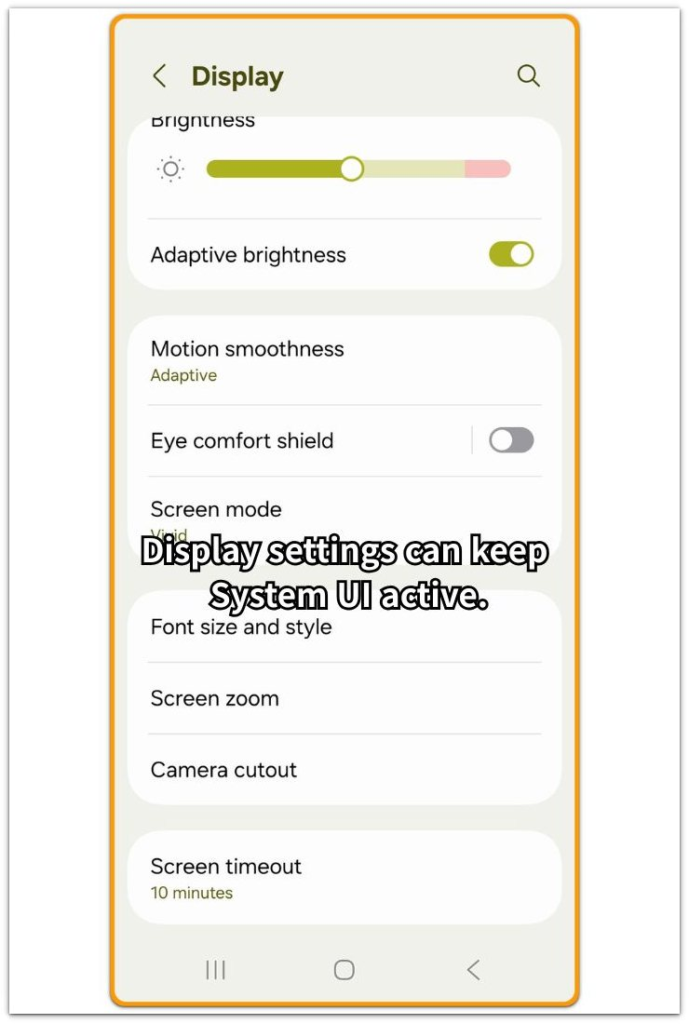
A lower System UI entry after one display change means a regular app was not causing the drain. The battery list was tracking screen behavior, brightness updates, lock screen items, or visual panel refreshes.
Troubleshooting
Troubleshooting 1: System UI Appears After You Keep Waking the Lock Screen
System UI often looks high when the phone keeps waking for small checks, such as checking the clock, tapping the screen, lifting the phone, or opening the lock screen repeatedly. This points to lock screen and display activity, not a normal app running in the background.
Leave the phone locked for a cleaner test. During that short period, avoid tapping the screen, checking notifications, or waking the lock screen. Return to Battery usage afterward and compare the result. A lower entry after fewer lock screen wakes means repeated screen checks were causing the issue, not a separate app.
Troubleshooting 2: System UI Stays High After Notification Pulls Stop
System UI also rises when you open the notification shade or quick settings panel often. Pulling down alerts, checking tiles, changing brightness, or switching Wi-Fi and Bluetooth all count as interface use.
The key check is whether the same entry returns after you stop using those panels. During one idle test, avoid quick settings and notification pulls, leave the phone locked, and check Battery usage later.
A lower entry points back to panel use. A high result with low screen-on time points next to display and lock screen features.
Troubleshooting 3: Display Settings Keep System UI Active During Idle Time
Display features keep the interface layer active even when no normal app is open. High refresh rate, adaptive brightness, long screen timeout, lock screen notifications, and always-visible screen features are the main settings to compare.
Change one display setting first, then repeat the idle test. Start with the setting that matches the result you saw: lock screen notifications for frequent screen wakes, adaptive brightness for repeated brightness changes, and screen timeout when the screen stays active too long.
After the next idle period, return to Battery usage. A lower result after one display change means screen behavior caused the drain, not a normal app running in the background.
Extra Section 1: When a Media Control Stays on the Lock Screen
A user stops playing music or a video and locks the phone. The app looks closed, but the lock screen still shows a media control card, so the battery drop feels hard to explain.
The interface layer looks more active here because Android handles the visible lock screen area. The lock screen, playback buttons, album art, and notification controls all sit inside that layer, so the battery list points to System UI instead of leaving the media app at the top.
Clear the media control from the lock screen, close the related app fully, and leave the phone locked for a short idle period. Open Battery usage again and compare the next entry. A lower entry after the media control disappears means lock screen activity caused the drain, not a separate hidden app.
Extra Section 2: When System UI Looks High After Setting Up a New Phone
A new phone often looks ready before the interface settles into normal use. The home screen is visible, apps open, and the basic setup looks finished.
System UI sometimes appears higher during this period because the phone is still rebuilding the way the interface behaves. Lock screen items, notification settings, widgets, app shortcuts, and restored home screen layouts all create extra activity.
A higher entry during setup does not point straight to a reset or one normal app. Give the phone one clean idle check after setup finishes. Lock the screen, avoid changing quick settings or notifications, and check Battery usage again later.
When the entry drops after that quiet period, treat the earlier result as part of the setup window. A repeated entry with low screen-on time should lead to display and lock screen checks before app deletion.
Official Source: How Android Tracks Battery Use
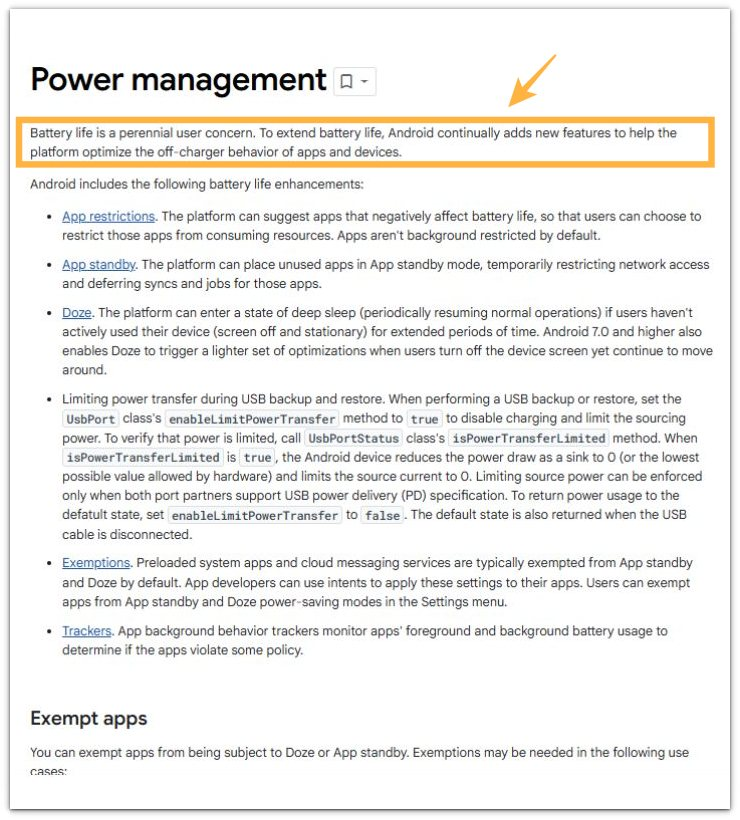
Google’s Android documentation explains that Android includes built-in power management features for apps and device behavior when the phone is off the charger.
This supports the check because Battery usage tracks more than opened third-party apps. Screen behavior, lock screen activity, notifications, and interface use also matter.
A System UI entry alone does not point straight to a hardware fault. Check whether the entry follows screen, lock screen, or idle behavior before blaming the battery or deleting apps.
Additional Tips
System UI is not always a broken system sign. It manages the parts of Android you touch every day, such as the lock screen, notifications, quick settings, and navigation gestures.
One small battery entry after normal use is fine, and the label alone is not enough to show a system problem. Check usage after the phone stays locked for a quiet period, not right after heavy manual use.
Start with display behavior before changing apps. Lock screen notifications, brightness changes, screen timeout, and always-visible screen features are the first clues to compare.
Final Notes
Android System UI battery drain needs a different check from a normal app drain.
A short entry after active use is normal, especially after checking notifications, opening quick settings, waking the lock screen, or using gesture navigation. The stronger warning sign is low screen-on time with repeated interface activity during idle periods. That low use does not explain the drop.
When that pattern keeps returning, focus on the screen and lock screen settings before blaming the battery itself. Personal apps or a full reset should come later, after you know whether the drain follows interface activity, display behavior, or a quiet locked period.
Persistent idle entries are worth checking, but they are not automatic proof of a hardware fault.
Checklist
- Check for System UI or Android System entries in Battery usage
- Compare the battery drop with screen-on time
- Leave the phone locked for a clear idle period
- Check whether the same entry returns after the idle test
- Review lock screen notifications, brightness changes, and screen timeout
- Reduce one display feature at a time before changing apps or resetting the phone
For broader battery drain patterns, use the main guide after checking whether the drop follows screen, lock screen, or idle behavior.