
Introduction
Android battery drain when idle becomes confusing when Battery Saver is already on, but the battery still drops after the screen turns off. The phone is not being used during that quiet stretch, so the setting looks like it should be enough.
But the battery level keeps dropping even though Power Saving is already active. The setting looks correct, but the battery graph tells a different story.
The drain is happening after the phone has already been placed into a power-saving state. Before changing more settings, start with the quiet window where the drop happens even though Power Saving is already on.
Step-by-Step Guide
Step 1: Confirm the Phone Was Actually Idle
Open Settings → Battery, then check the battery activity or battery usage screen. Start with the quiet period where the drop happened after the screen turned off.
Look at screen-on time first. If screen time is very low, the drop did not come from normal visible use.
Then check whether one app clearly explains the battery loss during that same stretch. With android battery drain when idle, this first check matters because Power Saving only makes sense after you confirm the phone was actually idle.
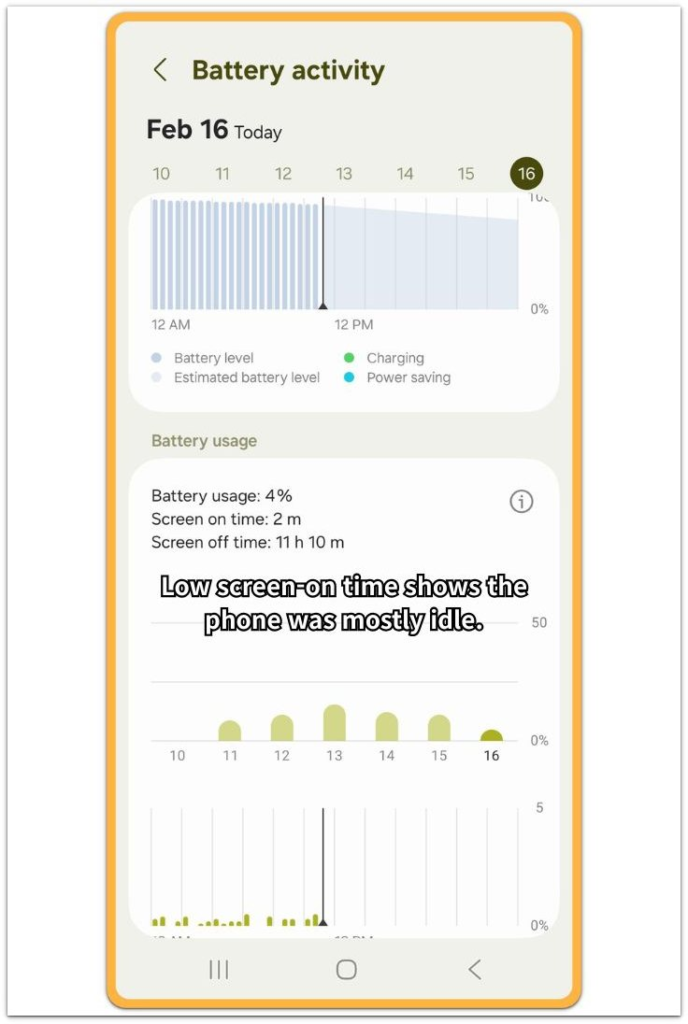
The Battery activity screen shows whether the battery dropped during a low screen-time period.
Step 2: Check Whether Power Saving Was Already On
Open Settings → Battery → Power Saving. Check whether Battery Saver or Power Saving was already enabled during the idle window you just checked.
Do not change more settings yet. At this stage, you only need to confirm the timing. Check whether it was already on before the battery graph moved down.
Use this screen to separate a missed setting from a drain that continued while the setting was already active.
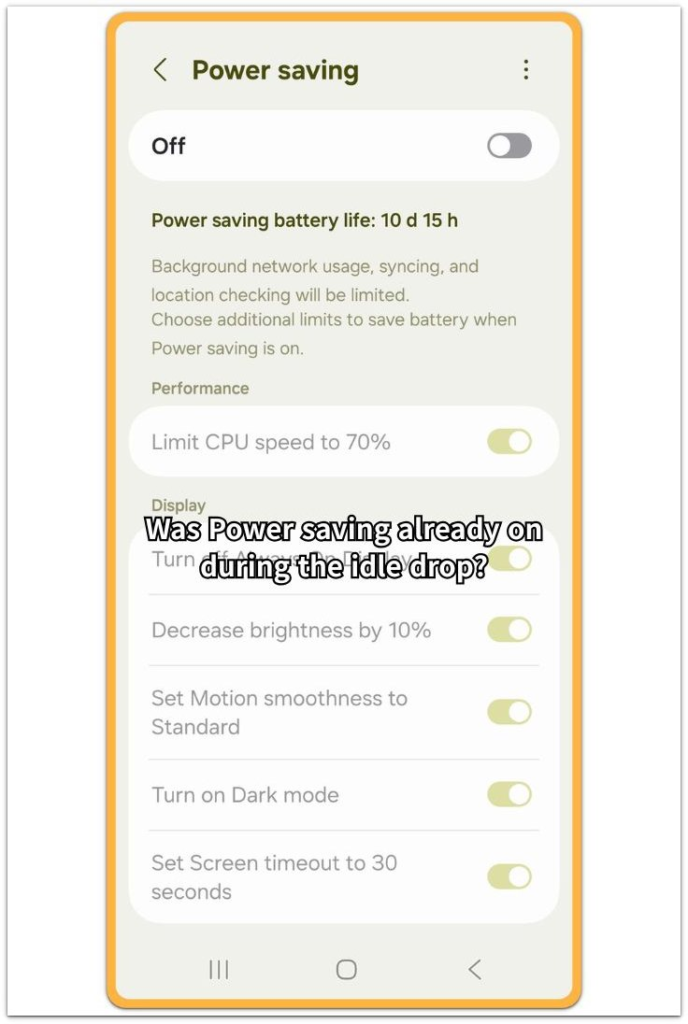
The Power Saving screen helps confirm whether the setting was already active before the idle drain continued.
Step 3: Check What Still Runs After Power Saving Is On
Open Battery usage again after checking that screen. Stay with the same idle window instead of checking the whole day.
Look for Android System, Google Play services, Device Care, background services, or one app that still appears after the screen has been off. Do not turn more battery settings on during this check.
Troubleshooting Android Battery Drain When Idle
Troubleshooting 1: The Battery Still Drops After the Setting Is On
Power Saving is already on, but the graph still moves down after the screen turns off. That usually feels wrong because the phone looks quiet and no app session is visible.
Do not turn on every extra battery option right away. Open Battery usage and check the same idle window instead.
Look for Android System, Google Play services, Device Care, or one background app that appears while the phone was supposed to be resting. A falling graph with Power Saving enabled means the drain is still active during idle, not solved by the switch alone.
Troubleshooting 2: The Drop Happens in One Weak-Signal Spot
The battery drops only at home, in the car, at work, or in one weak-signal area. Power Saving is on, but the phone keeps checking the network when the signal is unstable.
The screen stays off, and usage still does not point to one obvious app. Do not read this as a battery failure right away.
Compare one quiet window on stable Wi-Fi with another quiet window in the place where the drain usually appears. A drop that returns only in that weak-signal area points to connection activity, not the Power Saving switch alone.
Troubleshooting 3: Small Background Activity Keeps Returning
The drop keeps coming back, but no single app looks guilty. Battery usage shows small entries, short wakeups, location access, Bluetooth activity, sync, or system services after the phone has been left alone.
Random app restrictions waste time here. Check whether the same small activity appears again during the next idle window.
Power Saving lowers some background activity, but short wakeups can still appear after the screen turns off. Repeated small background activity after the setting is already on should be treated as idle drain, not a simple setting mistake.
Extra Section 1: When Power Saving Is On but Idle Drain Still Returns
A short screen-off check can be easy to misread when Power Saving is already on. The screen is off, the phone is not being touched, and Battery Saver looks active in Settings. But the graph still moves down during that quiet stretch.
That does not automatically point to a bad battery. The switch did not fully explain what happened while the phone was idle. The important detail is not only that Power Saving was on, but whether the same drop returns during a similar screen-off window.
Do not change several battery limits before checking again. Keep the same idle setup, leave the phone alone, and compare the graph with screen time and background entries.
A repeated drop with Power Saving already on points to activity that stayed alive during idle, not a switch you forgot to enable.
Extra Section 2: When a Weak Signal Makes Idle Drain Look Worse
The same setup can look different when the phone sits in a weak-signal spot. The screen is off, Battery Saver is active, and no app is being used. But the graph drops more in one place than it does in another quiet spot.
That difference matters because the setting did not change. The condition around the phone changed. A weak mobile signal, unstable Wi-Fi, or repeated network switching can keep the phone active while it looks idle.
Read that as a signal issue before calling it a Power Saving failure. Compare the same screen-off window in a stable signal area and in the place where the drain usually appears.
The location comparison matters more than the switch itself when the same setup behaves differently in one weak-signal spot.
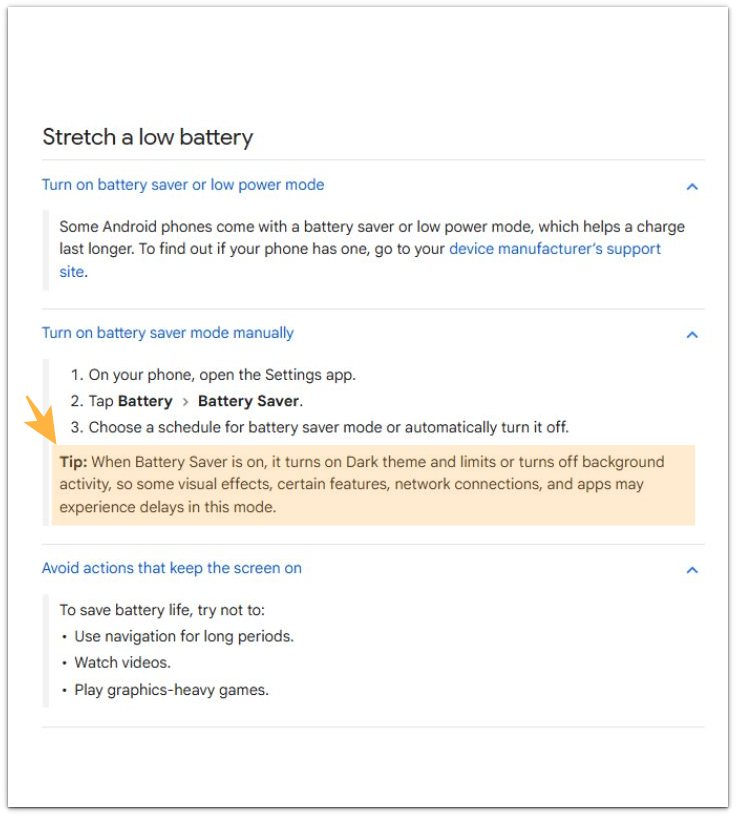
Official Source: Google Says Battery Saver Limits Background Activity
Battery Saver can reduce background activity, but the graph still shows whether the phone kept working after the screen turned off.
Use Battery usage to see whether anything kept working during the same idle window.
Additional Tips
Change only one related setting at a time. If you turn on extra battery limits, restrict apps, and change network settings all at once, the next idle drop becomes harder to read.
Use the same quiet window and check whether the battery level still falls after Power Saving is already on.
Do not reset the phone just because the Power Saving switch did not stop the drain. A restart can make the graph look calmer for a short time, but it does not prove that Power Saving fixed the idle drain.
Check whether the drop returns during the same idle window again.
Final Notes
Android battery drain when idle should not be judged by the switch alone. Power Saving can reduce background activity, but it does not prove that the phone has stopped using power after the screen turns off.
The real check is what happens during the same quiet window after the setting is already on. A steady graph means the setting helped control the idle drain. A falling graph means something still wakes, syncs, checks the network, or keeps working in the background.
Do not keep stacking extra limits just because the number keeps moving.
Checklist
- Confirm the setting was already on before judging the idle drop.
- Check the same quiet window after the screen turns off.
- Compare the drop with screen-on time.
- Look for system activity, Google Play services, Device Care, or one repeating app.
- Change only one related setting at a time.
- Treat the problem as active idle drain when the same drop returns with Power Saving already on.
For a broader battery troubleshooting path, see the main guide.