
Introduction
Android battery drain from poor signal strength becomes easier to notice when the phone loses power even though screen use looks normal. You are not watching videos, no heavy game is running, and no single app clearly explains the drop.
The stronger clue is where the drain happens. Before blaming an app, check whether the battery falls faster in the same weak-signal area than it does in places with a stable connection.
Step-by-Step Guide
Step 1: Check Android Battery Drain From Poor Signal Strength in One Area
Start with the place where the battery dropped faster than usual. Check whether the phone was in a basement, parking garage, thick-walled room, rural road, or another spot where mobile signal often becomes weak.
Look at the signal bars during that same period, then compare the drop with normal phone use in a place with better coverage. The key is whether the faster battery loss happened in the same weak-signal area.
A drop that appears mainly in that area means poor coverage should stay on the list before blaming one app.
Step 2: Compare the Same Phone in Better Coverage
Move to a place where the signal is stable and use the phone in a similar way for a short period. Then compare the battery drop with the weak-signal period.
A slower drop after the signal becomes stronger means poor coverage is part of the pattern. Fast drain in strong coverage points to another cause, so the key check is whether the drain changes after the phone moves from weak coverage to stable coverage.
Step 3: Check Whether One App Clearly Explains the Drop
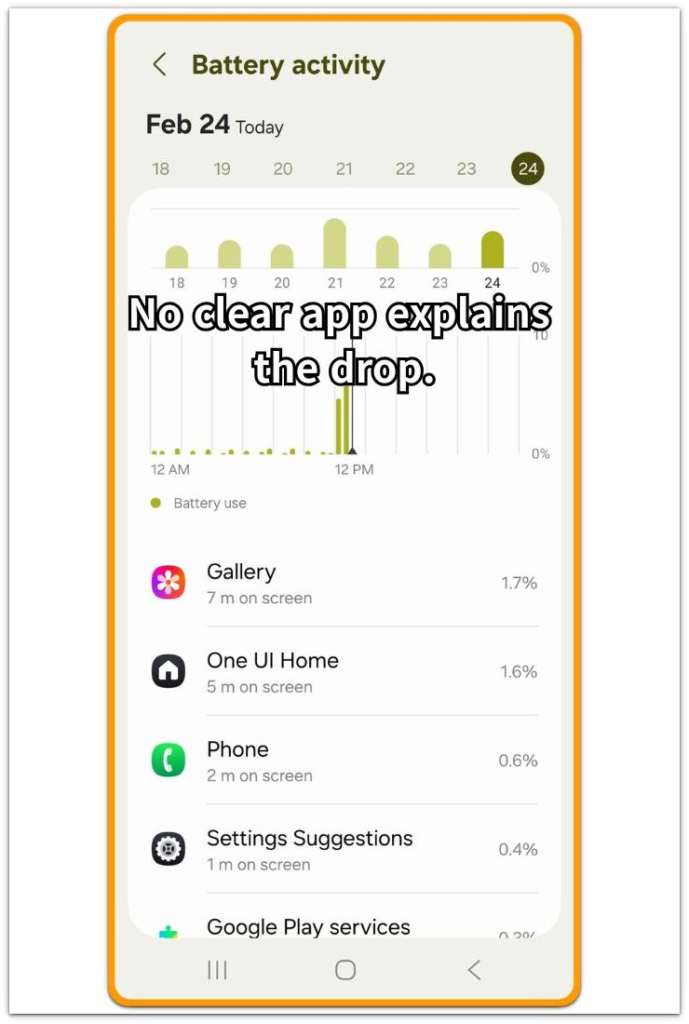
Open the Battery screen and look at the app list. Check whether one app clearly used most of the battery during the same period.
An app with high screen time or obvious background use should be handled first. When screen time stays low and no single app explains the drop, poor signal becomes more likely.
The graph matters here because weak coverage can drain power without making one app look like the main cause.
Step 4: Test What Happens When Mobile Connection Is Temporarily Off
Use this only as a short test. Turn on Airplane mode, or turn off mobile data for a short quiet period. Keep Wi-Fi on if you still need internet access.
Then leave the phone unused for a while and check whether the battery drop slows down.
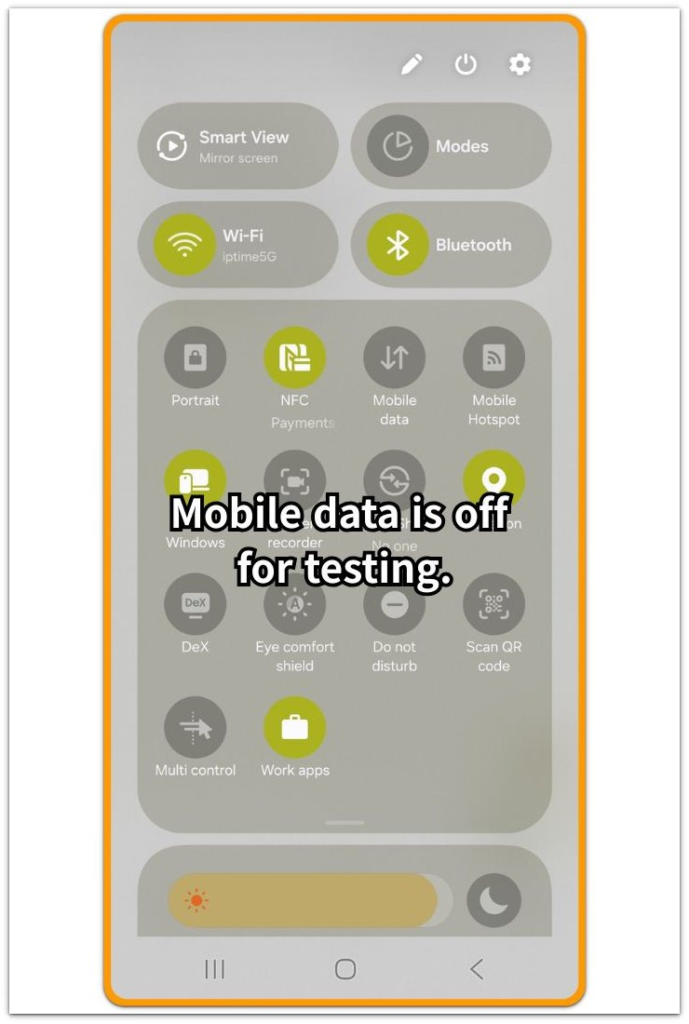
A slower drain after the mobile connection is off means the weak mobile signal was likely part of the battery problem. This is only a test, not a permanent fix when calls, texts, or mobile data matter.
The point is to confirm whether the phone drains faster while trying to stay connected to a weak signal.
Troubleshooting: Android Battery Drain From Poor Signal Strength
Troubleshooting 1: The Battery Still Drops While Moving Through Weak Coverage
A restart sometimes makes the phone feel normal for a short time, but the same drain can return when the phone moves through places where signal strength keeps changing. This often happens on trains, buses, highways, basements, parking garages, or inside large buildings.
Check whether the battery drops faster during those moving or low-signal periods, then compare it with a quiet period in stable coverage.
Drain that returns only when the signal keeps switching between weak and usable points more to connection effort than to a normal app.
Troubleshooting 2: The Drain Does Not Match Any One App
Battery usage does not always show one app causing the whole drop. Screen time looks low, the app list looks ordinary, but the graph still falls faster when the phone stays in weak coverage.
Deleting random apps is the wrong first move when the app list looks unclear. Check the place and time of the drop first, then compare that same period with the signal condition.
A pattern that repeats only in weak-signal areas means the app list is not the best place to start.
Troubleshooting 3: Dual SIM or eSIM Makes the Pattern Harder to Read
Dual SIM or eSIM setups can make this problem harder to judge. One line can have stable coverage while the other line stays weak, and the phone still checks both mobile connections in the background.
Open the SIM or Mobile network settings and check which line has weaker signal. For a short check, turn off the line you do not need and watch the battery again.
A slower drain after disabling the weaker line ties the problem to mobile signal behavior rather than normal screen use. Turn the line back on afterward when you need calls, texts, or data from that number.
Extra Section 1: When Battery Drops Faster Inside One Building
A phone can lose power faster in one building even when the app list looks normal. This often happens in a basement office, parking garage, hospital, school, warehouse, or thick-walled apartment where the mobile signal stays weak.
The phone does not feel broken because apps still open normally, screen use stays low, and Battery usage does not show one app causing the whole drop. The stronger clue is that the battery falls faster during the hours spent inside that weak-signal place.
When the same phone leaves that area and the drain slows down, the location becomes the better clue. That does not mean every app is safe to ignore. It means the first comparison should be between weak coverage and stable coverage before deleting apps or clearing random cache.
Extra Section 2: When the App List Looks Normal but the Battery Still Drops
Battery usage does not always show a clear app when poor signal is part of the drain. A user may open the battery screen and see only small entries such as Phone, Settings, Google Play services, or a few apps with low screen time.
That kind of list does not explain why the battery dropped faster. Deleting one app after another usually does not help when the same pattern returns in the same weak-signal area.
A better check is to match the drop with the place and time it happened. When the phone loses power faster during low screen time and the app list stays ordinary, check whether the signal was weak during that same period.
A normal-looking app list only means the cause is not showing as one dominant app on the battery screen.
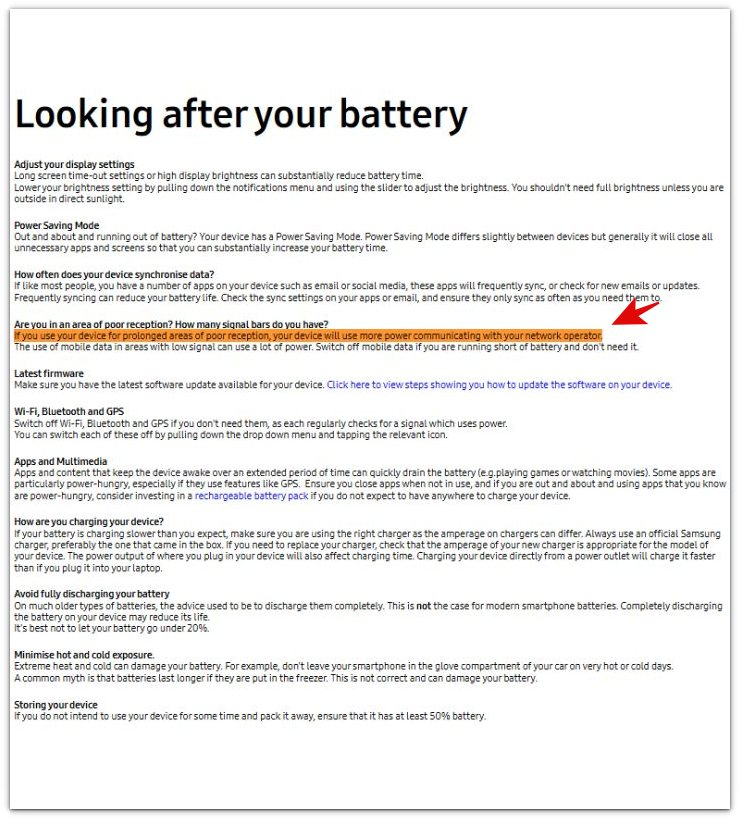
Official Source: Samsung guidance on poor reception and battery use
When your device stays in an area with poor reception, it uses more power to communicate with the mobile network.
This official guidance matches the main check in this guide: poor signal can make the phone use more power even when no single app looks like the clear cause.
Additional Tips
Weak signal battery drain does not always show a sudden spike. Sometimes it drops slowly and steadily because the phone keeps trying to hold a mobile connection.
This can happen inside thick buildings, underground areas, parking garages, or places where the signal keeps moving between weak and usable.
Removing apps or resetting the phone is the wrong first move when Battery usage does not show one clear cause. First, compare the drain in weak coverage with stable coverage.
A faster drop only in poor signal areas means the signal condition matters more than the app list.
Final Notes
Android battery drain from poor signal strength is easier to judge when the same phone behaves differently in different signal areas. A faster drop in weak coverage, followed by slower drain in stable coverage, points away from normal screen use.
The phone is using more power to stay connected, so app restrictions, cache clearing, or deleting random apps will not fix that pattern while the signal remains weak.
The better check is location-based. Compare where the drain happens, check whether signal strength stays low, and see whether the drop improves when the phone returns to stable coverage.
Checklist
- Check whether weak signal appears in the same place as the drain.
- Compare battery drop in poor coverage and strong coverage.
- Confirm that screen time stays low during the battery drop.
- Check whether one app clearly explains most of the loss.
- Test mobile data off for a short period.
- Treat poor signal as the clue if the drain slows in stable coverage.
For broader Android battery drain issues, refer to the main guide.