
Introduction
Bluetooth looks inactive, but your Android phone still loses battery in standby. The screen is off, no music is playing, and no Bluetooth headset, speaker, or smartwatch looks active.
The phone just sits locked on a desk, inside a bag, or beside you, but the battery percentage still drops during standby.
Android Bluetooth scanning battery drain is hard to notice because nothing on the screen looks active. Bluetooth scanning still checks nearby signals in the background even when the phone looks idle.
Step-by-Step Guide
Step 1: Check Whether the Drop Happens During Standby
Start with the battery drop while the phone stays locked. Leave the phone unused for a clear standby period and check the battery percentage before and after.
Keep the screen off during that time. Do not play music, use earbuds, connect to a speaker, or keep a smartwatch actively syncing.
Then check Battery usage and look at whether screen time stayed low. When the screen time is near zero but the percentage still drops, the drain is happening below normal visible use.
Step 2: Check Visible Bluetooth Use First
Open the Bluetooth or Connections screen first. Check whether Bluetooth is on and whether any headset, speaker, smartwatch, car system, or file transfer is active.
Do not judge the drain from the Bluetooth switch alone. A phone with Bluetooth turned on is different from a phone actively sending audio or holding a connected device session.
The useful detail is whether anything visible is using Bluetooth while the phone sits locked. If Bluetooth is on but nothing is actively in use, the next check should move beyond connected devices.
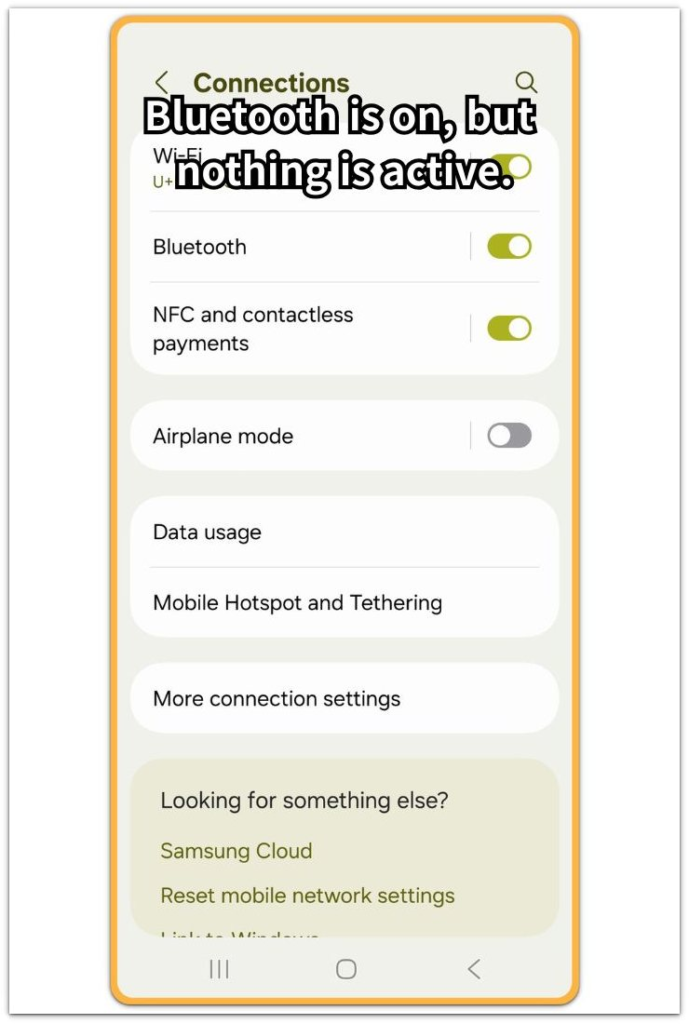
This image shows the Android Connections screen with Bluetooth enabled and no active Bluetooth device in use.
Step 3: See Where User Control Starts to Run Out
Turn off nearby Bluetooth options only after you check visible Bluetooth use. Then lock the phone again and watch whether the standby drop changes.
If the battery still drops with no headset, speaker, watch, car system, or file transfer active, the Bluetooth switch is not enough by itself. Android Bluetooth scanning battery drain is harder to judge when the phone shows no active Bluetooth device.
Troubleshooting
Troubleshooting 1: Bluetooth looks off, but standby drain still continues
Bluetooth can look quiet on the screen even when the phone is still checking nearby signals. No headset, speaker, smartwatch, or car system appears active, but the phone still loses battery while it sits locked.
That kind of drop does not point to one visible Bluetooth device on the screen. It points to background scanning that is harder to see from the Bluetooth menu alone.
The issue becomes clearer when you compare standby drain with visible Bluetooth use.
Troubleshooting 2: Battery usage does not show Bluetooth clearly
Battery usage does not always show Bluetooth scanning as a clear item. The screen shows low screen time, no heavy app use, and no clear Bluetooth label.
Short scanning activity sits below the kind of usage that looks obvious in the battery list. The standby clue matters more than one app name here.
When the screen stays off but the battery keeps falling, Android Bluetooth scanning battery drain still belongs in the diagnosis.
Troubleshooting 3: Restart helps for a while, but the drain comes back
A restart makes the phone look normal for a short time. The battery graph slows down for a while, and standby looks quieter right after the reboot.
The drain returns once the phone resumes its usual background checks. A temporary improvement does not prove the battery itself is failing.
The restart only paused the behavior instead of removing the reason it returned. A repeated standby drop without visible Bluetooth use keeps Bluetooth scanning in the diagnosis.
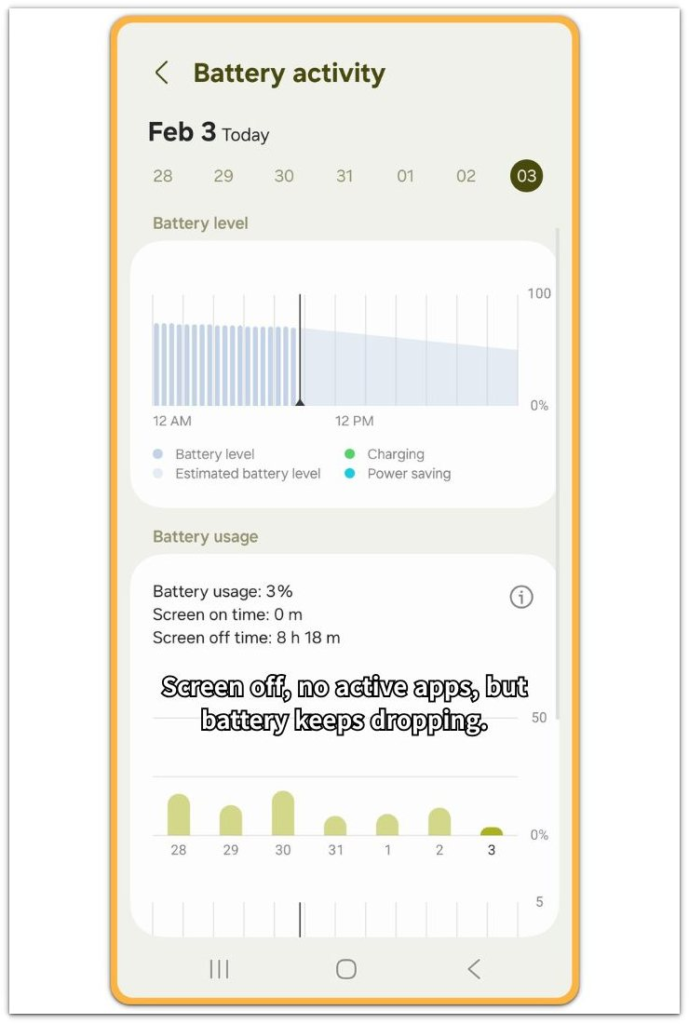
This screen does not prove Bluetooth scanning by itself. It shows the kind of standby drop that normal Battery usage can miss.
If standby battery keeps dropping with the screen off, check the battery more deeply before blaming one visible Bluetooth device.
Extra Section 1: When Nearby Devices Make Standby Drain Look Worse
The battery dropped more on a desk crowded with nearby wireless devices than it did in a quieter room. Bluetooth audio was not playing, and no headset, speaker, or smartwatch showed an active connection on the screen.
The phone stayed locked, but the desk around it was full of devices. Earbuds in a case, a laptop, and a tablet were all sitting close enough for the phone to detect nearby Bluetooth activity.
Android Bluetooth scanning battery drain fits this situation better because the phone was not playing audio or holding one visible Bluetooth connection. The phone looked unused, but it was sitting in a busy wireless environment.
A quiet screen does not always mean the Bluetooth side is quiet too.
Extra Section 2: When Moving the Phone Changes the Drain Pattern
The same phone behaved differently after the user moved it away from the crowded desk. It stayed locked for another standby test in a quieter spot.
Nothing changed with the charger, apps, or battery setting. There was no active Bluetooth connection to explain the earlier drop.
Only the area around the phone was different. With fewer nearby devices, the standby drop became smaller.
That first result looked less like a weak battery and more like a busy Bluetooth environment. The phone itself did not change, but the wireless conditions around it did.
Official Source: Why BLE Scanning Can Still Affect Battery Life
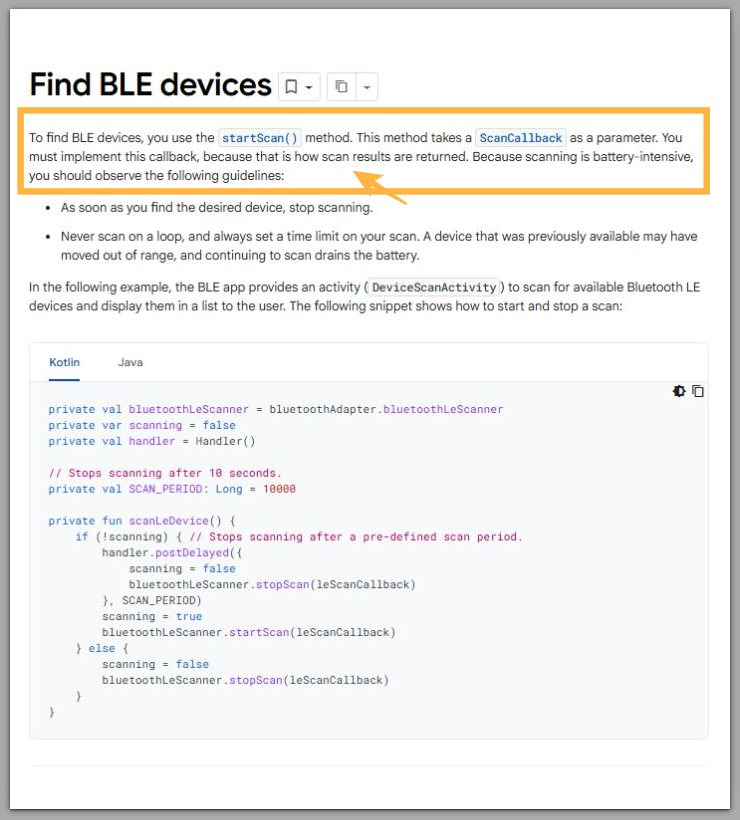
Google’s Android documentation says BLE scanning is battery-intensive and recommends stopping the scan after the phone finds the needed device.
The screenshot helps show why standby drain still matters even when Bluetooth does not look active.
Next, compare the locked-screen drain with visible Bluetooth use and Battery usage instead of judging the Bluetooth switch alone.
Additional Tips
Check Bluetooth scanning battery drain with one clean standby test, not by changing every wireless setting at once. Turn off the nearby-device or scanning option, then leave the phone locked for the same kind of standby period.
Do not test it while charging, streaming, moving between places, or using earbuds. Those extra changes make the result harder to read.
The useful comparison is simple: same phone, similar standby time, fewer Bluetooth scan conditions. That keeps the test focused on scanning instead of turning it into a general battery cleanup.
Final Notes
Android Bluetooth scanning battery drain is not the same as leaving a Bluetooth speaker connected. The screen looks quiet, but nearby signal checks still continue in the background.
A normal Bluetooth switch, a quiet screen, or an empty-looking Battery usage list does not always mean the phone is fully idle.
Do not turn this into a general Bluetooth problem or a random battery health problem too quickly. The key sign is specific: standby drain continues without visible Bluetooth use.
When that pattern repeats, Bluetooth scanning is not a harmless background detail.
Checklist
- Check whether the battery drops while the phone stays locked.
- Make sure no headset, speaker, smartwatch, or file transfer is active.
- Compare the drop with screen time and visible app use.
- A missing Bluetooth label in Battery usage is not proof that scanning is uninvolved.
- Treat standby drain without visible Bluetooth use as a Bluetooth scanning clue.
For wider standby drain checks beyond Bluetooth scanning, use the main Android battery drain guide.