
Introduction
Android Google Play Services battery drain is confusing when the phone loses battery during standby, but no normal app explains the drop. The screen stays off, the phone is not being used, and Battery usage still shows it near the top.
This service is not a regular app that goes away when you close recent apps. It stays tied to background tasks such as syncing, location checks, account activity, and system requests.
Start by checking whether the drain appears during a quiet standby period before changing app settings or deleting data.
Step-by-Step Guide
Step 1: Check Whether Google Play Services Is High During Standby
Open Settings and go to Battery. Check the battery graph first, then look for a period when the phone was locked and not being used.
Check the app or system usage list for that same period. If Google Play services appears near the top while screen time stays low, the drain is not coming from normal screen use.
Keep the first check focused on whether the drop happened during standby while the service was still active.
Step 2: Check the Battery Setting for Google Play Services
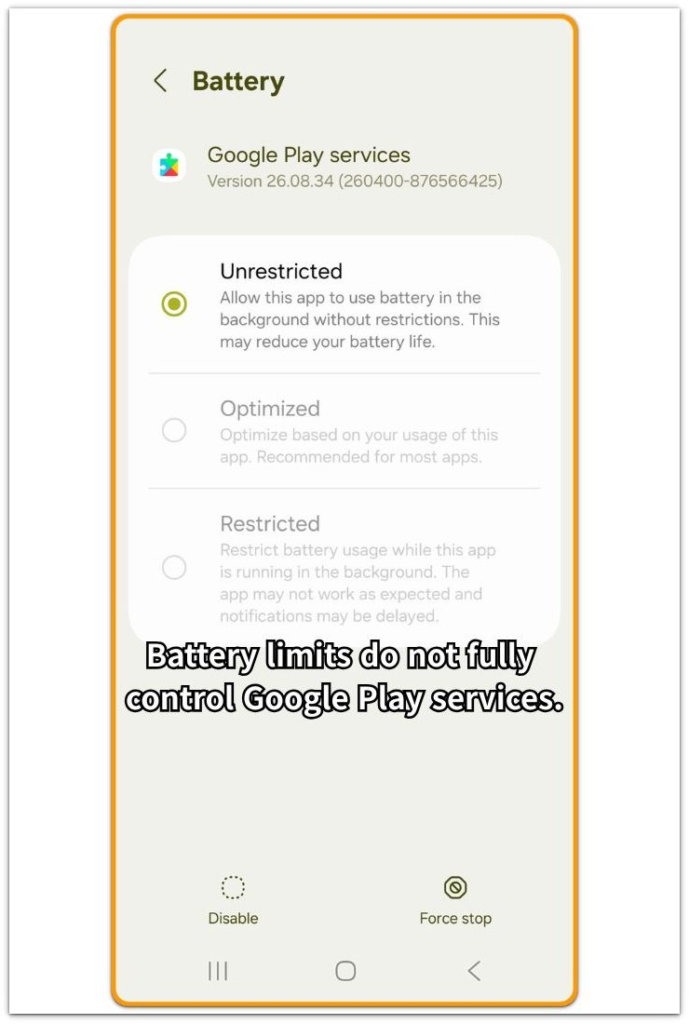
Open Settings and go to Apps. Find Google Play services, then open Battery or App battery usage.
Check whether the app is set to Unrestricted, Optimized, or Restricted. This setting is not a full fix by itself. For this service, the screen only shows how Android is trying to manage battery use.
When the phone still loses battery during standby, move on to account and sync activity instead of changing random app settings.
Step 3: Check Whether Sync or Account Activity Keeps Returning
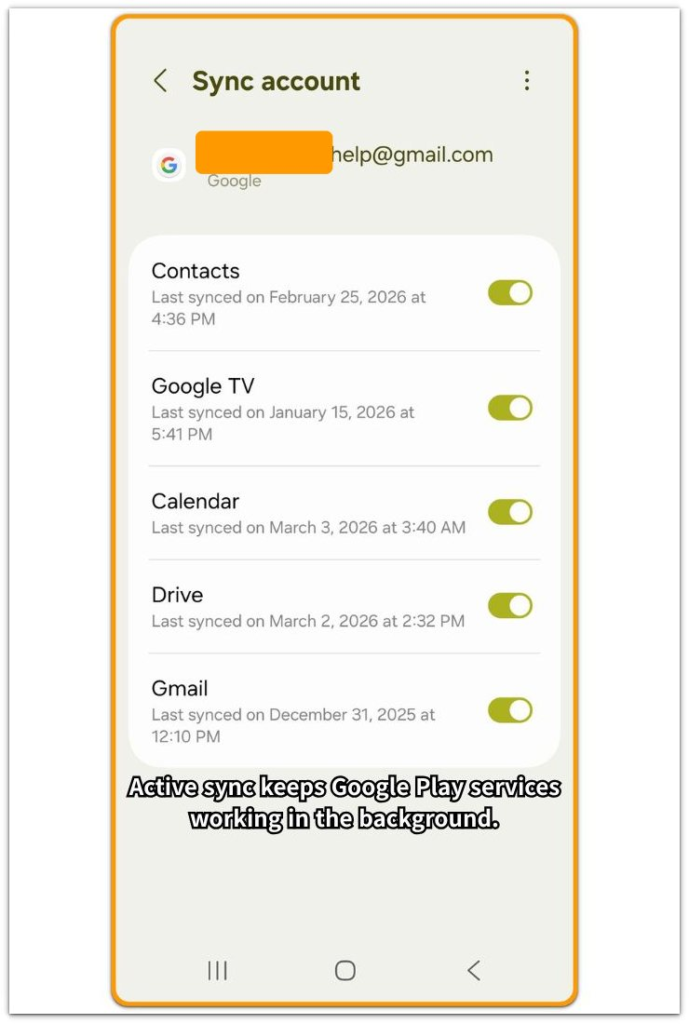
Open Settings and go to Accounts. Choose the Google account used on the phone, then open Account sync.
Look for items that kept trying to sync or updated recently while the phone was not being used. Pay attention to contacts, calendar, app data, and services that show recent activity.
If sync activity keeps returning during quiet standby time, the service has a reason to stay active in the background. Pause or turn off only the sync items you do not need for the test, then leave the phone locked for another quiet period and check the battery drop again.
Troubleshooting: Android Google Play Services Battery Drain
Troubleshooting 1: Battery Setting Changes but Google Play Services Returns
You change the battery setting, but the service still returns near the top of Battery usage later. That does not always mean the setting failed.
Google Play services handles background work that other Google features depend on, so the phone brings it back after sync, account checks, location requests, or system tasks.
Go back to Settings → Battery after a quiet standby period. Check whether it returned during locked time or only after normal phone use.
If it returns during standby while screen time stays low, keep the focus on background activity instead of changing the same battery setting again.
Troubleshooting 2: Force Stop Works Only for a Short Time
Force stop makes the service disappear from Battery usage for a short period, but the problem starts when it returns without clear app use. That usually happens because another Google feature starts using it again.
Instead of pressing Force stop every time it appears, check what changed before it returned. Look at account sync, recent location access, Play Store updates, notifications, and apps that rely on Google sign-in.
When it comes back after one of those actions, the drain is tied to a background request, not the Force stop button.
Troubleshooting 3: The Pattern Starts After a System Update
Google Play services battery drain can appear after a system update because the phone still has background work to finish. The first few minutes after the update are too early to read clearly.
Check one quiet standby period after the phone finishes updating and cools down. Open Battery and see whether the service stays high while the screen was off.
If the pattern fades after the phone settles, the update period was part of the cause. When the same standby drain returns after normal use resumes, check sync, location, and Google account activity instead of blaming the update alone.
Extra Section 1: When the Drain Shows Up After the Phone Sits Overnight
The clearest clue often appears after the phone sits unused overnight. The screen was off for hours, and no new app was installed before bed.
In the morning, the battery number is lower than expected, but the Battery usage screen does not show a normal app doing most of the work. Google Play services appears near the top instead.
This pattern is easier to miss during the day because short standby periods do not always show the same drop clearly. The overnight window gives the phone enough idle time to reveal whether the service stayed active while the screen was off.
One quick check right after unlocking the phone is too weak. Look at the longer locked period first, then compare it with the screen time shown in Battery usage.
When screen time stays low but the service remains high, check the overnight background pattern before blaming the battery itself.
Extra Section 2: When Google Play Services Rises After Restoring a New Phone
A new phone often looks ready before background setup is finished. Apps open normally, and the home screen looks complete, but Google account data is still settling behind the scenes.
Android Google Play Services battery drain often appears after restoring a backup onto a new phone. The phone is not being used heavily during that time, but Battery usage still shows it because contacts, app data, Play Store updates, location history, and account checks are still reconnecting in the background.
This case is different from a normal app drain because the visible app list does not explain the standby drop. Give the phone one quiet locked period after the restore finishes, then check whether it stays high while screen time remains low.
When it falls back down after the setup period settles, treat the restore window as the likely cause before changing more settings.
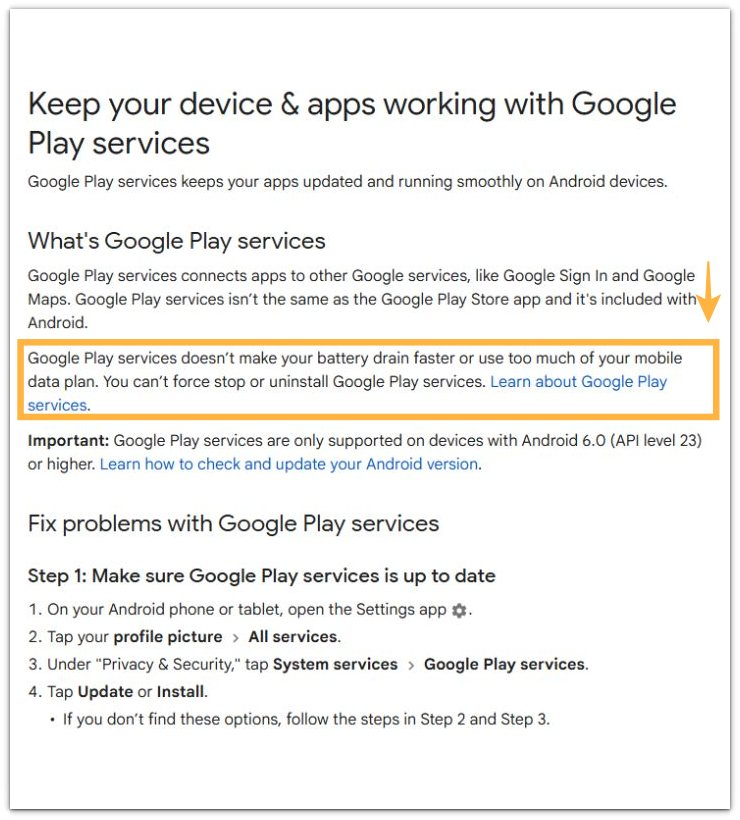
Official Source: Google Play services runs at the system level
Google’s support page explains that it connects apps to other Google services and cannot be treated like a normal removable app.
Use this official point before handling it like a normal app. The better check is which sync, location, account, or system request is keeping it active in the background.
Additional Tips
One short spike is too weak by itself. A brief rise after Play Store updates, account sign-in, backup restore, or location use often settles without changing anything.
Check the pattern again after one longer locked period. A drop that settles after the phone calms down does not need more setting changes.
When it keeps returning during standby, focus on the request that is waking it up, such as sync, location, Play Store activity, or Google sign-in.
Final Notes
Android Google Play Services battery drain is different from normal app drain. A rise that appears only after syncing, restoring, updating, or signing in usually means the phone is finishing background work.
The stronger warning sign is repeated standby drain. When it stays high during quiet standby and screen time remains low, something is still calling it in the background.
Repeated Force stop, random data clearing, or battery setting changes will not find the real cause. Check the source of the request instead: account sync, location access, Play Store activity, Google sign-in, or a recently restored backup.
Once that background request stops returning, the standby drain usually drops or becomes much easier to explain.
Checklist
- Check whether it appears high during standby
- Compare the battery drop with low screen time
- Review account sync, location access, Play Store activity, and Google sign-in
- Avoid repeating Force stop as the main fix
- Check again after one longer locked period
- Confirm the standby drop gets smaller after the request settles
For broader battery drain patterns, use the main guide to compare Google Play Services drain with other Android battery issues.