
Introduction
Android battery drain after factory reset becomes confusing when the phone still loses power after setup looks finished.
You reset the phone, go through the first setup screens, and expect the battery to behave normally again. Instead, the battery graph keeps dropping even though the phone does not have many apps yet.
This is easy to misread because the phone looks clean from the outside. There is no heavy app, no long screen use, and no obvious app to blame in Battery.
Start by checking the first few hours after the reset. Look at when the drop happens, how much screen time appears, and whether the same system or setup-related activity keeps showing in Battery before changing more settings.
Step-by-Step Guide
Step 1: Check Android Battery Drain After Factory Reset in Battery Usage
Open Settings, then go to Battery. Compare the drop with screen time for the first few hours after the reset.
Look at two things together: how much power dropped and how much screen time appears during that same period.
If screen time is low but the graph still keeps going down, do not reset the phone again right away. Save that time period as your first clue.
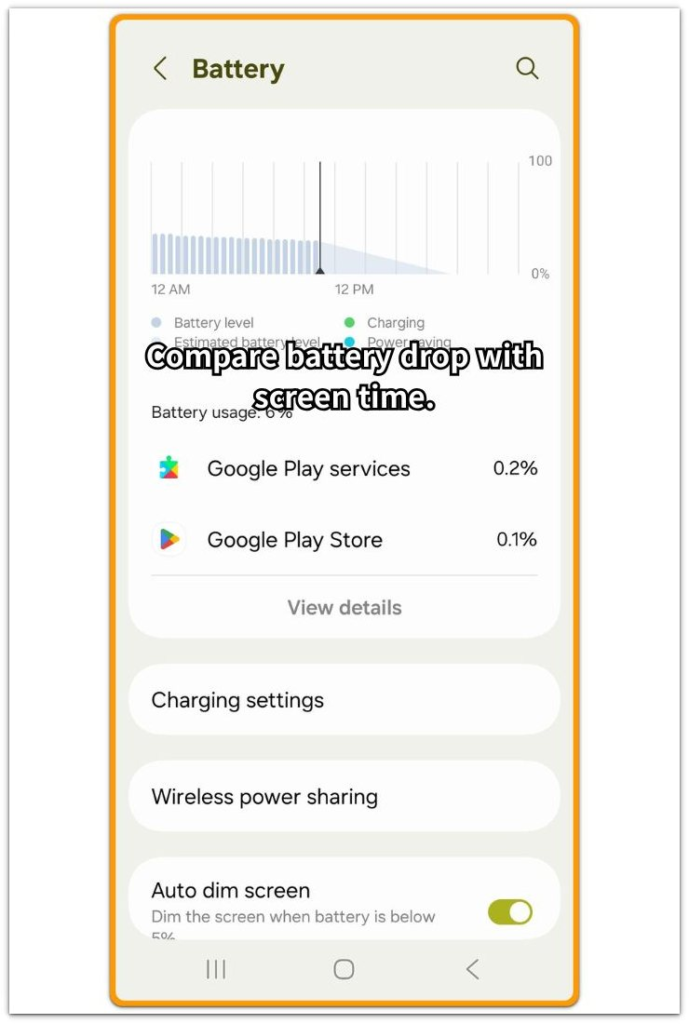
Next, check the usage list for that same time. Look for Android System, Google Play services, Google Play Store, setup activity, or another system-related entry near the drop.
The goal is not to blame one entry immediately. Use this step to see whether the drop happened after setup while normal app use was still low.
Step 2: Check Whether Normal App Use Explains the Drop
Stay on the Battery page and compare the listed entries with what you actually used.
Check a long video session, a large download, account restore, or an app left open for a long time before blaming the factory reset.
Only a few installed apps and no clear match in Battery point back to the reset period, not random deletion.
Open the app list only when one app clearly appears near the top during the same drop. Check whether it was syncing, restoring, downloading, or running after sign-in.
Activity that matches what you did points away from a pure reset issue. An app list that does not explain the drop means the next check should stay with post-reset setup work.
Step 3: Check Whether the Phone Is Still Finishing Setup Work
After a factory reset, the phone does not always become quiet immediately. Setup can continue while the phone restores account data, checks app information, scans media, updates Google services, or prepares basic settings.
Open Settings and check whether setup, restore, account sync, app updates, or system services are still active.
Do not change several battery settings at once here. First, give the phone one normal idle period. Leave it locked for 30 to 60 minutes without charging, gaming, streaming, or downloading. Return to Battery and compare the graph again.
The phone was likely still finishing post-reset work if the drop slows down and system-related entries fall lower.
When the drop continues at the same speed with low screen time, move into troubleshooting instead of repeating the factory reset.
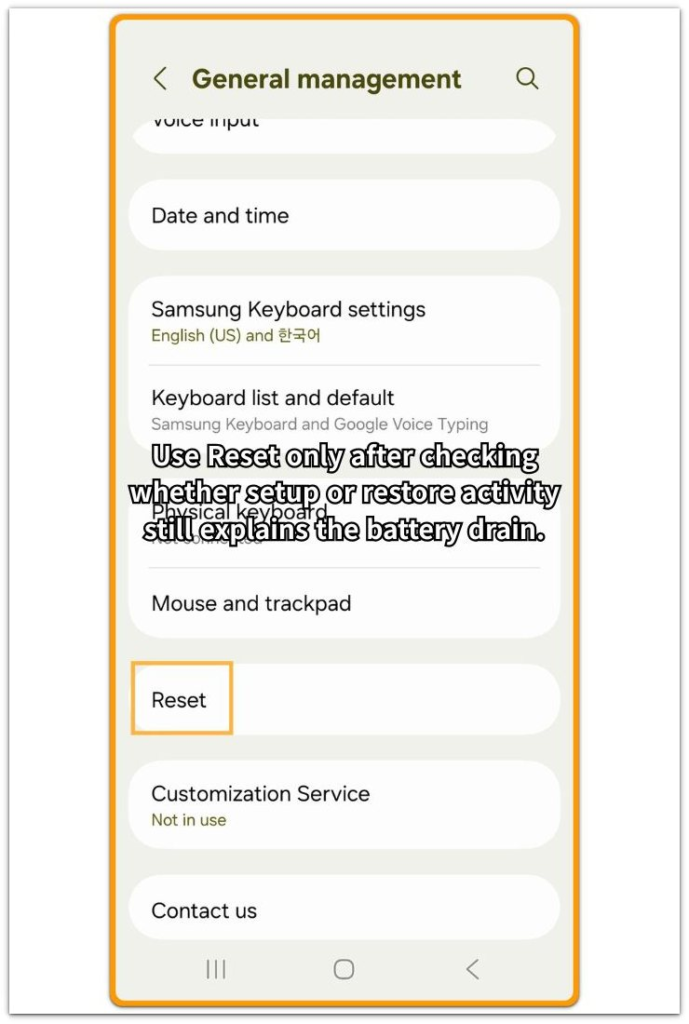
Troubleshooting: Android Battery Drain After Factory Reset
Troubleshooting 1: Battery Drain Continues After Several Hours
Go back to Battery after several hours and compare the new drop with the earlier check.
A phone that is only finishing setup should start to slow down after some normal idle time. The battery line does not have to become perfect right away, but the drop should become easier to explain.
Check whether the same items keep appearing near the top of Battery. Look for Android System, Google Play services, Google Play Store, setup activity, app restore, or account sync.
Do not reset the phone again just because the battery dropped once. First, check whether the drop is still happening during low screen use.
That result matters more when the same drop keeps returning after several hours, even when you are not installing apps, restoring data, streaming, gaming, or charging.
Troubleshooting 2: Battery Usage Appears Even When the Phone Looks Idle
Battery percentage alone does not show what happened after the reset. A phone can look idle while setup or restore work still runs in the background.
Open Battery and match the listed activity to the same time when the phone looked unused. Focus on whether that activity explains the idle-period drop.
If the listed activity fits the timing, wait for one more quiet period before changing settings. If the battery still drops quickly with low screen time, move on to the system entries instead of judging from percentage alone.
One short idle result is not enough to prove the whole problem. Use it to separate normal post-reset activity from battery drain that keeps returning.
Troubleshooting 3: Battery Shows System Items Instead of Apps
Use the detailed Battery usage list to interpret system entries, not to blame them immediately.
A normal app should match something you did, such as watching video, downloading files, signing in, or restoring data.
Android System, Google Play services, Google Play Store, setup activity, and account sync can appear after a factory reset. That does not automatically mean the phone has a problem.
Focus on whether those entries match a low-screen-use drop after the reset. If they only appear during the first setup or restore period, wait and check again later.
Do not remove random apps just because the app list looks empty. A clean app list is common after a reset, so the next check should stay with the reset period and the Battery graph.
Move to the next section when the same system-related entries keep returning after repeated quiet checks.
Extra Section 1: When the Phone Looked Ready but Setup Was Still Finishing
The factory reset looked finished. Home screen access returned, the first setup screens disappeared, and the phone looked ready for normal use.
A few hours passed, but the battery graph still showed a steady drop. The user had not been gaming, streaming, or leaving the screen on, so Battery became the place to compare the drop with screen time.
No single heavy app stood out in the list. Android System, Google Play services, Google Play Store, setup activity, or account sync appeared around the same time.
The user left the phone locked through one quiet period and opened Battery again. Screen time stayed low, but the same reset-related entries still appeared near the drop.
Repeating the reset would not have helped at that point. The user waited longer, kept the phone idle again, and compared the next low-use period with the first one.
Those entries moved lower on the later check, and the battery graph slowed down. The reset looked finished on the screen, but the next quiet period showed that the phone still needed more time to settle.
Extra Section 2: When One Restored App Made the Reset Clue Hard to See
The factory reset left only a few apps on the phone at first. That made the battery drop look tied to the reset because there was not much else to blame.
One restored app started showing near the top of Battery. The user had opened it only briefly, but the app was still signing in, syncing messages, downloading files, or bringing account data back.
The battery graph kept falling through that same stretch. Screen time stayed low, so the app did not look like the obvious cause right away.
The user opened Battery again and compared the app entry with the time after sign-in. That app kept appearing during the same drop, even though the user had already passed the first setup screens.
The user did not delete random apps. They let the restored app finish, stopped any large download inside it, and left the phone locked for another low-use period.
The app moved lower on the next check, and the drop slowed down. The reset had made the timing confusing, but the repeated app entry showed where the battery use came from.
Official Source: Google Explains What a Factory Reset Removes
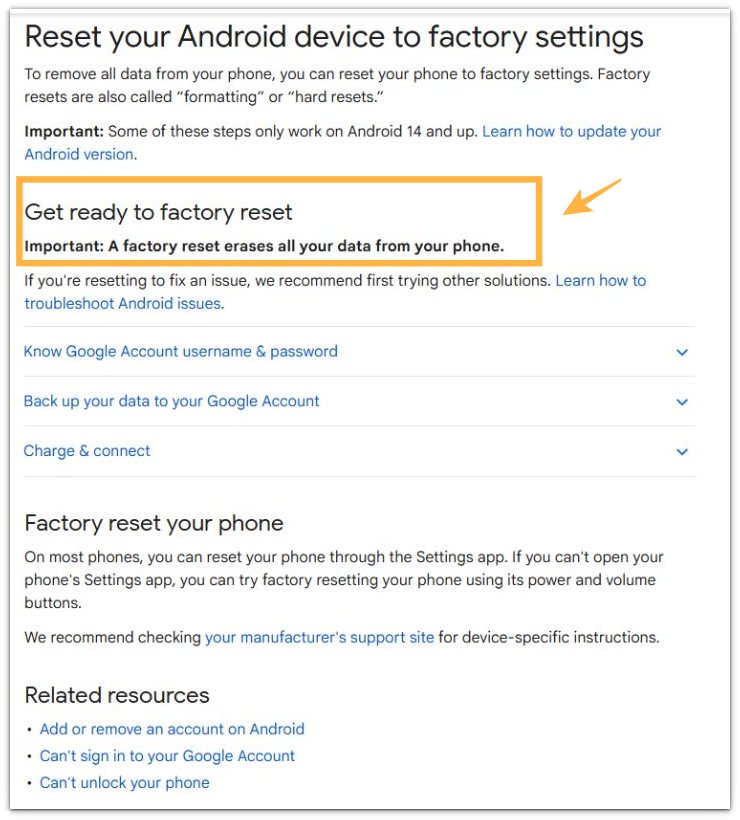
Google’s Android Help page explains that a factory reset erases all data from the phone. This matters because the phone still has to go through setup, restore, account sync, app updates, and system services after the reset.
Before blaming the reset itself, compare the battery drop with the setup and restore activity shown on the Battery screen.
Additional Tips
Give the phone time before judging battery health after a factory reset.
Keep the phone connected to power and Wi-Fi during the first setup period. App restore, account sync, Google services, and media checks can run close together after setup.
Do not test battery drain while apps are still downloading or restoring. Wait for the phone to stay quiet for one normal idle period, then check Battery again.
Network connection also matters during this stage. Weak Wi-Fi or repeated mobile data changes can make setup and restore activity take longer.
Final Notes
Android battery drain after factory reset can look worse at first because setup, restore, app updates, account sync, and system services may still be active for a while.
A battery drop that slows after a quiet low-use period usually points to normal post-reset settling, not a failed reset.
When the same low-screen-use drop keeps returning after setup and restore activity finishes, stop repeating the factory reset. Check Battery again and compare the drain with app restore, Google services, account sync, or another battery issue.
Checklist
- Confirm that the battery drop started after the factory reset.
- Check Battery during a low-screen-use period.
- Compare the drop with screen time and system activity.
- Look for setup, restore, account sync, app updates, Google services, or Android System.
- Wait for one quiet idle period before judging the reset.
- Stop repeating the factory reset when the same drop keeps returning after setup and restore activity finishes.
When a factory reset does not fully explain the battery drop, the main Android battery drain guide can help you compare it with other battery problems.