
Introduction
Transfer files from Android to computer is rarely something users plan ahead of.
Most people start thinking about it only when their phone suddenly feels heavier than it should. Photos stay longer than expected, downloads pile up, and documents remain on the device simply because moving files feels easy to delay.
At first, nothing feels urgent. Over time, storage warnings appear, updates fail, or performance slows in ways users can no longer ignore. That moment usually makes people realize the delay was not caused by difficulty, but by convenience. The task felt simple enough to postpone, until it was no longer optional.
Many transfer methods exist, but the real problem is not choice. It is selecting a method that works correctly the first time without guessing or retrying. Some options fail when file size increases. Others require settings that users often miss on recent Android versions.
This guide explains how file transfers behave on modern Android devices. Instead of listing tools, it helps users choose a method that fits the situation and avoid mistakes they usually notice only after they transfer files from Android to computer and see what went wrong.
Step-by-Step Guide
Step 1: Transfer Files from Android to Computer Using a USB Cable
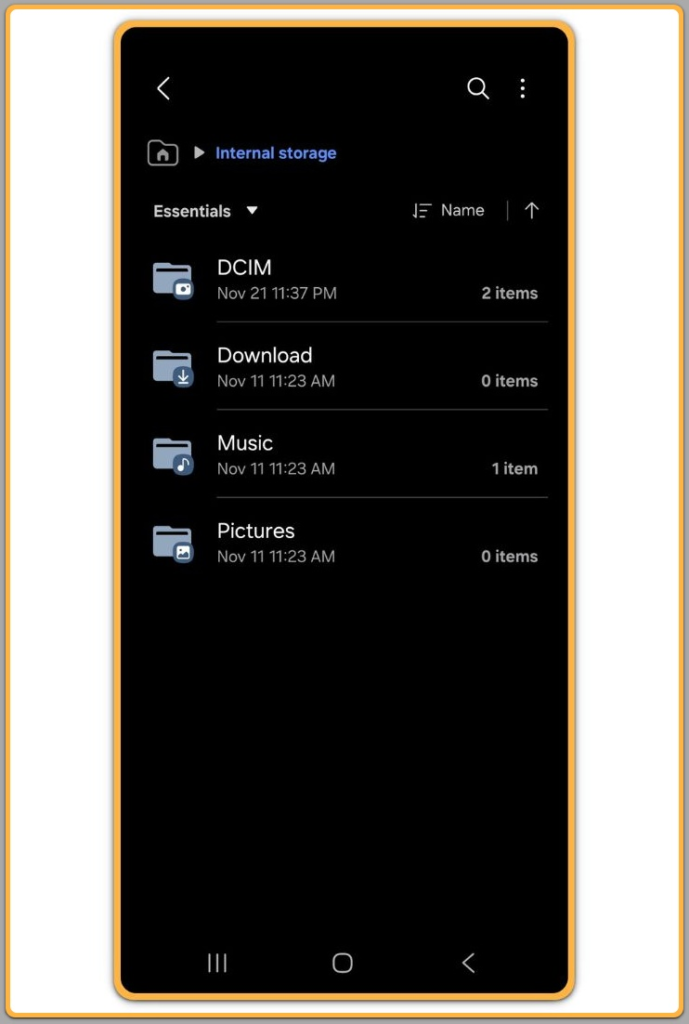
In most real situations, a wired connection remains the most reliable option. Wireless methods feel convenient, but they introduce variables users cannot always control.
After connecting the phone, keep the screen unlocked. Many transfers fail because the device locks itself during the process. Users often assume the transfer is still running and only discover later that it stopped without warning.
Next, check the USB notification and select File Transfer instead of charging-only mode. When the wrong mode is selected, the computer detects the device but shows no usable storage. This makes people think something is broken, even though the issue is only a missed setting.
Once File Transfer is enabled, internal storage appears and allows normal copying. This method handles large videos, backups, and folders best, especially when restarting a transfer would waste time.
Step 2: Transfer Photos Using Built-In Photo Apps
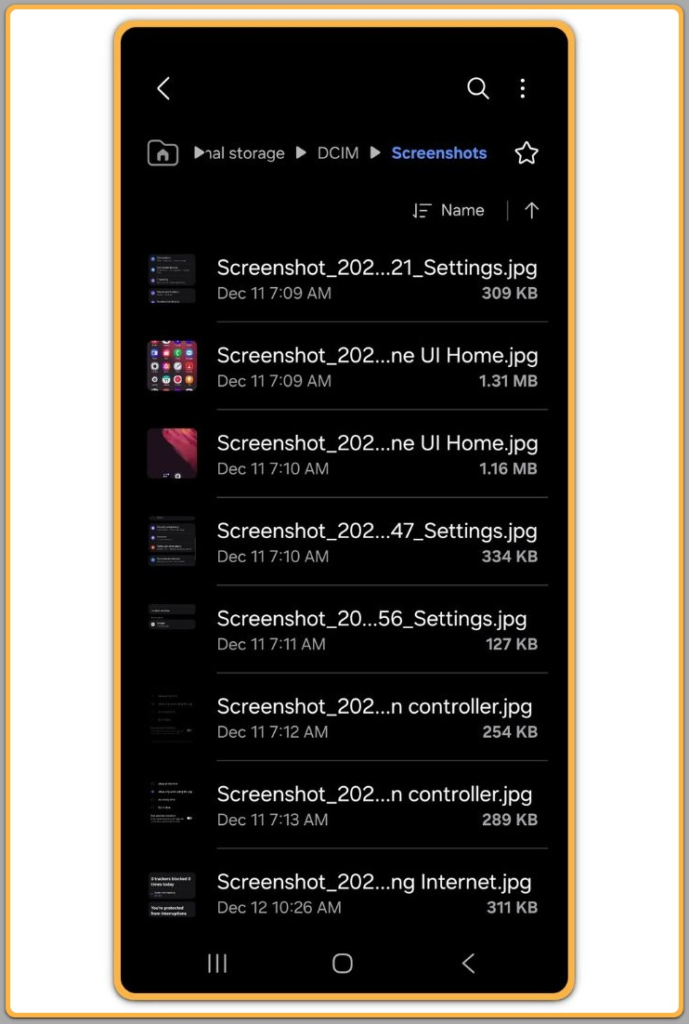
When users only need to move photos, manual folder browsing often adds unnecessary steps. Built-in photo apps on Windows and macOS automatically detect camera media.
After connecting the device, these apps focus only on images and videos. System folders remain hidden, which reduces the risk of accidental deletion or movement. For users unfamiliar with file managers, this acts as a safety layer.
This method works best when photos come mainly from the camera folder. It saves time for casual imports and avoids confusion caused by unrelated files.
Step 3: Transfer Files Wirelessly
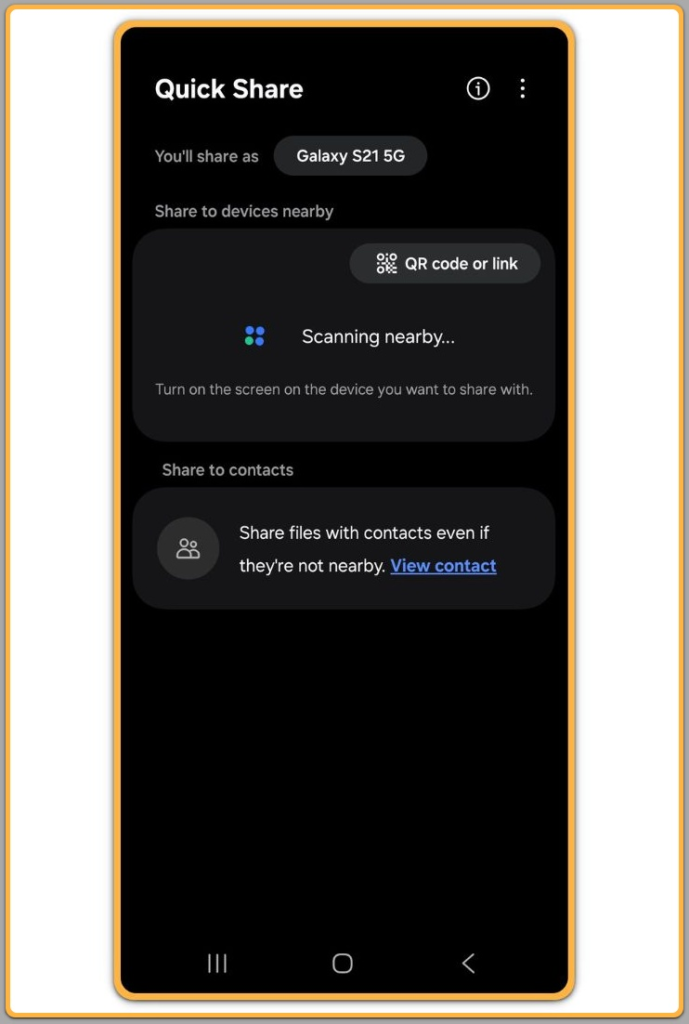
Wireless transfer helps when a cable is unavailable or when only small files are needed. Both the phone and the computer must stay on the same local network to keep the connection stable.
This approach works well for documents and short media clips. Large videos or long sessions often slow down or fail when network quality changes. Most users experience this at least once and only realize afterward that wireless transfers behave less predictably.
Wireless options work best as convenience tools, not as primary transfer methods.
Step 4: Choose the Method Based on the Situation
No single method works best in every case. Wired connections handle large backups and important data more reliably. Dedicated apps simplify photo-only transfers. Wireless transfers fit short tasks where convenience matters more than stability.
Choosing the method based on file size and urgency prevents repeated attempts and unnecessary frustration later.
Choosing the right approach early makes it easier to transfer files from Android to computer without repeating the same steps later.
Troubleshooting
When a computer does not recognize the device, check the USB mode first. Charging-only mode remains one of the most common reasons file access fails.
If the connection feels unstable, switching cables or USB ports often solves the issue faster than changing settings. Low-quality cables cause more problems than most users expect, especially during longer transfers.
Restarting both devices clears many temporary recognition issues. When problems continue, checking system drivers on the computer works better than repeatedly adjusting phone settings without a clear direction.
This explains why many users struggle to transfer files from Android to computer without understanding where the process actually breaks.
Additional Tips
Before starting a transfer, group files into a single folder to save time later. For longer transfers, keep the phone screen active to prevent sudden disconnections.
When users transfer files from Android to computer, closing unnecessary background apps improves stability. Many people skip this step and blame cables or software when interruptions occur.
Regular transfers reduce storage pressure and make future backups easier to manage.
Consistency matters more than speed when handling important files.
Final Notes
File transfers become predictable when users match the method to the task. Wired connections remain the safest choice for large or sensitive data. Wireless methods work best when convenience matters more than reliability and file size stays limited.
Once users establish a stable routine, they reduce errors and save time they would otherwise spend troubleshooting the same issues again.
Checklist
- Set USB connection mode to File Transfer
- Keep the phone screen unlocked during the transfer
- Use a stable cable or reliable local network
- Confirm enough storage space on the computer
- Transfer large files without interruption
- Check files after the transfer
A consistent process turns file transfers into a routine task instead of a repeated problem.
Extra Section 1
Most transfer problems begin before any cable is connected. People rarely organize files in a way that makes sense later, especially on devices used every day.
Camera photos usually appear in the DCIM folder, but apps store images elsewhere. Screenshots, downloads, and documents often end up in different locations depending on how they were created.
Problems appear when users assume everything exists in one place. They move some files, think the job is finished, and later realize important data was left behind. In that situation, the issue is not the transfer itself but the assumption made at the start.
This misunderstanding becomes obvious only after users try to transfer files from Android to computer and realize important data was left behind.
Checking file locations in advance prevents this problem when users transfer files from Android to computer. It also helps decide which transfer method fits best. Moving one organized folder is simple. Chasing files across multiple directories is not.
Preparation often matters more than transfer speed.
Extra Section 2
Security is often ignored during file transfers because the task feels routine. Public or shared computers increase the risk of exposing personal data without warning.
Trusted cables and familiar systems reduce that risk. Low-quality cables cause connection failures and may interrupt transfers in ways that silently corrupt files.
After finishing a transfer, safely disconnect the device to protect the file system. Skipping this step may not cause immediate problems, but repeated interruptions increase long-term risk.
Regular backups reduce pressure when something goes wrong. When files already exist on a computer, unexpected device damage becomes manageable instead of stressful. A careful routine keeps file management predictable whenever users transfer files from Android to computer.