
Introduction
You leave the Android phone alone, but the battery still drops while the screen stays off. No app is open, and you did not change any major setting before the drain started, so the drain feels hard to understand because nothing looks active on the phone.
Android background sync battery drain happens when sync activity keeps running or retrying in the background while the phone looks unused. Battery usage does not always point to one clear app. Instead, it often shows Android System, Google services, account sync, cloud backup, or several smaller background services.
The key clue is when the drain returns. If the battery keeps falling while you are not using the phone, start by comparing battery loss with screen-on time and background sync activity.
Step-by-Step Guide
Step 1: Check Whether the Drain Matches Real Phone Use
Start by checking whether the battery drop matches actual phone use. Leave the phone alone for a while, then open the Battery usage screen and look at screen-on time first.
If the screen stayed off but the battery still dropped, android background sync battery drain becomes easier to separate from normal app use. Usage charts often show low screen time while the battery still drops in the background.
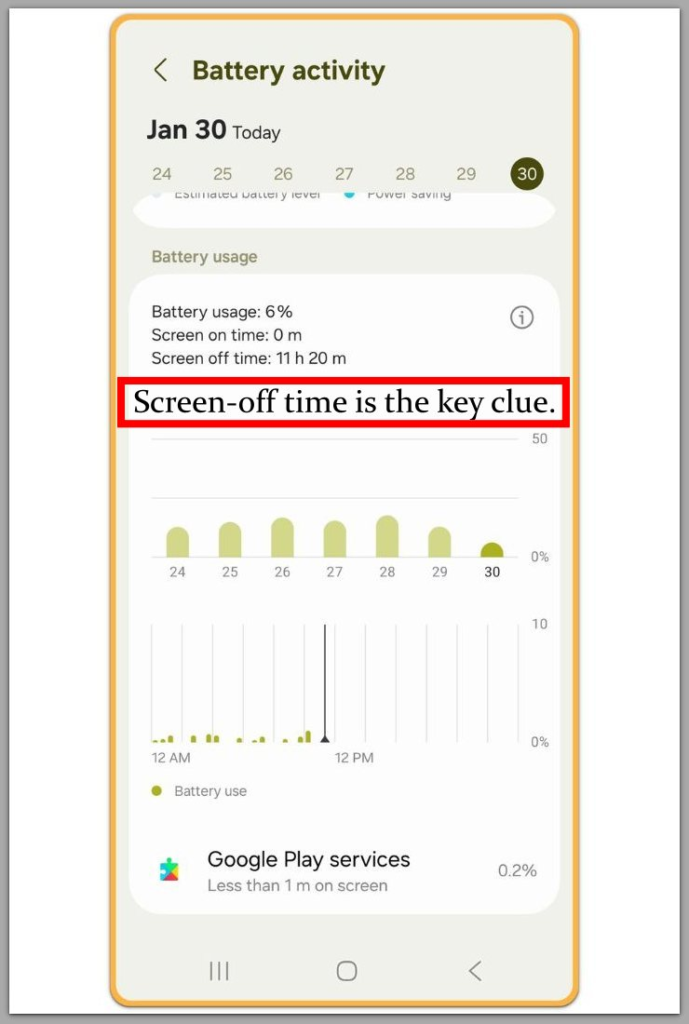
The screenshot shows battery loss with 0 minutes of screen-on time and Google Play services using less than 1 minute on screen. One app name alone is not the useful clue here, so start with the timing first.
Step 2: Check What Keeps Syncing in the Background
Next, check the areas that keep syncing even when no app stays open on the screen. Look at account sync, cloud backup, email, photos, messages, and Google services.
A normal sync check should finish and go quiet again. The concern starts when background activity keeps coming back after the phone has been left alone.
This does not always create a clear warning. The phone keeps checking, syncing, or retrying account data without showing one obvious error message.
Step 3: Check Whether Normal Battery Controls Still Stop the Drain
Now check whether the usual battery controls actually change the result. Open the Battery setting for the app that seems related, then compare Unrestricted, Optimized, and Restricted.
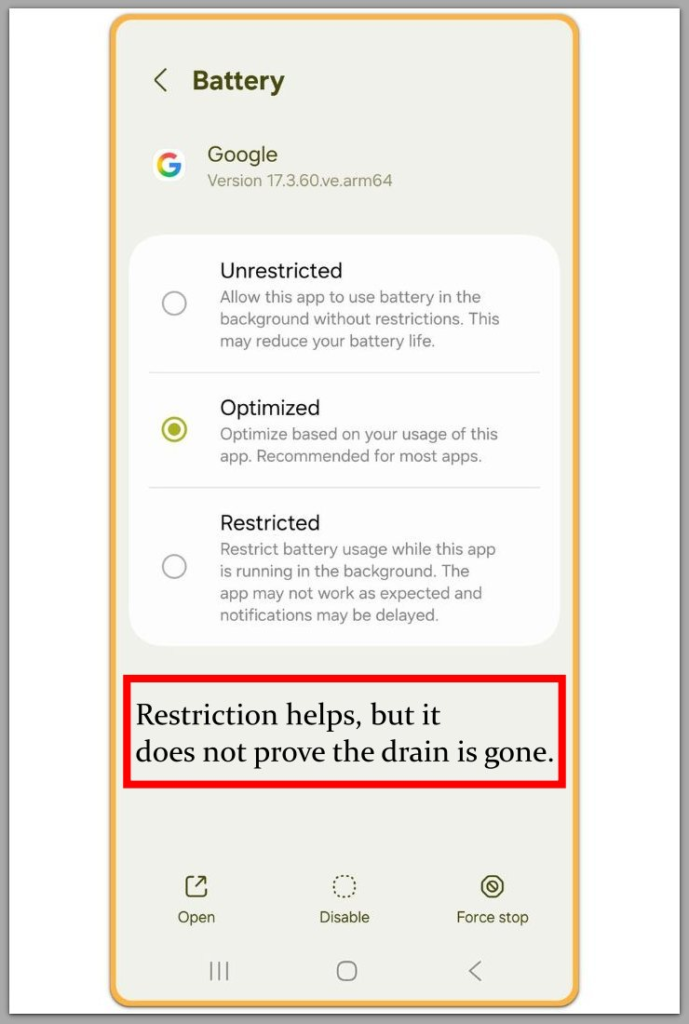
The screenshot shows the app Battery setting where you can compare the main battery control options. Set the app to Optimized or Restricted, then leave the phone unused again and watch the battery while the screen stays off.
If the background drop returns, the phone is still retrying sync work that normal user controls do not fully stop. App-level battery settings are no longer the whole answer.
Troubleshooting
Troubleshooting 1: Sync is off, but the battery still drops
The sync switch already looks turned off, but the battery still drops while the phone is unused. You check the account or app setting, and nothing looks active. The switch does not explain the drain by itself.
Some background checks still happen through Google services, account checks, backup checks, or system tasks. Android background sync battery drain is easier to suspect when the phone keeps losing battery after the visible sync option has already been turned off.
Turning the same switch on and off again will not prove much. Use the next idle period to see whether the drain returns.
Troubleshooting 2: Battery usage spreads across small background entries
The Battery usage screen does not always point to one obvious app. The usage appears under Android System, Google services, or several small background entries, which makes the problem harder to judge because no single app stands out.
One small service on the list is not enough reason to delete apps. First, compare screen-on time with the battery drop.
If screen-on time stays low and several background entries appear together, the drain is more likely coming from background activity than one visible app.
Troubleshooting 3: The drain stops for a while after restart or charging
A restart makes the drain look fixed for a short time, and a long charge gives the same impression. The phone feels normal again, and the battery drop slows down for a while.
That short improvement is not enough to say the problem is gone. Leave the phone unused again and check the next idle period.
When the drain comes back during another idle period, the restart only paused the pattern.
Extra Section 1: When the Phone Drains While Sitting Unused
I once checked a phone that looked normal during the day. The screen was not being used much, and no game or video app was running, but the battery still dropped every time the phone sat unused for a few hours.
The Battery usage screen did not show one big app causing the problem. It showed small background entries, Google services, and system activity instead.
The drain looked like normal idle loss at first, but the timing told a different story. The battery dropped most when the phone was sitting still, not when someone was actively using it.
This situation fit better than app overuse because the screen stayed off and no single app explained the drop. Deleting random apps was not the right move. The better check was idle battery loss, sync settings, and Battery usage after another unused period.
Extra Section 2: When Background Checks Return After an Update
I also checked a phone that started draining faster after a system update. The owner thought the battery was getting old because the timing seemed to match, but the Battery usage screen did not show heavy screen use, and no video app, game, or browser session explained the drop.
Account activity pointed in a clearer direction. Photos, email, backup, and Google services had all refreshed after the update. The phone looked quiet from the outside, but account checks were still running in the background.
A restart helped for part of the day. Later, the battery started dropping again while the phone was unused, so battery aging became less likely as the first explanation.
Account sync, backup status, and idle battery loss were the next things to compare. The drop followed background checks instead of active use, so normal battery wear was not the first place to look.
Official Source: Android Still Limits Background Activity
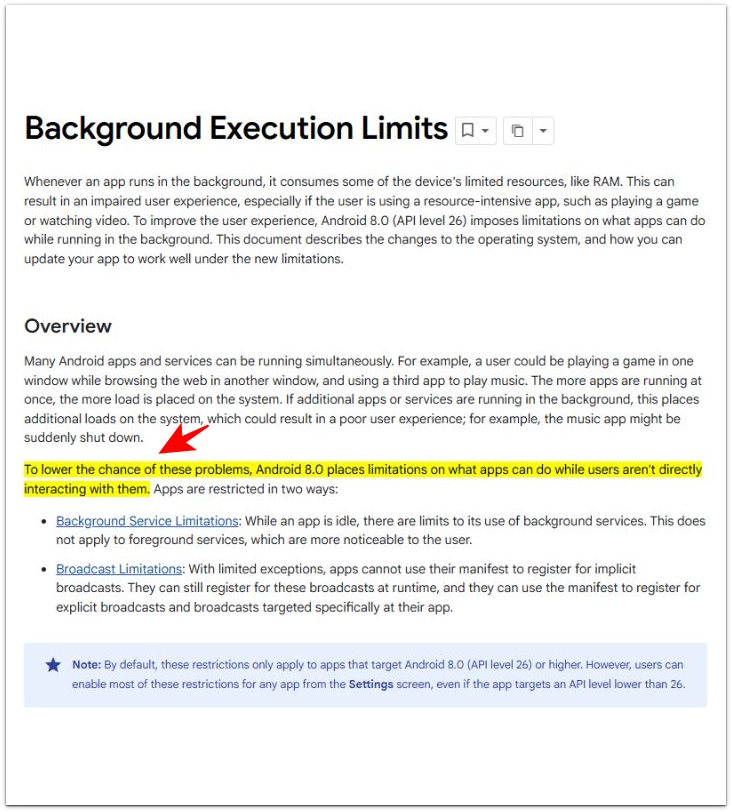
Android explains that the system limits what apps can do in the background when the phone is not being actively used.
Background sync, backup checks, and Google services can still wake the phone even when the screen looks idle.
In simple terms, the phone may look quiet on the outside while background checks are still happening behind the scenes.
Additional Tips
One short check is not enough to read the drain clearly. Background sync often runs after Wi-Fi changes, account refreshes, backup checks, or a long idle period.
The phone looks normal for a while, then starts dropping again later. This pattern is easier to judge when battery loss returns after more than one idle check.
A single quiet hour does not always prove the problem is gone.
Final Notes
This problem is hard to judge because the phone does not always look busy. The screen stays off, no app looks active, and the Battery usage screen does not always name one clear cause.
Android background sync battery drain becomes a real concern when idle battery loss keeps returning after sync settings, app restrictions, and a restart have already been checked.
Repeated battery loss after those checks points to background activity, not normal idle drain.
Checklist
- Check whether the battery drops while the phone is unused.
- Compare screen-on time with the battery drop.
- Look for Android system, Google services, or sync entries in Battery usage.
- Test the phone again after a restart or long charge.
- Retest after an idle period before treating the drain as normal idle loss.
When the drain continues after these checks, use the main guide to compare update timing, idle drain, and background activity before blaming background sync alone.