
Introduction
Android storage problems do not always come from one large file. Low free space still shows up after you delete photos, clear cache, remove apps, or try a system update. The Storage screen often shows the result, but it does not always show which area still holds the space.
The missing space often comes from apps, deleted files, restore data, update files, downloads, Secure Folder, logs, or system-managed storage. A normal cleanup often misses these areas because Android separates visible files from app data and hidden storage records.
This guide works as the main Android storage guide. Start with the section that matches what happened on the phone, then move to the related sub-guide when the problem needs a more specific fix.
Step-by-Step Guide: Android Storage Problems
Step 1: Check App Storage First
This step fits storage problems tied to one app, Google Play services, backup data, or an app that failed to install. Apps often keep saved videos, offline maps, messages, backups, service data, or failed install leftovers inside their own storage area.
Open Settings, then Apps, and check the apps that take up the most space. Do not remove random apps first. Open the largest app, check its storage details, and see whether the space comes from saved files, cache, app data, or an unfinished install.
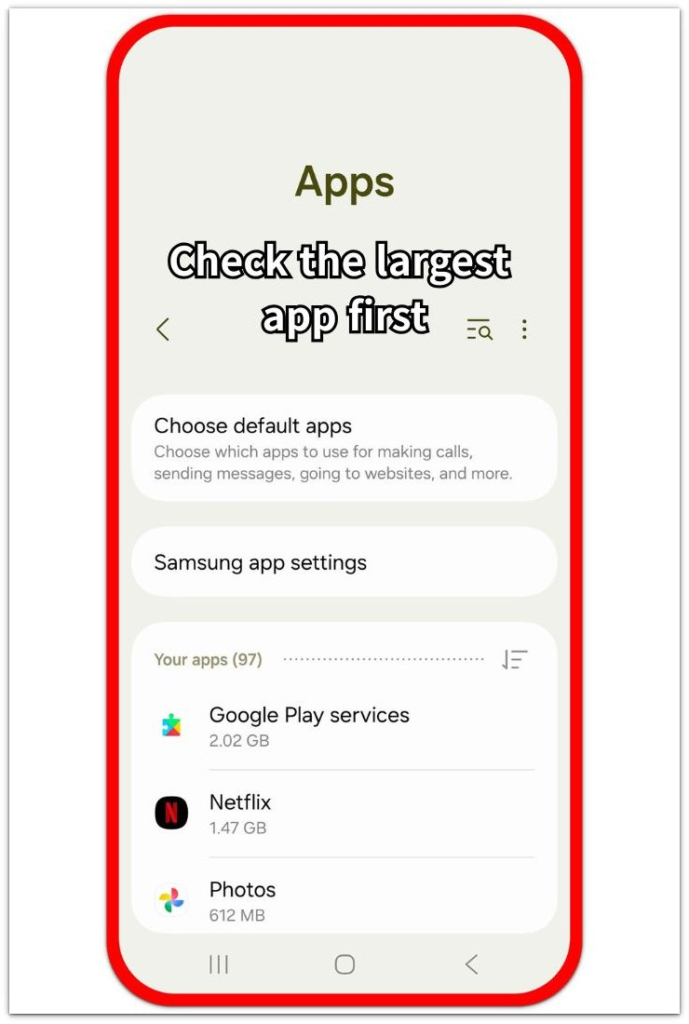
App Storage and Service Data
App Storage Keeps Growing
One app keeps saved files, cache, or app data that takes up more storage than expected.
Google Play Services Keeps Taking Space
Google Play services storage grows again because service cache and account data return after cleanup.
Failed App Install Left Space Behind
A failed app install leaves installer files or partial app data behind.
Backup Data Is Taking Up Storage
Backup or synced data holds storage even when the main files look clean.
Step 2: Check Deleted Files and Space That Did Not Clear
Start here when Android still shows low storage after you remove photos, downloads, cache, or other visible files. The space does not always return right away because Trash, recently deleted items, cached files, or delayed storage counts can still affect the Storage screen.
Open Settings, then Storage, and check the category that should have changed after the cleanup. Reopen that same category instead of deleting a new group of files right away. Look for Trash, old downloads, recently deleted items, or cache that still belongs to the area you already cleaned.
Stay with the area you already cleaned until the Storage screen shows whether that space returned. Move to restore data, update space, or hidden system storage only when this check does not explain the low number.
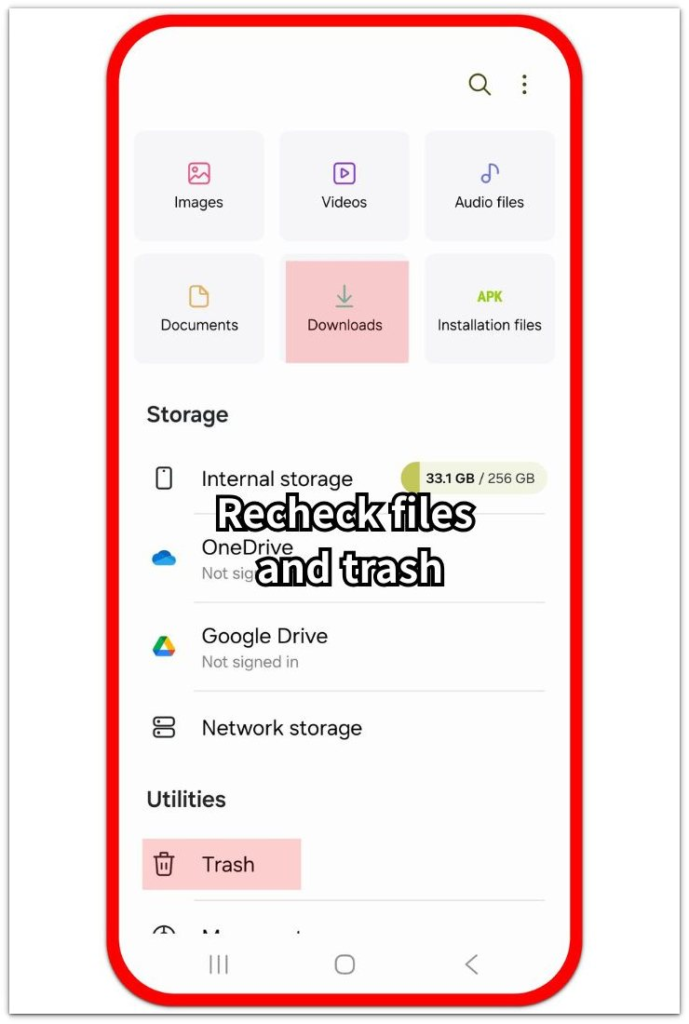
Deleted Files and Storage That Did Not Clear
Trash Still Takes Space
Trash or recently deleted items keep storage occupied after files leave the main folder.
Downloads Still Take Space
Old downloads, failed transfers, or leftover files keep the Storage screen from showing a clear drop.
Photos Were Deleted but Storage Stayed Full
Removed photos still take space when recently deleted items or synced copies remain.
Cache Was Cleared but the Number Did Not Change
Cached files leave a delayed storage number even after the cleanup looks finished.
Storage Did Not Update After Restart
The phone still shows the old number when Android has not refreshed the storage count.
Step 3: Check Restore, Update, and Storage Warning Problems
This section fits low storage that appears after a restore, system update, SD card move, or repeated warning. These storage problems start from a clear change, not from ordinary photos or downloads alone.
Open Settings, then Storage, and compare the large category with what changed right before the storage number dropped. Restored apps, update files, moved media, or overnight storage growth should point to a specific area before you delete unrelated files.
Keep this step tied to that event before moving to hidden system space.
Restore, Update, and Warning Issues
Storage Stayed Full After Restore
Restored apps, media, or old data keep storage high after the restore finishes.
System Update Needs More Storage
The update screen asks for more space before Android can prepare the install.
Files Moved to SD Card but Space Stayed Low
Internal storage stays low when app data, thumbnails, or copied items remain after the move.
Low Storage Warning Keeps Coming Back
The warning returns when Android still reads the phone as low on usable space.
Storage Suddenly Filled Overnight
App data, sync files, or system activity adds storage while the phone is idle.
Step 4: Check Hidden System Space and Storage Screen Problems
Use this step when the Storage screen still looks wrong after you check the visible areas. The issue often sits in storage records, system logs, Secure Folder, or a Storage screen that never finishes calculating.
Open Settings, then Storage, and see whether the number looks wrong, the screen stays stuck, or the file list does not match the space Android counts. Stop deleting personal files when the visible categories no longer explain the low storage number.
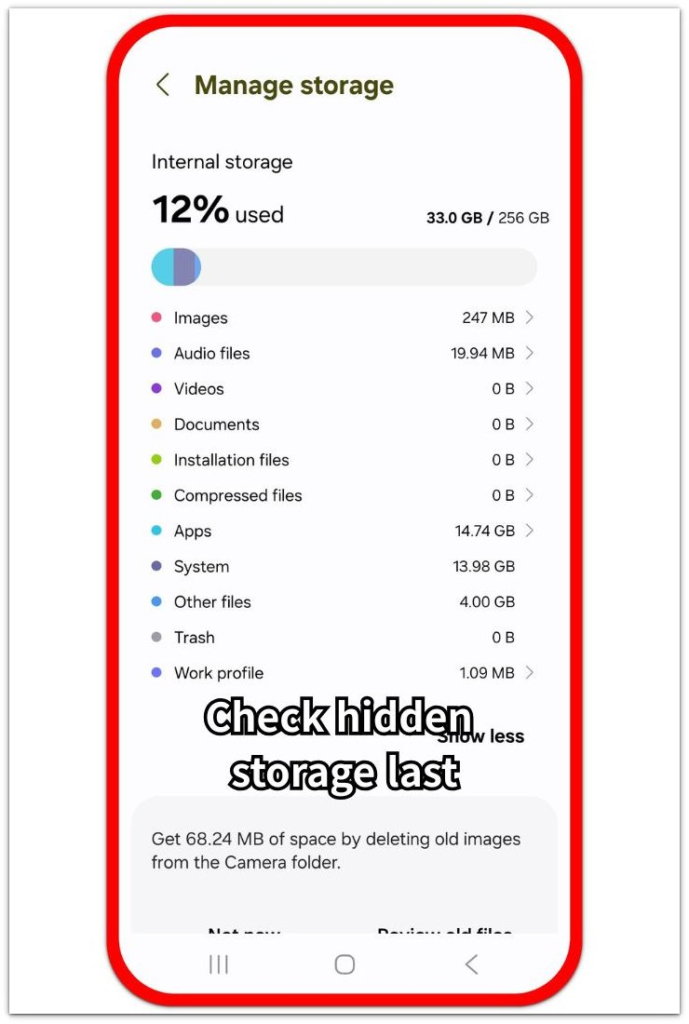
When visible cleanup no longer explains the number, check the space Android still keeps outside the main file list.
Hidden System Space and Storage Screen Errors
Storage Numbers Do Not Match
The Storage screen shows a number that does not match the files or categories shown on the phone.
No Files Are Visible but Storage Is Full
Hidden app data, system records, or protected storage areas take space even when normal files look clean.
Storage Screen Stuck Calculating
The Storage screen stays stuck before it shows a clear category result.
Log Files Are Taking Up Storage
System logs or app logs keep storage occupied when normal cleanup does not explain the low space.
Secure Folder Keeps Its Own Storage
Secure Folder stores separate files and app data that normal phone cleanup does not show.
Troubleshooting
Troubleshooting 1: Android Storage Problems Show No Clear File Problem
The Storage screen becomes harder to read when the phone shows low free space but the visible folders look small. Photos, videos, and downloads look clean, while the Apps, System, Other, or Secure Folder area still holds the larger number.
When the visible file list does not match the Storage screen, narrow the check to app data, service data, or protected storage areas. A normal file manager does not always show saved app content, account data, failed install leftovers, or storage kept inside a separate profile.
Troubleshooting 2: Storage Still Looks Full After Cleanup
A cleanup does not always return space right away. Deleted photos, removed downloads, cleared cache, or old folders still leave a storage number that looks unchanged until Android refreshes the count or finishes clearing the deleted area.
Go back to the category you already cleaned and check it again. Look for Trash, recently deleted items, old downloads, copied files, or cache tied to that area. Restart the phone only after you finish the visible cleanup and the Storage screen still shows the old number.
Troubleshooting 3: The Problem Started After a Restore, Update, or Storage Warning
The cause is easier to trace when the problem begins after a clear event. A restore, system update, SD card move, failed install, or overnight warning usually points to a specific area instead of a random file problem.
Compare the largest Storage category with what changed right before the warning appeared. Restored apps point back to app data, update warnings point back to working space, and moved files point back to internal leftovers. Use that event as the first clue before moving to hidden system space or screen errors.
Official Source: Free up space with Google Photos
Google Photos Help explains that removing backed-up photos and videos from an Android device clears local copies from the phone while keeping them available in Google Photos. Use this source for the synced-photo part of this storage guide, not for app data, update files, or hidden system storage.
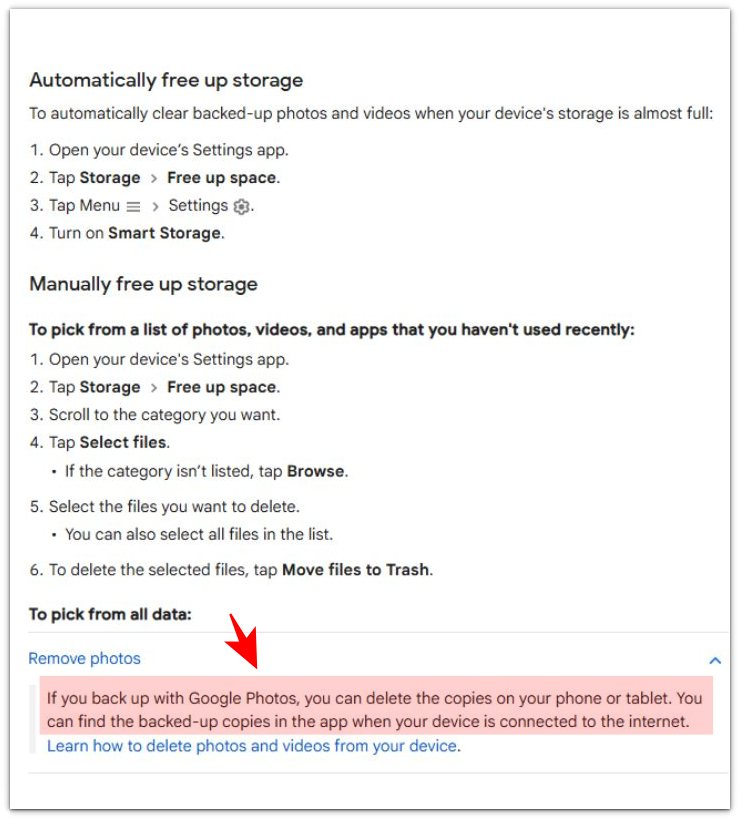
Additional Tips
Some Android phones group app data and downloaded files differently, so the largest section does not always carry the same name on every model. Follow the area that changed, not only the label on the screen.
A storage warning during an update needs a cleaner result than a normal file cleanup. Leave extra room before trying the update again instead of clearing just enough to make the number look better.
Secure Folder, work profile, and cloned apps need a separate check when the main Storage screen does not explain the low space. These areas keep their own files and app data outside the normal folder view.
Cloud photos and synced files still need attention when storage stays low after deleting local copies. Check whether the phone kept offline copies, thumbnails, or recently deleted items before assuming the cloud already cleared everything.
Final Notes
Android storage problems depend on where the phone still counts the space, not how many files you deleted. A clean gallery or empty Downloads folder does not prove the phone has recovered space.
The right path is simple: check the largest app area first, return to the category you already cleaned, trace any restore or update event, and move to hidden system space only when visible areas no longer explain the number. This keeps the fix focused and prevents random file deletion.
The strongest result is a clear match between the Storage screen and the related problem section. Once that match is clear, use the specific sub-guide instead of repeating the same cleanup steps across the phone.
Checklist
- Check the largest app area before deleting more personal files.
- Return to the category you already cleaned when space does not come back.
- Look for Trash, recently deleted items, old downloads, or leftover cache.
- Trace the problem back to a restore, update, SD card move, or warning when one happened first.
- Check hidden system space only when visible areas no longer explain the number.
- Match the Storage screen with the related problem section before using a specific sub-guide.