
Introduction
Android Storage Full After Failed App Install happens when an app does not finish installing. The storage number stays lower than expected afterward. The phone does not fully add the app, yet part of that install still takes up space.
A failed install message can disappear while the missing storage space still remains. Start the first check with the install leftovers tied to that failed app. Do not start with unrelated photos, videos, or downloads.
Step-by-Step Guide: Android Storage Full After Failed App Install
Step 1: Check Whether the Failed Install Came From Play Store or an APK
Start with the place where the failed install began. Open Google Play again when the app came from Play Store. Open My Files, Downloads, or the browser download page only when the install came from an APK.
Look for the same app name, the error message, or the original install source. Keep this step focused on where the install started, not on deleting files yet.
Step 2: Check Whether the App Partly Exists on the Phone
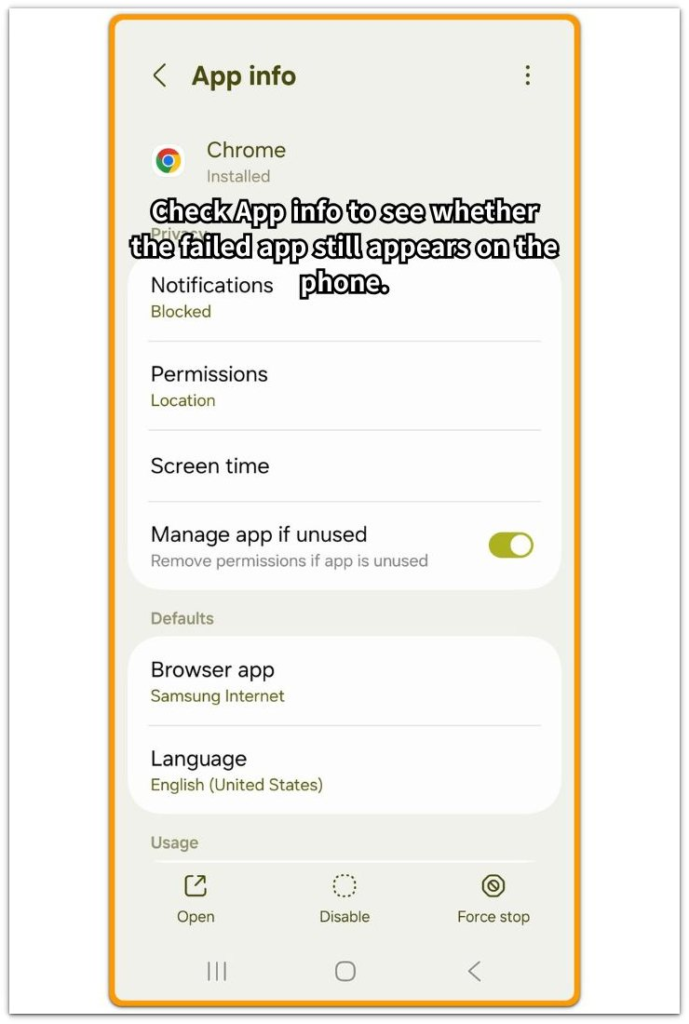
Open Settings, then Apps, and search for the name. A failed install does not always disappear cleanly. Check whether it appears in the app list, App info screen, or storage details.
Open App info when the app name appears. Use that screen to remove the partial app entry or confirm that Android did not actually install the app.
Step 3: Check the Downloads Folder or APK Source File
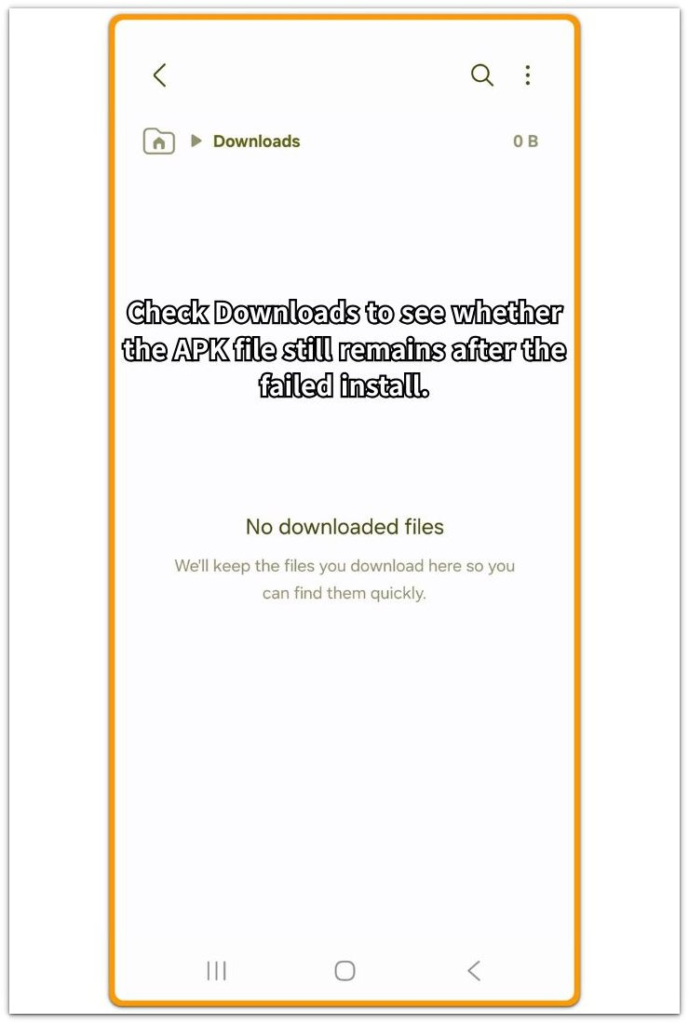
Open My Files, then Downloads, or return to the folder where you saved the APK. Look for the installer file connected to that failed install. Check this especially when the install came from a browser, message, cloud drive, or file manager.
Remove only the installer file tied to that failed app after you confirm you no longer need it. Reopen Settings, then Storage, and check whether the storage number changes after you clear that installer file.
Troubleshooting
Troubleshooting 1: The Install Button Still Shows the App as Pending
A failed Play Store install sometimes leaves the app in a pending or retry state. It does not create a normal app entry. The phone still treats the app as part of an unfinished install. It does not open like a regular app.
Open Google Play and search for the name. Stop the pending install or clear the retry state there first. Then return to Settings, then Storage, and check whether the space changes.
Troubleshooting 2: Storage Still Looks Low After You Remove the Installer File
Android Storage does not always refresh the number at the exact moment the APK file disappears. The file cleanup happens first, while the Storage screen still shows the older number for a short time.
Close Settings, wait briefly, and reopen Settings, then Storage. Restart the phone only after you remove the installer file and confirm that no partial app entry remains. Make one final Storage check after you clear both leftover points.
Troubleshooting 3: The Failed Install Came From a File Shared by Another App
Some installs begin from a message, cloud drive, browser tab, or file manager instead of a normal Downloads folder. The installer file often stays inside the app or service that shared or saved it.
Open the app that provided the APK, such as the browser, messaging app, cloud drive, or file manager. Check its download or saved file area, remove only that failed installer, then check Android Storage again.
Extra Section 1: When the Failed APK Came From a Browser Download
A user downloaded an APK through a browser. The install failed before anything opened. No clear entry appeared in the app list. So the first place to check was not a normal app entry. The browser download was still the link between the failed setup and the missing storage.
The APK file still sat in the browser’s download area even though Android did not install the app. Removing that installer file gave you a cleaner Android Storage check. The failed install source still held the leftover space, not photos, videos, or random folders.
Extra Section 2: When the Failed Install Stayed Pending in Play Store
A user tried to install something from Google Play, but the process stopped before anything opened. There was no APK file to remove from Downloads. So checking random folders did not explain why the storage number still looked lower afterward.
The app’s install state inside Google Play mattered more than the Downloads folder. It still showed a pending or retry state instead of a clean install button. Clearing the unfinished Play Store install came first, and the lower storage number became easier to explain once that state was gone. The issue came from the Play Store install state, not a leftover APK file.
Official Source: Finding APK Files After a Failed Install
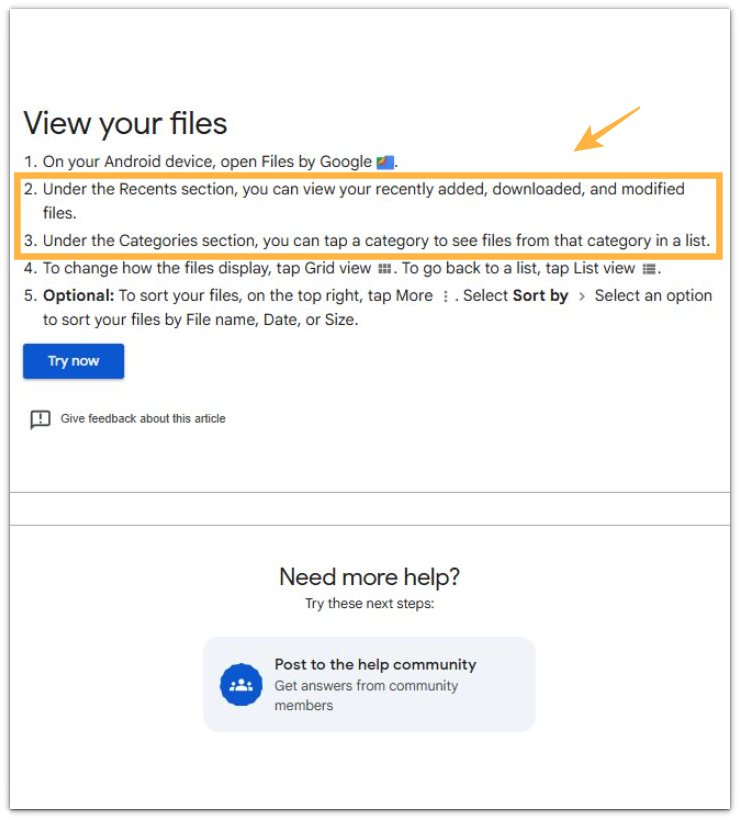
Google explains that Files by Google lets you view recent downloads and browse files by category. A failed browser install often leaves the installer file in the same download area, so check that download source before deleting unrelated files.
A failed install does not always leave a visible app entry. The installer file often remains in the place where the download started. Checking that file source first keeps the storage check focused on the failed install instead of unrelated files.
Additional Tips
Clearing large photo or video folders first hides the real issue. The available space still looks lower than expected afterward. Use the failed app’s install source as the first place to clean. Check wider storage areas only when that source no longer explains the missing space.
Restart the phone only after you check the app entry, installer file, or Play Store install state. A restart alone does not tell you which part caused the storage number to stay low.
Final Notes
Android storage full after failed app install comes down to the failed install path, not random cleanup. A browser APK failure points back to the installer file. A Play Store failure points back to the install state inside Google Play.
The right fix is to clear the unfinished install source first and then check Android Storage again. Deleting unrelated media files before checking that source only hides the real storage clue.
Checklist
- Check the original install source before deleting unrelated files.
- Look for a partial app entry in Settings, then Apps.
- Check the APK file location when the install came from a browser or file manager.
- Clear the pending or retry state when the install came from Google Play.
- Reopen Settings, then Storage, and compare the storage number again.
- Restart the phone only after you check the failed install source.
Need a wider storage check? The main Android storage guide covers other causes that keep storage full even after you fix one problem.