
Introduction
Android low storage warning keeps coming back when the phone shows the same storage warning after you remove photos, videos, downloads, or unused apps. The cleanup looks finished on the screen, but the next storage check still feels almost the same.
The alert returns before the free space clearly improves. This article starts with the gap between what you removed and the number Android still shows afterward.
Step-by-Step Guide: Android Low Storage Warning Keeps Coming Back
Step 1: Check Whether the Warning Still Matches the Free Space
Open Settings, then Storage, and look at the available space shown near the top of the screen. Start with this number before deleting more files because the warning should match the space Android currently shows.
Look at the free space after the first cleanup. A number that still sits close to full means the warning still matches the current storage condition. A higher number means the warning needs another check before you delete more files.
Use this first check as the starting point. It shows whether the phone still needs more room or the number has not clearly updated yet.
Step 2: Check Which Storage Section Still Looks Large
Stay on the Storage screen and open the largest section that still takes up room. Start there instead of going back to random folders.
A large section shows where to work next. Photos and videos usually need media cleanup, Downloads need a saved file check, and Apps need a closer look at app size or saved data. Use the largest remaining section before removing unrelated files.
Step 3: Remove One Clear Item and Check Storage Again
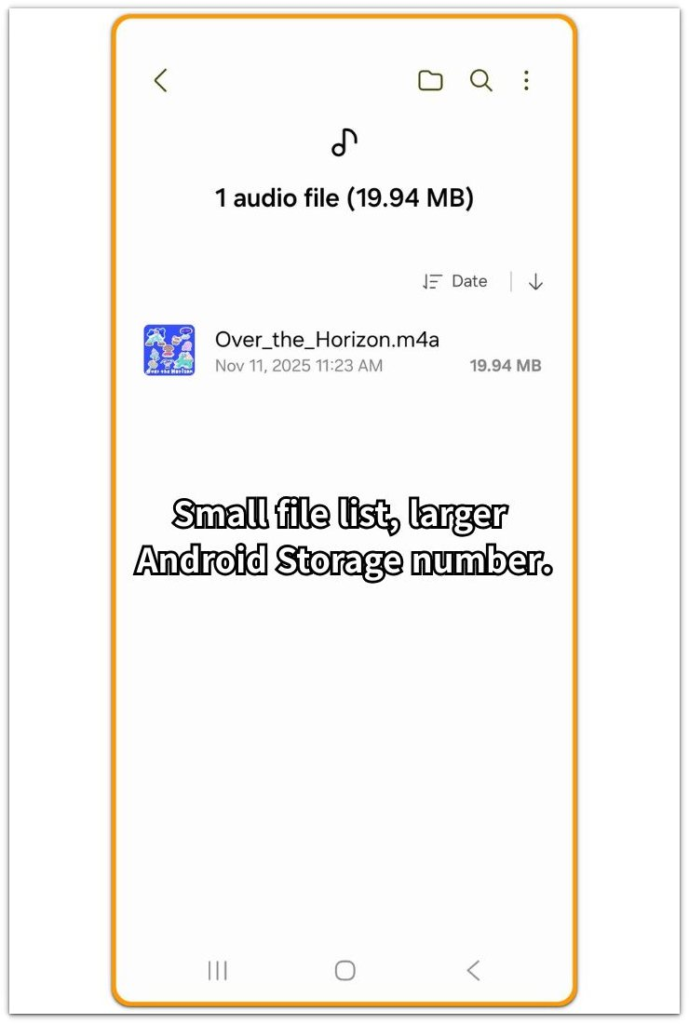
Remove one clear group of large files from the section that still looks large. Use one obvious cleanup action, such as deleting old videos, removing a large download, or uninstalling one unused app.
Go back to Settings, then Storage, and check whether the available space changes after the cleanup. A larger change is easier to read when you remove one clear item instead of many small files from different places.
Troubleshooting
Troubleshooting 1: The Warning Returns After the Storage Number Drops
Android Storage shows a small increase, but the phone still remains close to full. The cleanup changed the number, yet the phone still does not have enough usable room.
Open Settings, then Storage, and look at the available space again. Remove one larger item or one unused app instead of clearing many small files, then check Storage again after a short normal use period.
Troubleshooting 2: The Downloads Folder Looks Clean but Storage Still Looks Full
A clean Downloads folder does not mean the phone has solved the storage problem. Photos, videos, app data, media storage, or saved files inside one app still take space outside the Downloads folder.
Go back to Android Storage and open the largest remaining category first. Use that category for the next cleanup when the folder you already cleaned no longer explains the low storage warning.
Troubleshooting 3: The Storage Number Does Not Change Right After Cleanup
Android Storage does not always refresh the number the moment you remove files or apps. Files disappear from the folder or app first, while the available space still looks unchanged for a short time.
Wait briefly, reopen Settings, then Storage, and check the number again before deleting unrelated files. A second check helps separate a delayed storage update from a cleanup that still left the phone too full.
Extra Section 1: A Small Cleanup Was Not Enough to Stop the Warning
A user deletes a few photos, removes several downloads, and clears one small unused app. The Storage screen shows a little more room, so the cleanup looks successful at first.
A short time later, the low storage warning appears again. The phone did gain some room, but it stayed too close to full for Android to stop showing the warning.
Cleanup size matters more at this point. One larger video, one heavy app, or one old download gives a clearer result than removing many small items. Reopening Storage afterward shows whether the phone finally moved far enough away from full.
Extra Section 2: The Folder Looked Clean, but Storage Still Stayed Full
A user opens the Downloads folder and removes the files that look unnecessary. The folder looks clean afterward, so it feels like the storage warning should disappear.
Android Storage still shows the phone close to full because the folder the user just opened does not always hold the real problem. Saved media inside one app, app data, cached files, or a large app section can still take space while the file manager looks almost empty.
The next check should start from Settings, then Storage. The largest remaining section gives the next place to open, not the folder that already looks clean. Once that section opens, the reason for the low storage warning becomes easier to trace.
Official Source: Google Explains Storage Cleanup Categories
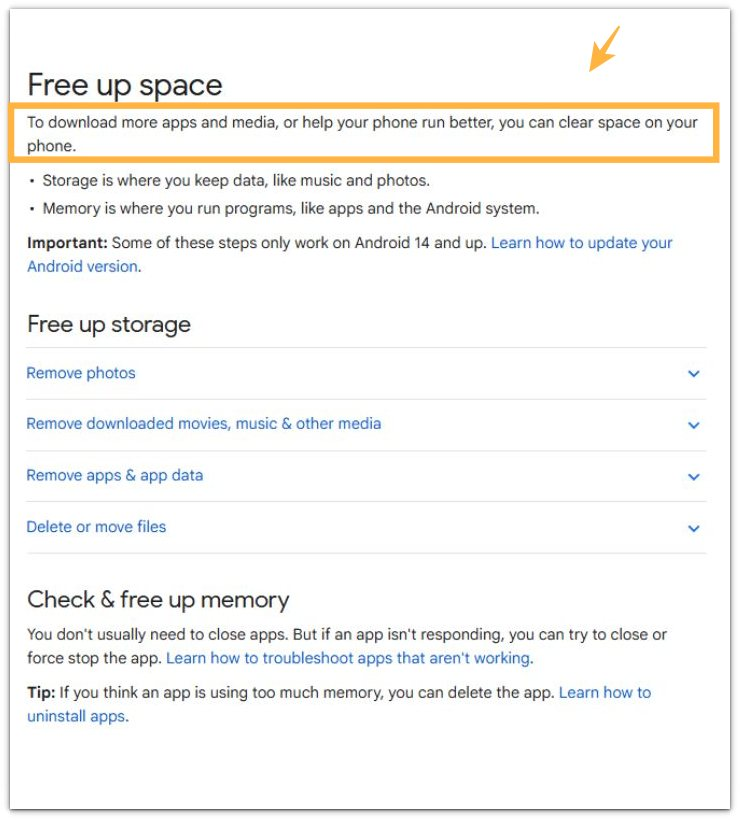
Google explains that storage is where the phone keeps data like music and photos. The same help page also lists cleanup areas such as photos, downloaded media, apps, app data, and files.
This source supports the article because users should check the warning through Android Storage categories, not only through one visible folder.
Additional Tips
Check Recently Deleted or Trash before you assume the phone fully removed the photos and videos. Some gallery and file apps keep removed items for a while, so the phone only gets that space back after you clear that area or the items expire.
Cloud backup changes the cleanup order. Confirm that important photos or videos already have a safe copy before removing them from the phone, especially when storage pressure makes the warning appear again quickly.
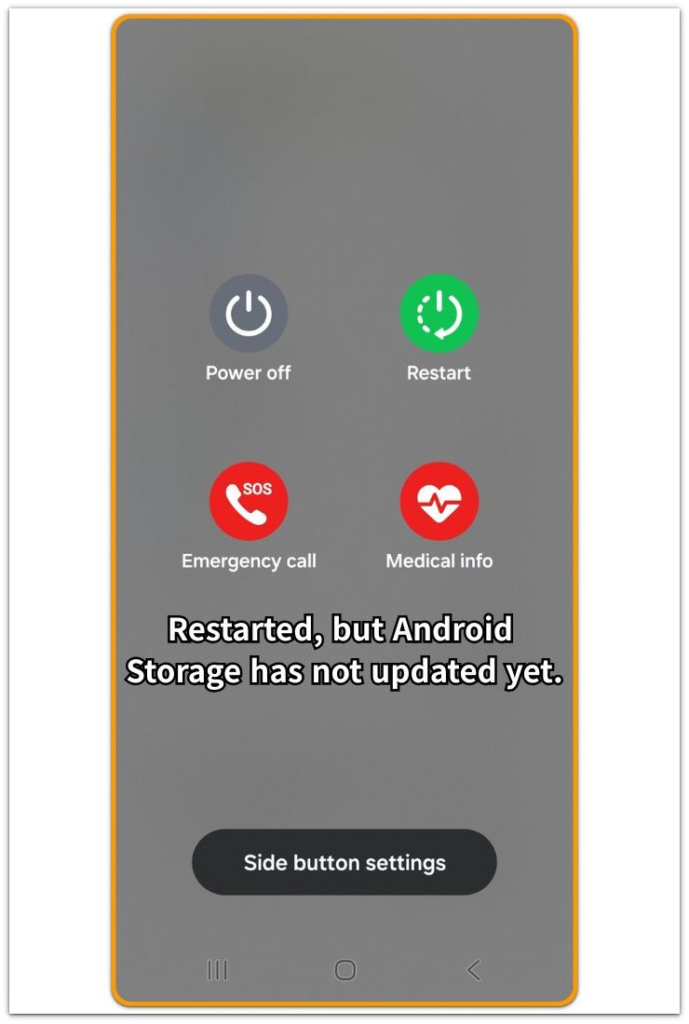
A restart works best as a final refresh after you free real space. It helps the phone reload the storage reading, but the warning will return when the available space still remains too low.
Final Notes
Android low storage warning keeps coming back when the free space shown in Android Storage still sits too close to full. Use Settings, then Storage, for the final check because that screen shows whether the phone has enough usable room after you remove files or apps.
The strongest fix is not random deletion. The largest remaining storage section should guide the next cleanup target, whether it is photos, videos, apps, app data, downloads, or saved media. Once that section gets smaller, the available space number gives a clearer answer.
The warning usually stops only when Android Storage shows enough room after the cleanup. Until that number moves clearly away from full, the phone is still in the same low storage condition.
Checklist
- Check the available space in Settings, then Storage before deleting more files.
- Open the largest remaining storage section instead of returning to random folders.
- Remove one clear group of large files, one large download, or one unused app first.
- Reopen Storage and compare the new available space with the first number.
- Check Recently Deleted or Trash after you remove photos or videos.
- Confirm important files already have a safe backup before deleting them from the phone.
- Restart the phone only after real space has already been freed.
For a broader cleanup path, start with the main Android storage guide before narrowing the warning down to one folder or app.