
Introduction
Android storage full after moving files to SD card shows up when the files appear in the new location, but internal storage still stays nearly full.
The first check is not whether the folder appears on the SD card. It is whether the phone stopped counting the old internal copy, app data, thumbnails, or cached media tied to those files.
Start from the internal storage number, then compare it with the SD card folder and the original file location before deleting anything else.
Android Storage Full After Moving Files to SD Card Step-by-Step Guide
Step 1: Check the Original Internal Folder First
Before checking the SD card, open the original folder inside internal storage and look at the place where you kept the files before the move.
Photos, videos, downloads, or media folders that still remain there keep internal storage full even after the new folder shows the moved files. A full original folder means the move did not clear the phone’s internal copy yet.
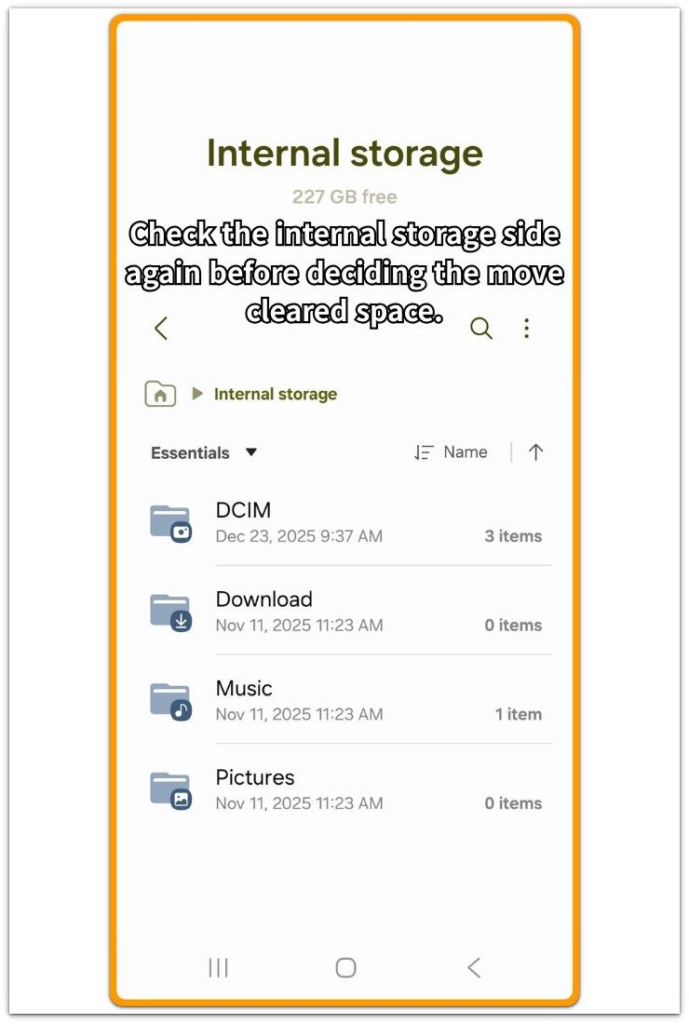
Step 2: Compare the SD Card Folder With the Original Folder
Open the new folder and compare it with the original internal folder. Look for a matching group of photos, videos, downloads, or media files on both sides.
A few leftover items are not the main issue. The stronger clue is a matching large folder in both places. When the SD card and internal storage both hold the same file group, the phone still has the internal copy. The storage number will not drop the way the move suggests.
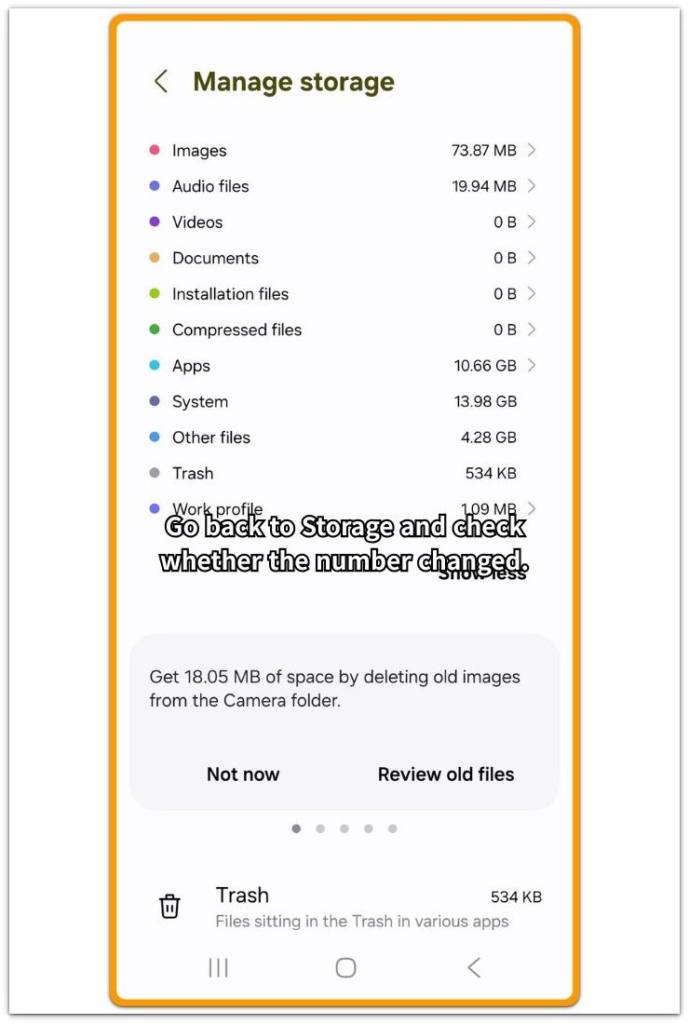
Step 3: Return to Storage and Check Whether the Number Changed
After checking both folders, go back to Settings and open Storage again. Compare the internal storage number with the number you saw before the move.
A small change or no change means the phone is counting data inside internal storage. The files already sit on the SD card, but old copies, app data, thumbnails, cached media, or trash can keep the storage number high.
Android Storage Full After Moving Files to SD Card Troubleshooting
Troubleshooting 1: When the SD Card Has the Files but Internal Storage Still Looks Full
After moving the files, open the SD card folder and confirm that the photos, videos, downloads, or media files open normally. Then return to the original internal folder and check whether the same large group still remains on the phone.
A move that works like a copy leaves the phone with two sets of files. The new folder looks correct, but internal storage stays full because the old files never left the original location. Delete only the confirmed internal copy after checking that the SD card version opens normally.
Troubleshooting 2: When the Original Folder Looks Empty but Storage Still Does Not Drop
An empty original folder is not enough to clear this problem. Open Trash, Recently Deleted, Downloads, app folders, and media folders before judging the storage number again.
Deleted items, saved app media, and leftover thumbnails can sit outside the folder you moved. One leftover area can still hold old files. The original folder looks clean, but internal storage keeps the larger number.
Troubleshooting 3: When Storage Drops Only a Little After the Move
A small storage change points to something beyond the moved folder. Return to the Storage screen and compare Apps, Images, Videos, System, and cached data before repeating the move.
The SD card move only changes the files that actually left internal storage. App data, offline media inside apps, thumbnails, and trash still stay inside the phone’s storage count. Clear the leftover area that matches the Storage screen, then reload Storage and compare the number again.
Extra Section 1: When the SD Card Looks Correct but the Phone Still Has the Old Copy
A user moves a large group of videos to external storage and opens the new folder right away. The files play normally, the folder name looks right, and nothing seems missing. From that screen, the move looks finished.
Confusion starts when internal storage still stays nearly full. The SD card usually is not the problem here. An old copy still remains in the original internal folder, so the same videos now exist in two places.
Judging the result from the SD card folder alone gives a weak answer. Once the SD card version opens normally, check whether the old internal copy still remains. Delete only that confirmed internal copy instead of moving the same files again.
Extra Section 2: When the Original Folder Is Empty but App Data Still Holds Storage
A user checks the original internal folder after moving videos to the SD card. The folder looks empty, and the SD card version opens normally, so the move seems complete.
Internal storage still stays high even though the moved folder no longer explains the number. Video editors keep project files, messengers hold saved media, and gallery apps keep thumbnails or cached previews.
Moving the same files again will not fix that kind of storage count. Open Storage and look for the area that still grew, such as Apps, Images, Videos, or cached data. Clear the leftover area that matches the storage screen, then reload Storage before judging the result.
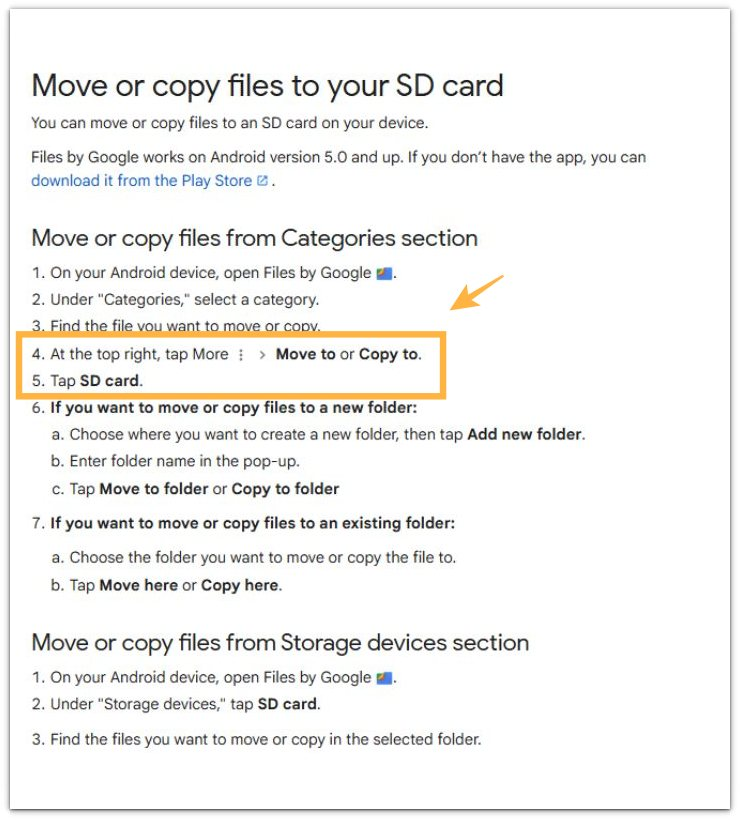
Official Source: Google Help on Moving or Copying Files to an SD Card
Google Help explains that Files by Google lets users move or copy files to an SD card. This supports the key difference in this guide: a copied file can leave the original file in internal storage, while a moved file should no longer stay in the original folder after the transfer is complete.
Before deleting more files, compare whether the SD card action moved the files or only copied them.
Additional Tips
Move large files while the phone has enough battery and a stable SD card connection. A broken transfer can leave the SD card folder incomplete or make the internal folder harder to compare.
Use Files by Google or the phone’s built-in file manager before using a cleaner app. A cleaner app can remove cache, but it does not always show whether the original internal copy still remains.
Restart the phone once after a large move if Storage still shows the old number. Some Android phones need a short reload before the storage screen reflects the new file location.
Final Notes
Android storage full after moving files to SD card usually comes down to what internal storage still counts after the transfer. The SD card folder can look correct while the phone keeps an old internal copy, app media, thumbnails, cache, or trash.
A real transfer should reduce the internal storage number once the old location is clear and Storage reloads. A copy-like result leaves the phone carrying the same large file group in two places.
The answer comes from three signs together. The SD card version opens normally. The original internal folder no longer holds the same file group. Storage drops after you clear the leftover internal area.
When those signs line up, the SD card move worked. Any remaining storage number is coming from another internal source, not from the moved folder itself.
Checklist
- Check the SD card folder and confirm the moved files open normally.
- Check the original internal folder for the same file group.
- Compare the internal storage number after the move.
- Open Trash, Recently Deleted, app folders, and cached media areas.
- Clear only the confirmed leftover internal copy or matching leftover area.
- Reload Storage after cleanup.
- Confirm the SD card version works and internal storage no longer counts the old data.
Need a wider storage check? Use the main guide before deleting more files from your Android phone.