
Introduction
Android storage stuck calculating is frustrating when the Storage screen keeps showing “Calculating…” and never gives a clear breakdown. The phone can still work normally, but the storage page stays stuck because it has not shown which category is using space.
The first clue is whether the page finishes after a short wait or returns to the same loading message every time you open it.
Step-by-Step Guide
Step 1: Open the Android Storage Screen
Open Settings, then go to Storage. On some Samsung phones, open Device Care first, then tap Storage.
Look at the main storage screen before deleting anything. The key point is simple: the page has to finish loading before the numbers can be trusted.
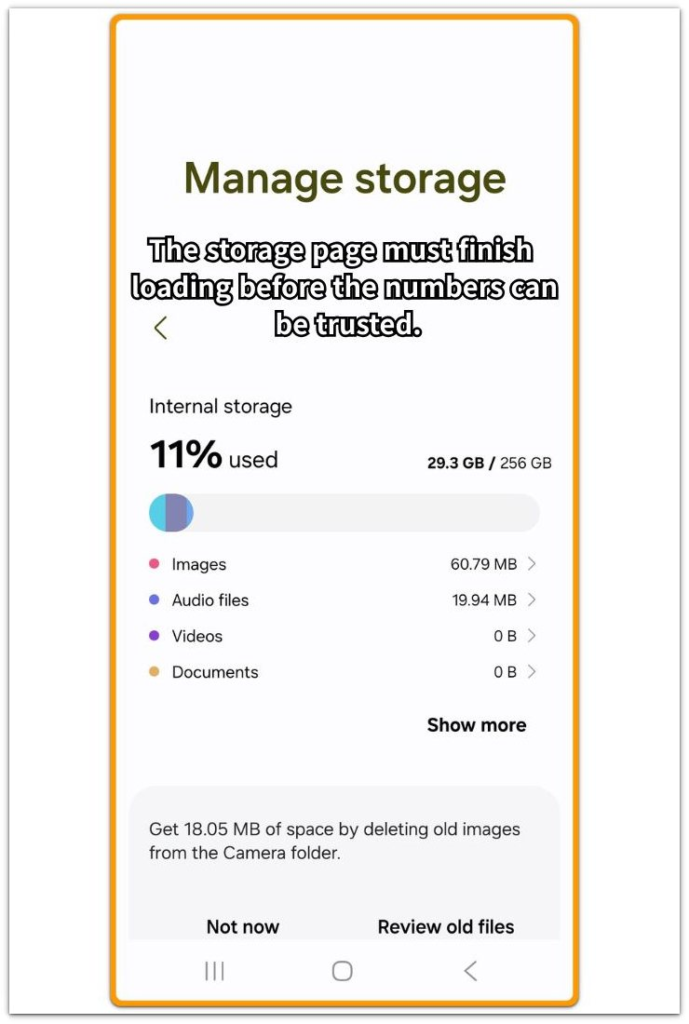
Use this screen to check whether Android finishes loading the storage details.
Step 2: Check Whether the Calculating Message Goes Away
Stay on the storage screen for a short while instead of backing out right away. Check whether “Calculating…” disappears and the storage categories start showing normal numbers.
A screen that finishes after a short wait was only slow to load the storage page. When the same message stays there and nothing changes, keep that result for the next check.
Then reopen Storage after one clean restart and compare whether the same loading message returns.
Step 3: Check Whether the Storage Categories Appear
The storage screen is not finished just because the page opened. Wait until the category list appears.
Images, audio files, videos, apps, system, trash, and other files should each show a number. Once the list appears and the numbers stay visible, the page has finished loading.
When the page keeps showing “Calculating…” instead, Android has not finished building the storage breakdown yet.
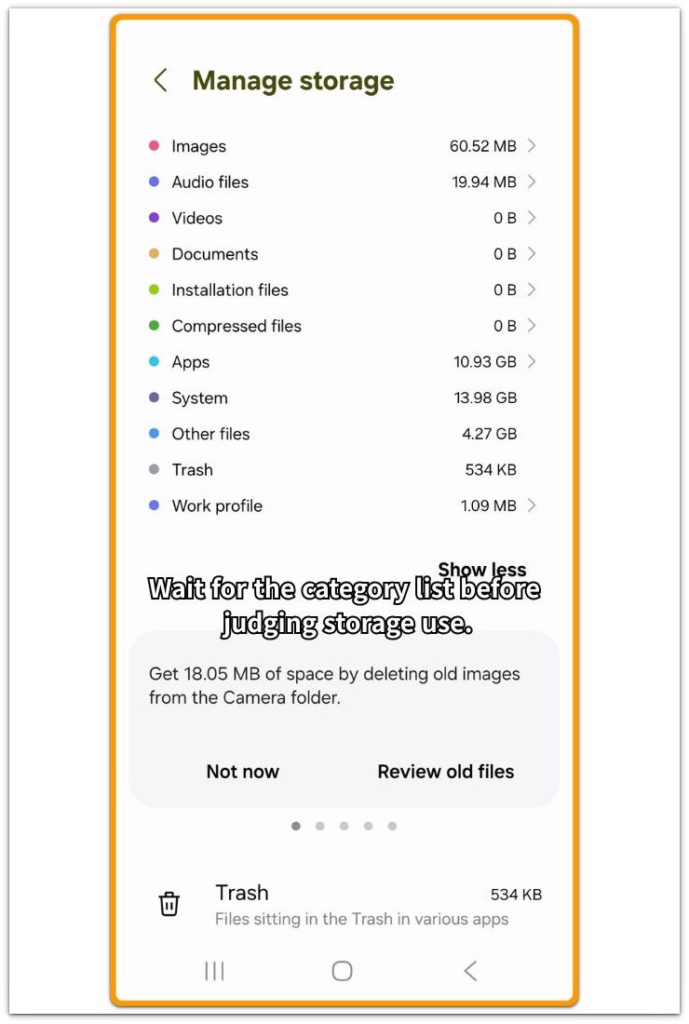
Troubleshooting: Android storage stuck calculating
Troubleshooting 1: The Message Stays After Waiting
“Calculating…” may stay on the screen after a short wait. Stop tapping around the storage page because repeated opening and closing can make the result harder to read.
Leave the screen open once, then compare that result with one clean restart. A normal delay should eventually show categories or change the screen.
The same loading state after a clean check means the page is not giving enough information to judge storage yet.
Troubleshooting 2: The Problem Started After Moving or Deleting Many Files
A storage screen can take longer to settle after a large cleanup, file transfer, backup restore, or system update. One slow load right after that kind of change does not mean the storage number is wrong.
Open Storage once and wait. Restart the phone only if the page still does not finish, then open Storage again and check whether the same calculating message returns.
If it only happened once after a big change, the phone needed time to rebuild the storage list. A message that returns every time means the earlier file change is probably not the only clue.
Troubleshooting 3: The Category List Appears but Looks Incomplete
The storage page can look half-finished, with some categories showing numbers while others stay blank or missing. A half-loaded page is too weak for judging the total storage.
Wait until the category list finishes loading clear numbers. If the list never finishes, the problem is not which category is large yet. The phone still has not shown enough detail to trust any category.
Extra Section 1: A One-Time Delay After Moving Files
A phone can look stuck right after a large file change. One phone had just moved several videos and deleted a group of old downloads, then Storage stayed on “Calculating…” longer than usual.
Nothing else looked broken. Apps opened normally, and the phone did not show a storage warning, so the storage page had likely opened too soon after the file change.
After waiting and checking Storage again later, the category list appeared with normal numbers. This was a one-time delay, not the same issue returning every time Storage opens.
Extra Section 2: The Same Message Returned Every Time
Another phone showed “Calculating…” every time Storage opened. No one had moved large files or done a big cleanup right before the problem started.
The owner waited, closed Settings, opened Storage again, and restarted the phone once, but the same message came back each time. The category list never appeared with clear numbers.
Deleting photos or apps would not have helped yet because the storage screen had not shown what was actually taking space. This was not a one-time delay after a file change; the storage screen never finished loading the category list.
Official Source
Android’s official storage documentation explains that Android can store app and file data in several places, including app-specific storage, shared storage, preferences, and databases.
Do not leave the Storage screen just because Android uses several storage areas. The useful check is whether your phone can turn those areas into a finished category list with clear numbers.

Additional Tips
Stop opening and closing the storage page repeatedly. If the numbers appear, read the category list before deleting anything.
Clearing app data just to make the screen move can create a bigger problem. A stuck storage page needs a finished storage list first, not random deletion.
Final Notes
Android storage stuck calculating should be judged by whether the storage screen finishes, not by the first number you see.
If the page loads after a short wait or after one clean restart, the phone was probably slow to refresh the storage list. A “Calculating…” message that returns every time, with no finished category list, means the storage screen itself is not giving you a reliable result.
Wait before chasing photos, apps, cache, or system data. The main check is whether the screen can finish loading the storage breakdown at all.
Checklist
- Confirm the storage screen is stuck on “Calculating…”
- Wait to see whether the category list appears.
- Restart the phone once if the page does not finish.
- Open Storage again and check whether the same message returns.
- Do not delete files until the storage categories show clear numbers.
For a wider storage check, use the main Android storage problems guide before deleting more files from the phone.