
Introduction
Android storage showing wrong size becomes frustrating when the Storage screen says the phone is almost full, but the files you can see do not look large enough to explain it.
You delete large videos, clear downloads, and remove old photos, but the used storage number barely moves. That mismatch is the part to check first.
The Storage screen is not only counting the files listed in the file manager. It also counts space attached to apps, cached items, offline downloads, and system-managed storage that does not appear as one clear file.
Before deleting more visible files, compare the main storage page with the app storage list and see which area still holds the remaining space.
Step-by-Step Guide
Step 1: Compare the Storage Screen With Visible Files
Open Settings and go to Storage. On some Android phones, open Device care first, then select Storage.
Look at the total used storage shown at the top of the screen. Then open the file manager and check the large visible files, such as videos, downloads, images, and documents.
For android storage showing wrong size, start by confirming the mismatch before deleting anything else. The Storage screen may show a large used number, while the files you can actually see look too small to explain it.
That difference tells you the missing space is probably being counted outside the normal file list.
Step 2: Check Which Storage Category Holds the Missing Space
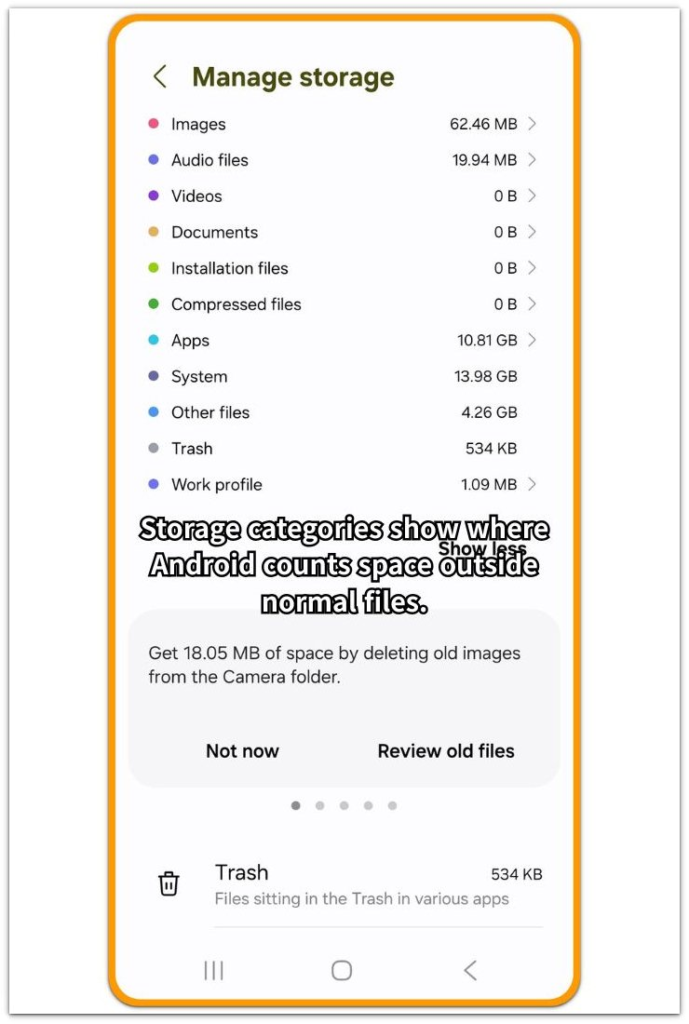
Go back to the Storage screen and look at the main storage categories. Check Apps, System, Other files, Trash, downloaded files, and saved media.
Start with the category, not one hidden file. First, see which category still holds the storage that the file manager does not explain.
When Apps is large, open the app storage list and look for apps with unusually high storage use. A large System or Other files number usually means the missing space is not sitting as a normal photo, video, or download.
The file list can look clean while the used storage number still stays high.
Step 3: Check App Data and Cache Separately
After the Storage screen points to Apps, open the apps that take up the most space. Start with apps that save media, messages, pages, thumbnails, or offline downloads.
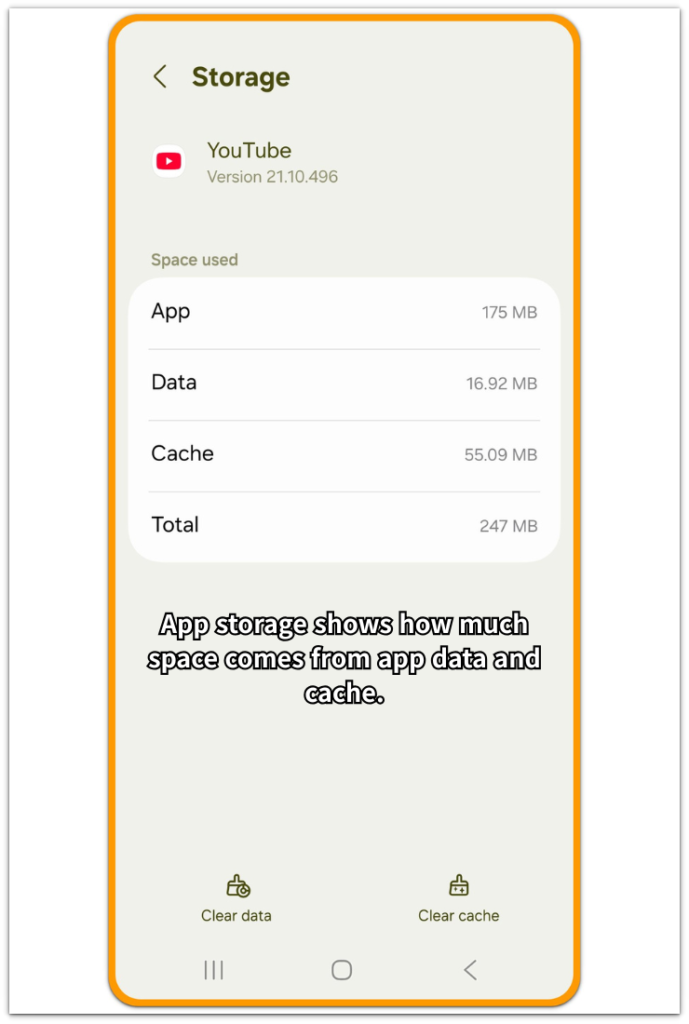
Open one large app and check its Storage page. This screen separates App, Data, Cache, and Total, and the file manager does not always show app data or cache as one normal file.
When Data or Cache is much larger than expected, the Storage screen is counting space inside that app. Clear cache first only when the cache number is large.
Avoid tapping Clear data just to reduce the number. It can remove saved app information, downloads, logins, or settings.
After checking the app, return to the main Storage screen and compare the used storage number again.
If the number barely changes, the visible file you removed was not the main reason. Go back to the category that still holds the storage and check that area next.
Troubleshooting: Android storage showing wrong size
Troubleshooting 1: Apps Still Hold Storage After Files Are Deleted
After deleting photos, videos, or downloads, return to the app storage list. Start with media apps, browsers, messaging apps, and social media apps.
These apps can keep thumbnails, previews, message media, saved pages, and offline items even after the file manager looks clean.
Open the largest app and check whether its size comes from Data, Cache, or saved content inside the app. Clear cache only when the cache number explains the extra space.
Before clearing Data, open the app itself and check for saved downloads, old attachments, offline maps, or message media. This keeps the fix focused on the app that still holds storage, not on more visible files that were not causing the mismatch.
Troubleshooting 2: The Storage Screen Has Not Refreshed Yet
Large file deletions do not always appear on the Storage screen right away. Close the page, wait a short while, then open it again.
Restart the phone when the same number stays after a large cleanup. After the restart, compare the storage number with the visible files again.
A lower number points to a delayed refresh. A number that stays high means the space is still counted in another category.
Troubleshooting 3: System or Other Files Still Takes Up Space
Check System and Other files when Apps do not explain the missing space. These categories do not always appear as normal files in the file manager.
A small System or Other files number is normal. The warning sign is an unusually large category while the file manager still looks almost empty.
Restart the phone and check the category size again. After a restart, a large System or Other files number means the missing space is still inside that category.
Extra Section 1: When Deleted Files Stay in Trash
One phone looked clean after several large videos were deleted. The file manager no longer showed those videos in the main folder, so the storage warning looked confusing.
The missing step was the trash folder. On many Android phones, deleted photos, videos, and files do not disappear from storage right away. They stay in Trash or Recently deleted until they are permanently removed or the folder clears them later.
The files can disappear from the normal folder but still count toward used storage. Open the Gallery, Files app, or file manager and check Trash, Recently deleted, or Bin.
If large videos or downloads are still there, empty that folder after confirming you do not need them. Then restart the phone and open the Storage screen again.
A lower number means the storage was not wrong. The deleted files were still being held in a deleted-items folder.
Extra Section 2: When Media Apps Hide Storage
Another phone had very few large files in the file manager. The download folder looked small, and the photo and video folders did not explain the storage warning.
The missing space was inside the apps that handled media every day.
Messaging apps kept old previews and shared media, while browsers held page data, thumbnails, and site files.
Social media apps rebuilt image and video cache after normal use.
Nothing looked large in the file list, but Android still counted the space held inside those apps.
The storage number was not wrong. It was counting space that normal folders did not show. The next move is to stop searching through photos and downloads and open the largest media-heavy apps instead.
Official Source: Google Android Help on App Cache and Storage
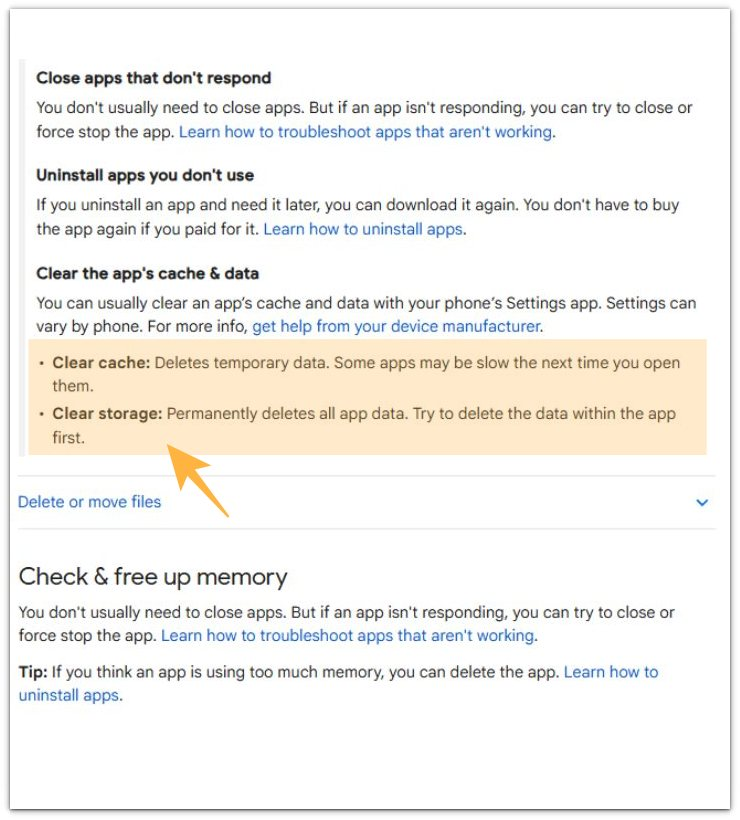
Google separates cache from storage because they do not remove the same kind of data. Cache is temporary, but storage can include deeper app data that should be checked before deleting it.
Google’s note is not a reason to clear everything first. It supports checking whether the missing space comes from temporary cache or deeper app data before deleting more visible files.
Additional Tips
Some media apps rebuild cache after normal use, so a small amount of cache returning later is not a problem.
App data needs more care than cache because it can include saved downloads, message media, account files, or offline content.
A restart helps only when the Storage screen has not refreshed after a large cleanup. It should not replace checking the app that still holds the space.
Final Notes
Android storage showing wrong size does not always mean the phone is broken.
When the file manager looks clean but the Storage screen stays high, the missing space is usually inside apps, cache, saved media, or system-managed storage.
Focus on the largest app entries first. Clean what you can, then restart the phone and compare the storage number again.
Checklist
- Check the largest apps in the Android Storage screen.
- Review apps that handle photos, videos, messages, browsing, or streaming.
- Clear cache only from apps where the cache number looks large.
- Restart the phone after a large cleanup.
- Open it again and compare the number.
- When the number stays high, check saved media, offline downloads, and app data inside the largest apps.
For the full storage troubleshooting path, use the main guide.