
Introduction
Android storage not updating after restart becomes noticeable when the Storage screen shows the same number after the phone turns back on. You restart the device expecting the storage count to refresh, but the total still looks unchanged.
This issue is about a storage number that stays stuck after restart, not a normal cleanup check. Before you change anything else, confirm whether the old value is still there.
Android Storage Not Updating After Restart Step-by-Step Guide
Step 1: Check Whether the Storage Total Remains Unchanged After Restart
Open Settings, then go to Storage after the phone turns back on. Let the Storage screen finish loading before you read the total.
Compare the total with the value you saw before the restart. When the Storage screen still shows the old total after the phone fully restarts, check that delay first before moving to other storage problems.
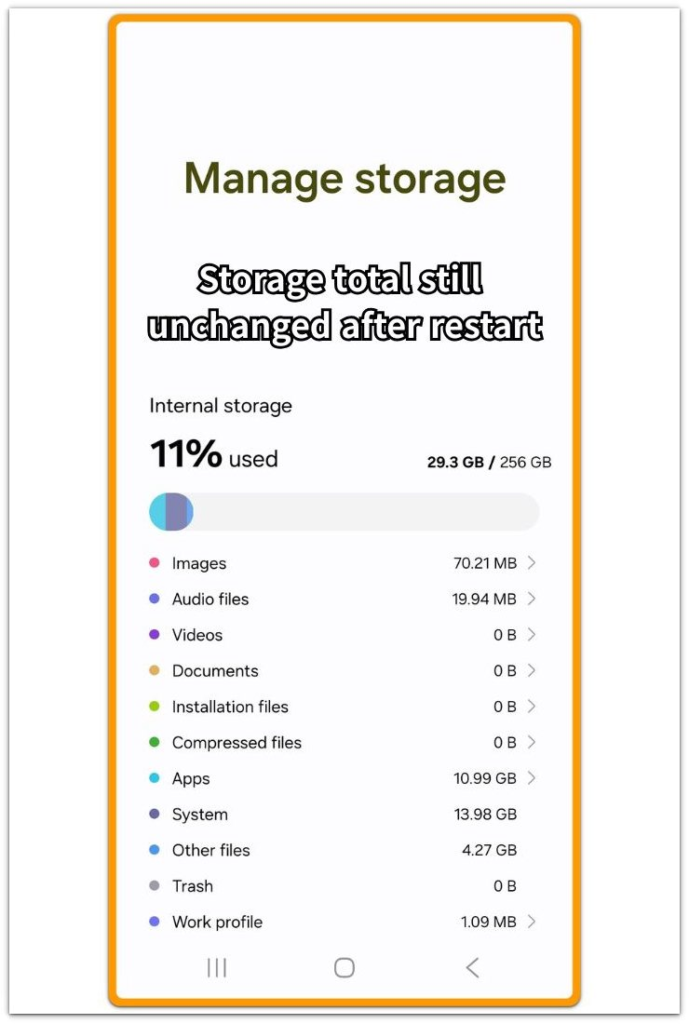
Stay on that screen for this first comparison. Changing files again before the number updates makes the restart result harder to read.
Step 2: Check Whether Removed Files Are Still Being Held
Open the app or folder where the removed files came from. Check the original folder first, then look at Trash, Recently Deleted, or the app’s deleted-items area.
Files left in a recovery area still count toward storage in many cases. That creates a different problem from a delayed Storage screen, because Android keeps counting items that still remain inside the app.
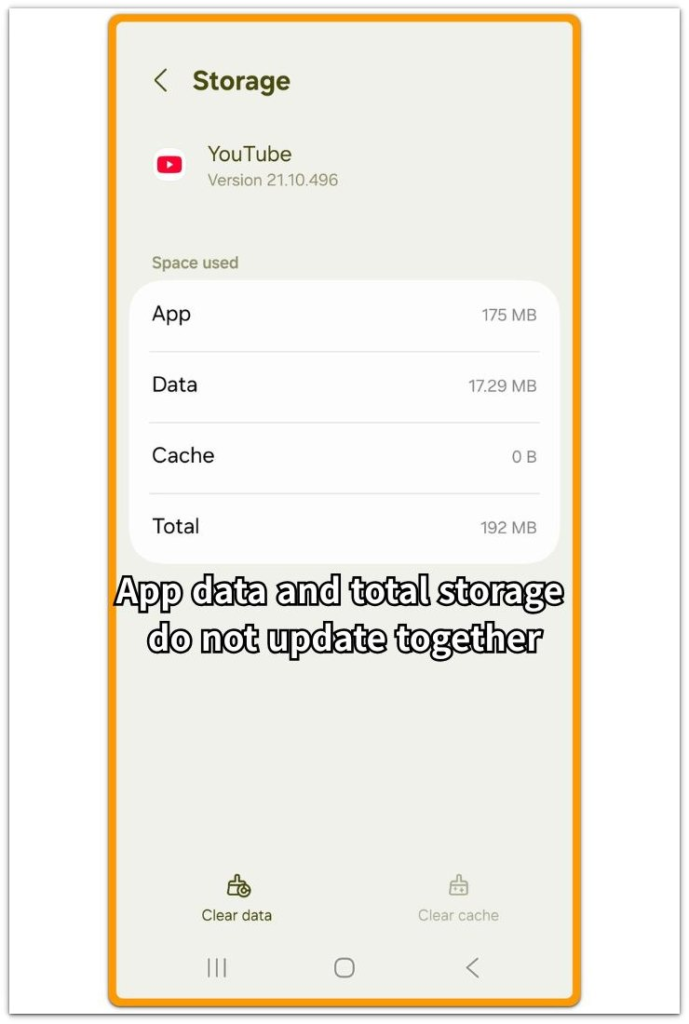
Once those areas are clear, go back to Settings and Storage. The next comparison should use the main Storage screen, not another round of file deletion.
Step 3: Let Android Recheck the Storage Total
Leave the phone alone for a short time, then reopen Settings and Storage. Restarting again right away only changes the timing of the check.
Read the number again and compare it with the value from Step 1. A lower number means the Storage screen refreshed after the restart. The same number means Android is still counting something, or the storage update has not finished yet.
From there, use the list under the total as the next clue. Focus on the area that stayed high instead of repeating the restart.
Troubleshooting
Troubleshooting 1: When Storage Still Shows the Old Total After Waiting
The Storage screen sometimes keeps the old total after the phone restarts and sits idle for a short time. Open Settings and Storage again, then look at the category list under the total.
Check whether one category stayed high. Apps, System, Images, Videos, or Downloads may still show the space that you expected to change after the restart.
A high total with no clear match usually means Android is still recalculating in the background.
Troubleshooting 2: When Removed Files No Longer Appear
Removed files can disappear from the original folder while the Storage screen still shows the older total. The folder looks clean, but the Storage screen is still using the older count.
Check the holding area tied to those files, such as the app’s trash or deleted-items screen. Keep the check tied to the files you already removed, not every folder on the phone.
Return to Settings and Storage after that check. Look at the category connected to those files and see whether it changes later.
Troubleshooting 3: When Only One Storage Category Stays High
Sometimes the total changes later, but one category still looks too high. This needs a narrower check than repeating the restart.
Open the category that stayed high and see what Android is grouping there. Apps often include app data, media often includes files stored inside an app, and System sometimes takes longer to settle after restart.
Use that area for the next check. The restart already changed part of the Storage screen, so the next check should stay with the category that still looks wrong.
Extra Section 1: A Removed File Was Still Sitting Inside the App
A large video disappeared from the main folder after removal. After one restart, the Storage total stayed almost the same, so the restart looked like it had not refreshed anything.
The problem was not the restart itself. The video had left the visible folder, but the app kept it in a deleted-items area for recovery. Android had a reason to count that space because the file had not fully left the phone.
Opening the original app gave a better clue than restarting again. The deleted video was in a recovery area, not in the folder where it first appeared. Clearing that area made the next Storage check easier to read.
This kind of case can make Android storage not updating after restart look like a stuck system count. The useful check is the original app, because the storage number stays high while the app still holds the removed file.
Extra Section 2: The Category Changed Before the Total Updated
A different phone showed a cleaner storage result after restart. The files were gone from the app’s deleted-items area, but the main Storage total still looked almost the same.
The better clue was under the total. Images and Videos no longer looked as high as before, so the cleanup had reached part of the Storage screen. The main number simply had not caught up yet.
Restarting again would not make this easier to read. Reopening Storage after a short wait gave Android more time to finish the count, and the total finally moved closer to the category list.
This case is different from a file still sitting inside an app. The removed files were already gone, but the Storage screen updated in pieces. The useful clue was the mismatch between the category list and the main total, not another restart.
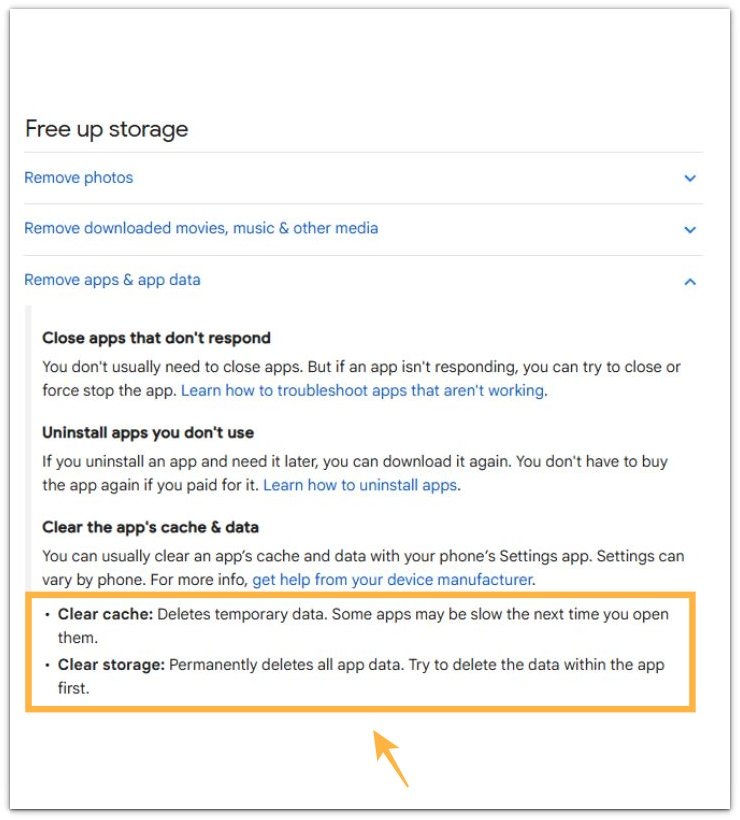
Official Source: Google explains the difference between cache and app storage
Google’s Android Help shows that Clear cache removes temporary files, while Clear storage removes the app’s stored data. That difference matters when the Storage total stays high after a restart, because the app still holds space that does not appear in a normal file folder.
Use the screenshot as a reminder to check the app’s own storage area before restarting again. A stuck-looking total makes more sense when you separate cache, app data, and deleted files instead of treating them as the same thing.
Additional Tips
The Storage screen needs a moment to finish loading before the total is useful. Open Storage, wait until the categories appear, then read the number.
Cloud apps need a separate check when the removed files came from Photos, Drive, OneDrive, or another sync app. A file can disappear from one screen while the app keeps a local copy, trash copy, or offline version.
Clearing app storage is too strong for a first check. It can remove app data, sign-ins, downloads, or saved settings, so use it only when you understand what that app will delete.
Cleanup apps can blur the result during the first test. They change cache and temporary files at the same time, which makes it harder to tell whether the restart, the app, or the Storage screen caused the change.
Final Notes
Android storage not updating after restart needs more than one restart result. Read the page by comparing the main number, the list below it, and the place where the removed files came from.
A high total with one clear area points there first. The files no longer appear in the folder, but Android still counts space inside the app, trash area, or storage category. Check that place before trusting the main total again.
Repeated restarts are the wrong move when the number still looks stuck. Android is usually counting something specific, such as app data, a deleted-items area, or a Storage category that stayed high. Check that part first, then compare the total again after clearing or refreshing it.
Checklist
- Restart the phone once and open Settings again.
- Wait until the Storage categories finish loading.
- Compare the new number with the value from before the restart.
- Check whether one Storage category stayed high.
- Look inside the original app and its deleted-items area.
- Clear the matching app area or storage category, then compare the Storage total again.
When the number still feels off after this check, move to the main Android storage guide and compare this result with other storage problems that can look similar.