
Introduction
Android storage suddenly full overnight can feel confusing when the phone was not used much, but the number still jumps by morning.
You open the storage screen and see several gigabytes missing, even though you did not install a new app, download a large file, or save new videos.
The phone still opens normally, but the used space grew while the device was sitting idle.
The timing is the first clue. When the increase happens overnight, check whether data or cache grew in the background instead of coming from files you created yourself.
Step-by-Step Guide
Step 1: Confirm That Storage Increased Overnight
Open Settings and go to the storage screen on your Android phone. Check the used storage number before deleting anything.
Compare that number with what you remember from the previous day or the last time you checked storage. A small change is normal, but several gigabytes appearing overnight needs a closer look.
This first check keeps the problem focused on a real sudden increase instead of a normal warning that was already building up.
Step 2: Find Which App or Category Grew Overnight
Stay on the storage screen and open the app or category list that shows what is taking up space.
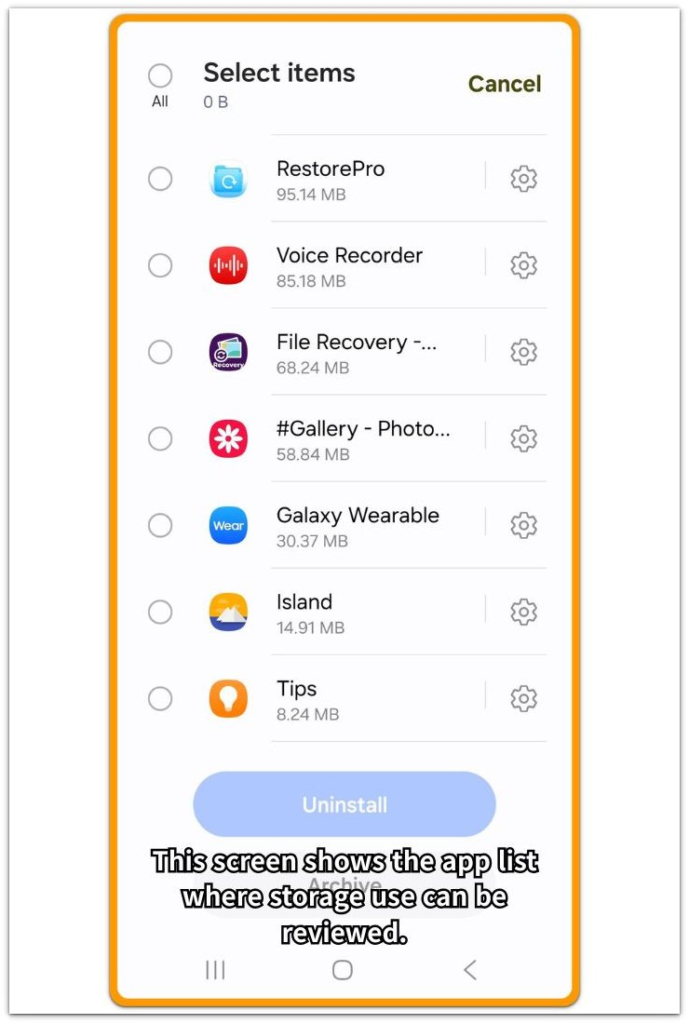
Look for a system category or cached data area that looks much larger than expected. Do not start deleting random files yet.
First, check whether one item suddenly holds more data than the rest.
If the storage became full overnight, the clue is usually not the Home screen. It is the app or category that grew while the phone was idle.
Step 3: Check Whether One App’s Cache Grew Overnight
Open the list inside the storage screen and select the item that looks larger than expected.
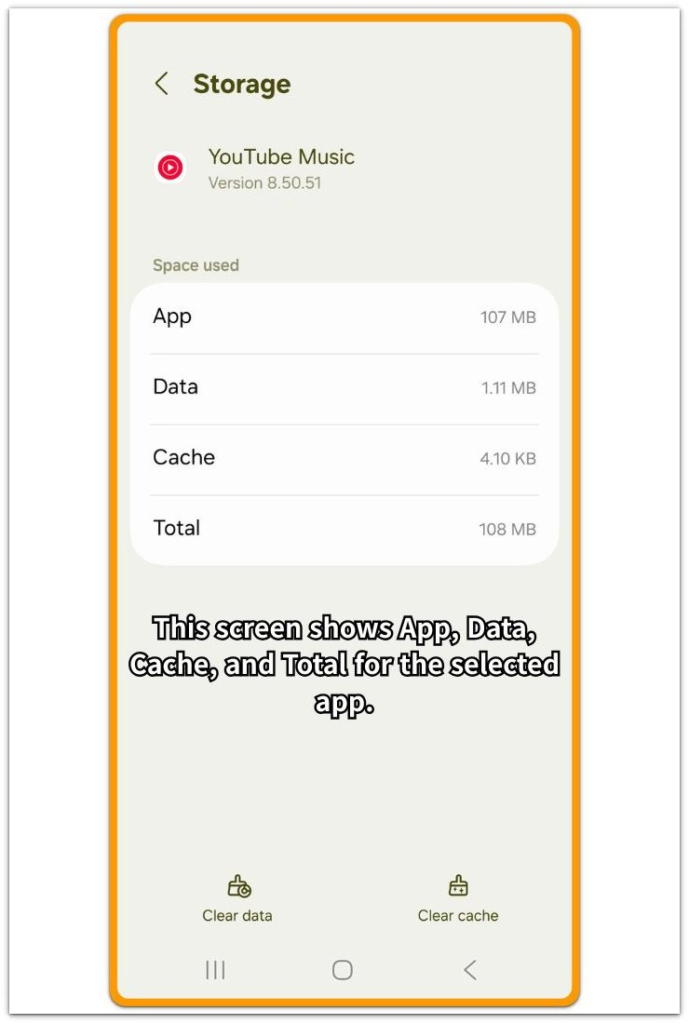
On the app storage page, compare App, Data, Cache, and Total. First, check whether Cache or Data is much larger than the app itself.
Streaming apps, browsers, messengers, and cloud apps can keep extra data after they refresh content in the background.
If cache or data jumped, that app is the first place to inspect before deleting personal files.
Troubleshooting: Android storage suddenly full overnight
Troubleshooting 1: One App Keeps Growing After You Close It
Open Settings → Storage and check the app list again. Look for an app that still shows a large amount of Data or Cache even after you stop using it.
This often happens with streaming apps, messengers, browsers, photo backup apps, or cloud apps. The app can look closed while it still refreshes messages, thumbnails, downloads, or backup items in the background.
Open the app’s storage page and compare App, Data, Cache, and Total. If Data or Cache is much larger than the app itself, the overnight storage jump likely came from that app’s stored content.
Troubleshooting 2: Storage Increased, but No App Looks Huge
Go back to the main storage screen and check whether the increase appears under System, Other, or a similar category instead of one clear app.
This can happen after the phone handles updates, logs, crash records, or background service activity overnight. Storage can grow even when no new personal file appears.
Restart the phone once, wait a few minutes, and check the storage number again. If the number drops after the restart, the increase was likely temporary system use.
Troubleshooting 3: Background Media Processing Generates Cached Files
Check tools that handle photos, videos, music, or downloads. A gallery, video, music, or file-sharing app can build extra cache while preparing thumbnails, previews, or offline content.
Those files do not always appear as new photos or videos in your gallery. They often stay inside the app’s Data or Cache section.
Open the app storage page and check whether Data or Cache grew during that period. If the media library looks the same but the app storage is larger, the issue is inside that stored data, not your visible files.
Extra Section 1: When Storage Drops After a Quiet Night
You check the phone in the morning and notice that available storage is much lower than it was the day before. No new app was installed overnight, no large video was saved, and the gallery or file manager does not show anything new that explains the missing space.
The storage screen shows a real increase, but the visible files do not explain it. Start with the apps that were already on the phone.
A streaming app, messenger, browser, photo backup app, or cloud app can hold new Data or Cache after the phone sits idle overnight. The file manager can look clean because that space sits inside the app, not as a normal file you created.
The next check should happen on that page, where App, Data, Cache, and Total are listed separately.
Extra Section 2: When Several Small App Changes Add Up Overnight
The storage screen does not always point to one obvious app. One messenger looks slightly larger, the browser cache is bigger than before, streaming apps keep extra offline data, and photo or cloud apps hold more Data than expected.
Each change looks small by itself, so deleting one random file usually does not free much space. The problem becomes clearer when those small increases are checked together.
Open the app storage list and compare the apps that changed since the last time you checked. Look for several apps with larger Data or Cache, not just one oversized app.
When Android storage suddenly becomes full, the missing space can come from several small app changes adding up during idle time.
Official Source: Google Android Help on App Cache and Data
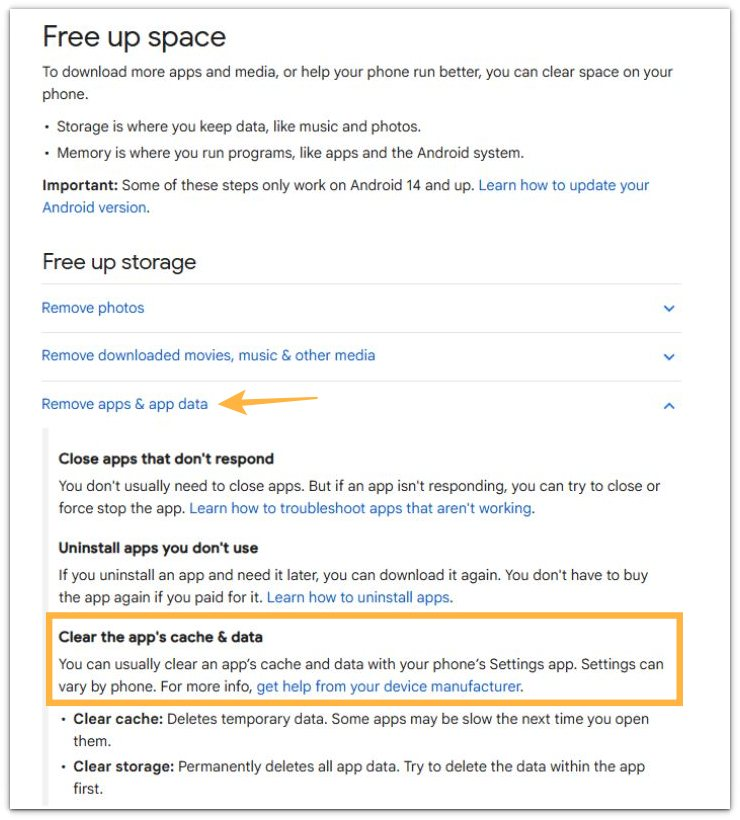
Google’s Android Help explains that app cache and app data can be managed from the phone’s Settings app.
This matters here because the growth often needs to be checked inside app storage, not only in visible photos, videos, or downloaded files.
Additional Tips
Check again after a restart before deleting large files. Some temporary storage drops after the phone refreshes the count.
Clear app data only when you know what the app stores. Clearing Data can remove saved logins, downloads, offline files, or app settings.
Check the largest apps first. A small app rarely explains several gigabytes of missing space overnight.
Final Notes
Android storage suddenly full overnight usually points to stored app data that grew while the phone was idle.
The most important check is not the Home screen or the file manager. Start with the storage screen, then compare App, Data, Cache, and Total inside anything that looks larger than expected.
If visible photos, videos, and downloads did not change, the missing space usually sits inside app data, cache, or temporary system storage.
Find where the space grew first, then decide whether to clear cache, remove offline content, restart the phone, or manage the app that caused the increase.
Checklist
- Confirm that the used storage number increased overnight.
- Check which app or category grew on that screen.
- Open the larger app pages and compare App, Data, Cache, and Total.
- Restart the phone once if the number still looks wrong.
- Do not delete personal photos, videos, or downloads before finding where the storage grew.
For a broader storage overview, see the main guide on Android storage problems.