
Introduction
Android not enough storage for system update appears when the update needs more room before the install continues. Storage still shows some available space, but the update screen asks for extra room to prepare the install.
This guide stays with that update warning, not a full phone cleanup. Start with the space the system update needs, then check what to clear before running the update again.
Step-by-Step Guide: Android Not Enough Storage for System Update
Step 1: Check the Update Screen First
Start from the system update screen. Open Settings, then Software update, and check the storage warning before the install begins.
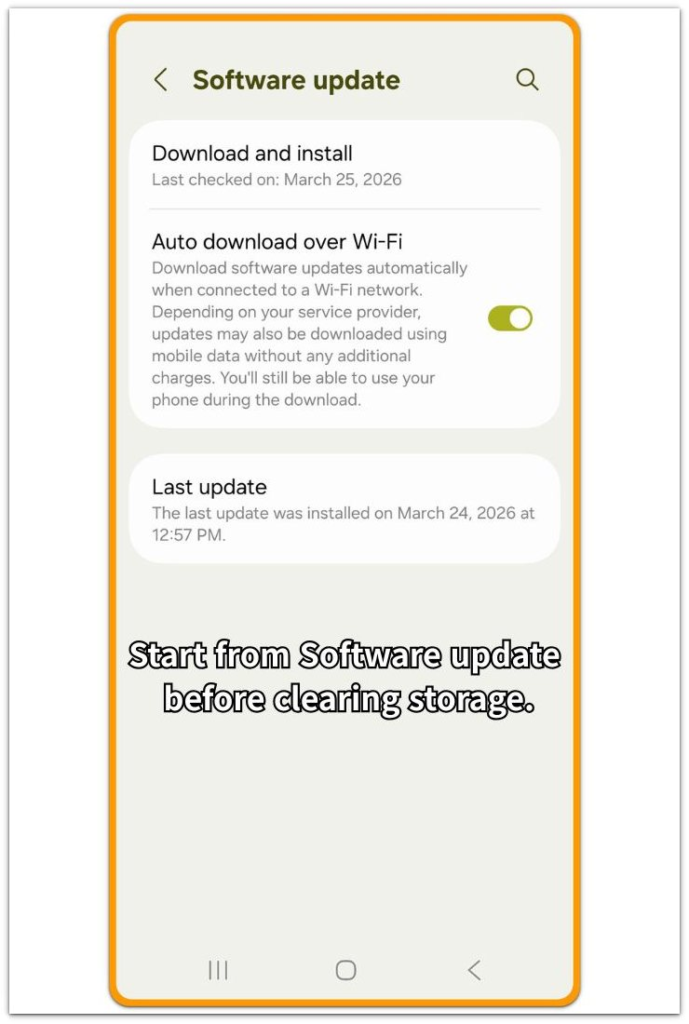
Read the message on this screen, then open Storage only after you know what the update is asking for. The warning points to the space needed for the update process, not only the free space the phone shows.
Keep this first check tied to Software update. The space problem appears there first, so Storage should confirm what still needs room.
Step 2: Check Storage for Clear Temporary Space
Open Settings, then Storage, and look at the largest sections near the top of the list. Start with areas that are easy to confirm, such as Trash, completed downloads, old installer files, or one large app with saved offline data.
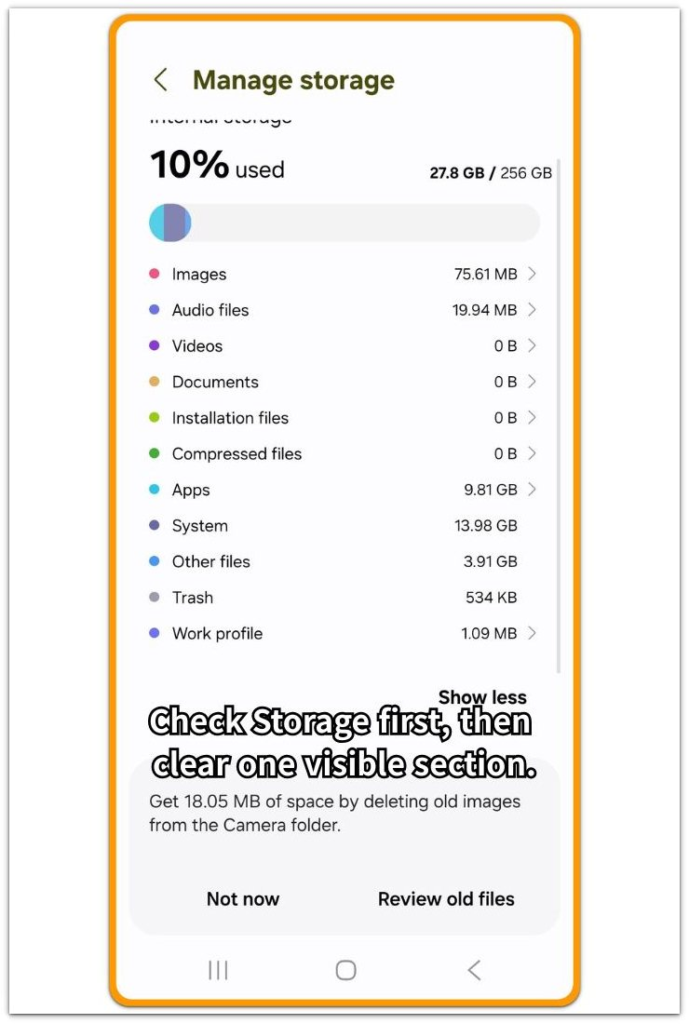
Keep this step focused on space the update attempt needs right away. Remove one clear group first, then reopen Storage and check whether the available space changed.
Return to the update screen after that first cleanup. Read the warning again before removing more items.
Step 3: Run the System Update Again
Go back to Settings, then Software update, and try the update again from the same update page you checked first. Watch the storage warning on the next attempt.
When the warning disappears, continue with the update instead of going back into Storage. A warning that stays on the screen needs one more Storage check before you run the update again.
Troubleshooting
Troubleshooting 1: The Update Warning Stays After You Clear Space
The update warning stays on the screen after the first cleanup when the update package still needs more working space. A small Storage change is not enough when the install still needs room to continue.
Open Settings, then Storage, and check whether the available space moved clearly after the cleanup. Clear another visible storage section, such as Trash, a large download, or offline files inside one large app, then return to Software update and try again.
Troubleshooting 2: Storage Shows Free Space but the Update Still Stops
The Storage screen and the update screen show different parts of the same issue. Storage shows the phone’s available space, while the system update needs room to prepare the install.
Go back to the update screen and read the warning again. When the same storage message appears, use that message as the next checkpoint and return to Storage only to clear a confirmed area.
Troubleshooting 3: The Update Starts but Fails Again Before Installing
A system update starts again after cleanup and still stops before the install finishes. The first cleanup helped the update move forward, but the remaining stop shows that the next cleanup should come from a different storage section.
Open Storage again and check the largest remaining section instead of repeating the same cleanup area. Clear one item group you clearly recognize, return to Software update, and run the update again.
Extra Section 1: The Small Cleanup Did Not Move the Update Warning
A user saw the system update warning and deleted a few small files first. The Downloads folder looked a little cleaner, and Storage showed a small change, but the Software update screen still asked for more space before the install continued.
The useful clue was not the small deletion itself. The warning stayed because the cleanup did not move enough usable space for the update package. A larger, easier-to-confirm section mattered more here, such as Trash, an old installer file, or offline files saved inside one app. After clearing that larger item group, the update screen became the next place to check again.
Extra Section 2: The Same Cleanup Area Kept the Update Stuck
A user cleared the Downloads folder and returned to the system update screen, but the warning stayed. The next mistake was checking Downloads again because the user had cleaned only that folder before.
The better move was returning to the Storage screen, not opening the already-clean folder again. Downloads no longer explained the warning, so the next check moved to a different large section, such as saved media, offline app files, or app data that still took up visible space. The update attempt made more sense only after the cleanup moved away from the same empty area.
Official Android update storage warning source
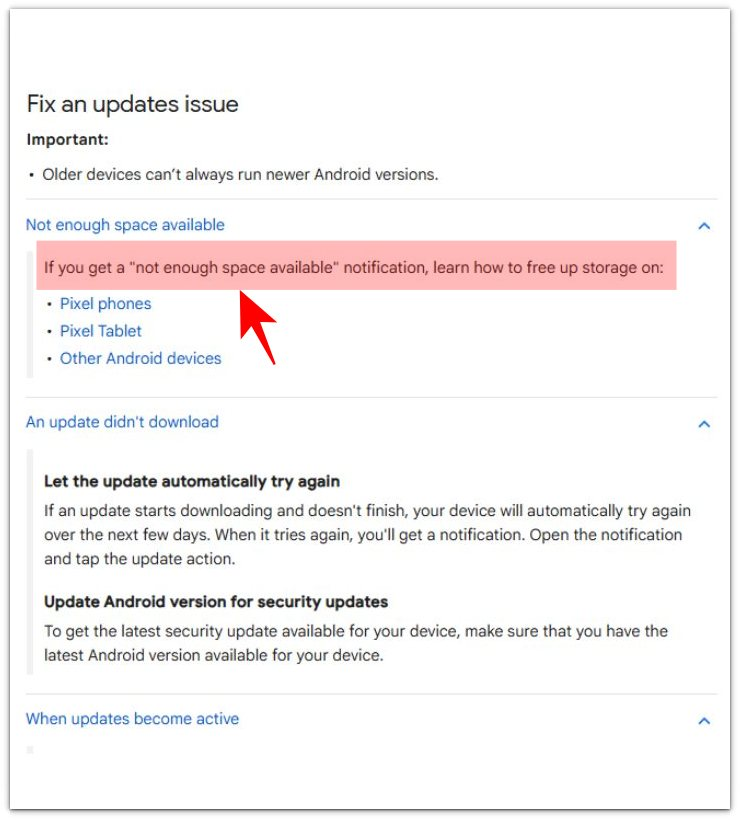
This official Android Help screenshot shows that Google connects the “not enough space available” update warning with freeing up storage before continuing the update.
Use this screenshot only as the official source for the update storage warning. The actual cleanup steps still come from the Storage screen and the Software update screen in the guide above.
Additional Tips
Restart the phone only after you clear a visible storage section and the update warning still does not change. A restart helps refresh the storage reading, but it should not replace the cleanup check.
Keep the phone charged before running the update again. A low battery warning and a storage warning often appear close together, so checking one problem at a time keeps the update path clearer.
Remove offline files inside one large app before deleting personal photos or videos. Saved maps, music, movies, or app downloads are easier to rebuild later than personal files.
Final Notes
Android not enough storage for system update starts on the update screen, then moves to Storage to find the next section to clear.
The clearest clue is on the Software update screen. When the same message remains, the phone has not cleared enough usable space for the update attempt. Once it disappears, continue from the same Software update page.
You solve this problem by matching the freed space with the update warning, not by clearing random folders until the phone looks lighter. The update screen gives the final answer.
Checklist
- Check the Software update warning before clearing more storage.
- Open Settings, then Storage, and clear one visible storage section.
- Return to Software update after the first cleanup.
- Run the update again from the same update page.
- Check whether the storage warning disappears on the next attempt.
- Move to a different large storage section when the warning stays.
- Remove offline files or downloads before personal photos and videos.
- Continue the update from Software update once the warning disappears.
For a broader Android storage check, read the main Android storage guide before deleting more personal files.