
Introduction
Android storage full but no files visible becomes confusing when the phone says storage is almost full, but the file manager does not show any file large enough to explain it.
Photos, videos, and downloads are already gone, but the storage warning is still there, so the problem feels hidden because there is no single file to remove.
The important clue is where the storage number is coming from. It often comes from app storage, cached data, saved offline content, or system-managed space that the file manager does not show as a normal file.
Step-by-Step Guide
Step 1: Open the Android Storage Screen
Open Device Care, then tap Storage.
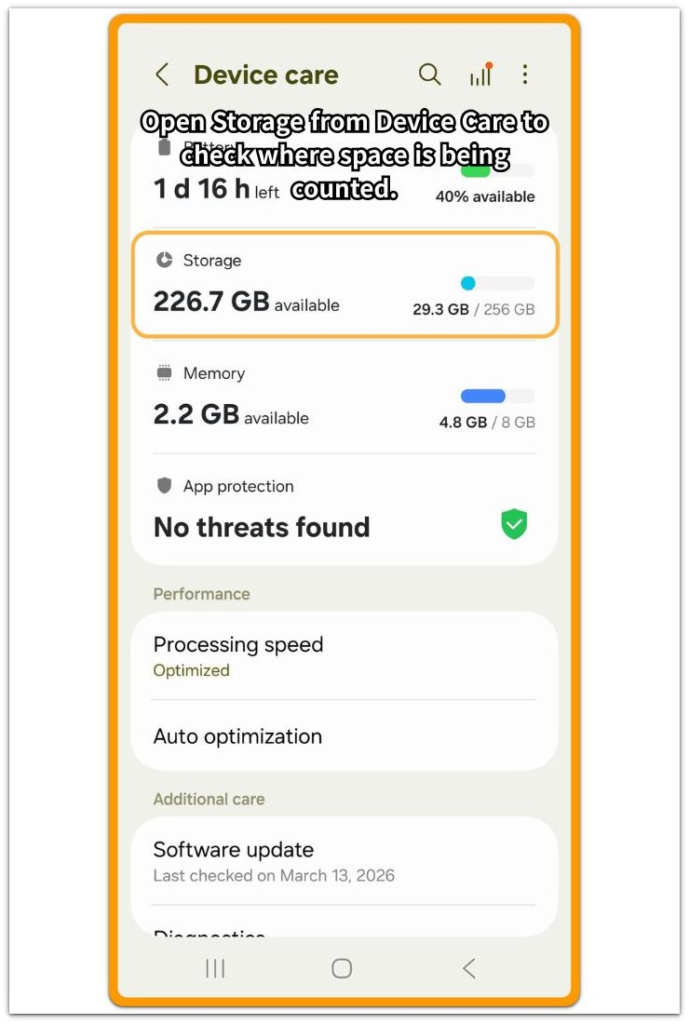
On some Android phones, open Settings first, then tap Storage. Start from this screen before deleting more photos, videos, or downloads.
This screen shows how the phone divides storage across apps, images, videos, documents, and system areas.
For android storage full but no files visible, check whether the storage bar looks full even though the file list looks too small to explain the warning.
Step 2: Check Apps With Large Storage Usage
From the Storage screen, open Apps or review the app storage list. Look for apps that are much larger than expected.
Start with streaming apps, social media apps, browsers, messaging apps, and music apps. These apps often keep saved videos, cached pages, downloaded media, old attachments, or offline content inside their own storage.
That space does not always appear as one clear file in the file manager. If one app is using a large amount of space, open that app’s storage details before deleting random files elsewhere.
Step 3: Clear Unusually Large Cache Data
Open the storage page for the app that looked too large in Step 2, then check the Cache number before clearing anything.
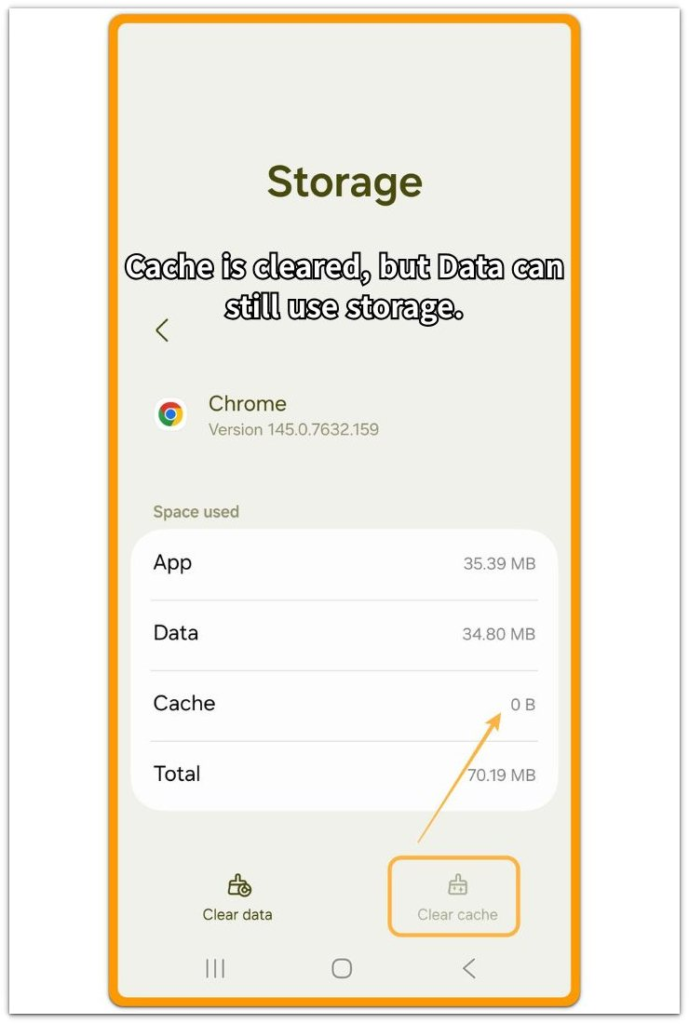
When the cache number is unusually high, tap Clear cache. Leave Clear data alone unless you are ready to remove app data, saved settings, or signed-in information.
After clearing cache, go back to the main Storage screen and check whether the available space changes.
If storage still stays low after a large cache cleanup, the missing space is likely outside the normal files shown in the file manager.
Troubleshooting: Android storage full but no files visible
Troubleshooting 1: The App Looks Small, But Its Data Does Not
After checking the app list, one app may look small on the first screen even though its saved data still takes space.
Open the app storage details and compare App size, Data, and Cache. When Data is much larger than the app itself, the missing space is not coming from a normal file in the file manager.
Leave data alone at first. Open the app and check saved downloads, offline files, old messages, or account-synced content.
Troubleshooting 2: Storage Stays Full After Cache Is Cleared
Cache cleanup should change the number when cache was the main problem. When the available space barely moves, stop clearing the same cache again.
The remaining storage is more likely tied up in app data, saved offline content, or system-managed storage.
Go back to the Storage screen and check which category still looks too large. This helps separate a cache problem from a deeper storage problem.
Troubleshooting 3: The File Manager Number Does Not Match the Storage Screen
A clean file manager is only useful after you compare it with the Storage screen. Open the file manager and check whether photos, videos, downloads, and documents are actually small.
Then go back to the Android Storage screen and look at the categories that are still using space. When the file manager looks small but Apps, System, or cached content still takes up a lot of space, the missing space is not in a normal folder.
Stop searching for one hidden video or download. The mismatch between the two screens is the clue: the file manager shows what you can browse, while the Storage screen shows where Android is still counting space.
Extra Section 1: Deleted Files Did Not Bring Storage Back
One phone looked full even after a large cleanup. The owner deleted old photos, removed several videos, and cleared the Downloads folder, so the file manager looked much cleaner after that.
But the Storage screen barely changed. The warning still showed very little available space, even though the visible files looked small, so deleting more visible files was not the right check.
The app list gave the clearer clue. A few apps still showed large Data numbers on their own storage pages. The space had not disappeared; it was still counted inside app storage, not as a photo, video, or download shown in the file manager.
Extra Section 2: A New Download Was Blocked Even With No Big File Showing
Another phone looked clean in the file manager. Photos were already trimmed, the Downloads folder looked small, and no large video file stood out, but a new app update stopped with a storage warning.
The owner checked the file manager again and still could not find one big file to delete. This was not just a failed cleanup. The phone already had too little usable space for the next download.
The useful check was the amount of usable space left before the update started. The app list and system area showed that the phone had almost no usable space left, even though the visible folders looked light.
The warning was not caused by one hidden file. It appeared because the phone was already too tight to complete the next download.
Official Source
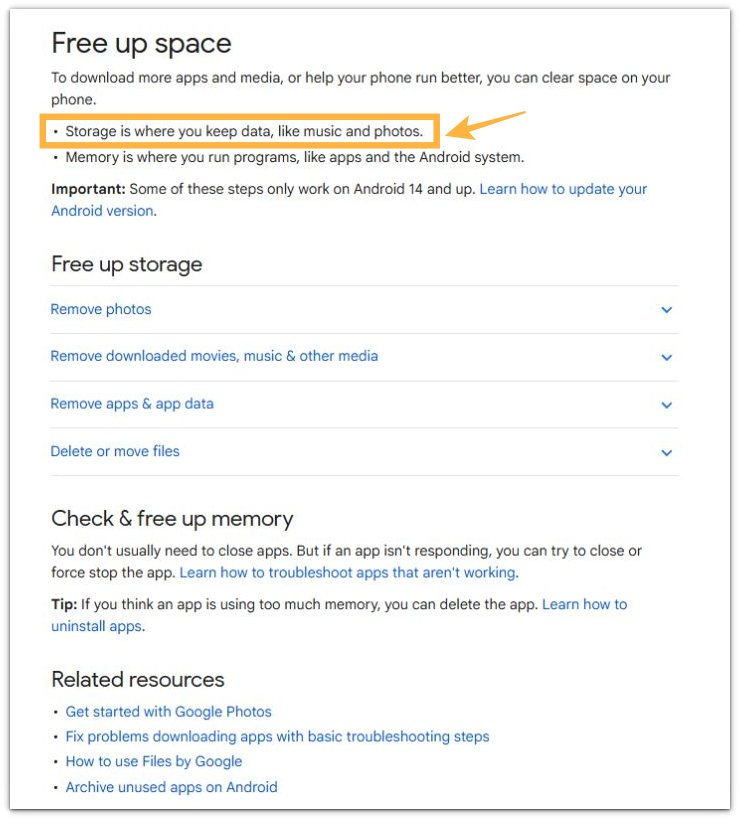
Google Help explains the difference clearly:
“Storage is where you keep data, like music and photos.”
Memory is not the problem here. The warning stays because Android is still counting used storage somewhere on the phone, even when normal files do not explain the number.
Additional Tips
Clear cache from the app that looks unusually large first, not from every app at once. Clearing several apps at the same time makes it harder to see which app actually changed the storage number.
Also avoid deleting small files just because they are easy to find. A few small downloads usually do not explain a storage warning when the Storage screen shows a much larger number.
Final Notes
Android storage full but no files visible should be judged by the category that still holds space, not by the folder that looks easiest to clean.
After checking large apps, cache, app data, saved offline content, and the main Storage screen, the next step should be specific.
Stop deleting random photos, videos, or small downloads just because they are easy to find. Find the app or storage category still using the space, then remove content from that exact place.
Checklist
- Open the Android Storage screen and check the main categories.
- Compare visible files with the storage number shown by Android.
- Check large apps for Data, Cache, and saved offline content.
- Stop deleting random files if the Storage screen still shows low space.
- Use the Storage screen to find where the remaining space is counted.
Visible files do not always explain Android storage problems, so use the main storage guide when the Storage screen still shows space you cannot find.