
Introduction
Android trash taking up space becomes noticeable when deleted files disappear from the folder you checked, but the storage number stays high. The file looks gone, so many people keep deleting photos, downloads, or app files without checking where the app is holding those deleted items.
Start with the holding area before checking storage again. Deleted files often leave the original folder while still remaining inside Trash, Recycle Bin, Recently Deleted, or a similar folder.
Android Trash Taking Up Space Step-by-Step Guide
Step 1: Open the Trash or Recycle Bin First
Start with the app’s deleted-items screen before checking storage again. Files can leave the original folder while still remaining inside Trash, Recycle Bin, Recently Deleted, or a similar folder.
Open the app that deleted the file. That app could be Files, Gallery, Photos, a cloud storage app, or a file manager app. Look for Trash, Recycle Bin, Bin, or Recently Deleted inside that same app first.
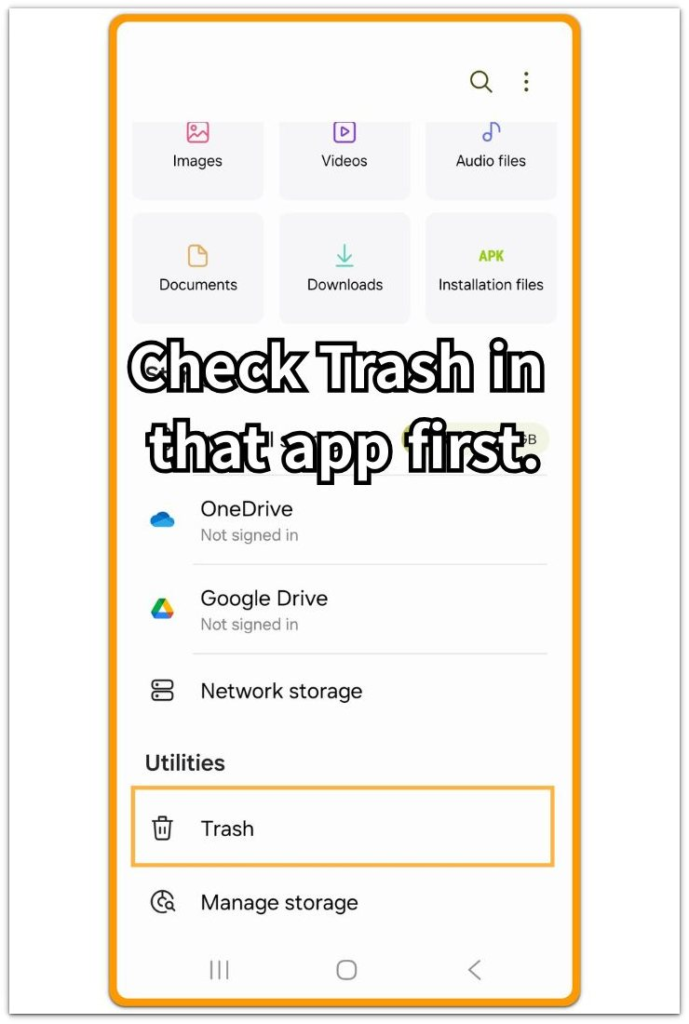
Check whether the deleted items are still listed there. This screen matters because the files often leave the original folder while still waiting in the app’s deleted-items area.
Step 2: Check What Is Still Left Inside Trash
Open the trash folder and look at what remains before deleting more files from other places. Large videos, many photos, downloaded folders, or old app files can keep taking space after they disappear from the normal folder view.
Some apps keep deleted items for a set period before automatic removal. Check the item list, file size, and remaining days shown on the trash screen before assuming the storage should already be clear.
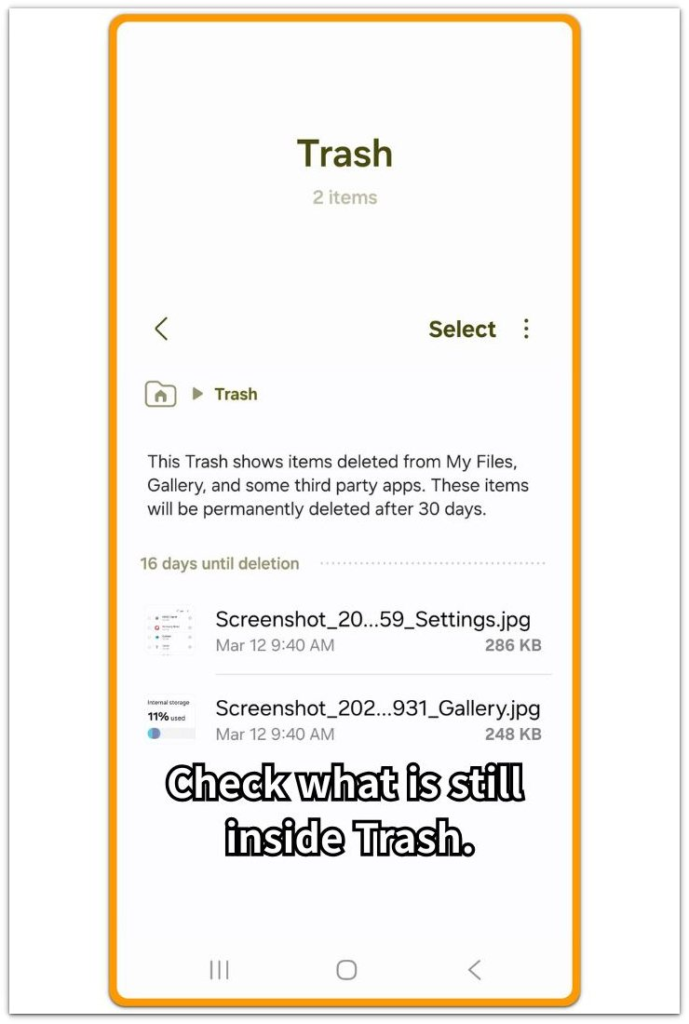
Scroll once and check whether that area still contains files large enough to explain the missing space. This gives you a clearer reason to check it first instead of deleting random files again.
Step 3: Empty Trash Fully and Check Storage Again
Empty the trash only after confirming that the files inside are no longer needed. Use the app’s delete permanently, empty trash, or remove all option so the app removes the files from the holding area instead of only hiding them from the original folder.
Wait a short time after emptying Trash, then reopen Android Storage. The storage number often needs a moment to refresh, especially when the deleted items were large or came from a gallery, cloud, or file manager app.
Check the result again only after the trash screen shows no remaining items. A lower storage number after this step points to deleted files staying in Trash as the reason the cleanup did not work at first.
Troubleshooting
Troubleshooting 1: When Trash Is Empty but Storage Still Looks Full
An empty trash screen does not always make Android Storage update right away. The app often clears the deleted files first, while the Storage screen still shows the older number for a short time.
Close the app, wait a little, then reopen Settings and Storage. Check the same storage category again instead of jumping to another cleanup app right away.
A delayed update is more likely when the deleted items were large videos, many photos, or files removed from a gallery or cloud app. Recheck storage after the trash screen stays empty and Android has time to refresh the storage count.
Troubleshooting 2: When Another App Has Its Own Trash Folder
Android trash taking up space can continue when you empty only one trash folder. Files, Gallery, Photos, cloud storage, and some file manager apps each keep deleted items in their own trash or recently deleted area.
Open the app where the files originally came from, not just the app where you first checked storage. A photo deleted from a gallery app does not always appear in the same place as a document deleted from a file manager or a cloud folder.
Check each likely app once before deleting new files. Another deleted-items folder with old files can explain why storage stayed full after the first cleanup.
Troubleshooting 3: When Cloud Trash and Phone Storage Do Not Match
Cloud trash and phone storage do not always change together. Some files stay online, some are cached on the phone, and some remain saved for offline use.
Open the cloud app and check Trash, Bin, or Recently Deleted first. Then check whether the same app still uses local storage under Android Storage or the app info screen.
Focus on offline files, cached files, and files marked as available on this device. A cloud trash folder alone does not always explain phone storage, but cloud files saved locally can keep Android storage high even after the visible file list looks clean.
Extra Section 1: A Large Video That Stayed in Recently Deleted
A storage cleanup can look finished after a large video disappears from the main gallery. The album looks cleaner, and the file no longer appears beside the other videos, so the storage number feels like it should drop right away.
The video often remains in Recently Deleted. Long recordings, screen recordings, and high-resolution videos can take a lot of space even after they leave the normal album view.
Open the photo or gallery app that deleted the video and check Recently Deleted, Trash, or Bin. Empty that area only after you confirm that you no longer need the video.
This kind of case is easy to miss because the visible folder already looks clean. The storage number usually makes more sense after checking the app’s deleted-items screen, not after deleting more photos from the main gallery.
Extra Section 2: An Empty Folder That Made the Cleanup Look Finished
A cleanup can look complete when the original folder becomes empty. You delete a group of downloads, documents, or old files, reopen the folder, and see nothing left there.
That empty folder can make the cleanup feel finished too early. The files often move into Trash, Bin, or Recycle Bin instead of leaving the phone right away.
Open the same app that handled the deletion and check its deleted-items area before removing more files. The empty folder is only the first clue. The cleanup only counts after the app removes those files from that holding area.
This case is different from a missing-file problem. The folder view already changed, but Android storage still needs that app to remove the deleted items from the holding area before the cleanup fully counts.
Official Source: Google Photos Trash Time Limit
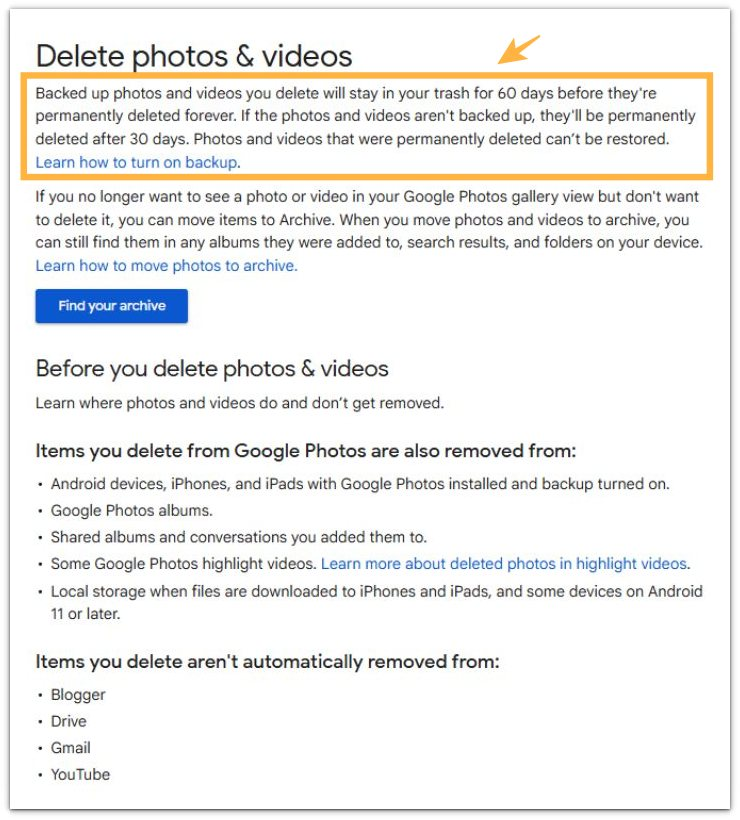
Google Photos Help explains that deleted photos and videos can stay in Trash before permanent removal. Backed up items can stay there for 60 days, while items without backup are removed after 30 days.
So when a large video disappears from the gallery but storage still looks high, check Trash or Recently Deleted before deleting more media.
Additional Tips
Use a cleanup app only after checking the trash area inside the app that deleted the file. A cleanup app removes some temporary files, but it does not always empty that app’s own trash screen.
Check the app name before emptying anything permanently. A photo app, file manager, and cloud app can each use a different trash screen.
Clear app data only when you understand what that app stores. This action can remove saved settings, offline files, or account-related local content along with the storage you meant to reduce.
Final Notes
Android trash taking up space is a trash-location problem, not a normal file cleanup problem.
When deleted photos, videos, downloads, or documents disappear from the normal folder view but storage stays high, the strongest clue is a trash, bin, recycle bin, or recently deleted area that still contains those files. Emptying that holding area gives the cleanup a real result.
A high storage number after deleting files is not a reason to keep removing random items. Check the app that handled the deletion, empty its trash area after you confirm that you no longer need the files, then reopen Android Storage and compare the number again.
Checklist
- Open the app that deleted the file.
- Check Trash, Bin, Recycle Bin, or Recently Deleted.
- Look for large videos, photos, downloads, or old files still inside.
- Empty the trash area only after you confirm that you no longer need the files.
- Reopen Android Storage after the trash screen is empty.
- Compare the storage number again before deleting more files.
For a broader storage check, use the main Android storage guide before deleting more files from random folders.