
Introduction
Downloads folder android storage becomes confusing when Android still shows space used by Downloads, but the folder itself does not show a large file. The storage number stays on the screen while the file manager looks almost empty.
This often happens after old downloads are removed, so the problem feels like hidden space instead of a normal full folder. Check that folder first, then see whether the space shown under Downloads still matches anything left inside it.
Step-by-Step Guide
Step 1: Check the Downloads Folder Android Storage Number
Open Settings and go to the device storage screen. Check whether Downloads appears as a storage category.
If the screen shows downloaded files under Documents instead, use that number as the starting point.
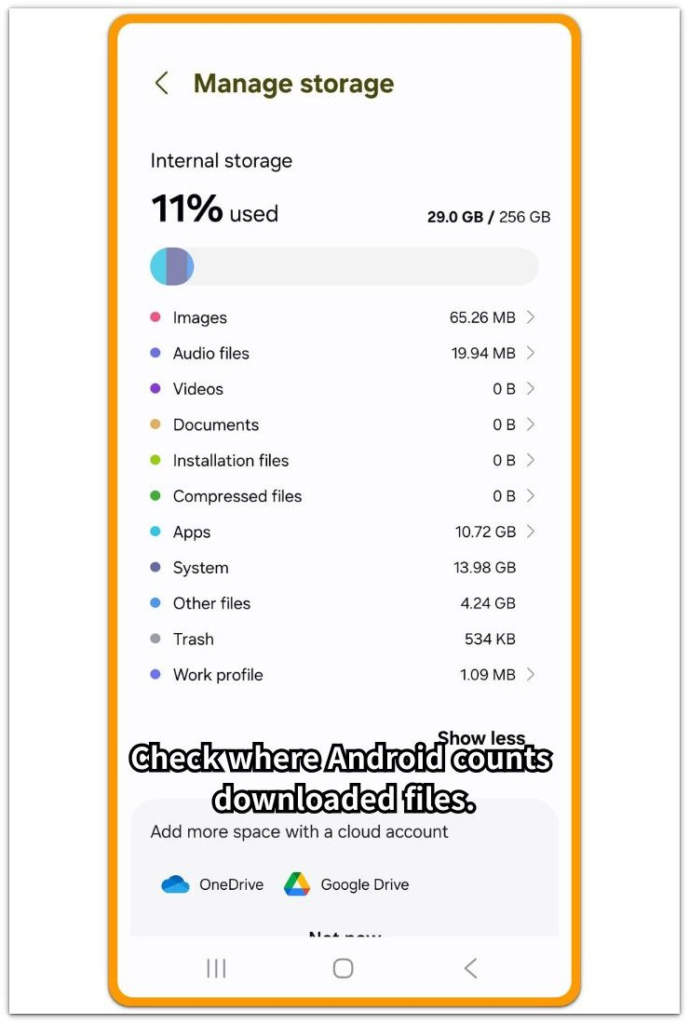
Start by writing down the number shown on the storage screen before changing anything, instead of deleting random apps or clearing app data.
You need that number for the file manager check.
Step 2: Open the Folder Where Downloaded Files Should Appear
Open the file manager app on the phone and go to the Downloads folder first.
If the storage screen shows the space under Documents or Files, check that folder next.
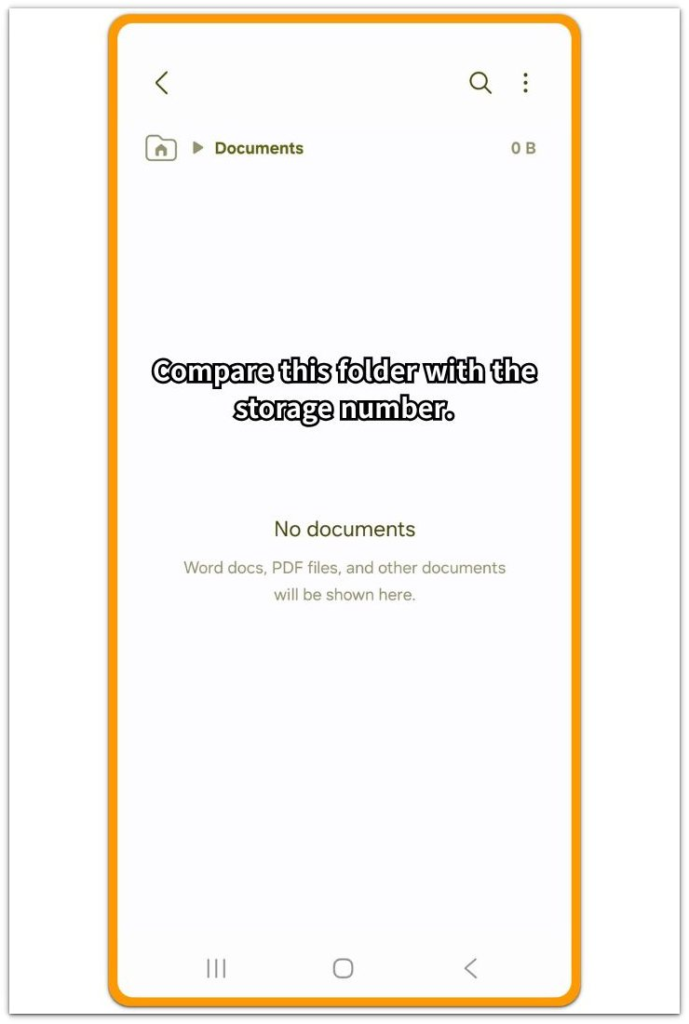
Look for large files, old PDFs, browser downloads, app downloads, transferred files, or items with incomplete names. The storage screen and file manager do not always use the same folder name, so an empty folder screen alone is not enough.
The key check is whether the storage number matches a visible file.
Step 3: Remove Leftover or Unfinished Download Files
Select only files that clearly match old, failed, or duplicate downloads, or items you no longer need. Delete those files from the folder, then return to the storage screen and check the Downloads or Documents number again.
Compare the new number with the number you wrote down earlier. A lower number means the storage was tied to files left inside the download location.
If the number does not change, stop deleting unrelated files. Move to troubleshooting and check another location or an app-managed folder.
Troubleshooting: Downloads Folder Android Storage
Troubleshooting 1: Downloads Folder Looks Empty but Storage Still Shows Space
Open the file manager again and return to Downloads. Check whether the folder is sorted by name, date, or size.
A file can be missed when the folder sort places the largest item lower on the list. Change the sort option to size if the file manager supports it, then look for old ZIP files, PDFs, videos, browser downloads, or files with unfamiliar names.
When a large file appears after sorting, remove only that file and check the storage screen again. If the folder still looks empty, stop deleting unrelated files and move to the next check to see whether the files appear under another folder name.
Troubleshooting 2: Downloads Are Counted Under Documents or Files
Return to the storage screen and check whether the space appears under Downloads, Documents, or another file category. The storage screen sometimes labels the same downloaded files differently from the file manager.
Open the folder name that matches the storage screen. For Documents, check Documents in the file manager. For Files, check the main file category before going back to Downloads.
Compare the visible files with the storage number you wrote down earlier. A match means the downloaded item is being counted under that file category instead of the visible Downloads folder.
Troubleshooting 3: The Number Does Not Drop After Deleting Files
Go back to the storage screen after deleting the files. Wait a short time before checking the number again because the storage total does not always update the moment a file is removed.
Close the storage screen, reopen it, and check the same number again. A lower number after reopening means the cleanup worked.
When the number stays the same, check whether the file manager has a Trash, Recently Deleted, or Recycle Bin folder. Delete the same files from that folder only if they are no longer needed, then check the storage total one more time.
Extra Section 1: When a Large Browser Download Stops Near the End
A large file starts downloading through Chrome or another browser. The download looks almost finished, but the connection drops, the browser closes, or the phone loses signal before the file fully saves.
The file does not appear as a normal ZIP, PDF, video, or installer in the Downloads folder, but the storage screen still shows space under Downloads because part of the file stayed behind.
Open the folder and check for files with unfinished names, strange extensions, or a size that looks too large for something you do not recognize. Remove only the file that matches the failed attempt, then reopen storage and see whether that space clears.
Extra Section 2: When the Same File Was Downloaded More Than Once
A user taps the same link more than once when the first file does not open, save, or finish correctly. Later, the Downloads folder can hold more than one copy of the same item, even though only one copy is needed.
The file names often look slightly different, such as report.pdf, report (1).pdf, or report copy.pdf, so the duplicates do not always stand out right away. The storage screen still counts each copy as Downloads storage.
Open the folder and sort it by name or size so similar files appear closer together. Compare the file title, file type, and file size before deleting anything.
Keep the newest or working copy, and remove only the older duplicates that clearly match the same file. Return to storage and confirm whether the duplicate copies were the cause.
Official Source: Files by Google Helps Manage Device Files
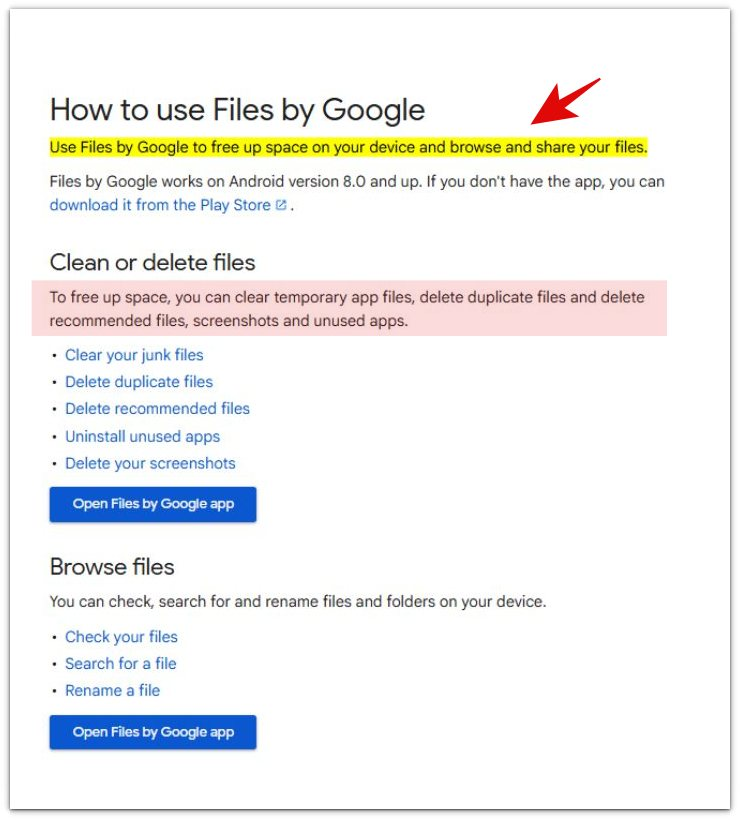
Google explains that Files by Google can help users free up space, browse files, and delete duplicate files from the device.
This supports the cleanup flow in this guide: check the file location first, remove clear leftovers or duplicates, and compare the storage number again.
Additional Tips
Files sometimes save outside the main Downloads folder. Check browser, messaging, cloud, or file transfer folders only if the main folder does not explain the number.
Clearing app data is too much for removing one downloaded file. Avoid deleting unknown files unless the name, date, and size clearly match the download.
Final Notes
Judge downloads folder android storage by the number on the storage screen, not by how empty the folder looks.
When cleanup lowers the number, the space was still tied to removable file data. If the number does not change after those checks, the issue is not a normal visible Downloads folder problem.
Move to the original source instead, such as the browser, messaging app, cloud app, or file transfer app.
Checklist
- Open the Downloads folder and check for unfinished files
- Remove only clear duplicate or incomplete files
- Check the storage screen again after deleting files
- Confirm whether the Downloads number decreases
- Check Trash or Recently Deleted if the number does not change
For more Android storage help, use the main guide to compare Downloads storage with other hidden space issues.