
Introduction
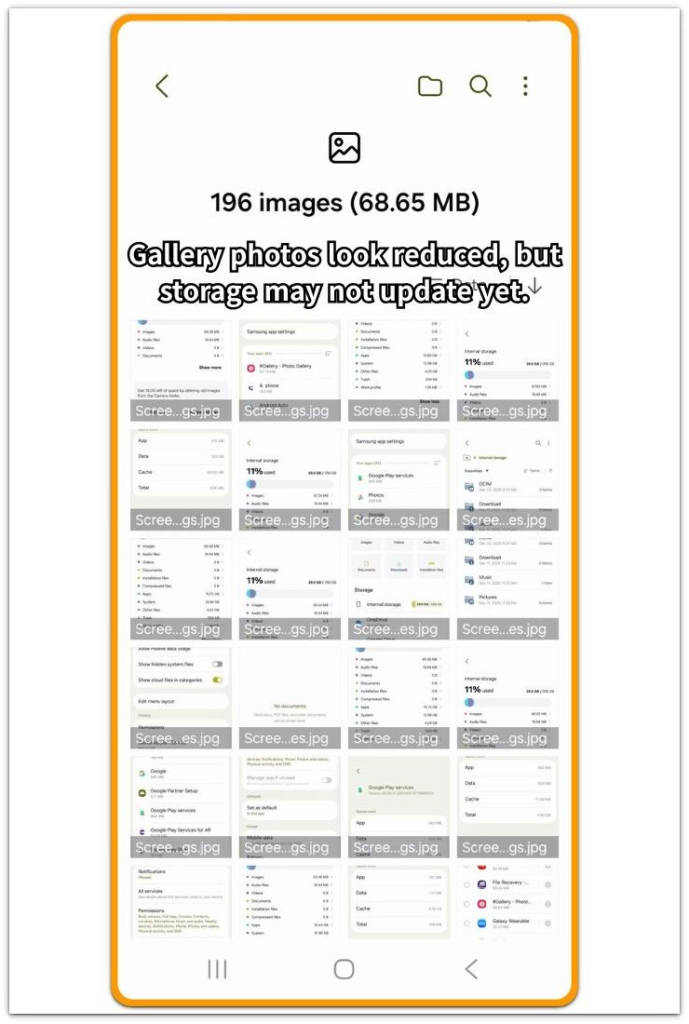
Android storage still full after deleting photos becomes noticeable when the storage number stays high after large photos or videos are removed. The gallery looks cleaner, but the Storage screen still shows almost no change.
The visible media is gone, but Android may still count that space somewhere else. Start by checking whether the Photos category actually dropped before deleting more files.
Step-by-Step Guide
Step 1: Check Whether the Photos Category Actually Dropped
Open Settings and go to Storage. Look at the Photos or Images category first, then compare that number with what you still see in the gallery.
The gallery can look cleaner while the Storage screen still shows the same used space. If the Photos category did not drop after deleting large photos or videos, Android has not cleared that space yet.
Step 2: Check Trash, Recently Deleted, and App Storage
Open the gallery app and check Trash, Recently Deleted, or any deleted-items folder. Photos and videos that stay there can still take up space.
Then go back to Storage and check whether any app still looks larger than expected. Some apps keep media inside their own storage even after the gallery looks clean.
Confirm whether the space is still tied to photos, trash, or an app that stores media separately before deleting more personal files.
Step 3: Refresh the Storage Reading Before Clearing More Data
Restart the phone once. After the restart, leave the phone idle for a few minutes before opening Storage again.
Then check whether the Photos category, app storage, or cache number changed. This gives Android time to update the storage count after media is deleted.
A storage number that finally drops points to a delayed storage reading. If the number stays high, move to the next checks before deleting more visible files.
Troubleshooting: Android Storage Still Full After Deleting Photos
Troubleshooting 1: The Photos Category Drops, but Total Storage Does Not
Check the Photos or Images category again after deletion. When that category drops but total storage still looks full, stop deleting more photos and check other places next, such as trash, app storage, cache, or downloaded media.
Open Storage and look at the largest categories. Compare the number that dropped with the number that stayed high.
When the Photos category goes down but Apps, System, or Other storage stays large, the remaining space is coming from outside the visible gallery.
Troubleshooting 2: Deleted Photos Still Remain in Trash
Open the gallery app and check Trash, Recently Deleted, or a similar folder. Some Android gallery apps keep deleted photos there before removing them fully, and large photos or videos inside that folder still count as stored data.
Empty the trash only after checking that you do not need those files back. Then return to Settings > Storage and check the number again.
A storage drop after emptying trash means the gallery app was still keeping those files.
Troubleshooting 3: An App Still Holds Photo Copies or Cached Media
Open Settings and go to Storage. Check whether one app is taking more space than expected.
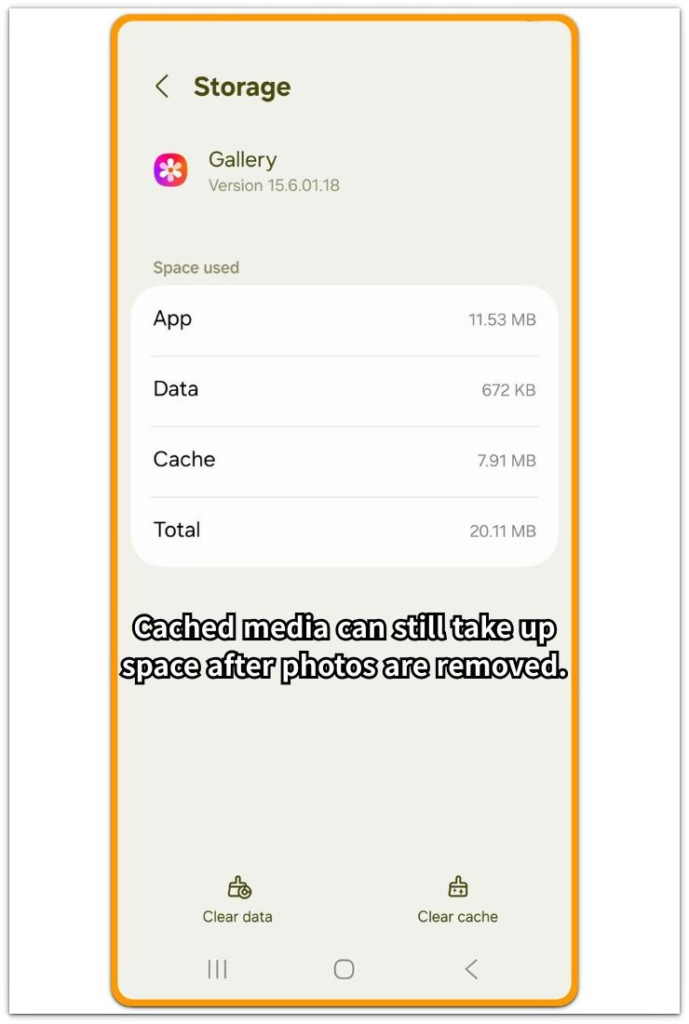
Messaging, cloud, social, editing, and download apps often keep media copies inside their own storage. Open the app storage screen and compare app size, user data, and cache.
Do not clear app data unless you know what it removes. Start with cache or in-app downloads when the app gives that option.
A smaller app size after that check points to media stored inside the app, not files left in the gallery.
Extra Section 1: When the Gallery Looks Cleaner but Storage Still Looks Full
A user deletes several large videos from the gallery, and the list immediately looks lighter. The largest items are gone, so it feels natural to expect the storage warning to ease up too.
But when the user opens Storage, the phone still looks almost full. That can make the cleanup feel pointless, even though the media disappeared from the visible list.
The mistake starts when the user goes back and removes more personal files. Stop there and check where the used space is still being counted.
Open Storage and check the Photos category before touching more files. When that category has dropped, the gallery cleanup already did its job. When it has not moved, the phone has not fully released that media space yet.
A cleaner gallery only proves the visible list changed, not that Android has cleared the storage.
Extra Section 2: When an App Keeps Photo Copies After the Gallery Cleanup
A user deletes items from the gallery after sharing them through a chat app. The gallery looks lighter, but the chat app still appears large in Storage.
That happens because copied media can stay in more than one place. The same photo or video can also exist inside a message thread, an editing project, a cloud folder, or an offline download area.
Deleting the gallery version does not always remove the copy saved inside that app. Open Storage and tap the app that still looks large.
Look for cache, downloaded media, saved files, or in-app storage options before clearing app data.
If the app size drops after removing those stored copies, the problem was not the gallery cleanup. The space stayed high because another app was still holding photo or video copies.
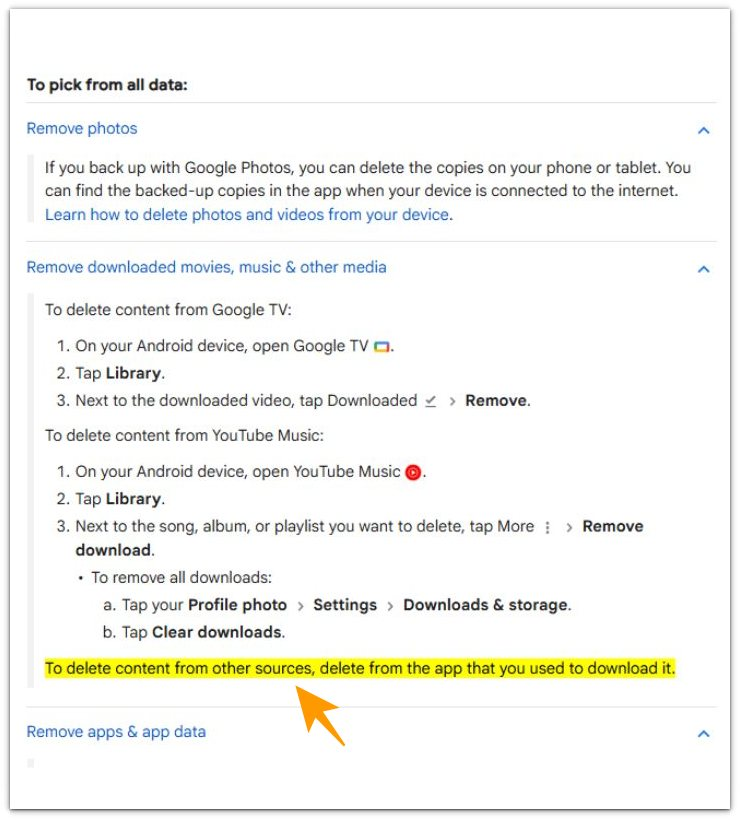
Official source title: Free up storage on your Android device
Android Help explains that content saved from other sources should be deleted inside the app that stored it. This supports the point that storage may stay high when media still exists inside another app.
Check the app that stored the media before deleting more files from the gallery.
Additional Tips
Wait a short idle period before checking Storage after deleting a large batch of media.
If the gallery is clean but Storage still looks full, stop deleting personal files and check Trash, app storage, cache, and downloaded media instead.
Avoid clearing app data first. Use cache or in-app download removal first when the app gives that option.
Final Notes
Android storage still full after deleting photos is not a gallery-only problem. Removing visible photos does not always mean Android has cleared the space.
Use the Storage screen as the stronger check. When the Photos category drops but total storage stays high, look outside the gallery.
Check app storage, cache, downloaded media, and Trash before removing anything else. The right fix is to follow where the storage number remains, not to keep removing visible photos.
Checklist
- Check whether the Photos category actually decreased in Settings > Storage
- Wait a short idle period, then reopen Storage
- Check whether the number changes after Android updates the reading
- Open Trash or Recently Deleted before deleting more files
- Check app storage, cache, and downloaded media when total storage stays high
If your phone still looks full after this check, use the main guide to find where the remaining storage is being held.