
Introduction
Android storage full after restore appears after the phone finishes the restore, but the Storage screen still shows less free space than expected. Apps, photos, or settings appear restored, yet old restored data still seems to be taking space on the phone.
Keep the first check tied to the restore result. Start with the Storage screen, compare what came back after the restore, then check whether old restore data is still holding space before deleting unrelated files.
Step-by-Step Guide: Android Storage Full After Restore
Step 1: Check Which Storage Category Stayed Large After the Restore
Open Settings, then Storage, and check the main storage categories first. Start with the area that still takes up the most space after the restore.
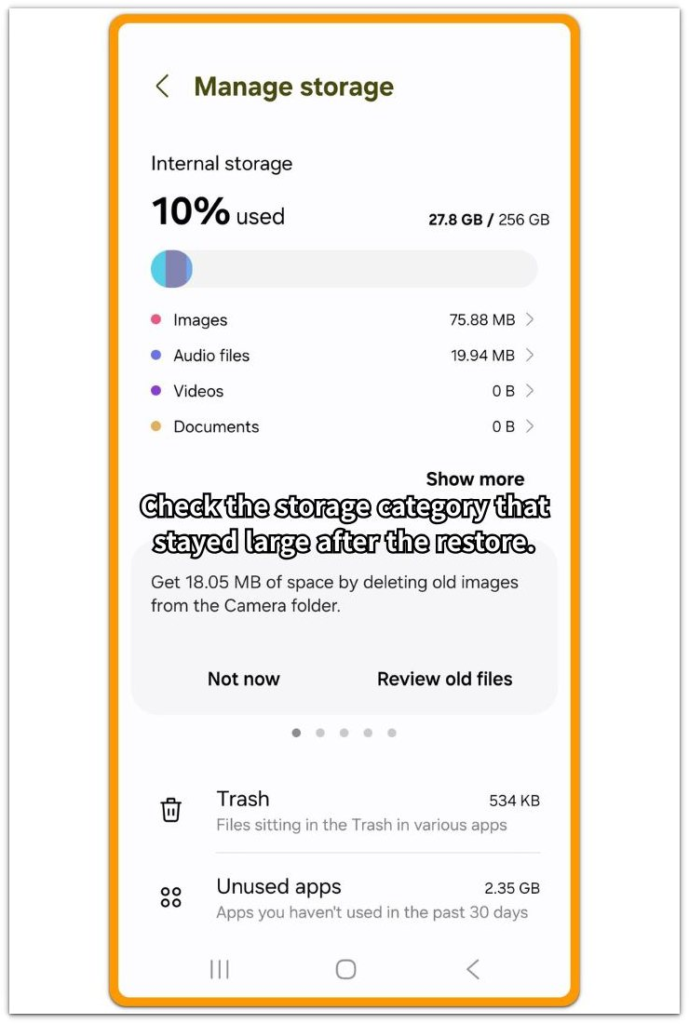
Compare that area with what returned during the restore. Apps, photos, videos, downloads, or documents should match something that came back to the phone.
Keep this first check on the Storage screen. The goal is to find which part still takes too much space before you delete unrelated personal files.
Step 2: Open the Largest Category and Check What Is Inside
Open the biggest section from the Storage screen. Look for app data, restored media, old downloads, or files that returned with the restore.
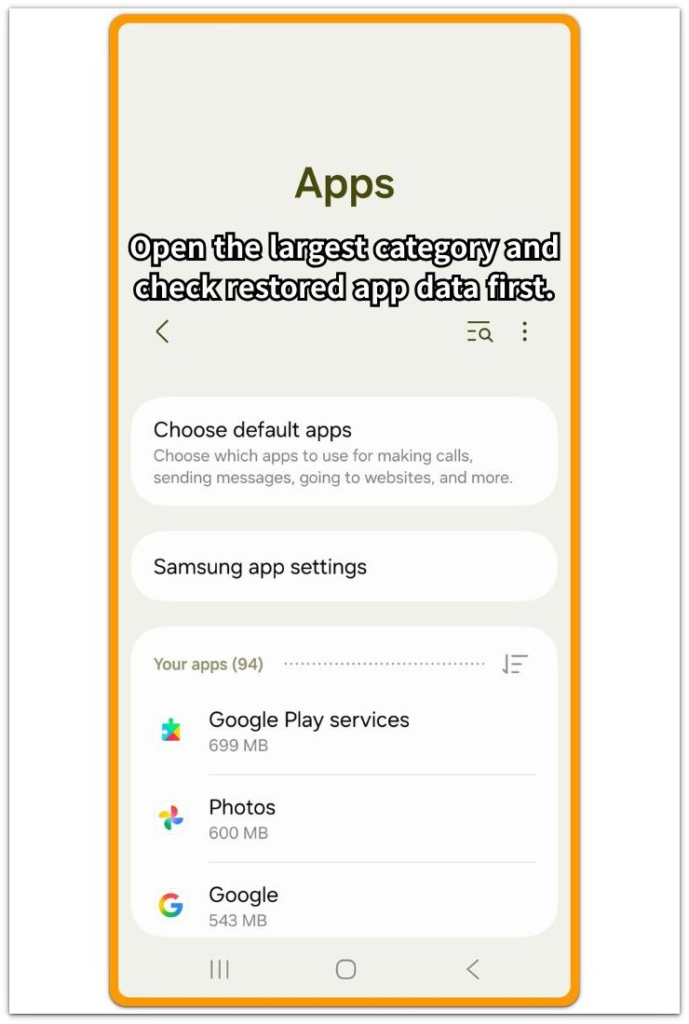
See whether the items inside explain the large number. A restored app with saved data, a photo folder, or a download folder gives a clearer target than the full storage bar.
Stay with one section at a time. Clear only items you recognize, then return to the Storage screen before moving to another area.
Step 3: Recheck Storage Before Deleting More Files
Go back to Settings, then Storage, and read the free space number again. Compare it with the number you saw before opening the large category.
See whether that category went down, stayed high, or moved space into another area. That comparison shows whether the cleanup changed the number.
Delete more personal files only after this comparison. When the storage number stays high, keep checking the restore-related section before starting a broad cleanup.
Troubleshooting
Troubleshooting 1: The Storage Number Does Not Change After Clearing a Restored Item
The Storage screen does not always update right after you remove one restored item. A deleted download, app cache, or media folder needs one more review before you decide that the cleanup failed.
Close Settings, reopen Storage, and check the same category again. Restart the phone only when the number still stays unchanged after removing the restored item. Then return to Storage and compare the free space one more time.
Troubleshooting 2: Android Storage Full After Restore and Large App Data
Restored apps often bring back saved data, offline files, or account content. The app icon appears normally, but the space inside the app stays much larger than expected after the restore.
Open Settings, then Apps, and open the restored app with the largest Storage number. Review that app’s storage details before uninstalling it. Clear only saved files or app data you recognize, then return to Storage and check whether the Apps section drops.
Troubleshooting 3: Photos or Videos Came Back Twice After the Restore
Photos and videos take extra room when the restore leaves the same media in more than one place. A gallery folder, cloud download, or transferred folder keeps using space even after the phone finishes the restore.
Open the photo or file app and look for duplicate albums, restored folders, or old transfer folders. Remove only the copy you clearly recognize, then check Storage again before deleting more personal media.
Extra Section 1: Restored Apps Brought Back Saved Data
A restore makes the phone feel finished because the app icons return first. The home screen feels normal, and restored apps open without showing a clear problem. The Storage screen tells a different story when the Apps section stays much larger than expected. The space often sits inside restored data, not in the install itself.
This is easier to notice with apps that save content for offline use. A restored streaming service, map tool, or chat app brings back more than its icon. Saved videos, offline maps, message files, account data, or old downloads also return with that restored content.
Storage details matter more than the home screen icon. Open the large app from Settings, then Apps, and review its storage use before deleting personal photos or videos. Once one restored app explains the Apps number, keep the cleanup there first. This keeps the check tied to the restore result instead of turning the problem into a random storage cleanup.
Extra Section 2: Old Download Folders Returned With the Restore
A restore also brings back old folders that seem unimportant at first. The phone appears newly restored, but the Files or Documents section still stays large in Storage. Old downloads, copied folders, or transfer files return with the restore and make the number seem wrong.
These files do not always seem new, so the restored folder is easy to miss. A folder from an old phone transfer, a saved document batch, or a download folder from before the reset often stays in the file app after the restore. Many people do not remember adding those files again, so the Storage number feels wrong.
Start with the file app before deleting personal photos or videos. Open Files, My Files, or Downloads and check for restored folders tied to the old setup. Keep the files you still need, remove only the old folder you clearly recognize, then return to Storage and compare the number again.
Official Source: Android Storage Shows Apps, Media, and Files Separately
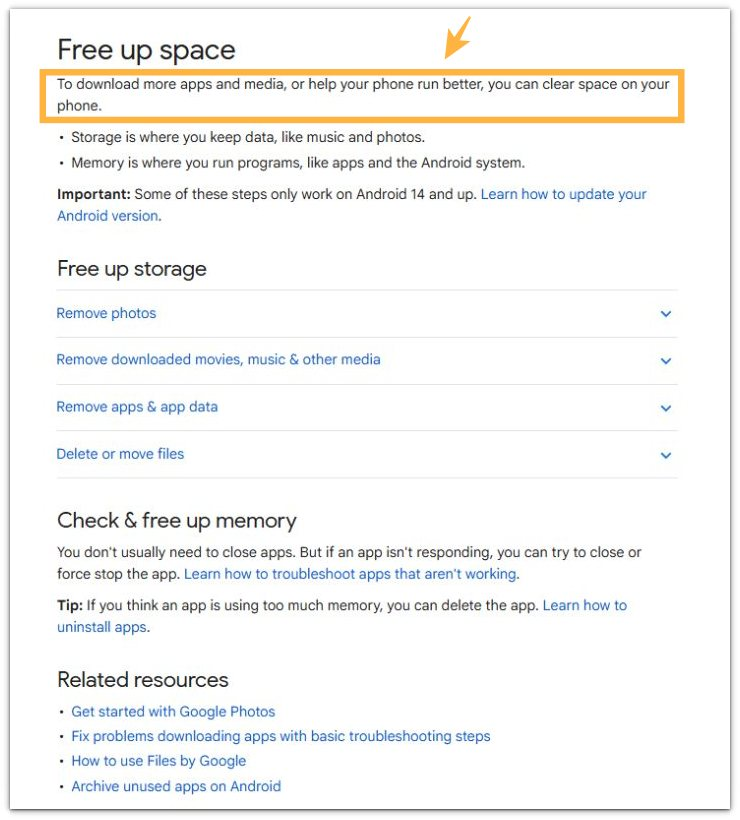
Google explains that Android storage includes data such as music and photos. Its cleanup sections also separate photos, downloaded media, apps and app data, and files. This supports the method in this article because a restore brings back different kinds of stored data. Review the Storage screen by category instead of treating the full storage bar as one single problem.
Additional Tips
Clear one restored category at a time and check Storage again before moving to another area. A single change gives a cleaner result than removing apps, files, and media together.
Keep the phone on power when the restore still seems active. For cloud apps, check offline copies inside the app before deleting local photos from the main gallery.
Final Notes
Fix Android storage full after restore from the restore result, not from random file deletion. The Storage screen already separates apps, media, downloads, and files, so start with the category that stayed large.
Open that category, check what came back with the restore, and remove only items you clearly recognize. When the restored category drops and the free space number updates, you have confirmed leftover restored data, not a general storage cleanup problem.
Checklist
- Check the Storage screen after the restore finishes.
- Find the category that stayed large after the restore.
- Open that category before deleting unrelated files.
- Clear only restored items you clearly recognize.
- Move to the remaining large section when the first cleanup does not change Storage.
- Return to Storage and compare the free space number again.
Use the main Android storage guide when the restored category still does not explain the missing space.