
Introduction
Android storage not updating after clearing cache becomes noticeable when the storage number stays the same right after clearing app cache.
The app cache looks removed, but the main Storage screen still shows the old number. This makes the cleanup feel like it did not work, even when the cache screen already changed.
Before deleting more files, focus on the number that stayed stuck after the cache cleanup. Start by checking whether the app’s cache number changed while the total storage number still stayed the same.
Step-by-Step Guide
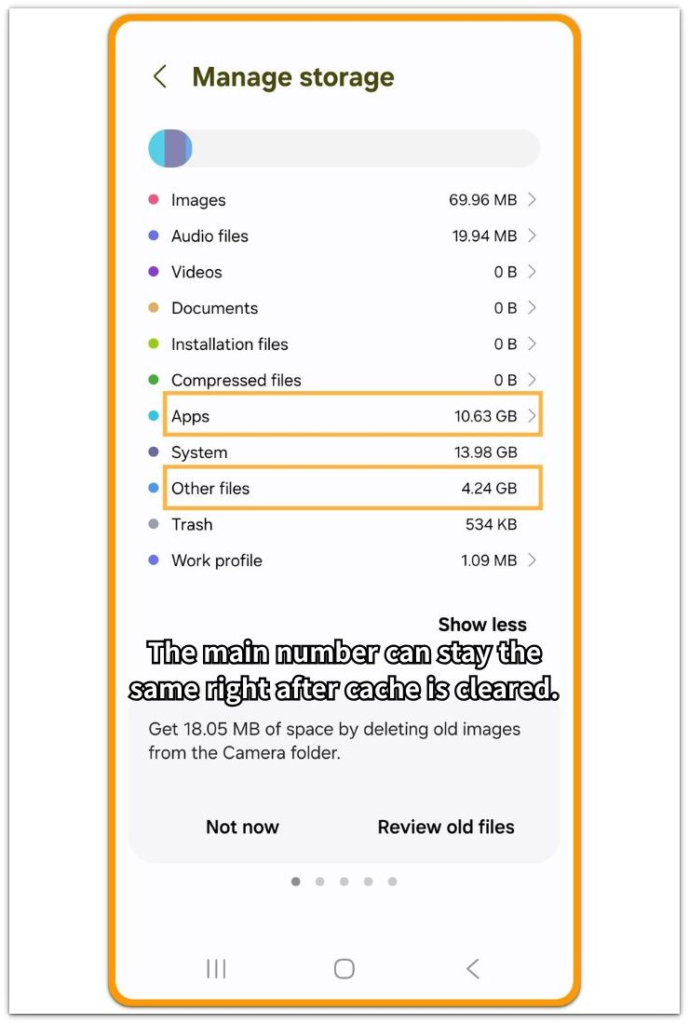
Step 1: Check Whether the Total Storage Number Stayed the Same
Open Settings and go to Storage. Look at the total used storage number before opening any cleaner or removing more files.
Compare that number with the value you saw after clearing cache. For android storage not updating after clearing cache, the first clue is whether the same number still looks unchanged on the main screen.
This keeps the check focused on the stuck storage value instead of unrelated files that were never part of the cache cleanup.
Step 2: Confirm That the App Cache Was Actually Cleared
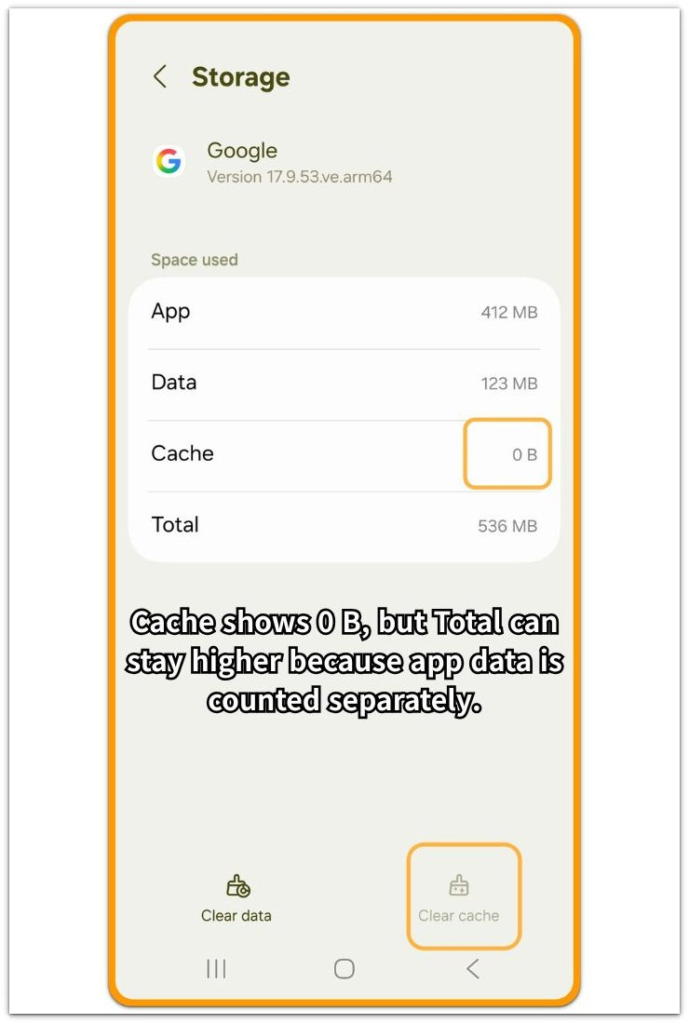
Open Settings, go to Apps, and select the app where you cleared cache. Open its Storage screen and check the Cache line.
The cache value should show a smaller number or 0 B after cleanup. Compare that line with the Total value on the same app screen. Cache can be cleared while the total storage number still looks higher than expected.
This step separates a cache cleanup that did not happen from a Storage screen that has not refreshed the final number yet.
Step 3: Refresh the Storage Count Before Removing More Files
Return to the main Storage screen and wait for the categories to load again. Scroll through the categories once, then close the page and open it again.
Check whether the total number changes after the screen reloads. A delayed update is easier to catch when the app cache value already changed, but the main Storage screen still shows the old total.
Keep photos, videos, downloads, and app data unchanged during this check. The goal is to confirm whether Android is still showing an old storage value after the cache was already cleared.
Troubleshooting: Android Storage Not Updating After Clearing Cache
Troubleshooting 1: Cache Shows 0 B but the Total Number Still Looks High
Open the app’s Storage screen again and check the Cache line first. When Cache shows 0 B or a much smaller number, the cache cleanup worked at the app level.
Now compare that line with the Total value on the same screen. Total includes more than cache, so app data, saved files, offline content, account data, or message media can still remain after cache is cleared.
A high Total value after cache cleanup usually points to storage outside the Cache line. Check the app’s own downloads, media, or offline content area before clearing app data.
Troubleshooting 2: Main Storage Screen Still Shows the Old Number After Cache Clears
Return to the main Storage screen after confirming that the app cache changed. Wait for the categories to load, then close the Storage screen and open it again.
The main storage number sometimes refreshes later than the app cache value. A short delay can make the total storage value look stuck even after the app screen already shows a smaller cache number.
Use the app Storage screen as the first comparison point. When the cache value changed there, check whether the main Storage screen updates after reopening the page or restarting the phone.
Troubleshooting 3: Storage Still Does Not Change Because Another Category Holds the Space
When the cache value changed and the Storage screen still stays the same after a refresh, check the largest storage categories again. Look at Apps, Images, Videos, Downloads, Trash, and System.
A cache cleanup only removes temporary cache from the selected app. The total storage number stays almost the same when the real space still sits inside app data, saved downloads, message media, offline videos, or deleted items waiting in Trash.
Treat the issue as a storage-location problem once the cache line already changed. Find the category or app that still holds the space, then remove content from that exact place instead of repeating the same cache cleanup.
Extra Section 1: When the App Screen and Main Storage Screen Did Not Match
A user clears cache from one large app and checks that app’s storage details right away. The Cache line now shows 0 B, so the app-level cleanup already happened.
The confusion starts after returning to the main Storage screen. The total used space still looks the same, so the cleanup feels like it failed. These two screens do not show the same detail at the same moment. The app screen shows the cache result first, while the main screen shows the broader total across apps, data, system space, and categories.
The app screen matters more here because it shows whether the cache cleanup actually happened. When the Cache line already dropped, the user should not repeat the same cache cleanup right away. A better move is to compare what still remains in Total, Data, downloads, saved media, or another storage category.
When the main number changes later, the cache cleanup was not the problem. The user trusted the main Storage total too early without checking what that total still included.
Extra Section 2: When Cache Was Too Small to Change the Total
A user clears cache from a large-looking app because the phone is still low on storage. After the cleanup, the Cache line drops, but the change is only a small amount.
The main Storage screen still looks almost the same because most of the space was not in Cache. The app can look large because of saved media, offline files, account data, or message content instead.
Repeating the same cache cleanup usually changes very little. Open the app’s Storage screen again and compare Cache with Data or Total. Then check inside the app for downloads, saved videos, old attachments, or offline content.
When one of those larger areas is removed, the total storage number usually drops. This keeps the fix focused on the part of the app that actually held the space, not on a small cache number.
Official Source: Google Android Help on Clearing Cache
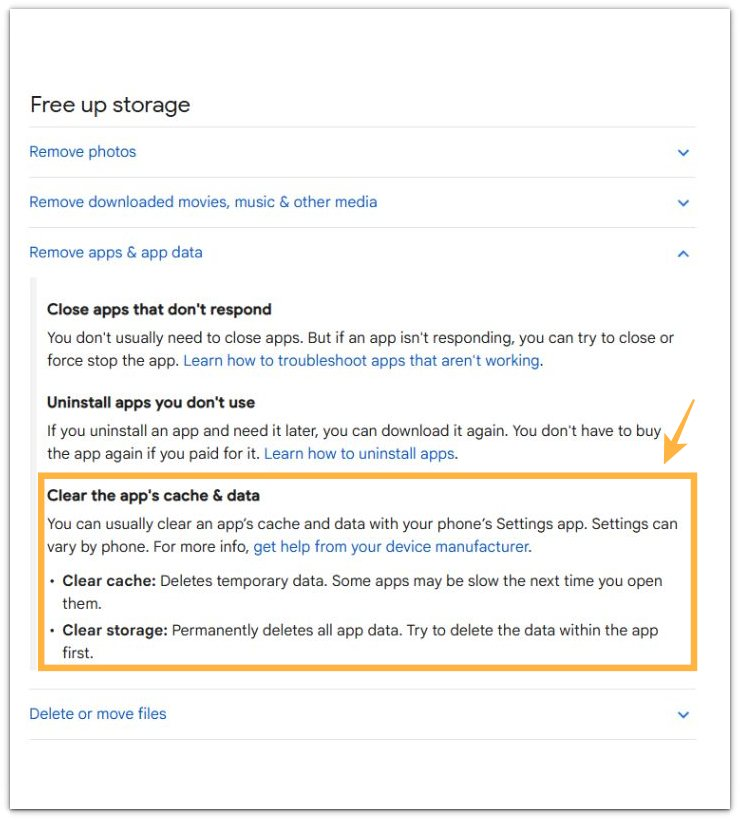
Google Android Help says, “Clear cache: Deletes temporary data.”
Cache is only one part of app storage. If the total storage number stays high after clearing cache, the remaining space is often inside app data, saved media, downloads, or offline content.
Check the remaining storage source before clearing app data, because that option removes more than temporary cache.
Additional Tips
A restart is useful after the app Cache line has already changed, but the main Storage screen still shows the old total. Restart once, then compare the same app again.
Some apps rebuild a small cache after normal use. A tiny number returning later does not mean the cleanup failed.
Cache cleanup will not move much storage when Data, saved media, or offline downloads are the larger part of the app.
Final Notes
Android storage not updating after clearing cache starts with the app’s Cache line, not the main Storage number. When that number drops, the cache cleanup worked.
If the main Storage number still stays high, the issue is no longer the same cache. The remaining space is either still being counted on the main Storage screen or sitting in Data, saved downloads, offline media, Trash, or another large category.
The right fix is to stop repeating cache cleanup and follow the number that still holds the space.
Checklist
- Open the app Storage screen before judging the main Storage number.
- Check whether the Cache line actually dropped.
- Reload the main Storage screen after clearing cache.
- Restart once if the old total still appears.
- Compare Cache, Data, and Total inside the same app.
- Check saved downloads, offline media, message files, or Trash if the number stays high.
- Avoid repeating cache cleanup when the Cache line already changed.
For a broader cleanup path, check the main Android storage guide before deleting more files.