
Introduction
Android log files taking up storage becomes noticeable when system space keeps growing, but downloads, photos, and videos do not explain the increase. The phone looks normal in daily use, yet the same space keeps rising in the system area.
This is different from a visible file problem because the space does not always appear clearly inside the file manager. Start by checking whether the increase appears under the system area before deleting personal files.
The first check is whether the increase started after a system event, not whether one large personal file is hiding somewhere.
Step-by-Step Guide
Step 1: Android Log Files Taking Up Storage: Check the System Storage Section
Open Settings and go to the device storage screen. Check the storage overview before opening the file manager.
Look for system-related categories, such as System, Other files, or a similar storage section. If one of those categories looks larger than expected, write down that number first.
Leave photos, videos, downloads, and app data alone for now. First, confirm whether the increase appears in a system section instead of a visible user folder.
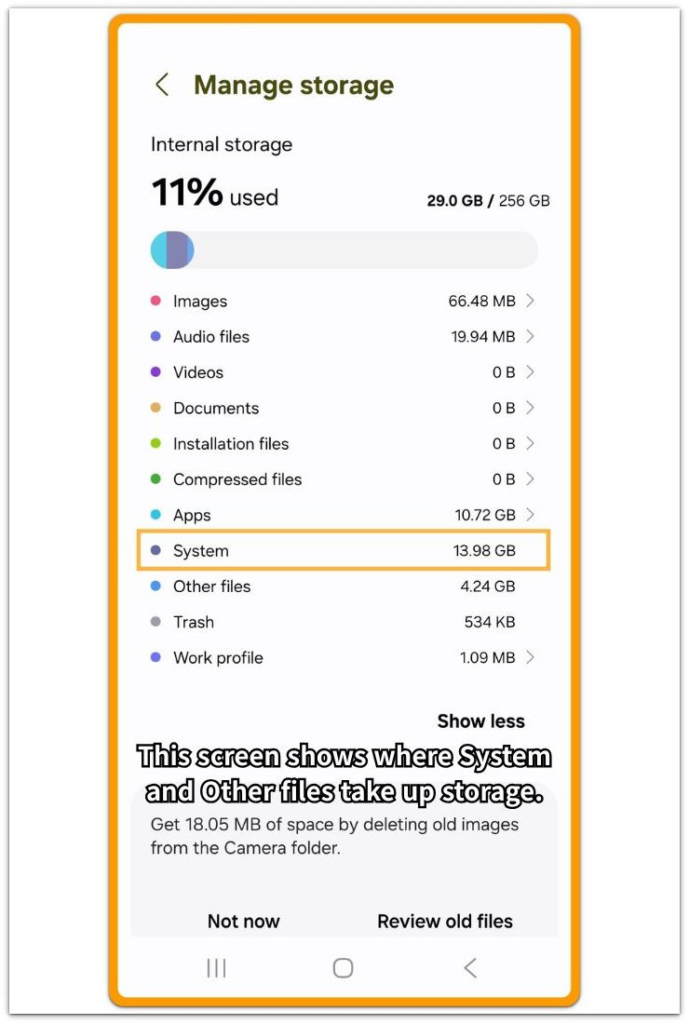
Step 2: Check Whether Recent System Activity Matches the Increase
Stay on that screen and think about what happened before the number increased. Check whether the phone recently updated, crashed, restarted several times, or showed repeated app errors.
Also check whether the increase appeared after heavy background activity, such as setup, restore, or repeated syncing. The timing matters more than one number by itself.
If system storage increased after those events, keep that pattern in mind before clearing anything. Use the recent system activity as the clue before moving to the file manager.
Step 3: Verify That Visible Files Do Not Explain the Increase
Open the file manager and check Internal storage. Review common folders first, such as Downloads, DCIM, Music, Pictures, and Documents.
Look for large files, duplicate downloads, saved videos, or files that were recently added.
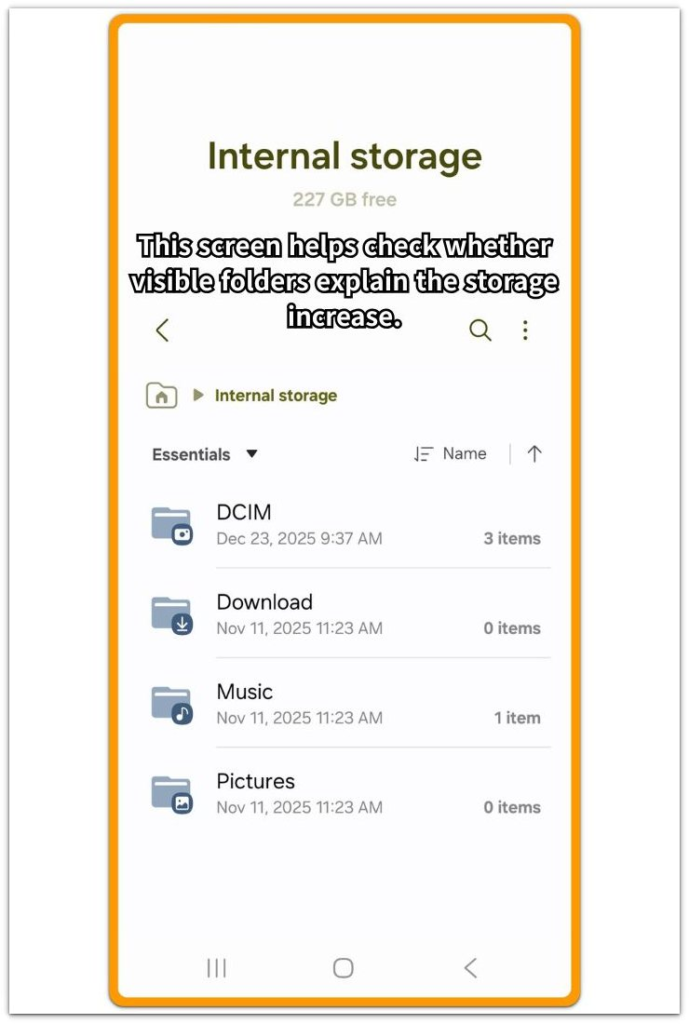
When those folders explain the storage increase, handle the visible file problem first. If the folders look normal but the system-related number stays high, continue with log-related checks instead of deleting personal files.
The goal is to separate visible files from system-generated data before making larger changes.
Troubleshooting: Android Log Files Taking Up Storage
Troubleshooting 1: System Storage Keeps Rising After a Recent Update
A recent Android update sometimes leaves the storage screen looking strange for a while. The update finishes, the phone restarts, and normal apps open without a problem. Still, the system number sometimes stays higher than expected.
Avoid judging the issue from the first storage screen you see after the update. Restart the phone once more and leave it locked for a quiet period. Then open the storage screen again and compare it with the number you wrote down earlier.
A number that stops growing after the phone settles usually belongs to the update window. Continued growth after normal use resumes needs a different check, such as repeated errors or background activity.
Troubleshooting 2: One App Keeps Crashing Before Storage Increases
Repeated app crashes often make the log problem look like a storage problem. The app opens, freezes, closes, and then works again later, so the problem does not always look serious.
Check whether one app has been crashing, showing error messages, or closing by itself before the increase. Leave whole-phone cleanup alone just because system storage looks high. Update that app first.
When the problem starts after installing or updating the app, remove it temporarily and check the storage number again after normal use. Growth that stops after the unstable app is fixed or removed points to repeated app errors as part of the problem.
Troubleshooting 3: Storage Rises Even Though Personal Folders Look Clean
This case feels confusing because the file manager does not show a clear target. Downloads look normal, photos and videos do not explain the increase, and large apps are not the obvious cause.
When this happens, stop deleting personal files one folder at a time. Go back to the storage screen and compare the number again after a restart and a short idle period.
Visible folders that stay clean while system storage remains high point away from normal file cleanup. Focus next on recent crashes, update activity, backup, or sync activity instead of removing more personal files.
Extra Section 1: When a Storage Cleaner Does Not Lower the Number
A user runs the built-in storage cleaner because the phone says storage is getting tight. The cleaner removes cached items, old downloads, and a few unused files. The file cleanup looks successful, but the number barely changes.
This feels confusing because a normal cleanup handles visible or removable items, not every system-controlled record behind that number. The user thinks the cleanup failed, but it only checked a different type of storage.
System log data does not always sit in the same place as photos, downloads, or app cache. The cleanup result and that number do not always move together.
Running the cleaner again is not the best next step. Watch it after cleanup and see whether it keeps rising during normal use.
Extra Section 2: When the Storage Screen Changes but the File Manager Looks the Same
A user opens the storage screen and sees the number move higher than before. Then the user opens the file manager to find the large file causing it. The folders look almost the same, downloads do not show anything new, and photos and videos do not explain the change.
The increase looks strange because the two screens are not showing the same type of space. The file manager shows visible folders and user files, while the storage screen also counts system-controlled data that does not appear as a normal file.
System log data fits into that hidden side of storage. The file manager is still useful, but it cannot explain every system-related storage change.
When the storage screen changes but the file manager does not, use that screen as the stronger clue for system-generated data.
Official Source: Android Logging Structure
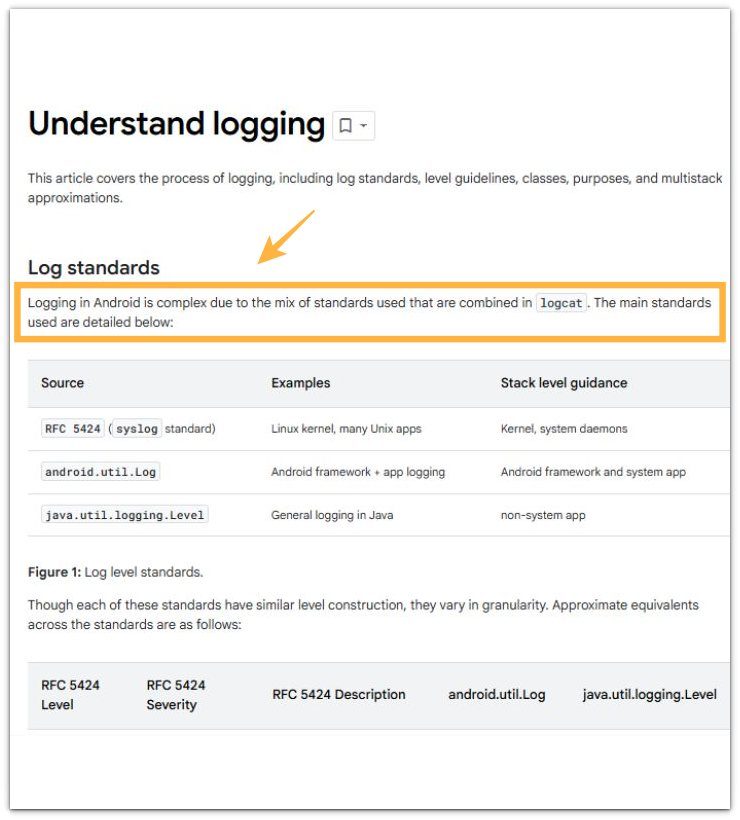
Google’s Android Open Source Project documentation explains that Android keeps different types of logs, including logs from the Android system and system apps.
This does not mean every storage increase comes from logs, but it explains why some system records may not appear as normal files.
Additional Tips
Most system logs are not visible inside normal user folders. File managers usually show only folders the user can open, such as downloads, images, documents, and media folders.
Log records often appear under system storage instead of inside a normal folder. A restart sometimes helps when the increase came from temporary records after an update, crash, or setup process.
Running storage cleaners again will not help if the number does not change. Check whether the same number keeps rising after normal use resumes.
Final Notes
Android log files taking up storage should not be handled like a normal file cleanup problem. If personal folders stay clean, stop deleting personal files.
The real clue is whether the same number keeps growing after crashes, updates, setup, or repeated background activity. Fix the cause that keeps creating those records first.
Then restart the phone and check storage again. When the increase stops, it was tied to recent system activity. Continued growth means the phone is still creating internal records, not hiding a large normal file.
Checklist
- Confirm whether system storage increased while visible user folders stayed small
- Check whether a recent update, crash, restart, or app error happened before the increase
- Restart the device once and check whether the number changes
- Stop deleting personal files when visible folders do not explain the increase
If this does not look like a log-related issue, check the main guide and compare it with other Android storage problems.