
Introduction
Android Storage Full Secure Folder appears when the phone still shows low free space after you already cleared ordinary files from the main storage area. The Storage screen looks smaller than expected because Secure Folder keeps its own files and apps separate from regular phone storage.
A normal cleanup does not show everything inside Secure Folder. Start the check with Secure Folder itself, not another round of deleting files from the main phone area.
Step-by-Step Guide: Android Storage Full Secure Folder
Step 1: Check the Main Storage Screen First
Open Settings, then Storage, and check how much free space the phone shows after the ordinary cleanup. Start here because the phone still looks full after you remove files outside Secure Folder.
Look at the largest storage category first, but do not delete more items yet. This step only confirms whether the phone still shows low free space before Secure Folder becomes the next place to check.
Step 2: Open Secure Folder and Check What It Keeps Inside
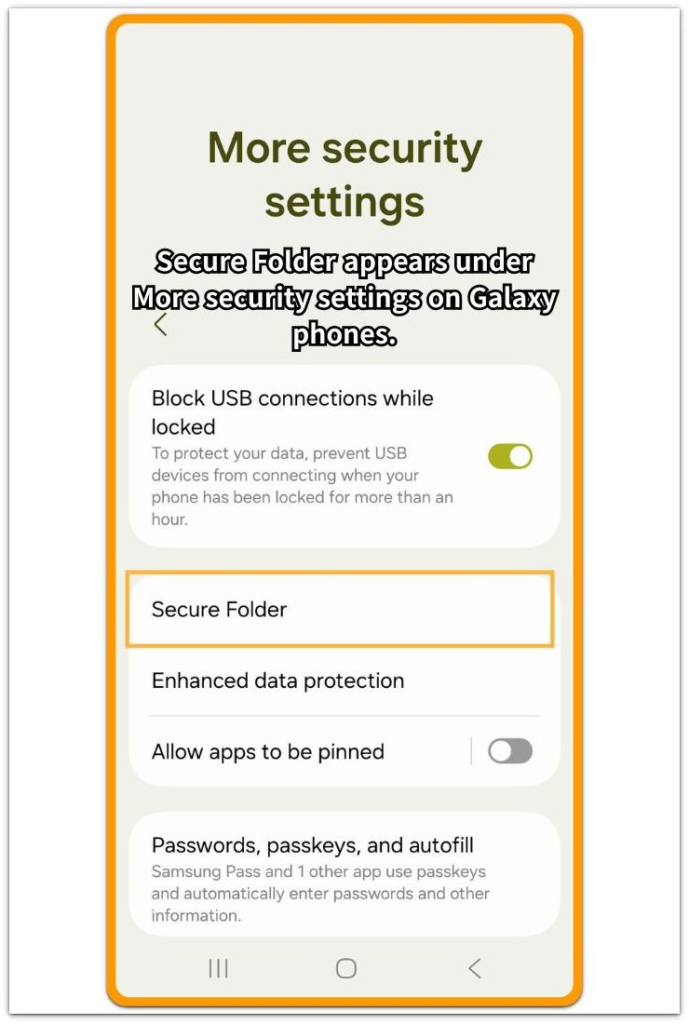
Open Secure Folder and review what it actually keeps there. Check for files, media, or apps that still take up space inside the folder.
Keep this check inside Secure Folder instead of returning to regular storage right away. The goal is to see whether the remaining storage problem comes from the separate Secure Folder area.
Step 3: Compare Secure Folder With the Cleanup You Already Made
Return to Storage after checking Secure Folder. Check whether the free space changed after the Secure Folder cleanup and compare it with the cleanup you already made in the main phone area.
When the storage number still stays low after the regular cleanup, review Secure Folder and focus only on items you recognize, such as copied photos, saved documents, or apps stored inside the folder.
Troubleshooting
Troubleshooting 1: Secure Folder Does Not Show a Clear Storage Number
Secure Folder does not always show one simple storage number like the main Storage screen. The phone shows low free space, while the private area shows the files, apps, or saved items stored inside it.
Open Secure Folder and start with the largest visible areas, such as My Files, Gallery, or installed apps. Use those visible items as the next clue when the Storage screen alone does not explain the low number.
Troubleshooting 2: Android Storage Full Secure Folder Still Looks Low After Cleanup
The Storage screen does not always refresh right after you remove one item from Secure Folder. A deleted file, copied photo, or private app needs a fresh Storage screen check before the result becomes clear.
Close Secure Folder, reopen Settings, then Storage, and look at the free space again. Restart the phone only when the number still looks unchanged after you remove the Secure Folder item. Then return to Storage and compare the updated number with the space you removed.
Troubleshooting 3: Secure Folder Apps Still Take Up Space
Apps inside Secure Folder keep their own saved data separate from the same app outside Secure Folder. A chat app, browser, cloud app, or media app in that private area still holds downloads, cache, or account files even when the regular app area looks clean.
Open Secure Folder, then check the app that looks largest or has stored files inside it. Remove only saved files or app data you recognize. Return to Storage afterward and confirm whether the free space changes. Keep the next cleanup tied to the private app instead of moving back to random files in regular storage.
Extra Section 1: Hidden Photos and Files Stayed Inside Secure Folder
A phone looks clear after you remove items from the regular Gallery, Downloads, or My Files area. The Storage screen still feels wrong when free space stays low, because Secure Folder keeps its own files away from the main storage area.
This matters most when you copy private files into Secure Folder. The regular Gallery looks smaller, and the main Downloads folder shows little left, but the protected area still holds saved photos, PDFs, screenshots, or downloaded documents.
Open Secure Folder, then check Gallery and My Files inside it. This keeps the next cleanup tied to that separate area instead of turning the problem into another random storage check.
Extra Section 2: A Secure Folder App Kept Its Own Saved Data
An app inside Secure Folder keeps its own saved data apart from the same app in the regular phone area. The main app looks small after cleanup, but the private version still holds downloads, account files, browser data, or saved media inside that separate space.
This happens often with chat apps, browsers, cloud apps, and media apps. Clearing the main app does not remove private app data stored inside Secure Folder, so the phone still shows low free space.
Open Secure Folder and check the apps installed there. Start with the one that stores downloads, messages, offline files, or saved account content, then remove only the files you recognize.
Official Source: Samsung Secure Folder Stores Files, Apps, and Data Separately
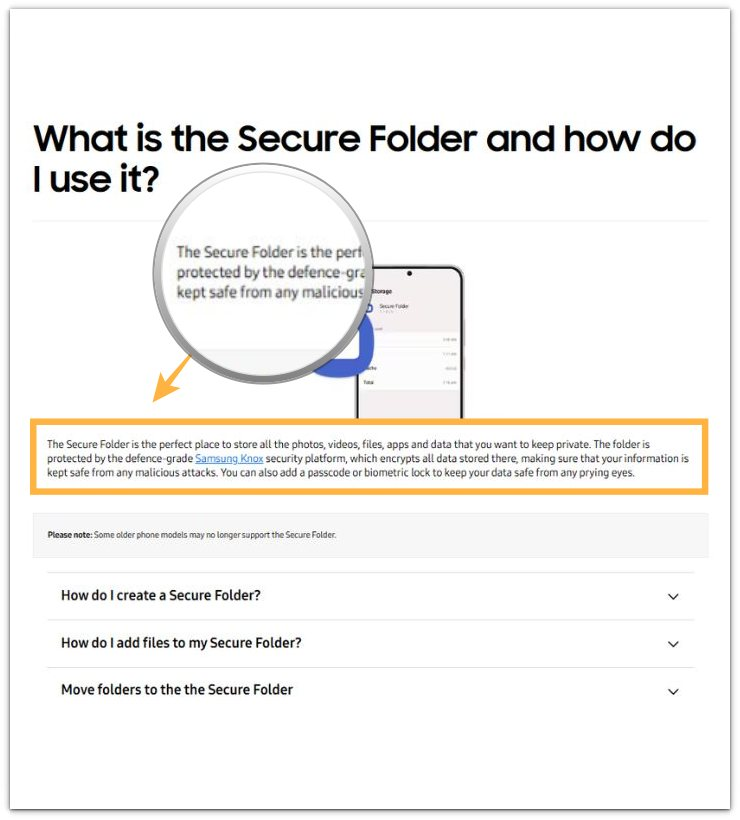
Samsung explains that Secure Folder is a protected place for photos, videos, files, apps, and data that users want to keep private. For this storage issue, that matters because regular cleanup does not always cover what still remains there.
Additional Tips
Check Secure Folder after the regular Gallery cleanup because a private copy, browser, chat app, or media app inside Secure Folder often explains the low space better than another main Gallery cleanup.
Restart the phone only after you remove a clear Secure Folder item. The restart should refresh the Storage reading, not replace the Secure Folder check.
Final Notes
Android Storage Full Secure Folder is not a normal cleanup issue. Secure Folder keeps private files, apps, and saved data in a separate area, so the main Storage screen still shows low free space after you remove ordinary files.
The right move is to stop deleting random photos, videos, or downloads from the main phone area. Check Secure Folder directly, remove only items you recognize, and return to Storage to confirm whether the number changes.
Checklist
- Check the main Storage screen after the regular cleanup.
- Open Secure Folder when the Storage number still looks low.
- Check Gallery and My Files inside Secure Folder.
- Review Secure Folder apps only when files do not explain the low space.
- Remove only Secure Folder items you recognize.
- Return to Storage and confirm whether the free space changes.
For a broader storage check, read the main Android storage guide and compare it with the Secure Folder steps here.