
Introduction
Google Play services storage keeps growing when the service cache comes back after a normal cleanup. It is not a normal app you open often, so the size feels confusing.
The space does not show as photos, videos, downloads, or files you can find in the file manager. Some of it can sit inside service data that Android uses for sync, app requests, and background system tasks.
Start from the storage screen instead of the file manager. Check whether the size looks like a small temporary cache or whether it keeps growing after normal cleanup.
Step-by-Step Guide
Step 1: Check How Much Space Google Play services Is Using
Open Settings, select Apps, then scroll down and tap Google Play services.
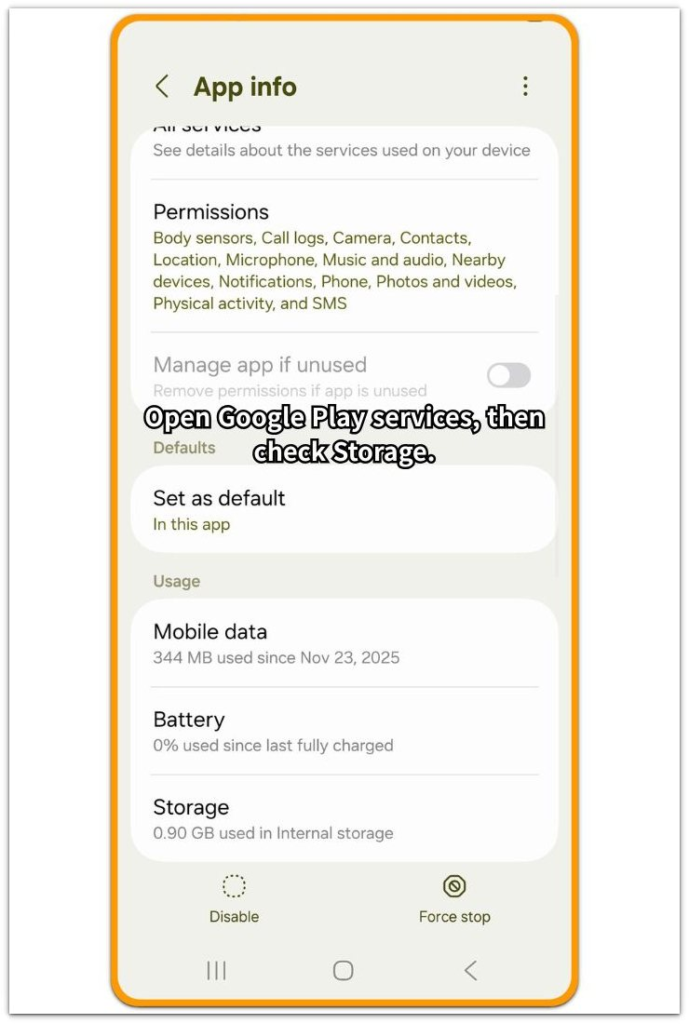
Use this screen to confirm that Google Play services is the item showing storage use, then tap Storage and check the number before clearing anything.
This matters because the space usually appears as system service storage, not as a file in the file manager.
Write down the current size or take a screenshot so you can compare it again after clearing cache.
Step 2: Compare App, Data, Cache, and Total
On the same storage screen, look at App, Data, Cache, and Total separately instead of judging the problem from the total number only.
The App size belongs to the service itself, while Data often includes service records used for Android sync, background app requests, and system communication.
Cache is the safest temporary storage to check first. If Cache is small but Total still looks large, the storage is not only a simple cache problem.
This comparison shows whether removable cache is the main issue or whether most of the space sits in service data.
Step 3: Clear Temporary Cache Assigned to Google Play services
Stay on the Google Play services storage screen.
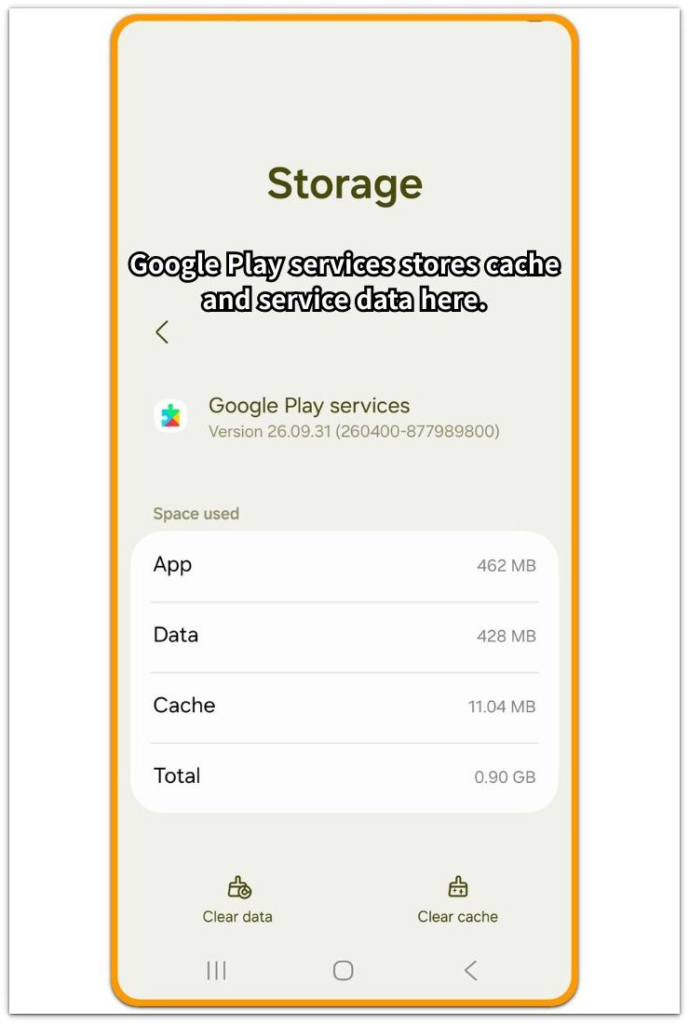
Tap Clear cache, but leave Clear data alone unless you understand what the phone removes from that service. Cache removes temporary files created while Android and apps use the service in the background.
Return to the same screen and check the size again. A lower number means the issue was mostly temporary cache.
If the number stays high or grows again later, the space is more likely coming from service data rather than visible files. That result gives you a better direction before deleting personal photos, videos, downloads, or unrelated apps.
Troubleshooting: Google Play services storage keeps growing
Troubleshooting 1: Cache Drops Once, Then Returns During Normal Use
The size can look smaller right after you clear cache, then return after the phone has been used again. That does not mean the cache button failed.
Google Play services keeps supporting account sync, notifications, maps, app connections, and other background services, so check the storage page again after a normal use period instead of clearing cache again immediately.
When only Cache rises and Total stays in the same range, the phone is rebuilding temporary service cache. If Total keeps climbing each time you check, treat it as a storage pattern that needs another review.
Troubleshooting 2: Total Looks Large, but Cache Looks Small
A large Total does not always mean the removable cache is large. Open the same storage page and compare App, Data, Cache, and Total.
If Cache is small, clearing cache will not remove much space, so look at Data and Total instead. This usually means the space is tied to service data that Android uses behind normal apps.
Stop clearing cache when the number barely changes. The better check is whether Total keeps growing over time or stays near the same level after normal use.
Troubleshooting 3: File Manager Looks Clean, but Storage Still Shows the Issue
The file manager can look clean while the app storage screen still shows usage. That space does not sit inside a normal photo, video, download, or document folder.
Start from Settings → Apps → Google Play services → Storage, not from personal files. When the number appears there, treat it as app or service storage first.
Leave photos, videos, and downloads alone when only Google Play services looks large. Compare the storage breakdown first. If the number stays high after clearing cache, the space is more likely tied to service data than visible files.
Extra Section 1: When Google Play services storage keeps growing after months of normal use
A phone can look normal for months, then suddenly show Google Play services using more storage than expected. You did not save new videos, download large files, or install a heavy app, but the number still went up.
This often happens after normal daily use with messaging apps, maps, email, and shopping apps connected to Google services. Small cache and service data can build slowly behind regular app activity.
When the file manager shows no new personal files, start from the storage screen instead of deleting photos or downloads. Check the size there first, then compare it again after clearing cache.
Extra Section 2: When Google Play services grows after an update or restore
Google Play services sometimes looks larger after an Android update, phone restore, or app reinstall session. The phone has no new photos, videos, or downloads, but several apps reconnect to Google accounts, notifications, backups, and location features after setup.
During that stretch, the storage number can rise as the phone rebuilds normal service connections. Start from the storage screen instead of the file manager, then check the service size again after normal use.
If the number stops growing, the increase came from setup activity rather than personal files.
Official Source: Google Play services data and storage warning
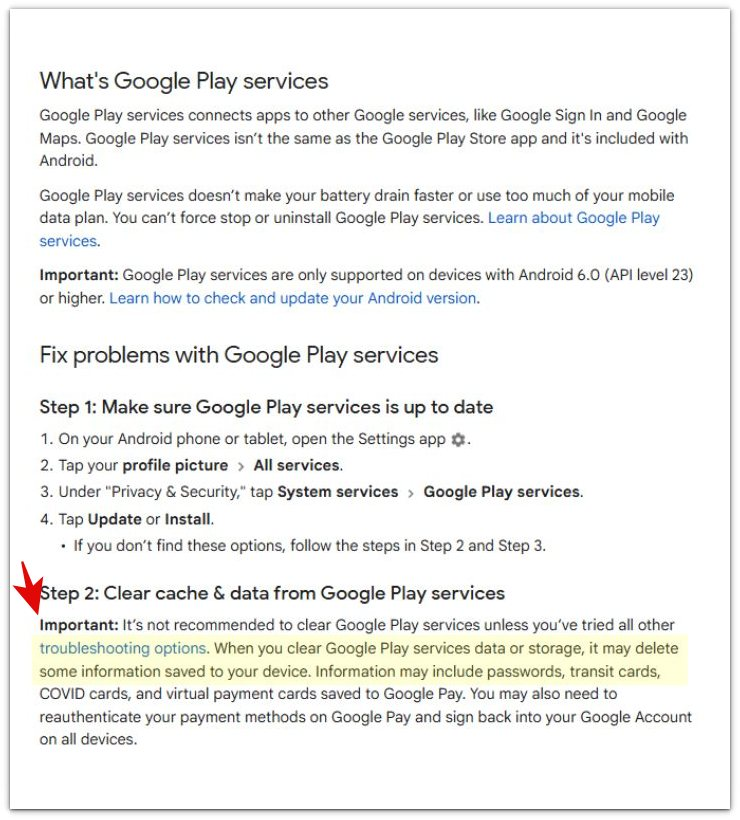
Google’s official Google Play Help page says that clearing its data or storage can delete some information saved to the device.
This supports checking the storage breakdown first and clearing cache carefully before touching deeper service data.
Additional Tips
Check the size again after normal use, not only right after clearing cache. The number can drop first, then rise again when apps reconnect in the background.
Messaging apps, maps, email, notifications, and account sync can create new temporary storage. Leave the cache alone for a while instead of clearing it every few minutes.
Check the total size later. A stable size usually means the phone rebuilt normal service cache, while a number that keeps climbing needs another check before you delete personal files.
Final Notes
When Google Play services storage keeps growing, start from the storage screen instead of the file manager. If photos, videos, downloads, and visible files did not grow, that screen gives the better answer.
This space is usually tied to cache or service data, not a normal file you can find and delete. A large Cache points to temporary storage, while a large Total with a small Cache points to service data used by Android and connected apps.
The safest order is to clear cache first, then compare the size again after normal use. Leave personal files alone when only Google Play services looks large.
Checklist
- Check how much space Google Play services is using now.
- Compare App, Data, Cache, and Total before clearing anything.
- Clear cache from the Google Play services storage screen if needed.
- Recheck the storage number after clearing cache.
- Leave photos, videos, downloads, and other personal files alone at first.
For more Android storage problems, see the main guide and check how this Google Play services issue fits with other storage patterns.