
Introduction
Android backup taking up storage usually becomes noticeable when the storage number rises after a backup or sync, even though you have not added new apps, photos, or videos. The extra space does not always appear as one clear file you can open and delete. It often shows up under System, app data, or another storage area after backup activity.
This is easy to misread as a normal cleanup problem. Random file deletion can hide the timing clue and make the storage change harder to understand. Start with the storage increase itself and line it up with the last backup, sync, restore, or phone transfer before removing anything else.
Step-by-Step Guide
Step 1: Check Whether Storage Increased After Backup Activity
Open Settings and go to Storage. Wait until the storage screen finishes loading, then look at the main storage categories and check which one became larger after a recent backup, sync, restore, or phone transfer.
Compare the timing with what happened before the storage number changed. Android backup taking up storage is easier to track when the increase appears after backup activity instead of after saving new photos, videos, or downloads. A matching timeline means personal files are not the first place to check, so move to the next step and see whether the number changes after reopening Storage.
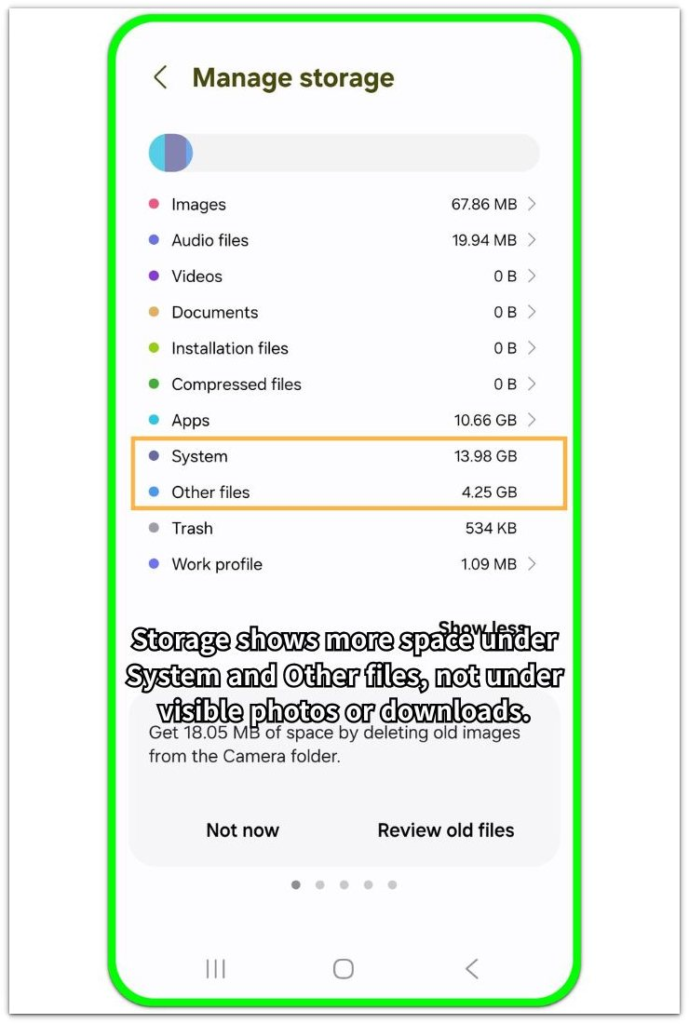
Step 2: Reopen Storage and Compare the Number Again
Close the Storage screen and wait a few minutes before opening it again. Check the value you saw in Step 1 and see whether it drops, stays the same, or keeps rising after the screen loads again.
A small drop can happen when Android is still clearing backup-related data. A value that stays high needs one more comparison before file cleanup starts. Keep this step on the Storage screen until you confirm whether Photos, Videos, Apps, or other categories actually changed.
Step 3: Check Whether Visible Files Explain the Increase
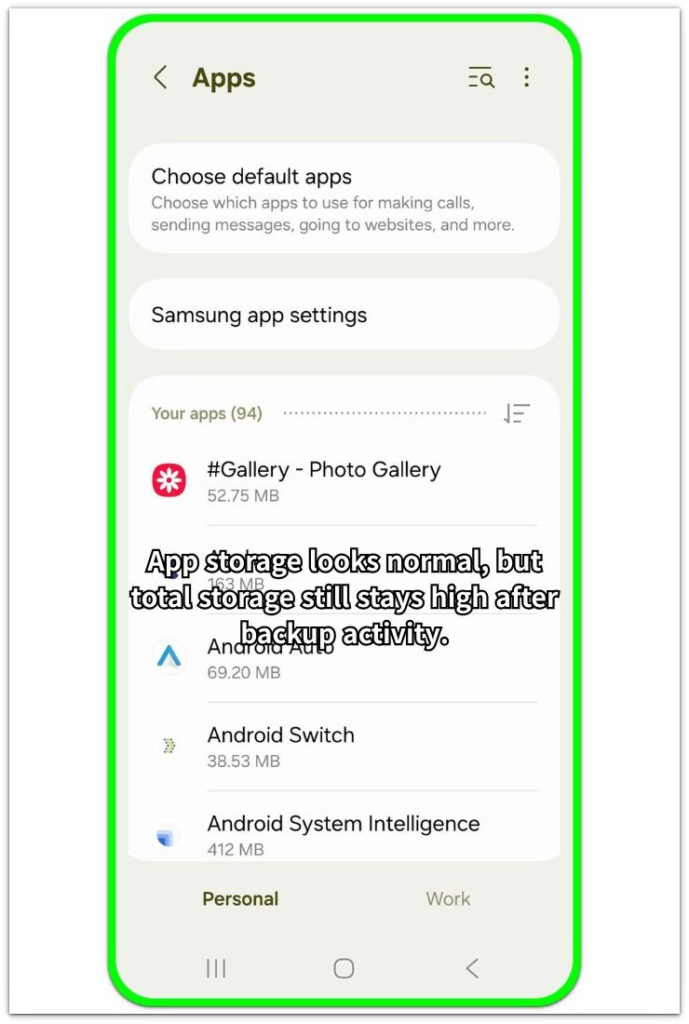
Open the app list, File Manager, Gallery, Downloads, and any backup or transfer app you used recently. Compare those visible files with the Storage screen and check whether photos, videos, downloads, or app files grew around the same time as the storage increase.
No visible file growth points away from normal user files. Backup data, app data, or system data can still raise the number without showing one clear file to delete. Keep the check tied to recent backup or sync activity instead of deleting random files.
Android Backup Taking Up Storage Troubleshooting
Troubleshooting 1: Storage Remains High After the Backup Looks Finished
A backup can look finished on the screen before Android finishes settling the related storage. The finished backup screen is only one clue, so leave the phone connected to power and Wi-Fi for a while. Open Storage again and check whether the number starts to drop.
A slow drop later means Android was still clearing or organizing backup-related data after the visible backup step ended. Give the phone more time before deleting photos, downloads, or cache. If the number does not drop after that waiting period, compare the increase with the backup, sync, restore, or transfer activity that happened right before it.
Troubleshooting 2: Storage Value Does Not Change After Refresh
A storage value that stays the same after refresh needs a different check. This is not about waiting for the backup screen to finish. Close Settings completely, reopen Storage, and wait for the storage bar to load again. Then check whether Android still shows the same higher value.
A fixed value means Android is still counting that space somewhere on the device. Check the backup app, transfer app, gallery sync, or restore process that matches the timing. Photo, video, or download cleanup only comes next when those areas also grew. A fixed value should keep the focus on the recent backup or transfer, not on files that stayed the same.
Troubleshooting 3: Storage Increase Appears Without Visible Files
Sometimes Storage goes up even though File Manager, Gallery, and Downloads do not show anything new. Check whether the increase happened after a backup, restore, sync, or phone transfer.
If visible files look the same, app data, system data, or local backup data may explain the higher number better than a normal file you can open. This is not a regular “delete large files” problem. Photos, videos, and downloads only matter when they grew at the same time as the storage increase.
Keep the check tied to backup timing instead of deleting random files.
Extra Section 1: When Storage Rose After a Cloud Backup Finished
A phone seemed normal right after a cloud backup finished. The backup screen no longer showed progress, and the user had not added new photos, videos, or apps. Still, the storage number went up.
File Manager did not show a large new file, and Gallery showed the same photos as before. The increase did not match anything the user had saved, so another round of file deletion was the wrong first move. The useful check was to return to Storage and see which category changed after the backup screen disappeared.
Only System and app data stood out. The finished backup screen mattered less than the storage change that came after it. This case was different from normal storage cleanup because the cloud backup looked complete on the screen, but Android still needed time to settle backup-related data on the device.
Extra Section 2: When a Transfer App Made the Backup Clue Easy to Miss
The second phone did not seem connected to a normal cloud backup. Its higher storage number appeared after a phone transfer app moved data during setup. The transfer screen had already finished, and the phone looked ready to use, but Storage still showed a higher number later without pointing to one clear file.
File Manager did not give the best starting point this time. A transfer app can move photos, app data, and account setup information during the same process, so the timing matched the transfer session more closely than regular file use. The next check stayed with the app that handled the move, because comparing the higher number with that transfer session made more sense than deleting random photos, downloads, or cache.
The setup looked complete, but the clue came from the earlier transfer session. This case was easy to miss because the storage change appeared after the move, not while the transfer app was still on the screen.
Official Source: Google Explains Where Android Backup Data Goes
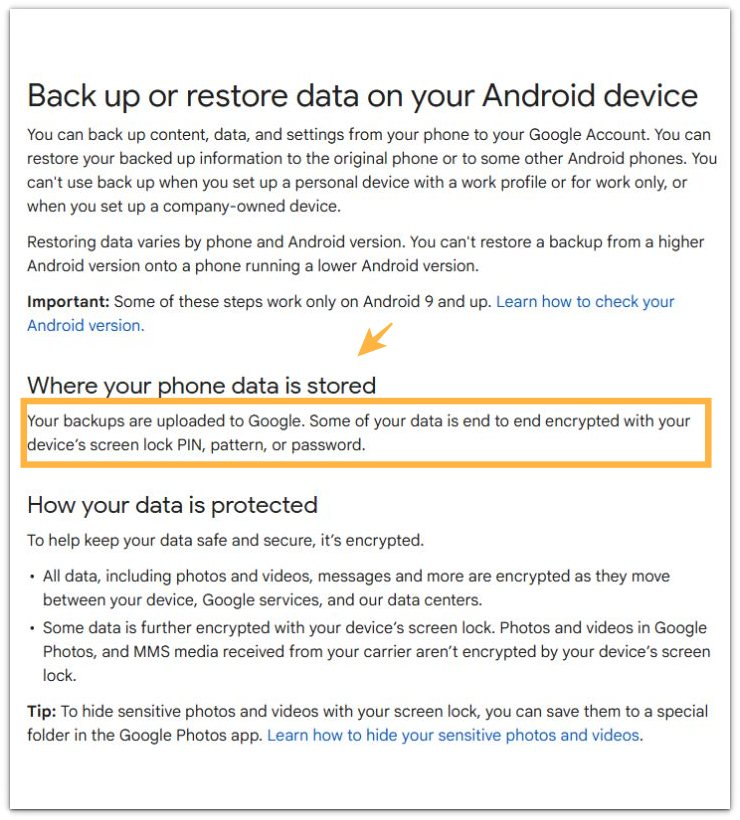
Google explains that Android backups can include phone content, app data, and settings, and that those backups are saved to Google.
Before deleting visible files, keep reading and check whether the storage increase follows backup or sync activity first.
Additional Tips
Repeat backup or restore attempts only after Android has time to finish the first backup process. Starting another attempt too quickly makes the storage number harder to read.
Keep the phone connected to power and Wi-Fi when a backup recently ran. A weak connection or low battery can slow the process and make the storage number harder to judge.
Cleanup apps should wait while the backup-related number is still unclear. They can remove cache or temporary files without showing whether the backup activity caused the storage increase.
Final Notes
Timing matters more than random file deletion when Android backup taking up storage appears after a backup or sync.
If storage rises right after a backup, restore, sync, or phone transfer, first compare the Storage screen with the timing of that activity. File Manager may not show one clear file because the change can come from backup-related data instead of a normal download.
Repeated photo, download, or cache cleanup only makes the timing harder to read when the number stays high. Reopen Storage later and check whether the same category changes after the backup process has time to finish.
When the higher value still matches recent backup activity more closely than normal file use, pause manual cleanup and check Storage again later.
Checklist
- Check whether storage increased after recent backup activity
- Reopen the Storage screen and confirm whether the value changes
- Leave visible files alone until you verify whether storage decreases over time
- Keep the device connected to power and Wi-Fi during backup processing
- Avoid repeating backups several times in a short period
When backup activity does not fully explain the storage increase, use the main Android storage guide to compare other storage problems.