
Introduction
Android battery draining fast needs a different check depending on when the power starts dropping. It starts during gaming, calls, video calls, navigation, charging, mobile data, or Wi-Fi. It also starts with Bluetooth, hotspot use, Android Auto, or after a restart.
Start with when the drain begins. A phone that loses power during a game needs a different check from a phone that drops after charging, while driving, or while staying connected to 5G. Match the problem to the moment it shows up, then choose the section that matches what was actually happening on the phone.
Step-by-Step Guide: Android Battery Draining Fast
Step 1: Check When the Phone Is Actively Being Used
Start with the time when the phone was doing a clear task. Gaming, calls, video calls, and navigation use power in different ways. Keep the first check tied to what was active at that moment.
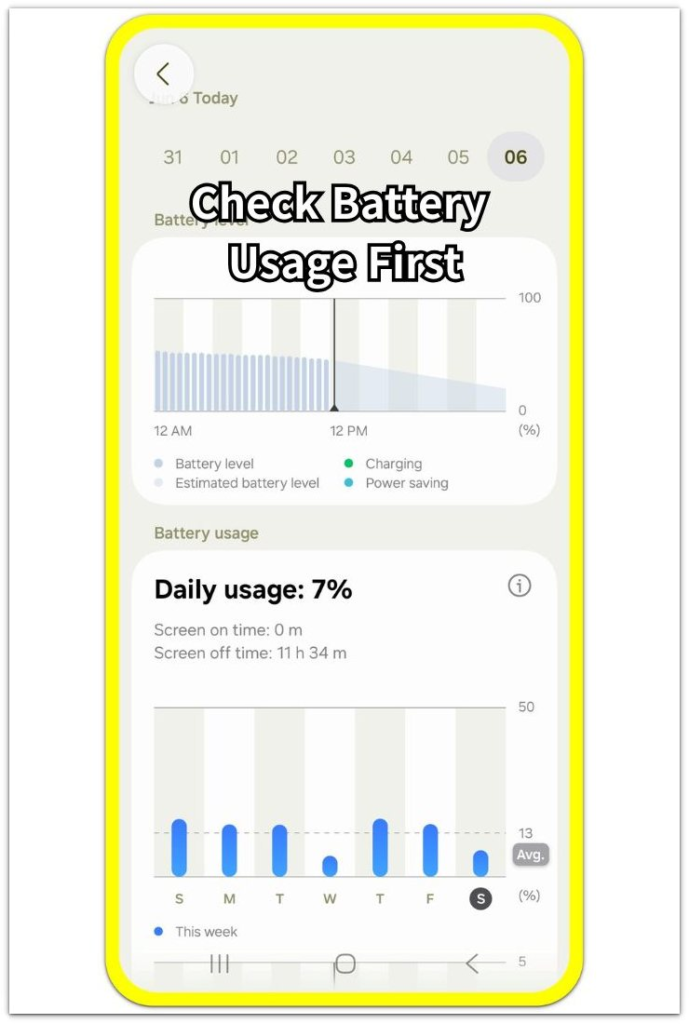
After the task ends, open Settings, then Battery. Check whether the loss sits near the app or activity that stayed active the longest. Read it together with screen time, heat, and signal condition.
A fast drop during active use belongs in this group before you look at charging, standby, network, app, or car-connection problems.
Active Use Battery Drain
While Gaming
A game session stands out when the phone gets warm or the screen stays on for a long time.
During Calls
Voice calls matter more when they last longer or happen in a weak signal area.
During Video Calls
Camera, screen, speaker, and network use stay active together during the session.
While Using Navigation
Maps, route guidance, driving, walking directions, or GPS use matches the faster loss.
Step 2: Check Network and Connection Use
Look at the times when the phone was using a clear connection type, not only the app list. Wi-Fi, mobile data, 5G, and hotspot use each affect power use in a different way, especially when the signal changes often or another device uses the phone’s connection.
Use the Battery screen after the connection-heavy period, then match the loss to the active connection. The place, signal strength, and hotspot use carry more weight here than the app name alone.
This points to Wi-Fi, mobile data, 5G, or hotspot use when the connection explains the loss better than one app alone.
Network and Connection Battery Drain
Wi-Fi
The issue appears while the phone stays on Wi-Fi or keeps reconnecting.
Mobile Data
Longer mobile-data use matches the faster drain away from Wi-Fi.
5G
The phone runs lower during longer 5G use or unstable 5G coverage.
Hotspot
Hotspot sharing stays active while another device uses the phone’s connection.
Step 3: Check Charging and Phone State
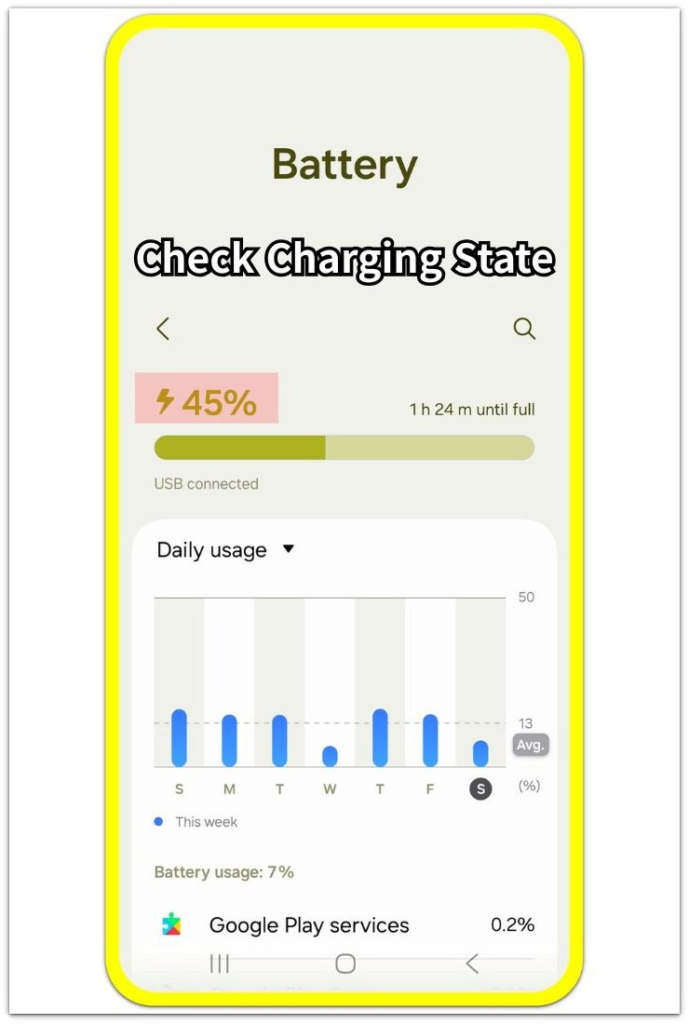
Check the times when the battery problem starts around charging, restart, or a changed phone state. A drop after a full charge, while charging, in Airplane Mode, or after a restart does not point to the same cause.
Look backward at the phone state before reading the battery result. A recent full charge, plugged-in use, restart, or Airplane Mode test gives this check a different starting point from normal app use.
Charging or phone state should come first when the timing matches the loss before any one app stands out.
Charging and Phone State Battery Drain
After Full Charge
A full charge looks fine at 100%, but the next unplugged period starts losing power sooner than expected.
While Charging
Warmth, slow charging, or power use during charging makes the plugged-in period hard to read.
In Airplane Mode
Wireless connections are off, yet the percentage keeps falling during the test.
After Restart
A restart brings apps and services back up, and the next drop appears during that settling period.
Step 4: Check Apps, Settings, and Car Connections
Check when the drain starts after one app, one changed setting, or a car connection becomes noticeable. A sudden app spike, a recent setting change, repeated app closing, Bluetooth use, and Android Auto do not need the same check.
Open Settings, then Battery and compare the loss with what changed before it. Look at whether one app moved higher, you turned on a setting, you kept closing apps, Bluetooth stayed connected, or Android Auto was active during the drive.
A specific app, setting, accessory, or car connection matters more when it stays close to the battery change instead of general phone use.
Apps, Settings, and Car Connection Battery Drain
One App Suddenly Draining
One app moves higher in Battery after a normal-looking session or a recent app change.
After Changing Settings
A recent setting change lines up with faster battery use after the phone starts behaving differently.
After Closing Apps
Closed apps keep returning in Battery, or the problem continues after repeated app closing.
Bluetooth
A connected accessory, paired device, or active Bluetooth use stays close to the battery change.
Android Auto
A drive, car screen connection, navigation, music, calls, or wireless Android Auto matches the faster loss.
Troubleshooting
Troubleshooting 1: The Battery Drop Fits More Than One Section
A battery drop fits more than one section when several things happen at the same time. A drive with navigation, 5G, Bluetooth, music, and Android Auto has too many active parts for one quick judgment.
Start with the activity that was easiest to see. Check whether the drop began during the visible task, the network-heavy period, the car connection, or the time after the phone state changed. Use the section that matches the first clear moment before checking the others.
Troubleshooting 2: Android Battery Draining Fast Does Not Show One Clear App
The Battery screen does not always show one obvious app at the top. The list looks normal when the drain comes from signal changes, charging behavior, hotspot sharing, Bluetooth, Android Auto, or the phone settling after a restart.
Use what was happening around the drop instead of forcing the app list to explain everything. Check what the phone was doing before the drain started, then move to the matching section.
Troubleshooting 3: The Problem Changes From One Day to Another
The battery problem looks different on another day when the phone use changes. One day the drop happens during gaming, another day it shows up during mobile data, and another time it appears after charging or driving.
Separate those days before treating them as one problem. Find the clearest moment from each day, then compare only the days with the same type of use. A repeated drop during the same type of use gives a cleaner starting point than treating every battery drop as one problem.
Official Source: Google Pixel Battery Usage
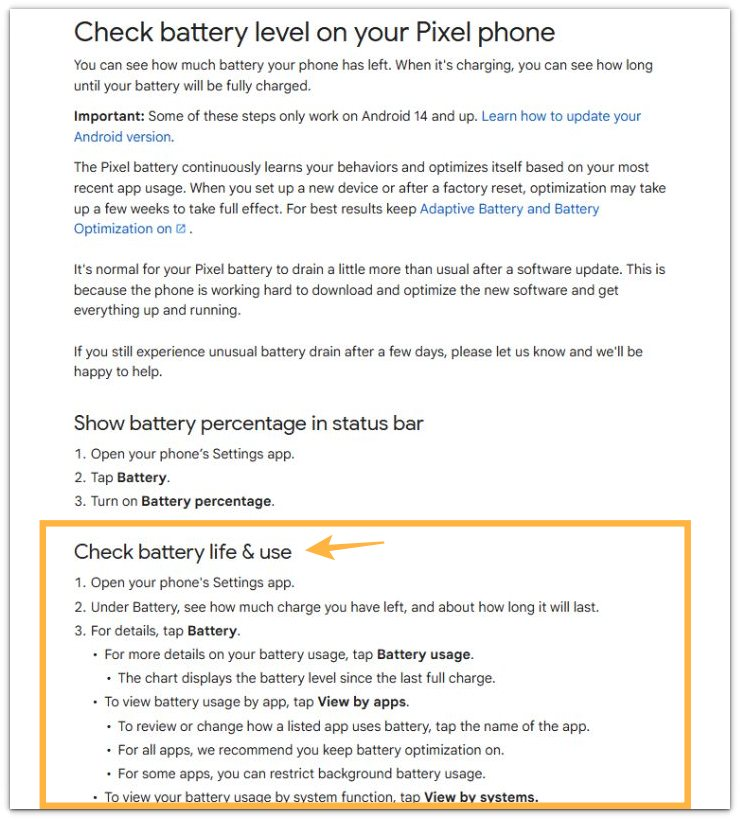
Google’s Pixel Help page shows that Battery usage includes app usage and battery settings for listed apps. Use this screen first, but match the drain with the situation where it started instead of treating the app list as the full answer.
Additional Tips
A short check gives a weak result. Use a clear stretch of phone use before choosing a section, because a few minutes of drain often leads to the wrong section.
Heat changes the reading. When the phone is warm from charging, gaming, video calls, or navigation, let it cool before using that result to choose a section.
A recent Android update needs its own reading. The first day after an update often includes setup, app refresh, and system activity, so the next normal day gives a cleaner section choice.
Final Notes
Android battery draining fast is easier to fix when the first check starts from the moment the drain begins. A drop during gaming, calls, 5G, charging, Bluetooth, Android Auto, or standby needs its own check.
Use Battery to confirm what was happening around that first fast drop. Active use, network use, charging state, app behavior, and car connection problems do not need the same next step, so move to the matching guide instead of changing settings that do not match the problem.
Checklist
- Check when the battery drain begins.
- Match the drop to active use, network use, charging state, app behavior, or car connection.
- Use Battery to compare the app list with the time the battery fell faster.
- Separate short checks, heat, and recent Android updates before choosing a section.
Android Battery Problems
For slow charging, overheating, system battery drain, battery health, and other Android battery issues, use the wider Android battery problems guide.