
Introduction
Android battery drain after restart becomes noticeable when the battery starts falling again soon after the phone turns back on. You restart the phone, wait for the reboot to finish, and check the battery again during the first normal use period.
The percentage is already lower than expected, even before you change battery settings or app limits. Start with the period right after restart and check whether the drop appears during early use or while the phone sits unused.
Step-by-Step Guide: Android Battery Drain After Restart
Step 1: Check the First Battery Drop After Restart
Restart the phone the way you normally do, then leave the battery settings, app limits, Wi-Fi, mobile data, and Battery Saver unchanged. This check needs the phone in its normal state so another setting does not change the result too early.
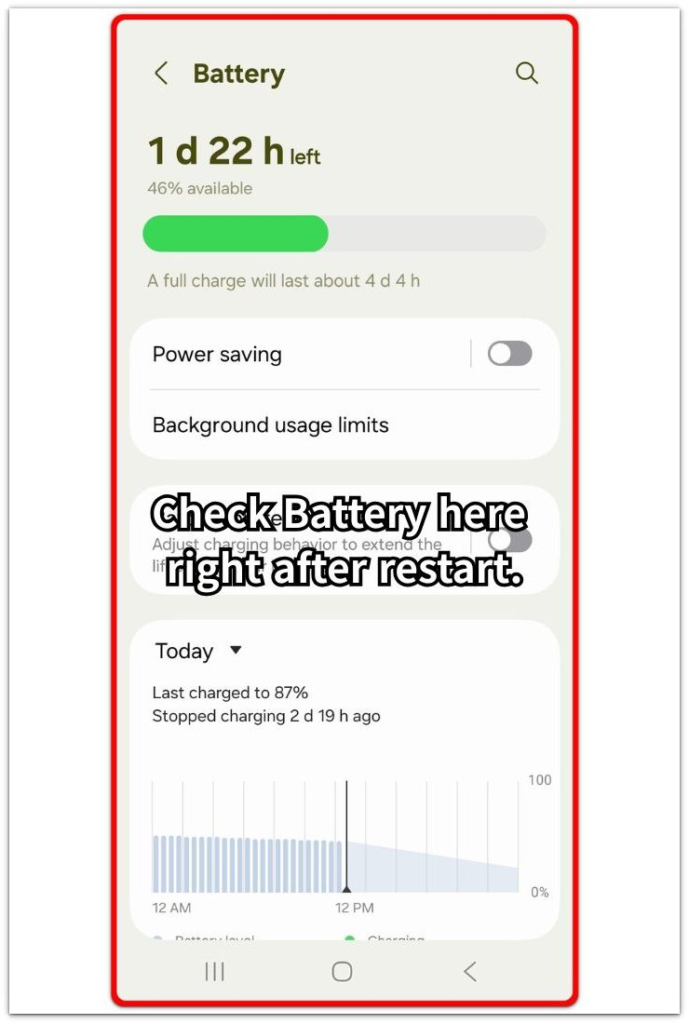
After the phone turns back on, use it lightly or leave it unused for a short period. Open Battery afterward and check whether the percentage dropped during that first period after restart. Compare the drop with screen time and recent activity before moving to the next step.
Step 2: Check What Returns During Early Use
Use the phone through one normal early routine after restart. Unlock it, open the apps you usually check first, and let the phone reconnect the way it normally does.
Open Battery again and look at the apps or activity listed near that first period. The result matters more when the drop follows the early routine instead of showing up much later in the day. Keep the check focused on that early-use period before changing wider settings.
Step 3: Compare Early Use With an Unused Period
Run one more check, but keep the phone unused for a short period after it turns back on. This separates a drop that starts right away from a drop that begins only after apps, connections, or regular use return.
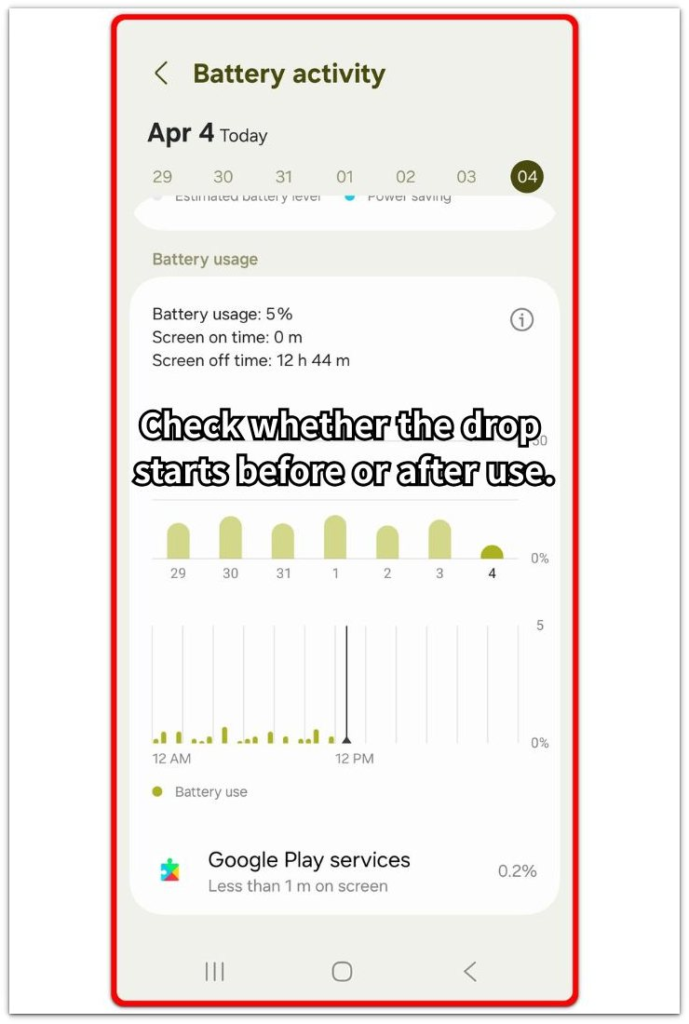
Open Battery and compare the result with the earlier check. When the drop appears during both periods, the reboot period is the stronger clue. When the drop appears mainly after normal use begins, focus on the app, connection, or activity listed near that time.
Troubleshooting
Troubleshooting 1: Apps Reopen Too Quickly After Restart
Several apps reopening at once makes the early battery reading look worse. This often happens after you unlock the phone and quickly open messages, mail, browser tabs, shopping apps, or social apps before the phone has settled into normal use.
Open Battery after that early change and see which apps appear near the first period. Look for the app that shows activity closest to the battery loss, especially when it also refreshed, synced, or reloaded content right after you opened it. Limit that app first, then run the restart check again before changing wider battery settings.
Troubleshooting 2: Connections Return Before the Result Looks Clear
After the phone turns back on, Wi-Fi, mobile data, Bluetooth, and nearby devices reconnect. The result becomes harder to read when this happens in a weak signal area, near an unstable router, or beside earbuds, watches, cars, or speakers that keep pairing again.
Run the next test in a steadier connection area and keep Wi-Fi, mobile data, and Bluetooth in the same state during the test. Compare the early Battery result with the earlier period, then focus on the connection that changed closest to the battery loss.
Troubleshooting 3: Background Tasks Keep Running Later
The first battery change does not always end the test. Account sync, app updates, backups, or media scans can keep running after the first reading is already over, especially when the phone reconnects and starts catching up on pending tasks.
Open Battery again later and compare the later activity with the first period. Focus on the service or app that stays active, then pause that task or limit that app before running another restart test.
Extra Section 1: The Drop Starts Before Opening Any App
The phone turns back on, stays on the home screen, and sits unused for a short period. By the next Battery check, the percentage is already lower even though you have not opened messages, mail, browser tabs, shopping apps, or social apps.
That quiet time becomes the main comparison point. Open Battery and compare the drop with screen time, recent activity, and the time when the phone turned back on. This separates the quiet reboot period from the normal app-opening routine.
Repeat the test once and leave the phone unused again. A repeated drop during that quiet period points to the early reboot window, so keep the next change narrow instead of changing several app limits or connection settings at once.
Extra Section 2: The Drop Begins After the Usual Apps Return
The restart period looks steady at first. The phone turns back on, stays unused for a short time, and the battery does not move much until the usual apps come back into use.
After you unlock the phone, the normal app routine gives the next comparison point. Messages reload, mail refreshes, browser tabs return, or a shopping app updates its home screen. Open Battery after that routine and look for the app activity closest to the drop.
The restart itself is less likely when the quiet period stays steady but the drop begins after regular use returns. Limit the app that matches that time, then run the next restart check with the same early routine before changing wider battery settings.
Official Source: Google Battery Usage Check
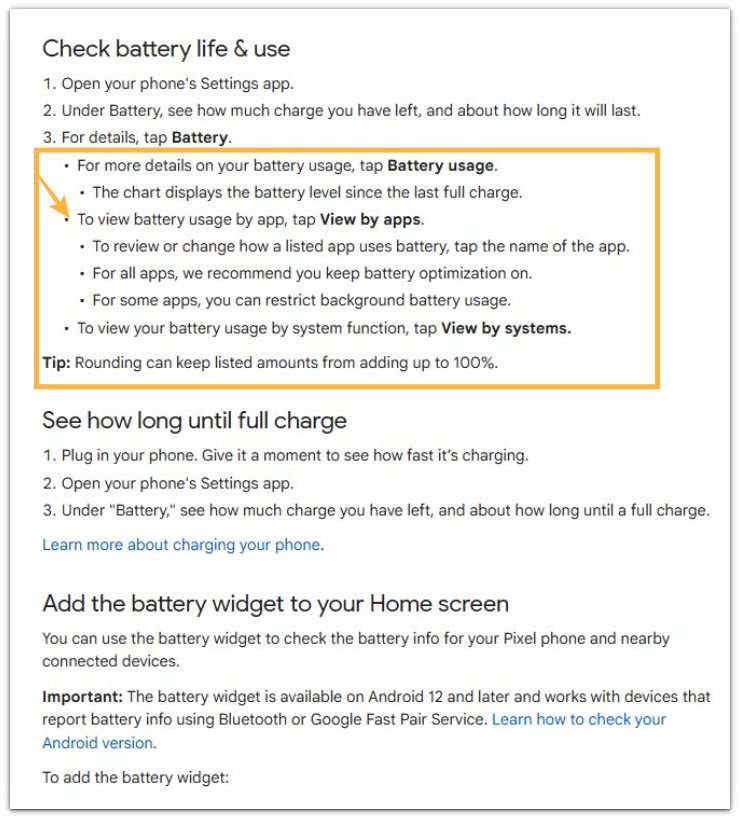
Google says Android settings show battery usage details by app. It also says Android lets users restrict background battery usage for some apps. This supports checking the apps listed near the restart-related drop before changing wider battery settings.
Additional Tips
A restart after a system update needs a separate check. Give the phone more time to settle before treating the early battery drop as a repeated restart problem.
Charging shortly before restart changes the reading. Check again after the battery level has stayed steady for a while.
A warm phone also affects the result. Let it cool down first when the restart happened after gaming, navigation, video calls, or charging.
Final Notes
Android battery drain after restart matters when the battery falls again during the same early period. One restart alone is too weak, but the case becomes stronger when the change appears again before the phone reaches normal use.
The key is the timing. A drop before any app opens points toward the early reboot window. A drop after the usual apps return points toward the first normal app routine. Start with the strongest match in Battery, change only that part, and check the result again before making wider battery changes.
Checklist
- Check the first battery change after restart.
- Compare the drop with screen time and recent activity.
- Repeat the test with the phone unused.
- Limit only the app or setting that matches the timing.
- Check the result again before making wider battery changes.
For a wider check, use the main android battery fast drain guide before changing more battery settings.